PS288_PS388_PS588_981-0424-002D - 第202页
Maintenance ■ Troubleshoot ing 4—62 Data I/O • 981-0424 -002 back Optionally , you can pass a second parameter [ myfile.zip ] as shown below which determines the zip file name. CAUTION: These command-line commands overwr…
■ Troubleshooting ◘ Collect all PS System Logs
PS Series Owner’s Manual 4—61
back
2. (Optional) Check additional SPC files if the error rarely
appears or appeared a long time ago.
3. (Optional) To enter a text description to the Zip file:
3a. Click Add description.
3b. Type a description into the field available. In addition to what
you type, the description will include the Date and Time the log
was captured and the serial number information from the
winah400.ini file.
4. Click Collect and ZIP.
A ZIP file is created in the same folder as the Collect PS Logs execut-
able. The ZIP file remains there even after exiting the Collect PS Logs
application. It is also copied to the Windows Clipboard.
5. Click OK to the message about pasting the ZIP file to another
desired folder.
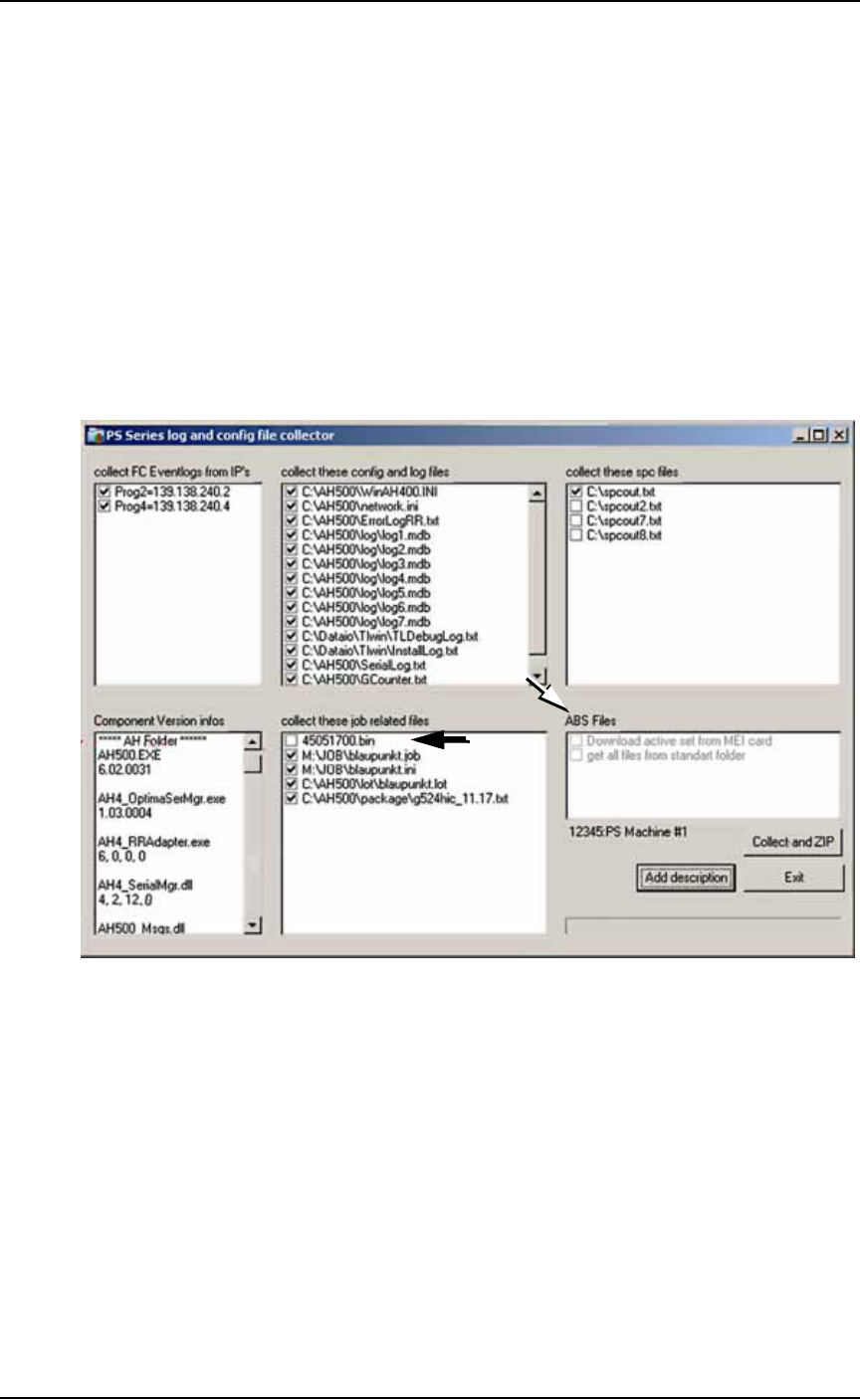
Figure 4-57: . The ABS files (white arrow) are collected only when the
AH500 is not active. This ABS file field is disabled (dimmed as shown)
when an active handler is detected. By default, the data file (black
arrow) is not checked and therefore, will not be collected into the ZIP
file.
Command Line Support
When the command line parameter [
auto
] is passed to the applica-
tion, no Log Collector Window is displayed and all defaults are used.
A file with date/time stamp is being created. The naming format is
LogFiles__DD_MM_YYYY__HH_MM_SS.zip
for example:
LogFiles__13_09_2010__16_20_07.zip
.
Maintenance ■ Troubleshooting
4—62 Data I/O • 981-0424-002
back
Optionally, you can pass a second parameter [
myfile.zip
] as
shown below which determines the zip file name.
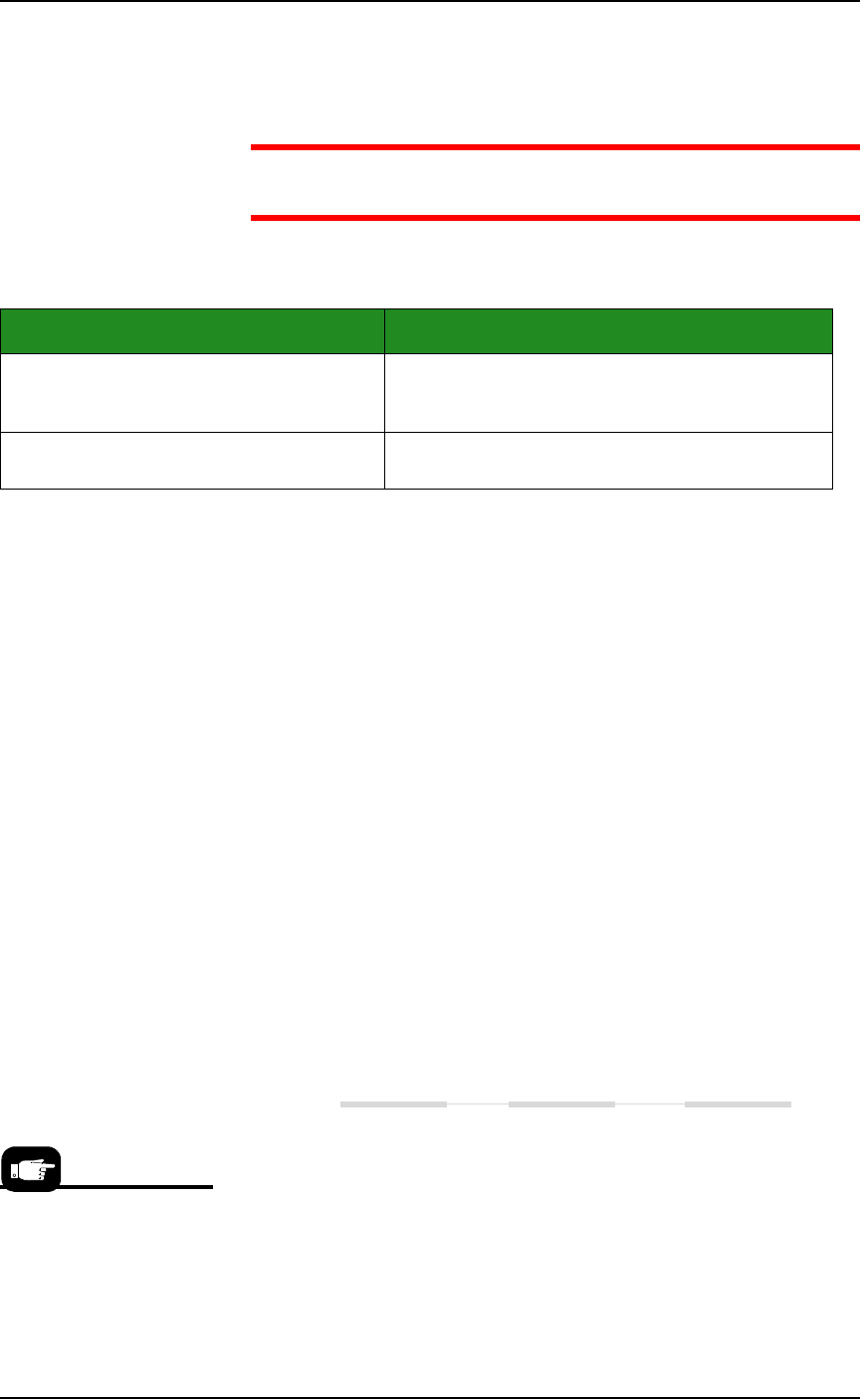
CAUTION: These command-line commands overwrite existing
files without warning.
Examples:
Programmer Errors
Programmer errors discussed:
• A Programmer is being skipped
• Devices failure to program
• Disabling a Programmer
Clearing a Programmer Disabled Status
The status indicator disappears from a programmer outline on
the Run window, or
The PNP head skips a programmer.
Check the programmer status as follows:
1. Preparation—
1a. At the Run window, click Pause.
1b. Note which programmers are disabled, if any. Right-click the
programmer and select an command from the drop-down
menu.
For more information on changing programmer or socket status,
see Changing Programmer Status on page 3-25.
Devices Fail to Program
One programmer has many continuity failures (in Statistics
Window).
Move the Socket Adapter to another programmer to see if the
problem is the programmer or the adapter, as follows:
Code Description
Collect_logs auto [myfile.zip]
The application runs automatically and creates a
myfile.zip output file where myfile.zip is the name you
typed in the command line.
Collect_logs auto
The application runs automatically creating a
date/time stamped output file.
For information regarding
calibration of the PNP
head, see Teaching the
Package File on page
3-40.
■ Troubleshooting ◘ Programmer Errors
PS Series Owner’s Manual 4—63
back
1. If a job is running click Pause and wait until all programmer
activity is done.
2. Check that there are no devices in the target adapter. If there are,
click Finish.
3. Replace the target Socket Adapter with another empty adapter.
If the failure moves with the Socket Adapter, check for bent,
damaged or worn pins on the sockets.
If continuity failures persists in the same programmer, recali-
brate the device locations for this socket adapter by reteaching
the Package File. See Teaching the Package File on page 3-40.
4. If an Optima (Universal) programmer is not responding, switch
off machine power and check the fuse—contact Data I/O sup-
port for location.
Note: If a programmer is not performing and you cannot correct
the error, you can continue to use other programmer sites after dis-
abling the non-functional programmer. See Disabling a Program-
mer below.
Many Programmers have continuity failures
The vision system may need calibration. See Calibrating The
Vision System on page 4-50.
All programmers fail to program devices.
Check that the Programmer Simulation switch on the Setup win-
dow is OFF. If not, switch it to OFF.
Check that the Programmers circuit switch on the Power Panel is
On.
Check the Log file as follows:
1. Pause the job.
2. Exit the Run window.
3. At the Setup Window click System > Log File.
Disabling a Programmer
If a programmer is not functioning correctly and you cannot correct
the error, disable the non-functional programmer and continue to use
other programmer sites.
To disable a programmer:
1. At the Setup Window, click System > Programmers.
2. Click the image of a socket on the target programmer.