PS288_PS388_PS588_981-0424-002D - 第215页
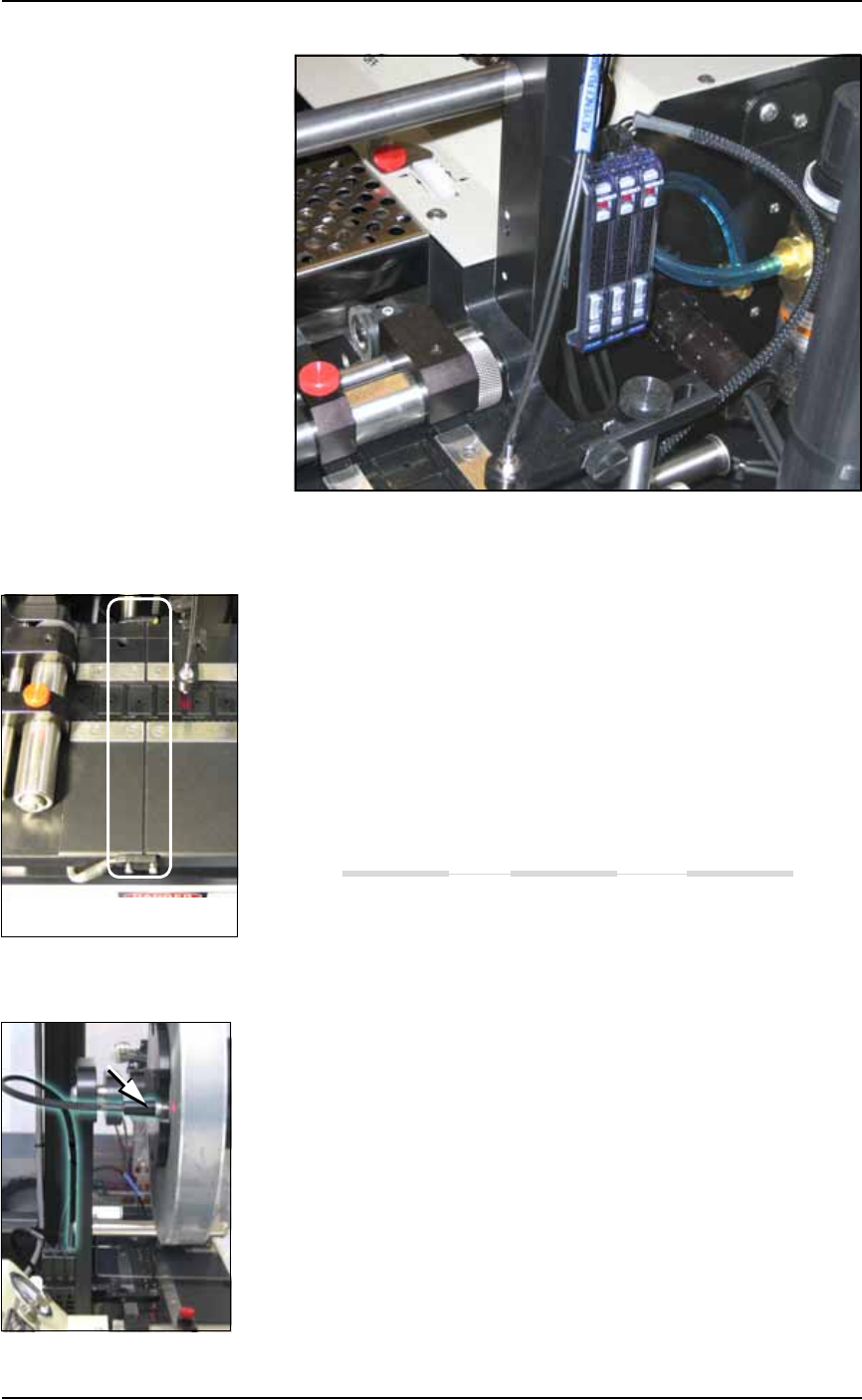
■ Tape Output System ◘ Troubleshooting the Tape Output System PS Series Owner’s Manual 4—75 back Figure 4-63: Optical Fiber Amplif iers: (left to right) Cov er T ape Present, Empty Pock et, and Devi ce T ape Present. T r…

Maintenance ■ Tape Output System
4—74 Data I/O • 981-0424-002
back
7a. Gently remove the two O-rings from the drive sprocket idler.
7b. Using a shop cloth and alcohol or a commercial alcohol wipe,
remove all adhesive from O-rings.
7c. Wipe the idler clean.
7d. Reinstall the dry O-rings onto the idler.
Adjusting Pressure of the PSA Seal
Rollers
1. Advance the device tape with the cover tape through the Seal
Rollers using the manual advance pedal. Advance enough pock-
ets to correctly align the cover tape on the carrier tape.
2. Perform a peel back test by peeling the cover tape from the carrier
tape. Notice how well the cover tape adheres to the device tape.
Perform a twist test by giving the tape a slight twist. Notice if the
cover tape detaches from the device tape.
If either test produces loose cover tape, increase the application
roller pressure by screwing the PSA Seal pressure adjustment
screw in (clockwise).
If both tests look acceptable, visually inspect the sealed device
tape for adhesive that may have been squeezed out during
application. If adhesive is visible, the Seal Roller pressure is too
high. Decrease the application roller pressure by screwing the
PSA Seal pressure adjustment screw out and retest.
Troubleshooting the Tape Output
System
The Tape Output System contains sensors that detect these fault con-
ditions:
• a device is on top the device tape (carrier tape)—Track Jam Sen-
sor
• no cover tape is on the reel—Cover Tape Sensor
• device tape is not properly inserted in the device tape
track—Device Tape Present Sensor
• a pocket in the carrier tape is empty—Pocket Empty Sensor
When the AH500 software displays the error message Tape Out Unit,
one of the tape output system sensors has been triggered. The most
likely sensors to trigger are the Device Jam and Device Tape sensors.
See Figure 4-63.
■ Tape Output System ◘ Troubleshooting the Tape Output System
PS Series Owner’s Manual 4—75
back
Figure 4-63: Optical Fiber Amplifiers: (left to right) Cover Tape Present,
Empty Pocket, and Device Tape Present.
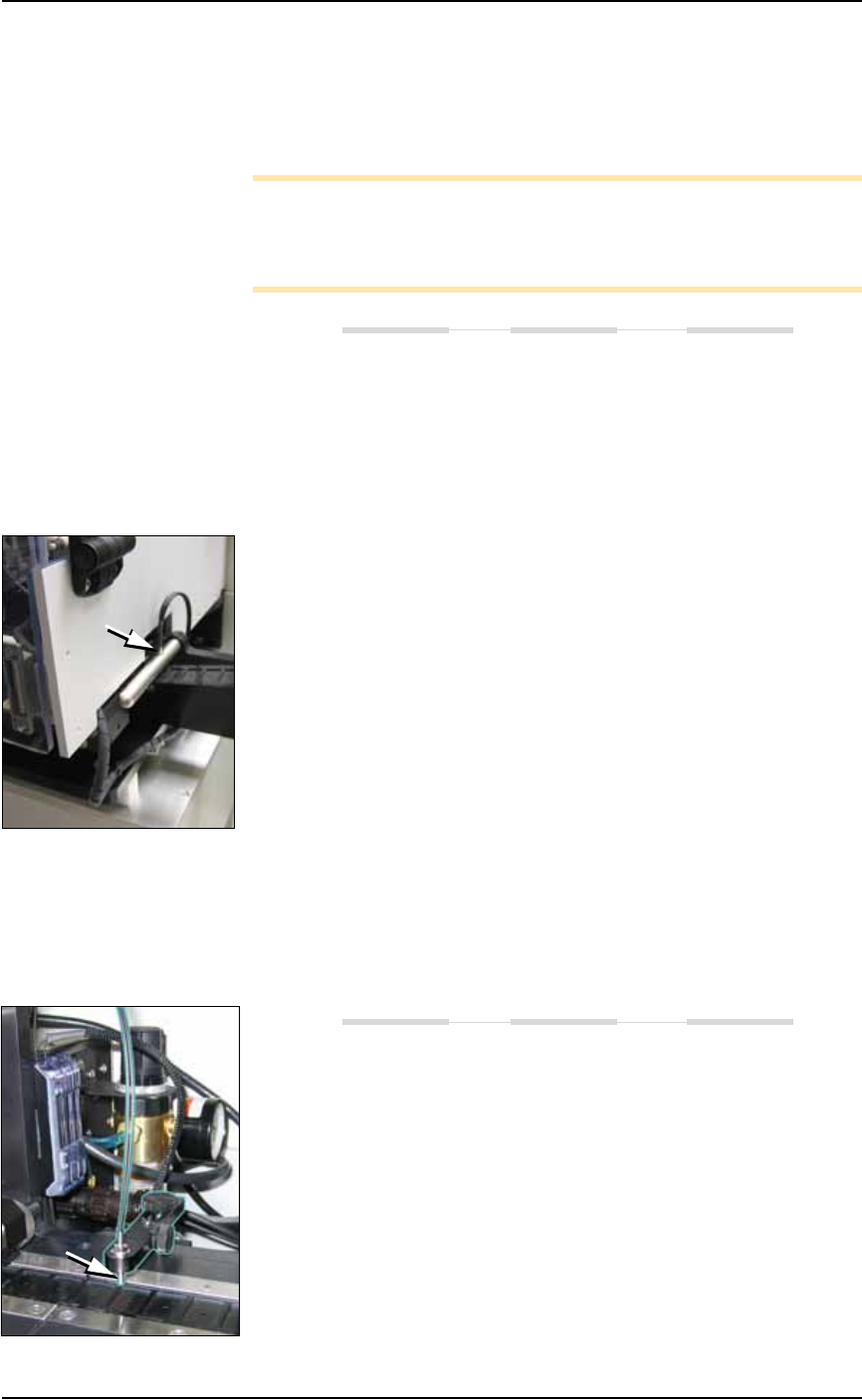
Track Jam Sensor and Controller
The Track Jam sensor detects when a device is not properly seated in
the pocket. This sensor is located on the Adjustable Loading Track
immediately before the carrier tape enters the cover taping area.
Tape Out Unit error message displays and a red LED lights in the
Device Jam Sensor.
Use a vacuum tool to seat the device in the device tape pocket.
Re-seat the device tape in the Adjustable Loading Track.
Use air to blow any debris out of the Device Jam sensor path.
Adjust the Device Jam Sensor Controller. See below.
Cover Tape Sensor and Amplifier
The Cover Tape sensor detects when there is no cover tape on the
reel. When the Cover Tape sensor is triggered, a red LED is illumi-
nated in the Cover Tape Sensor Controller.
Error message Tape Out Unit displays and a red LED is illumi-
nated in the Cover Tape Sensor amplifier (left amplifier).
Replace the empty cover tape reel with a full one.
If the reel still contains cover tape, adjust the Cover Tape Sensor
Controller. See below.
Adjusting the Cover Tape Sensor Controller
1. Ensure that the Output Selector mode is set to D.ON by pressing
the Mode button. (There may be an L/D ON button or toggle to
change the mode.)
The Track Jam sensor
Maintenance ■ Tape Output System
4—76 Data I/O • 981-0424-002
back
2. Install a roll of cover tape onto the spindle.
3. Press and release the SET button in the left amplifier.
4. Remove the cover tape.
5. Press and release the SET button again.
Note: If an error occurs or the sensor fails to detect the cover tape
after switching from a different type of cover tape, then the Cover
Tape sensor may need to be re-taught to sense that particular type of
cover tape.
Device Tape Present Sensor and Amplifier
The Device Tape Present sensor detects when carrier tape is not
inserted in the track guide. When the Device Tape Present sensor is
triggered, a red LED is illuminated on the Device Tape Sensor ampli-
fier.
A Tape Out Unit error message displays and the red LED on the
Device Tape Sensor amplifier lights (right amplifier).
Replace the device tape reel if it is empty.
Adjust the Device Tape Sensor amplifier if the reel still contains
carrier tape. See below.
Adjusting the Device Tape Sensor Amplifier
1. Ensure that the Output Selector mode on the farthest amplifier is
set to D.ON by pressing the Mode button. (There may be an
L/D ON button or toggle to change the mode.)
2. Set the track width for the target device tape as follows:
2a. pull or push the side nearest the operator to correct width,
2b. Tighten lock knobs.
3. Load a roll of device tape onto the spindle and into the track.
Take up slack in the tape.
4. Press and release the SET button in the right amplifier.
5. Move the cover tape away from the sensor.
6. Press and release the SET button again.
Pocket Empty Sensor and Amplifier
The Pocket Empty sensor alerts the operator when a pocket is empty
as the device tape approaches the cover taping location. This is the
middle sensor in Figure 4-63 on page 4–75.
A Tape Out Unit error message displays and a red LED is illumi-
nated on the Pocket Empty Sensor amplifier.
Adjust the Pocket Empty Sensor as follows: