PS288_PS388_PS588_981-0424-002D - 第32页
Introduct ion ■ Software 1—20 Data I/O • 981-0424-002 back Figure 1-10: T askLink’s main window displa ys the select ed programming system for which it cre ates jobs. T askLink online Help is av ailable by click ing Help…
■ Software ◘ Customer-Supplied Software
PS Series Owner’s Manual 1—19
back
Software
Software resides in the Handler Computer. The primary logon for the
Handler Computer is Microsoft Client. The current operating system
(at time of this publication) is Windows XP.
CAUTION: Possible machine damage. Adding software to the
PS System can cause damage and/or cause the system to operate
improperly. Adding software without specific instruction from
Data I/O Customer Support will void the warranty and may incur
service charges.
CAUTION: Possible machine damage. Microsoft Windows system
parameters and network parameters should not be changed
unless instructed to do so by Data I/O Customer Support. Chang-
ing parameters can cause failure and/or damage to systems or
cause improper programming.
Customer-Supplied Software
The PS System should never have other software added without con-
sulting with Data I/O Customer Support.
Antivirus Software
Customer-supplied antivirus software can be installed on the Han-
dler Computer.
CAUTION: Check with Data I/O Customer Support to ensure that
your software is compatible with the PS System, otherwise the
warranty may be voided. Ensure that the antivirus software does
not scan during a job run.
Statistical Process Control Software
Customer-supplied Statistical Process Control software can be
installed on the Handler Computer. See Statistical Process Control Soft-
ware on page 3-55 for more information.
TaskLink
TaskLink
™
for Windows
®
is Data I/O’s versatile application for cre-
ating jobs to run on the PS System. TaskLink resides on the Handler
Computer.
Introduction ■ Software
1—20 Data I/O • 981-0424-002
back
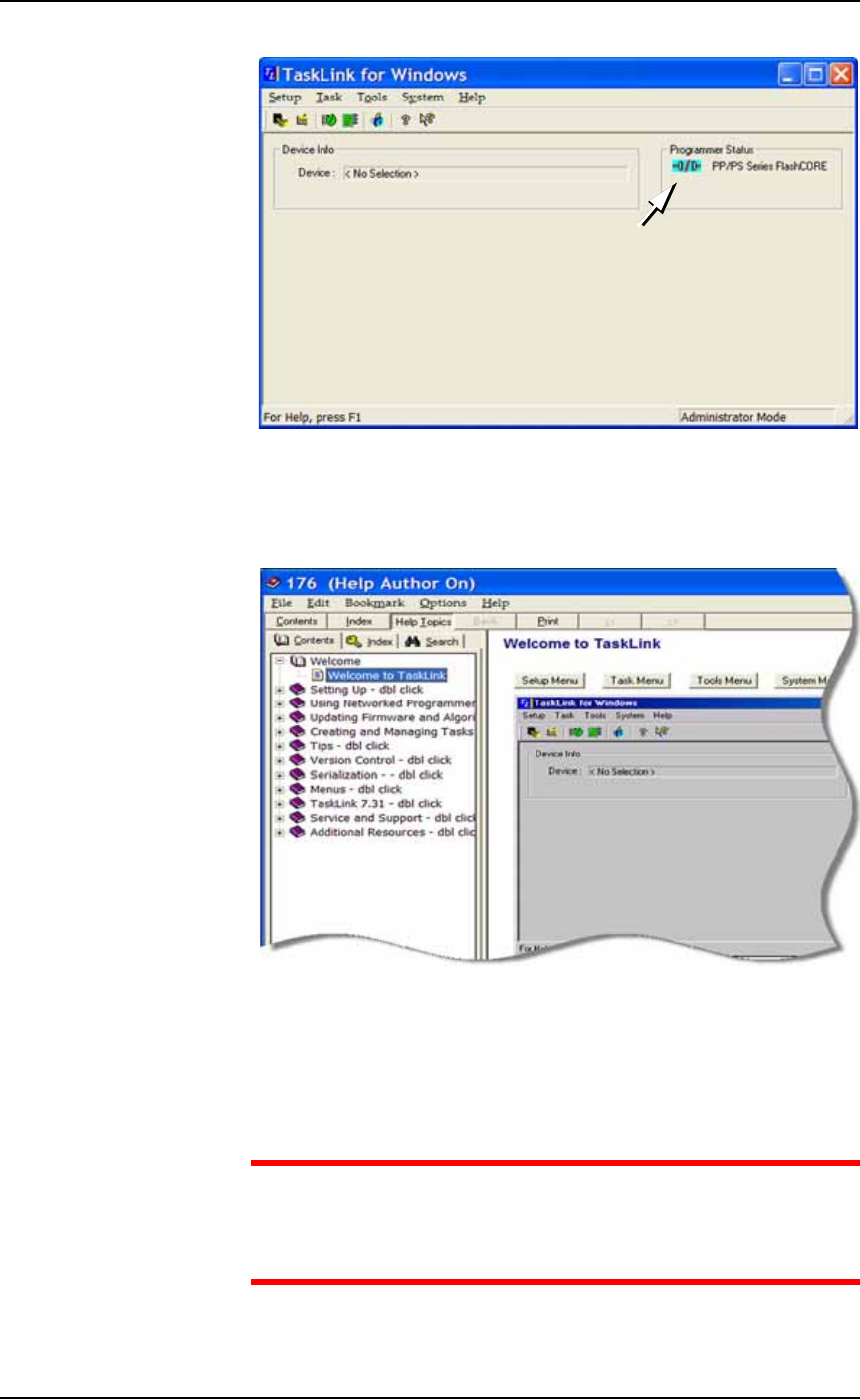
Figure 1-10: TaskLink’s main window displays the selected
programming system for which it creates jobs.
TaskLink online Help is available by clicking Help > Help Topics. It
offers procedural steps as well as domain information.
Figure 1-11: TaskLink online Help. It includes update instructions.
Updates and Algorithm Support
Updates to TaskLink (includes algorithm updates) are generally
acquired through our APS Agreement (Annual Programmer Sup-
port). See APS Agreement on our Web site under the SUPPORT tab.
CAUTION: Customers with PS Systems with Windows 98 OS —
take note of special instructions due to limited support. TaskLink
Version 7.31 is the last supported update for Windows 98. Limited
device support may be installed as noted in each release.
■ Software ◘ AH500 Application
PS Series Owner’s Manual 1—21
back
For more information, see TaskLink online Help.
AH500 Application
Data I/O’s Automated Handler software is a Microsoft
®
Win-
dows
®
-based application for setting up and programming microchips
(devices) on PS Systems. It offers a selection of many PS System
options such as input/output configurations, labeling options, and
statistical feedback methods. The AH500 resides in the Handler Com-
puter.
For updates to AH500 Software see PS Series Firmware Download on
our Web site under the SUPPORT tab.
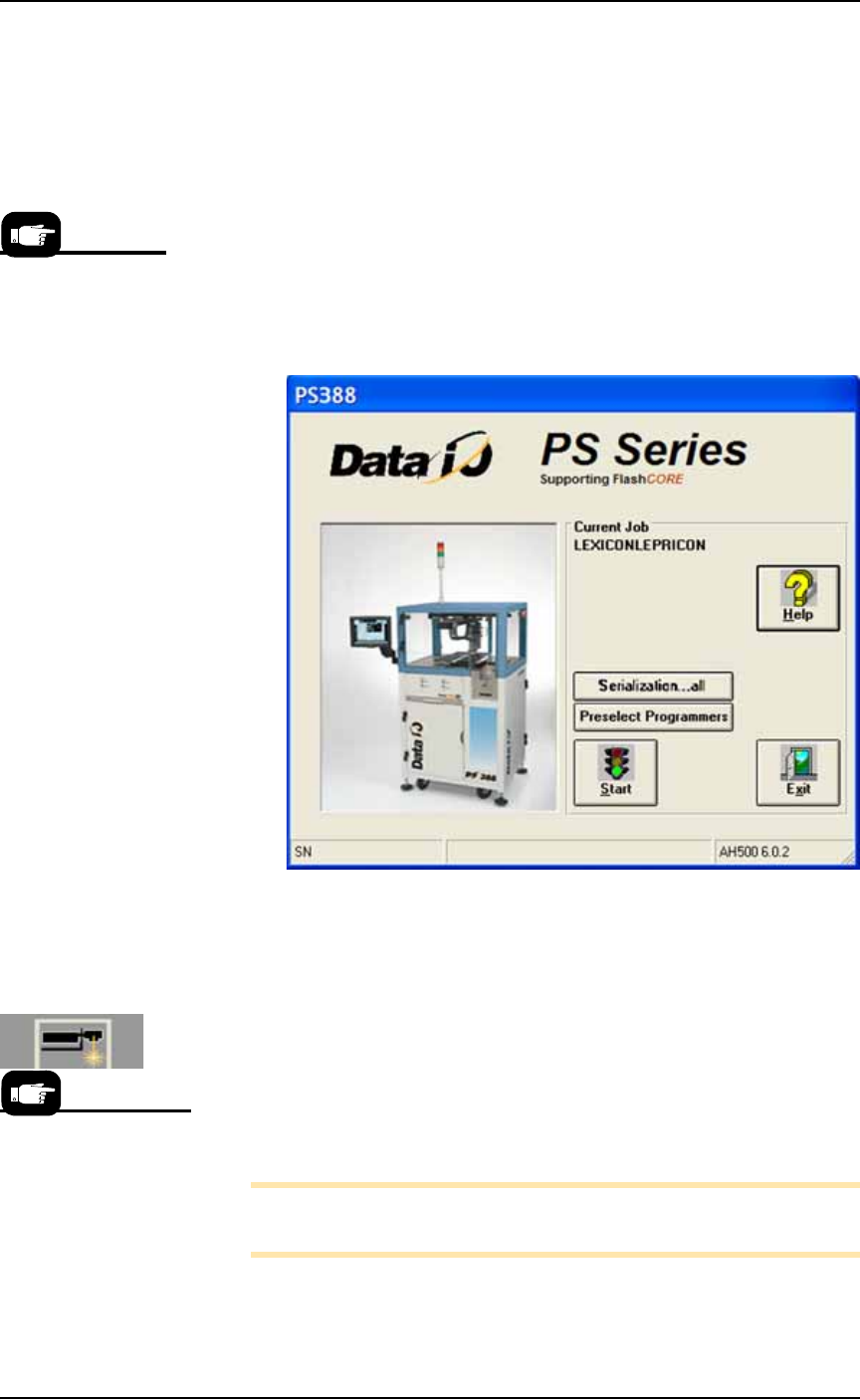
Figure 1-12: AH500 Start-up Window. The Serialization button only
appears if Serialization was selected in TaskLink for this particular job.
(PS388 shown.)
Laser Software
The Laser software is a Windows
®
-based application that allows cre-
ating parameters required for laser marking jobs as well as initiating
laser marking. In some PS models, the software resides on the Laser
Computer located in the Option Bay. In other models, the software is
in the Handler computer.
Note: The touch screen does not work while in Laser Computer
mode.
When the Laser Marking System is set up and initialized, it receives
commands from the AH500 which starts the marking sequence.
The presence of some
features are deter-
mined by the
winAH400.ini file.
For more information
about the Laser Sys-
tem, see Setting Up the
Laser Marking System on
page 2-27 and
(Optional) Creating a
Laser Marking File on
page 3-62.