PS288_PS388_PS588_981-0424-002D - 第34页
■ Software ◘ Laser Software 1—22 PS Series Owner’s Manual Switching Between Computers Some PS models have a separ ate computer for the Laser softw are. T o switch betw een the laser computer and the Handler computer: 1. …
■ Software ◘ AH500 Application
PS Series Owner’s Manual 1—21
back
For more information, see TaskLink online Help.
AH500 Application
Data I/O’s Automated Handler software is a Microsoft
®
Win-
dows
®
-based application for setting up and programming microchips
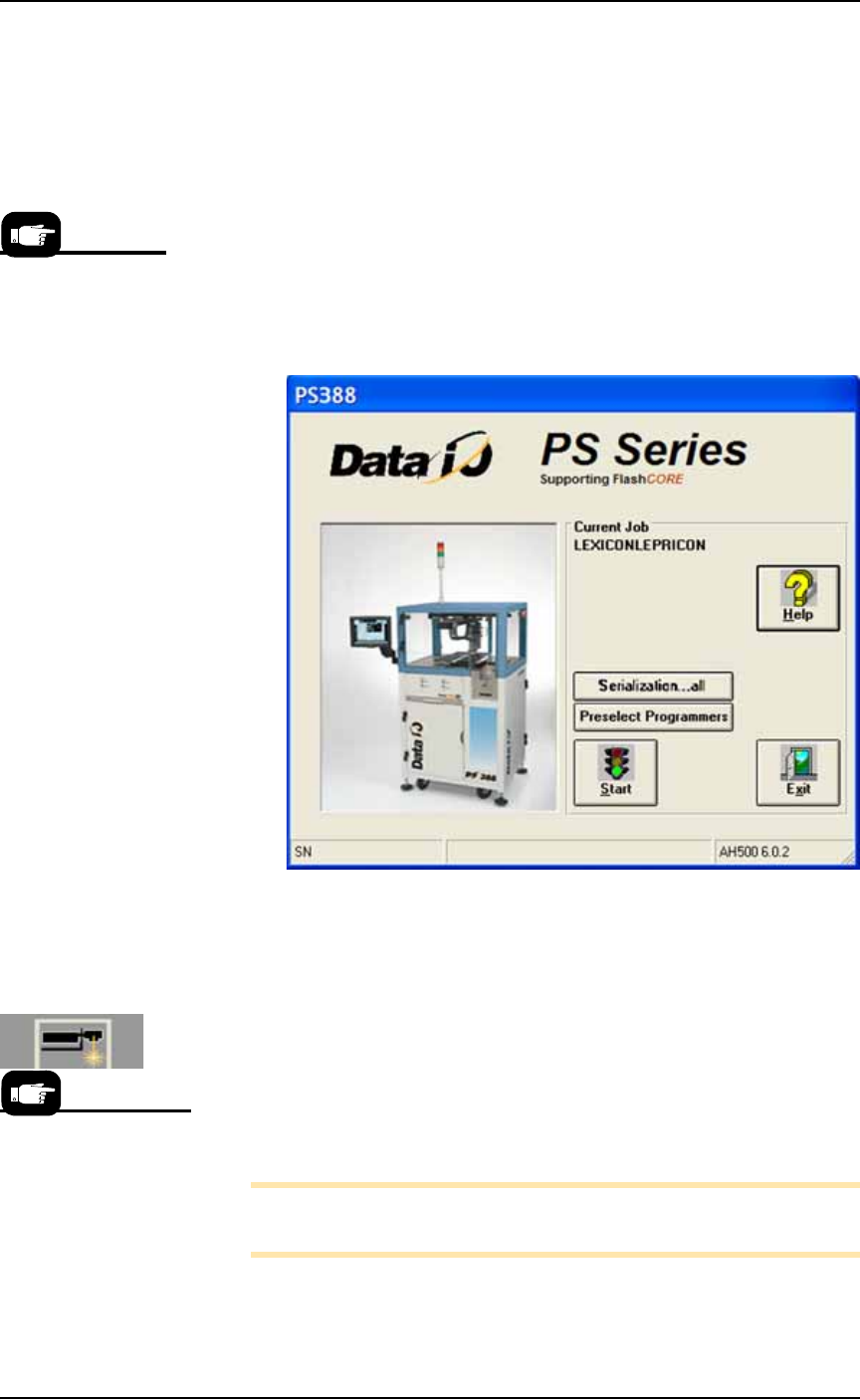
(devices) on PS Systems. It offers a selection of many PS System
options such as input/output configurations, labeling options, and
statistical feedback methods. The AH500 resides in the Handler Com-
puter.
For updates to AH500 Software see PS Series Firmware Download on
our Web site under the SUPPORT tab.
Figure 1-12: AH500 Start-up Window. The Serialization button only
appears if Serialization was selected in TaskLink for this particular job.
(PS388 shown.)
Laser Software
The Laser software is a Windows
®
-based application that allows cre-
ating parameters required for laser marking jobs as well as initiating
laser marking. In some PS models, the software resides on the Laser
Computer located in the Option Bay. In other models, the software is
in the Handler computer.
Note: The touch screen does not work while in Laser Computer
mode.
When the Laser Marking System is set up and initialized, it receives
commands from the AH500 which starts the marking sequence.
The presence of some
features are deter-
mined by the
winAH400.ini file.
For more information
about the Laser Sys-
tem, see Setting Up the
Laser Marking System on
page 2-27 and
(Optional) Creating a
Laser Marking File on
page 3-62.

■ Software ◘ Laser Software
1—22 PS Series Owner’s Manual
Switching Between Computers
Some PS models have a separate computer for the Laser software.
To switch between the laser computer and the Handler computer:
1. On the keyboard, press Ctrl twice. A list of all computers is dis-
played on the touch screen monitor.
2. Use the up and down arrows to select a computer.
3. Press Enter on the keyboard.
■ Precautions for Safe Operation ◘ Precaution List
PS Series Owner’s Manual 1—23
back
Precautions for Safe Operation
The PS Machine has many safety features designed to make the
system safe and efficient to operate. The system can be dangerous if
the safety precautions and features are ignored.
Precaution List
To avoid possible personal injury or damage to the equipment,
observe the following practices:
General Precautions
Do not use the PS System for any purpose other than its
intended use.
Do not operate the system if the safety shields are not in their
normal operating positions.
Do not operate the system when any of the cabinet panels (sheet
metal) are removed.
Do not operate the PS System unless you have been thoroughly
trained and have read and understand the instructions in this
manual, particularly those that describe the system’s safety fea-
tures (Safety Systems on page 1-4).
Do not disable or attempt to defeat any of the safety features of
this system. Serious personal injury and equipment damage can
occur if any safety systems are disabled. If you suspect that a
safety feature of the system is damaged or malfunctioning, stop
using the PS System immediately and contact your local
Data I/O Support representative.
Do not place any part of your body near or in the direct path of
moving parts.
Repair Precautions
Only qualified personnel trained by Data I/O should install,
maintain, repair, or troubleshoot the PS Systems.
Do not operate a system while servicing, replacing, or adjusting
any component unless directed to do so in this manual. Make
sure that the system is properly shut down before servicing,
replacing components, or adjusting components.
Disconnect the external air before servicing pneumatic parts.
Optional Media and Equipment Precautions
Use extra caution when using the tape input media (feeder), the
tape output media, or the device marking option. The
PS System safety shields do not cover or fully enclose these
modules. It is possible that hands, body parts, or loose clothing
could get caught or pinched in these mechanisms.
Read and heed the laser vacuum filter disposal requirements
described later in this section (Laser Safety on page 1-24). Always
dispose of any other hazardous or residual by-products of the
production process in accordance with governing laws and reg-
ulations.
WARNING:
Pinch hazard.
The E-Stop
does not shut
off air. On
PS588 only,
Socket Actua-
tors can still
move down
when an
E-Stop is
pushed— and
even when
Safety shields,
are open.
Use caution.