PS288_PS388_PS588_981-0424-002D - 第52页
Setup ■ Setting Up Input and Output Media 2—10 Data I/O • 981-0424 -002 back Figure 2-8: F our possible Inp ut/Output lay outs with one and two Aut omatic T ray Feeders. Only one lay out uses a tra y for the reject ed de…
■ Setting Up Input and Output Media ◘ Install Reject Bin
PS Series Owner’s Manual 2—9
back
Remember that
• the Setup Window > Options tab must be set to match the work-
space setup. This is covered in Chapter 3, Set Media and
Options—the Setup Window.
• The Package File must be taught the Tray locations.
CAUTION: Temporarily removing trays has consequences. Sensors
register a tray’s presence.
If a tray is removed and then returned to the mount while a job is
Paused,
the software proceeds as if: [Input tray] the tray is full
and all devices are unprocessed, and [Output tray] the tray is
empty.
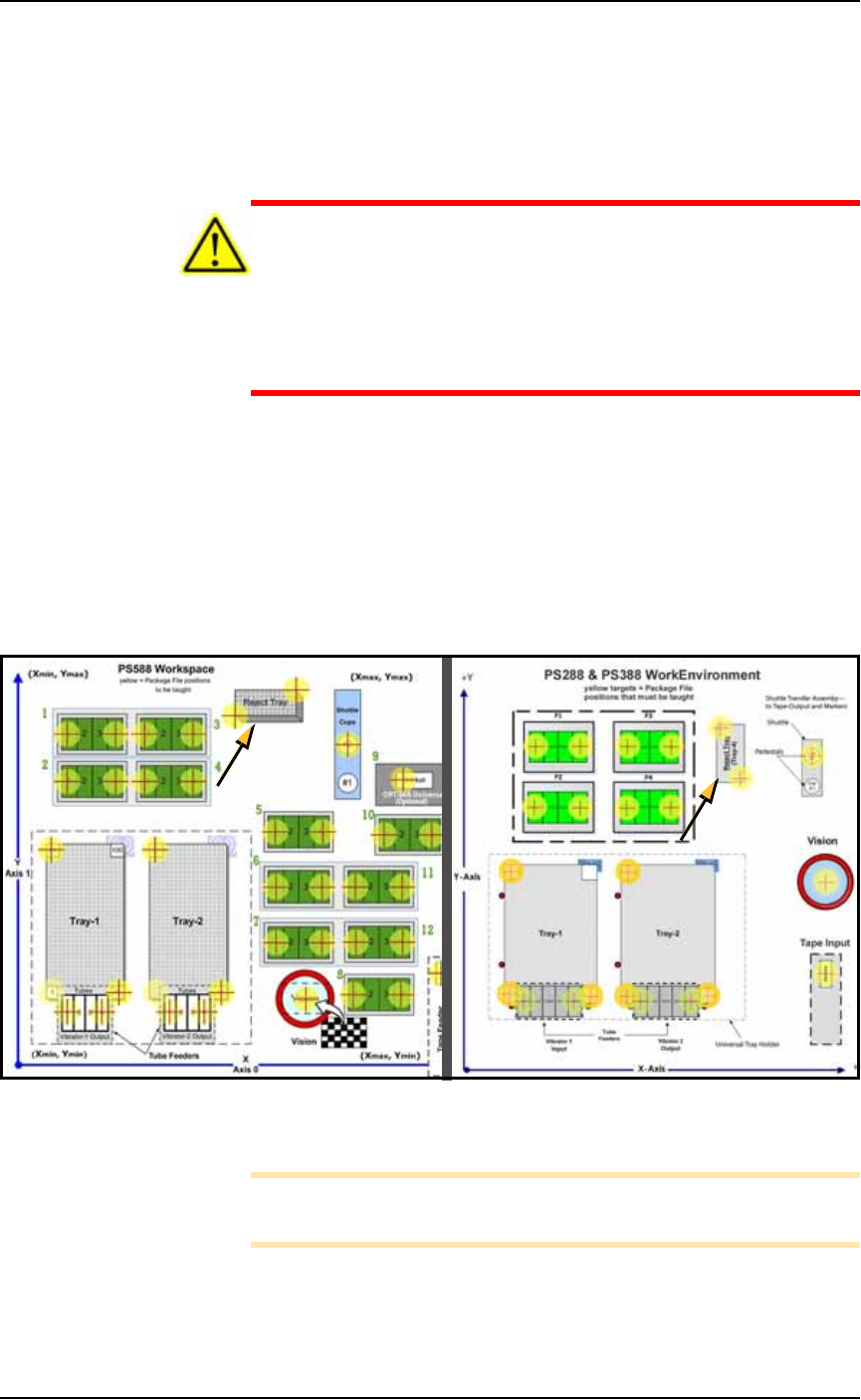
Install Reject Bin
Install a reject container for devices failing any process. Many work-
space layouts are possible. Generally, a Reject Bin or box is placed
near the back center area of the workspace, just to the right of pro-
grammer 2 as shown in Figure 2-7. However, it can be placed wher-
ever there is room for it as long as its location is taught in the Package
File.
Figure 2-7: Common locations for the Reject Bin, PS588 (left) and
PS288 & PS388 (right).
Note: On the Gantry Window, the Reject Bin or Tray is repre-
sented by the yellow position label that reads RTr.
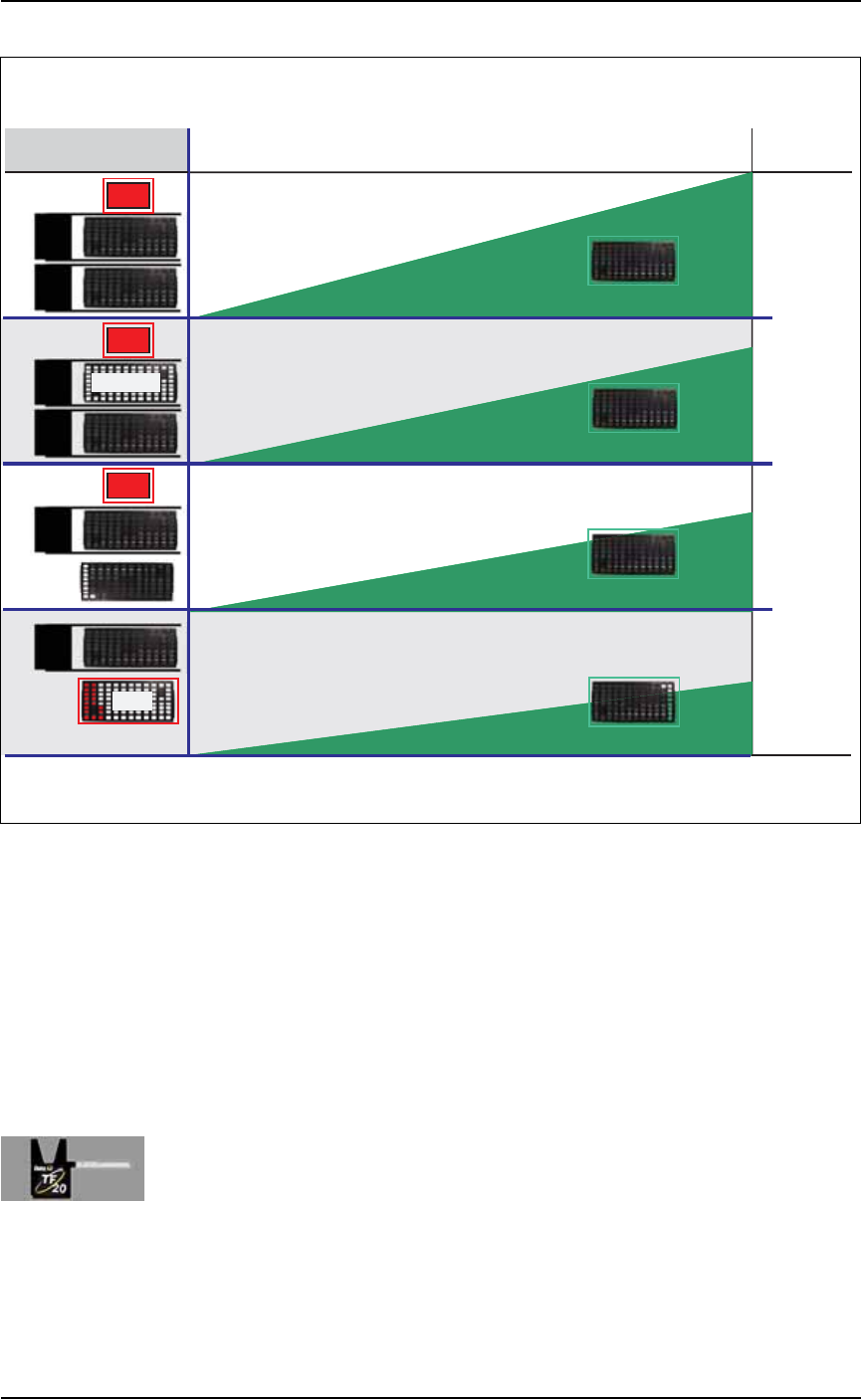
A tray may also be used as a Reject container. Possible layouts are
shown in the following diagram.
8
9
10
11
12
Setup ■ Setting Up Input and Output Media
2—10 Data I/O • 981-0424-002
back
Figure 2-8: Four possible Input/Output layouts with one and two
Automatic Tray Feeders. Only one layout uses a tray for the rejected
devices.
Remember that
•the Setup Window > Options tab must be set to match the work-
space setup. This is covered in Chapter 3, Set Media and
Options—the Setup Window
• The Package File must be taught the location of the Reject con-
tainer.
Setting Up an Automatic Tray Feeder
The PS System can be configured with a TF20 Automatic Tray Feeder.
The Tray Feeder must be level and square to the PS Machine. For gen-
eral information about setting it up, see the Tray Feeder Owner’s
Manual that came with your system. Look for the heading Installation.
TF
20
TF
20
TF
20
TF
20
TF
20
TF
20
Rej
+ Easy to reprocess rejected devices
– Trays may not get completely lled
– A tray jam can cause ambiguity if no
device marking is employed
In/Out
In/Out
Aux. Static
Input
Input
In/Out
In/Out
Output
TRAY ARRANGEMENTS WITH AUTOMATIC TRAY FEEDERS
TIME
QTY
Highest
Throughput
Lowest
Throughput
Output Advantages and Disadvantages
Rej
Rej
Rej
Tray Congurations
T
Throughput
+ Best programmer utilization
– A tray jam can cause ambiguity if no
device marking is employed
+ Fail-safe separation of programmed/unprogrammed devices
– Requires the most trays
+ Best throughput with one Automatic Tray Feeder
– A tray jam can cause ambiguity if no
device marking is employed
■ Setting Up Input and Output Media ◘ Setting Up an Automatic Tray Feeder
PS Series Owner’s Manual 2—11
back
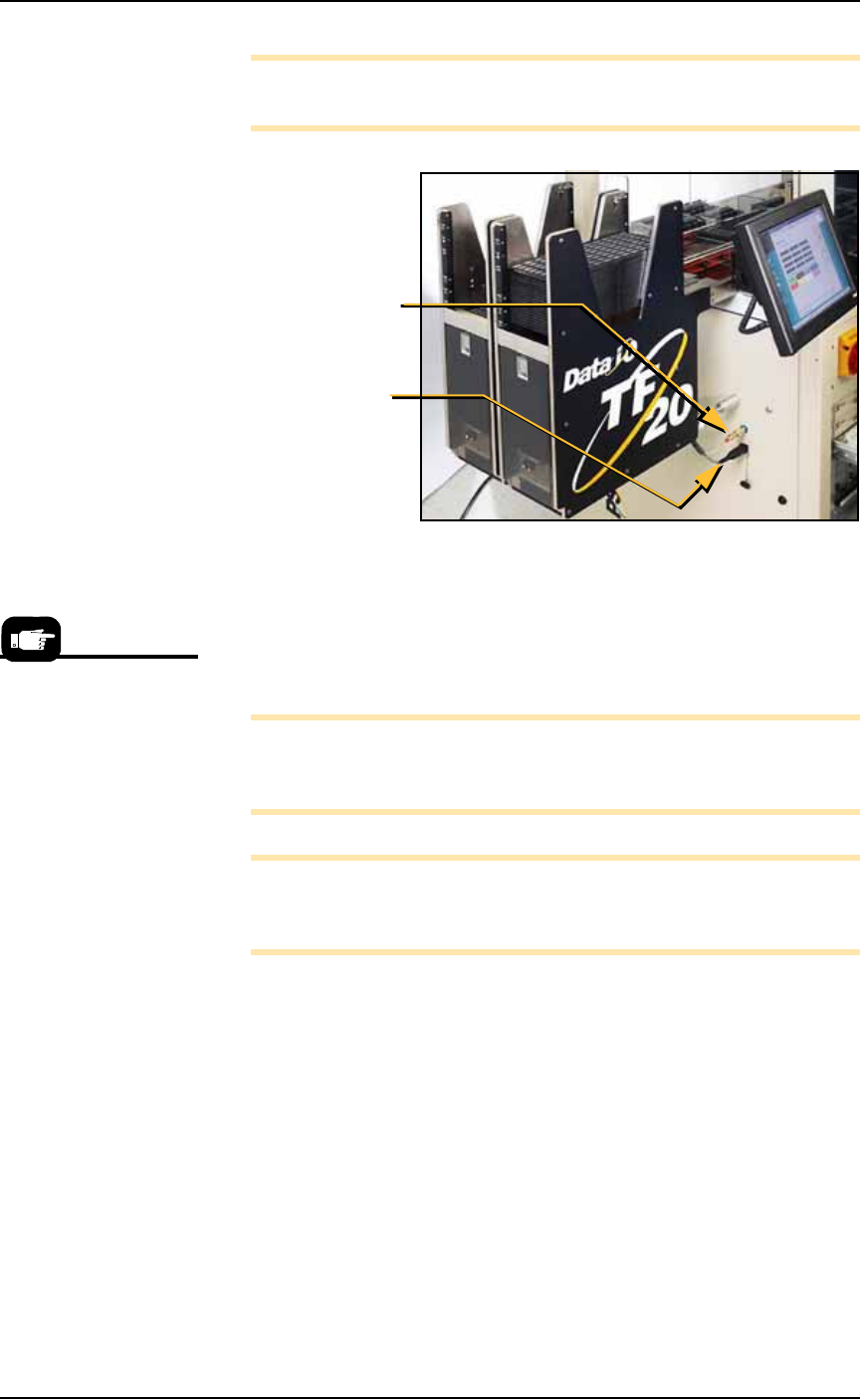
Note: Due to variations, detailed instructions are supplied with
each mounting kit.
Figure 2-9: Two TF20 Automatic Tray Feeders on a PS588. Arrows
point to the connections for one of them.
The winAH400.ini file requires editing prior to using an Automatic
Tray Feeder if your PS Machine has not already been set up for Auto-
matic Tray Feeders at the factory. See the on-screen Help file for topic
Editing the WinAH400.ini file.
Note: On some models, your Setup > Options Window does not
indicate whether Tray 1 and/or Tray 2 are Static Trays or Auto-
matic Tray Feeders.
Note: When your winAH400.ini file is set to run Automatic Tray
Feeders, before you can run static trays again, the file will need to
be changed back to ModelTray1=STD.
Basic operating instructions are covered in Chapter 3 of this manual.
Spare Tray Configurations
You can use a static tray with an Automatic Tray Feeder (ATF). When
tray 2 is designated as a spare static tray, the devices from that spare
tray are used to replace rejected devices. They are also used as a
buffer during a tray change. This allows the Tray Feeder to exchange
trays only when full. (Without the spare tray, the Tray Feeder will
exchange trays with empty pockets.) For possible configurations, see
the chart on the following page.
Air hose
quick-connect
Electrical
connection
Prior to editing the
winAH400.ini file, make a
backup copy.