PS288_PS388_PS588_981-0424-002D - 第62页
Setup ■ Setting Up Input and Output Media 2—20 Data I/O • 981-0424 -002 back The tape output system receiv es programmed devices from the PS System via a second PNP head on the output frame. W ith this head, the T ape Ou…
■ Setting Up Input and Output Media ◘ Setting Up the Tape Output System
PS Series Owner’s Manual 2—19
back
Note: For more information about threading cover tape, see the
documentation that came with your tape feeder.
7. Adjust pitch—
7a. Count the number of sprocket holes in the carrier tape between
the center of one pocket and the center of the next pocket.
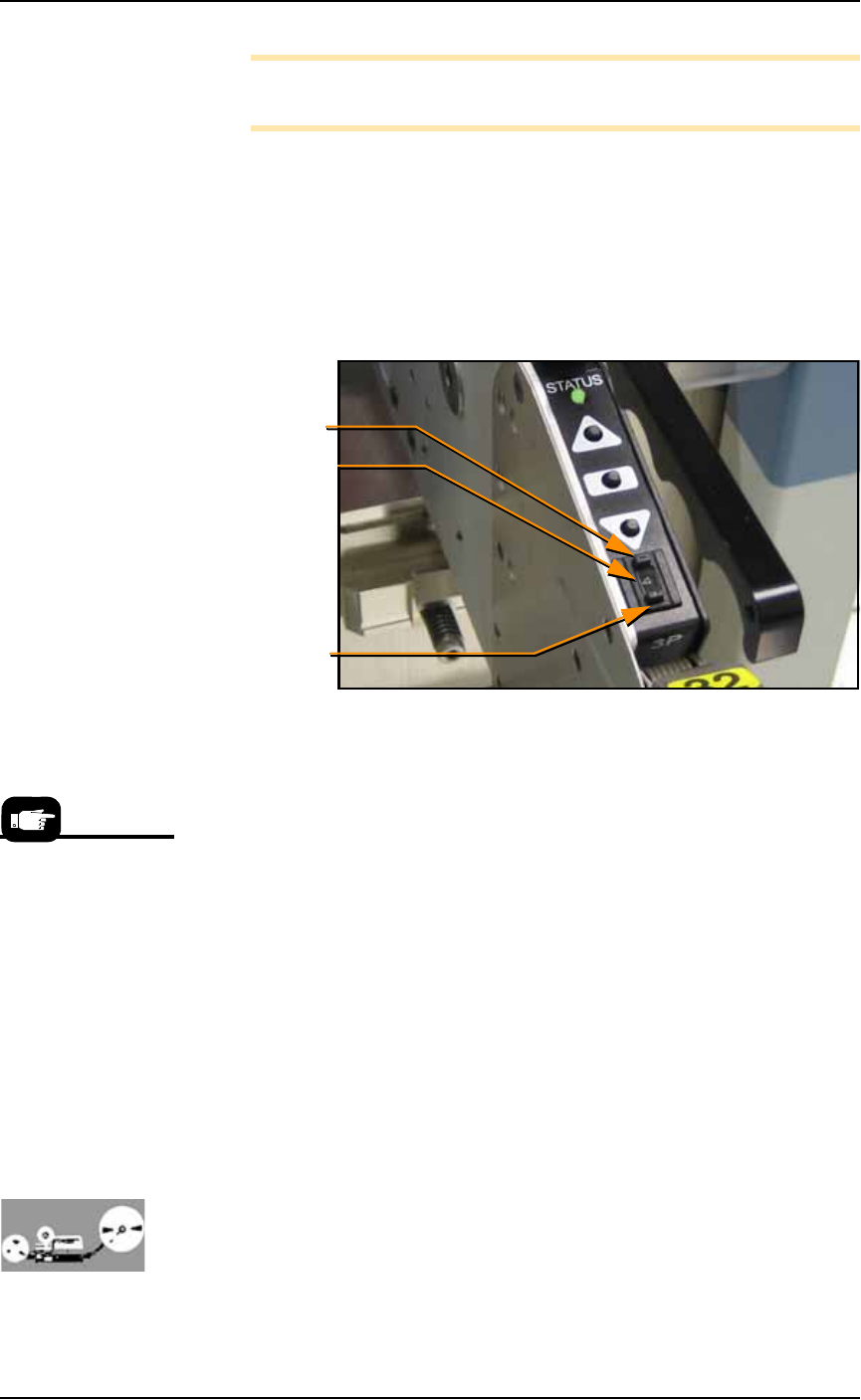
7b. On the feeder control panel, set the pitch index to the number of
guide holes. For example, if there are four guide holes from
pocket center to pocket center, enter
4
in the pitch index. Use the
[
-]
and [
+]
buttons to lower or raise the pitch index. See Figure
2-19.
Figure 2-19: Setting the Tape Feeder pitch index.
8. Align the pick point—
8a. Close all safety shields and release E-Stop buttons.
8b. Start the AH500 Software via TaskLink.
8c. On the Gantry Window, press Park.
8d. Advance the carrier tape (holding down the center button while
pushing the Forward button) until the pick point mark on the
tape window aligns with the center of a pocket.
8e. Release the center button. Press the forward button once to
index the device tape forward one pocket.
Before running a job with the tape input feeder in place, it is neces-
sary to:
• Teach locations to the PNP head. For information, see Teaching
the Package File on page 3-40.
• Select tape input setting in the AH500 software. For information,
see (Optional) Preselecting Programmers on page 3-13.
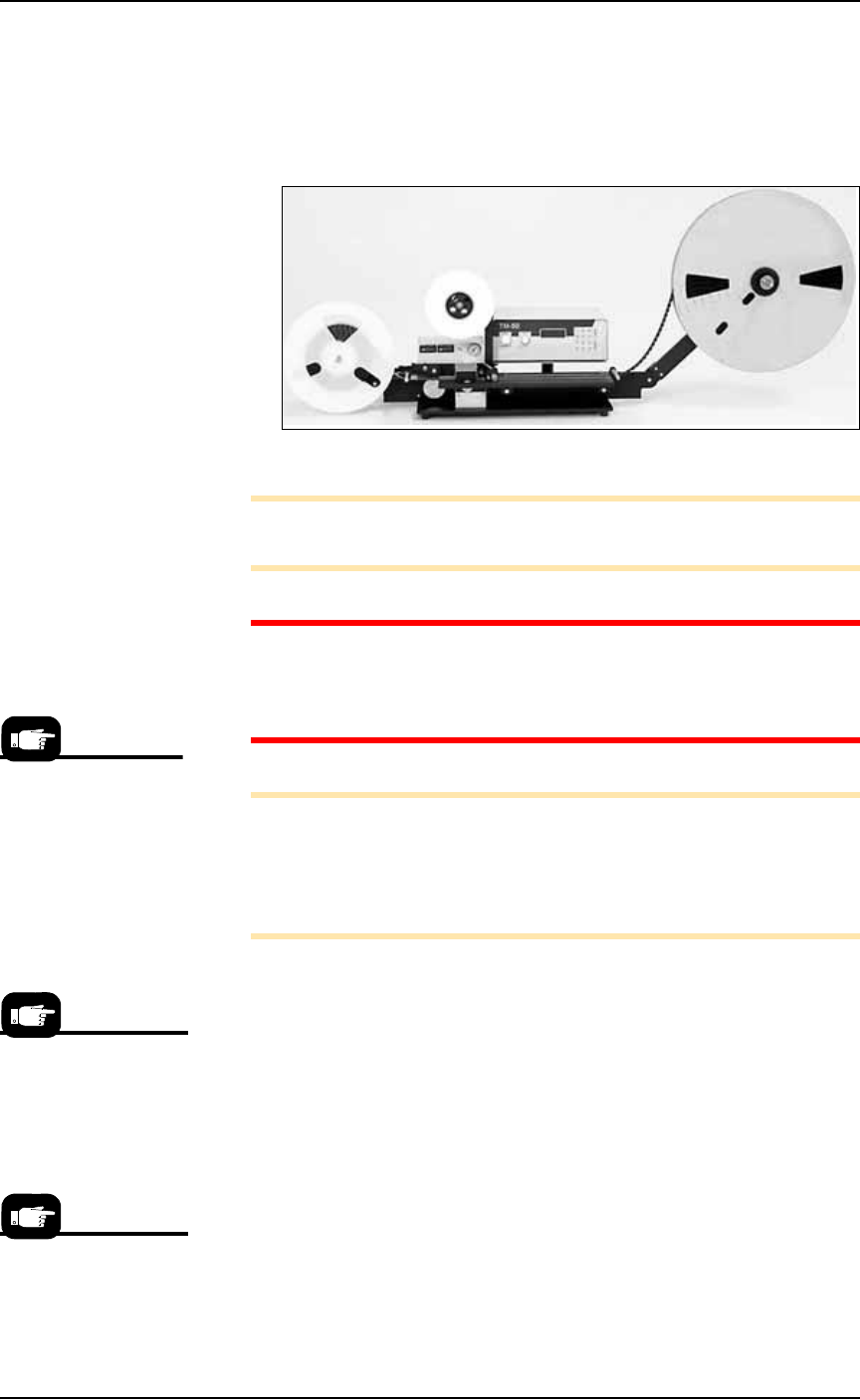
Setting Up the Tape Output System
The PS System can be configured with an optional tape output
system.
Lower pitch index
Raise pitch index
Pitch index display
Remember to remove
cover tape from the
cover tape reel when
full. For more informa-
tion, see your Tape
Feeder documentation.
Setup ■ Setting Up Input and Output Media
2—20 Data I/O • 981-0424-002
back
The tape output system receives programmed devices from the
PS System via a second PNP head on the output frame. With this
head, the Tape Output System places devices into empty carrier tape
pockets, advances the carrier tape through a mechanism that seals the
tape (using heat or pressure), and rolls the filled tape onto a reel for
delivery to the next stage in the manufacturing process.
Figure 2-20: Tape Output System.
Note: For additional information, refer to the TM-50 SMD Taping
Module User’s Guide that came with your Tape Output System.
CAUTION: Excessive Heat. Improper routing of the device tape
may cause enough heat to melt the tape. Ensure the correct rout-
ing path is followed. See the TM-50 SMD Taping Module User’s
Guide.
Note: The Tape Out System includes the Option Bay, the shuttle
transfer, and the Tape-Out-PNP head. These must already be
installed on the PS Machine before following the setup instructions
below. If it is not, contact Data I/O Customer Support or a local
Data I/O approved service representative.
To set up the Tape Output System:
1. Edit the winAH400.ini file for Tape Output—
1a. Using Windows Explorer, locate
C:\AH500\winAH400.ini
and m
ake a backup copy, for example,
WinAH400backup.ini
.
1b. Open the original file with Microsoft Notepad.
1c. Locate the line:
TapeOutPutInstalled=FALSE
and change it to True:
TapeOutputInstalled=TRUE
1d. Save the
winAH400.ini
file and exit Windows Explorer.
2. Preparation—
The information that
follows is adapted from
the TM-50 SMD Tap-
ing Module User’s
Guide that came with
your Tape Output Sys-
tem.
If you have previously
used Tape Output, you
may already have saved
a winAH400.ini file spe-
cifically for a Tape Out-
put setup.
For more ini file infor-
mation, see the
on-screen Help.
■ Setting Up Input and Output Media ◘ Setting Up the Tape Output System
PS Series Owner’s Manual 2—21
back
2a. The Tape Output System gets power and compressed air from
the PS System. Ensure the PS System air is connected and power
is On.
2b. Switch the Tape Output System ON by pulling out its
Power/E-stop button.
2c. Turn the take-up reel tension adjust knob counterclockwise to
zero. (Black knob on the controller.)
2d. Set the taping job parameters at the controller. For more infor-
mation see the TM-50 SMD Taping Module User’s Guide, chap-
ter 3, Controller.
3. Pull the nearest half of the track (table) out to the desired track
width. It stops at detents set to specific tape widths.
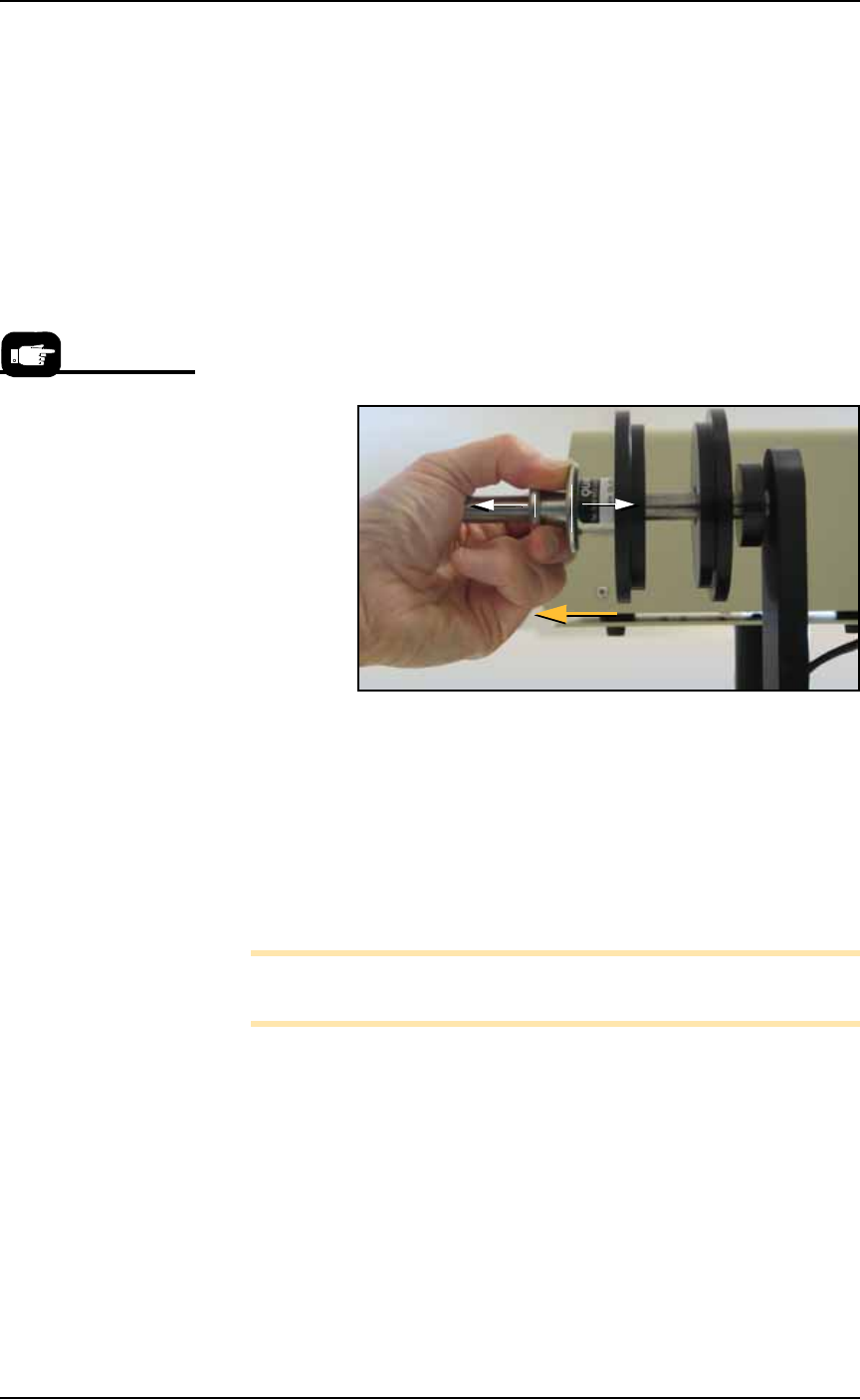
4. Mount the carrier tape reel—
4a. Remove the carrier tape quick lock from the carrier tape spindle.
Figure 2-21: Removing the spindle QuickLock.
4b. Mount the bulk carrier tape reel on the right spindle so the tape
unwinds from the top.
4c. Replace the quick lock.
4d. Trim the end of the carrier tape so it is clean and straight.
5. Route the carrier tape—
5a. Guide the carrier tape into the loading track. It should feed right
to left through the loading track easily.
Note: Lowering the feed reel support arm can reduce drag if the
angle at which the carrier enters the loading track is too steep.
5b. Bring the end of the carrier tape past the sealer and engage the
sprocket holes on the teeth of the drive sprocket.
If the carrier tape does not feed to the sprocket easily, see the
TM-50 SMD Taping Module User’s Guide, Chapter 4, Setup,
Route the Carrier Tape for items to check.
6. Mount the cover tape—
6a. Place a reel of cover tape of the correct width to match the carrier
tape on the cover tape spindle. The tape should unwind to the
right from the bottom of the reel.
For more information
about these steps, see the
TM-50 SMD Taping
Module User’s Guide.