PS288_PS388_PS588_981-0424-002D - 第92页
Operation ■ Operator Functions 3—22 Data I/O • 981-0424-002 back Note: If the inpu t/output media are tubes, tube vibration might need adjustment if devices do not move easily . Use the vibration controls on the fr ont o…
■ Operator Functions ◘ Running a Job on PS Systems
PS Series Owner’s Manual 3—21
back
1b. Install the correct probe tip for your device if it has not yet been
installed. See Installing the Correct Probe Tip on page 3-7.
1c. Install input and output media. (For more, see Chapter 2.) Pin 1
on most Data I/O Socket Adapters is away from the operator
(toward the back of the machine.)
CAUTION: Possible socket and device damage. If the incorrect
Package file was selected during Task creation, or if device rota-
tion was taught incorrectly, devices or socket contacts may get
damaged. If you have any doubts about the Package file, con-
tact your system administrator.
1d. (Optional) Install marking or labeling options as desired. (For
more, see Chapter 2.)
2. (Optional) Set up for Sort-On-Error-Code—
2a. Install a second Reject Bin 50 mm (2 inches) to the right of
Reject 1.
Start Programming
After setting up the machine hardware, input/output media and
options, the job is ready to be run.
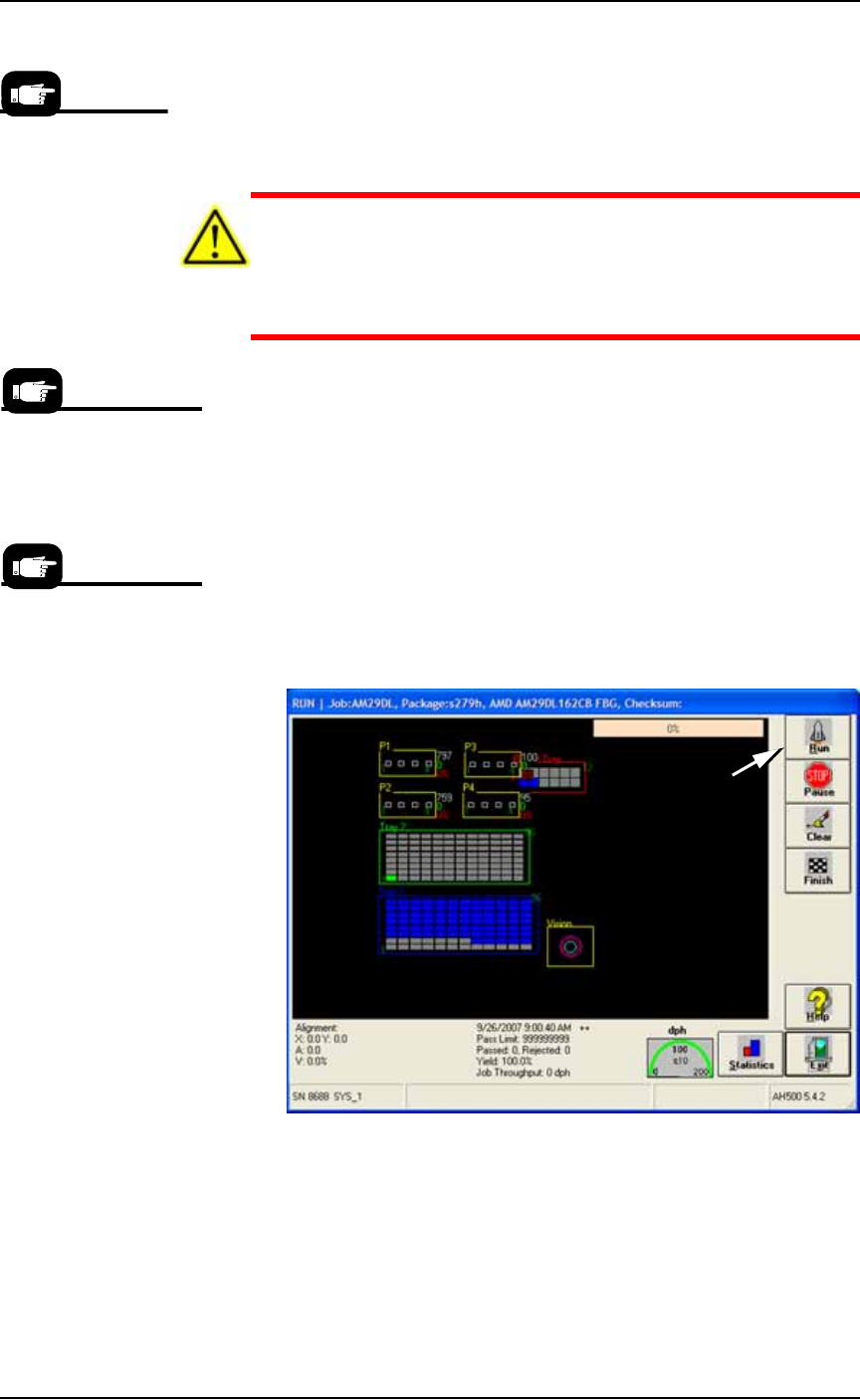
1. At the Setup Window, click Run.
2. On the Run Window, click Run.
Figure 3-23: Run on the Run Window starts programming. (PS288
shown.)
3. A message appears announcing that Tray 1, Tray 2, and Fail Tray
have been found. Click OK.
The PNP head begins its movements. The Run Window tracks
head movement (white square), and displays device placement.
Socket status indicators appear inside the programmer outlines.
Your system adminis-
trator generally has
information on pin 1
orientation for tray
and tape input as
defined by your facil-
ity.
For setting
Sort-On-Error-Code in the
winAH400.ini file, see the
on-screen Help.
If a different device type
is to be programmed, a
different job must be
selected in TaskLink.
Operation ■ Operator Functions
3—22 Data I/O • 981-0424-002
back
Note: If the input/output media are tubes, tube vibration might
need adjustment if devices do not move easily. Use the vibration
controls on the front of the PS System to adjust tube vibration.
Stopping the System
There are three methods for stopping the PS System:
• Emergency Stop— Stop the movement of the head immediately.
• Pause a Job— Pause a job to stop the head at its next destination.
Devices finish programming if started but are not removed from
sockets. The programming session can be continued.
• Finish a Job— Stop picking blank devices, finish the current
programming cycle, and remove devices from all the sockets
placing them into appropriate media. The programming job can
be resumed.
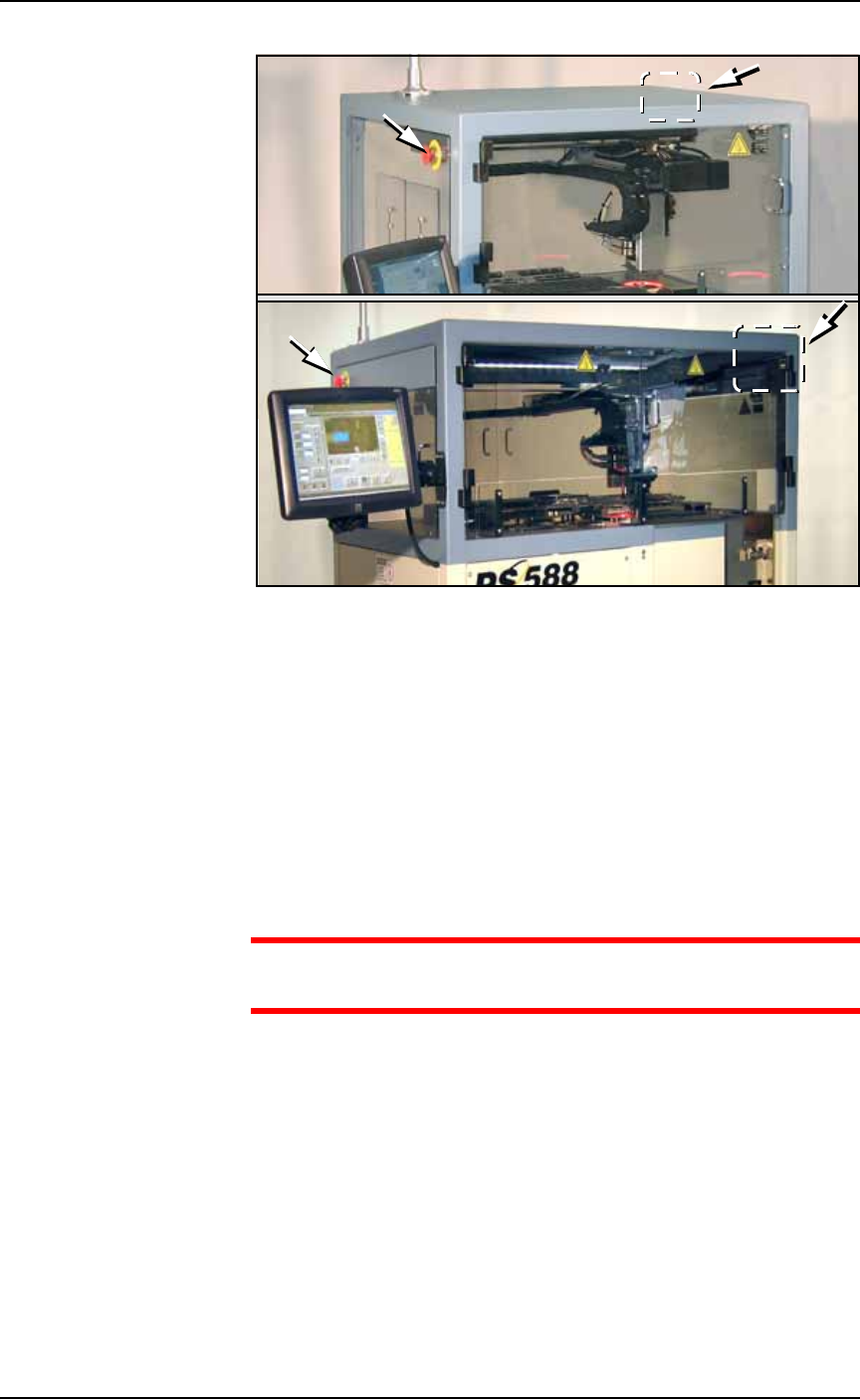
Emergency Stop
To prevent bodily injury or damage to equipment in an emergency,
press the red Emergency Stop (E-Stop) button located on the upper
sides of the machine. Pressing an E-Stop button immediately stops
motion of the PNP head and the gantry.
WARNING: Electric shock and collision hazards. In an emergency,
do not use the on-screen Pause button to turn off power. PRESS-
ING PAUSE DOES NOT REMOVE POWER to the system. In an
emergency, press the Emergency-Stop button.
The Pause button has an
image of a stop sign on
it (red octagon).
■ Operator Functions ◘ Stopping the System
PS Series Owner’s Manual 3—23
back
Figure 3-24: Emergency Stop (E-Stop) buttons on the PS288 (not
shown) and PS388 (top). They are different from the PS588 (bottom).
To restart the system
1. Rotate the E-Stop button clockwise until it springs back to its full
height. The monitor displays the message Check doors/E-stop!
2. Click OK. The system resumes the interrupted operation.
Pausing a Job
To pause a job (stopping the Gantry) click Pause on the Run window.
Devices being programming will finish programming. This is the pre-
ferred method of pausing the system in a non-emergency situation.
CAUTION: Personal safety hazard. Do not open Safety Shields
until all movement of the machine has stopped.
To resume, click Run. See Figure 3-25.
Far
Side
Far
Side