PS288_PS388_PS588_981-0424-002D - 第94页
Operation ■ Operator Functions 3—24 Data I/O • 981-0424-002 back Figure 3-25: Click Pause t o stop a job you wish to continue next. After clicking Pause, t he T ower Lamp changes to y ello w . In this image, Programmer s…
■ Operator Functions ◘ Stopping the System
PS Series Owner’s Manual 3—23
back
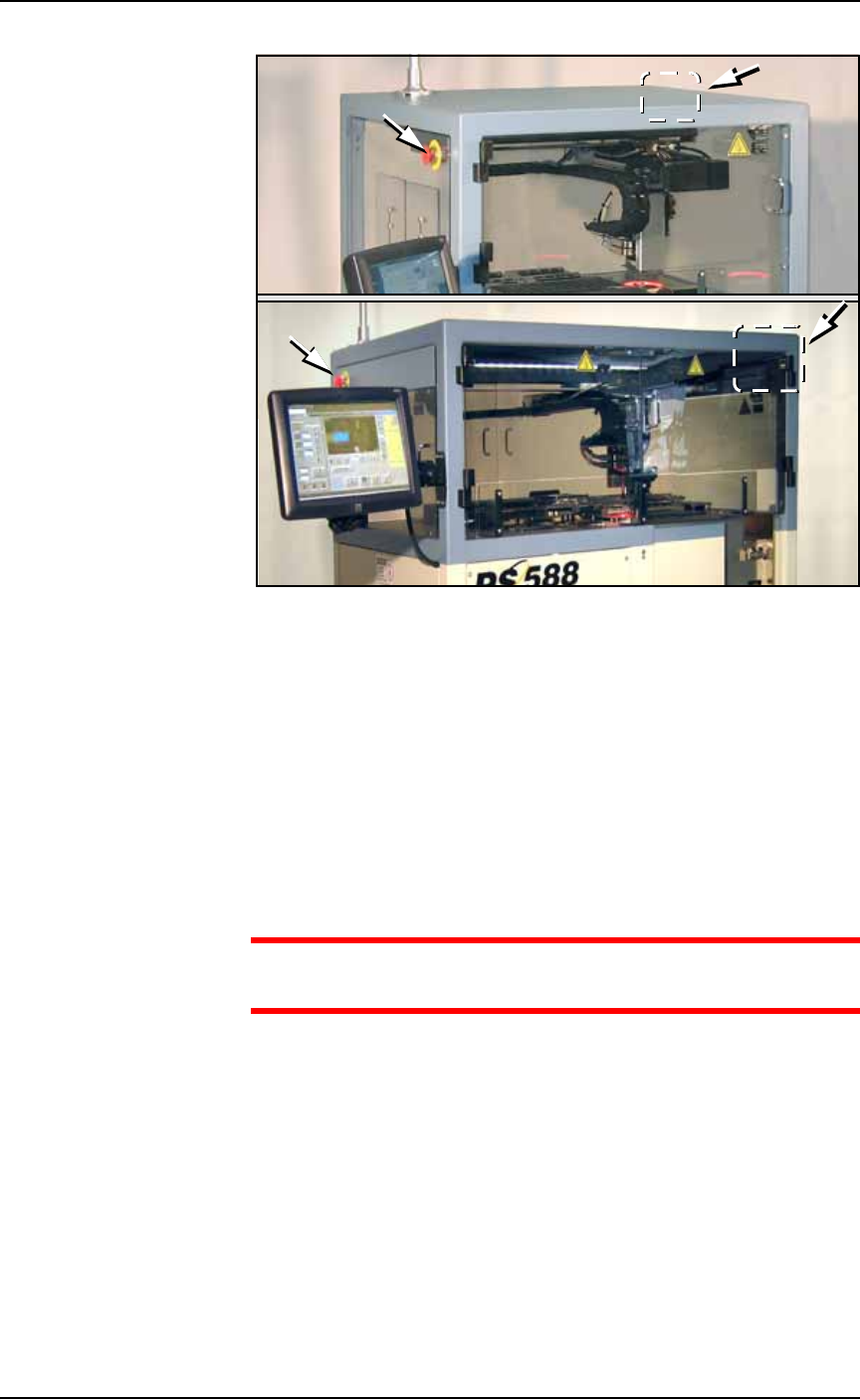
Figure 3-24: Emergency Stop (E-Stop) buttons on the PS288 (not
shown) and PS388 (top). They are different from the PS588 (bottom).
To restart the system
1. Rotate the E-Stop button clockwise until it springs back to its full
height. The monitor displays the message Check doors/E-stop!
2. Click OK. The system resumes the interrupted operation.
Pausing a Job
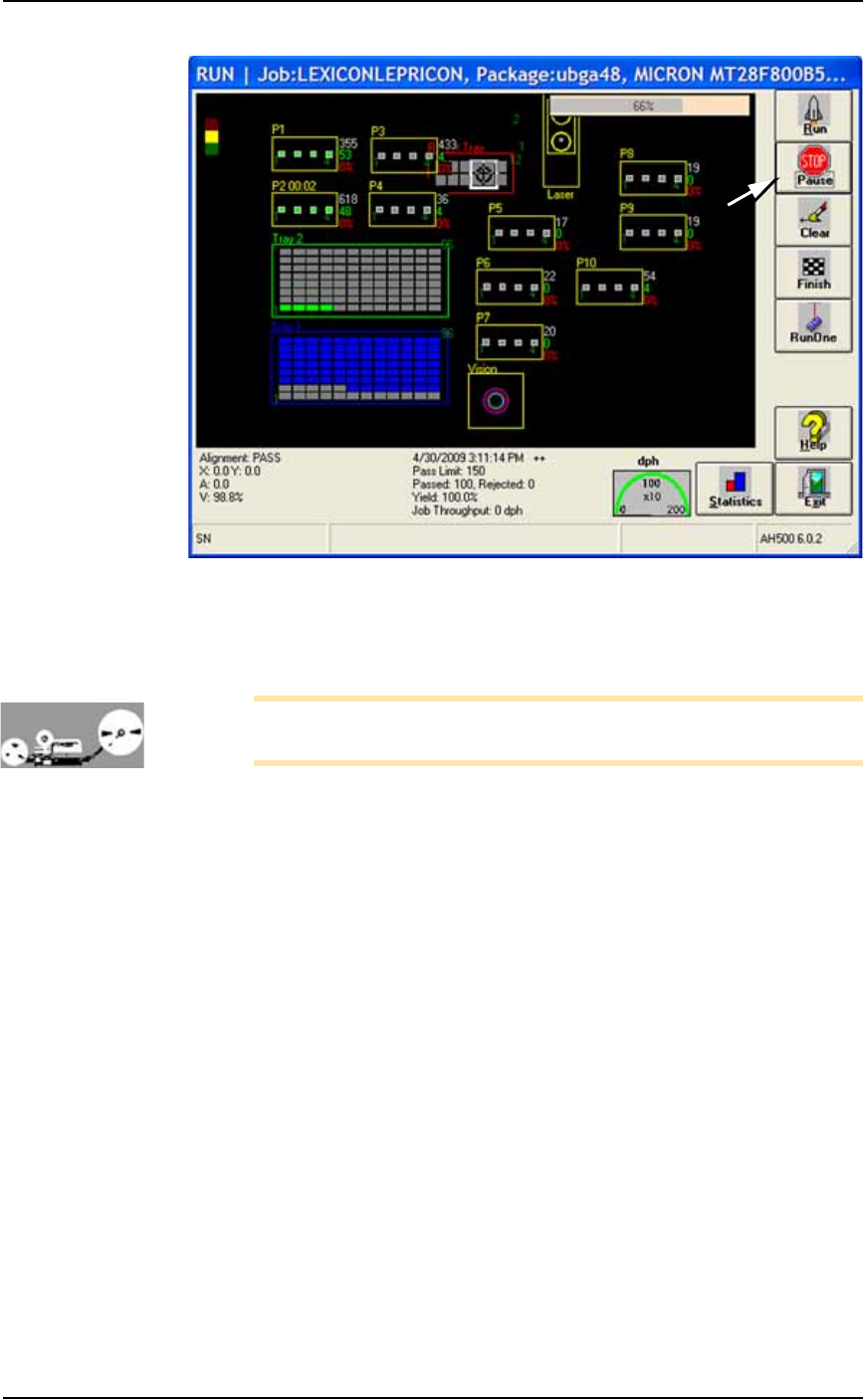
To pause a job (stopping the Gantry) click Pause on the Run window.
Devices being programming will finish programming. This is the pre-
ferred method of pausing the system in a non-emergency situation.
CAUTION: Personal safety hazard. Do not open Safety Shields
until all movement of the machine has stopped.
To resume, click Run. See Figure 3-25.
Far
Side
Far
Side
Operation ■ Operator Functions
3—24 Data I/O • 981-0424-002
back
Figure 3-25: Click Pause to stop a job you wish to continue next. After
clicking Pause, the Tower Lamp changes to yellow. In this image,
Programmers 1 and 2 have programmed devices in them (green).
(PS588 shown.)
Note: When restarting a job that uses Tape Output, pull the red
E-Stop/On button on the taping machine to start it.
To remove all devices that are currently in programmers:
Click Clear on the Run Window. All devices will be removed from the
programming sockets and placed in the Reject Tray.
Ending a Job
To end a job prior to programming the preset number of devices, click
Finish on the Run Window. This completes the current programming
cycle. No more blank devices are picked from the input media, and
all devices in the sockets are removed and placed in the appropriate
output or Reject container.
The job can be resumed by selecting it again in TaskLink and clicking
Run. A message offers the choice to finish a previously terminated job
or start from zero.
■ Operator Functions ◘ Light Tower Interpretation
PS Series Owner’s Manual 3—25
back
Light Tower Interpretation
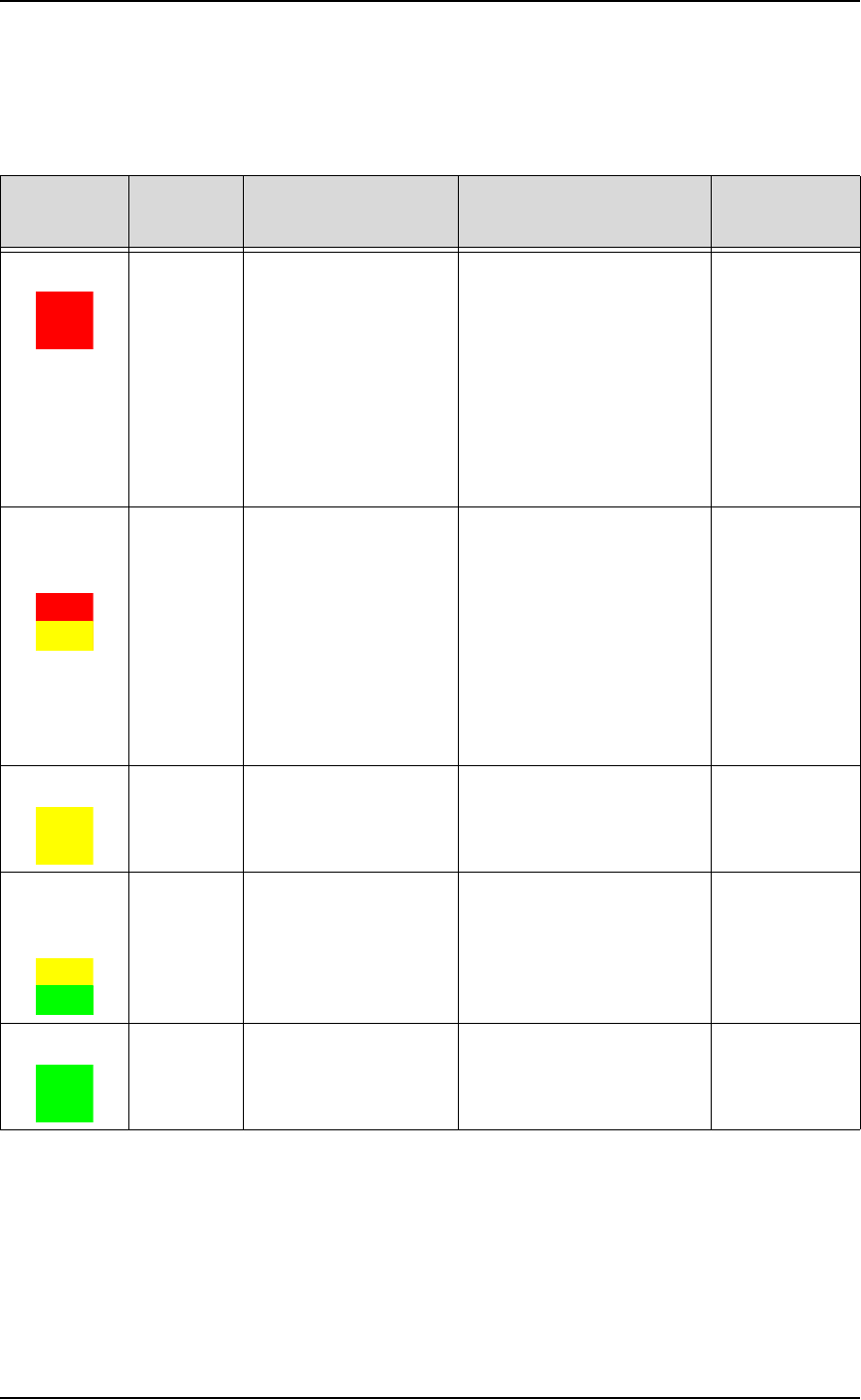
During operation of the PS System, you can monitor the light tower
to reduce system down time. The light tower displays the following
conditions:
Changing Programmer Status
The PS Machine may automatically disable a programmer for various
reasons, for example, if there are repeated continuity errors or
vacuum issues. The operator may also choose to disable a pro-
grammer, or otherwise change the status of a programmer.
Light Condition Action Required Possible Causes
PS Machine
Status
Red Major
error
Operator intervention
is mandatory to con-
tinue.
It is likely that tools
and troubleshooting
skills will be required
to resolve issues.
-Actuator error
-Gantry collision
-Input shutter error
-Insufficient air pressure;
-Laser not ready
-Motion Control System
error
-Socket opener sensor error
-Software exception
-Vacuum sensor malfunc-
tion
Stopped
Yellow/
Red
(alternating)
Error Operator intervention
is mandatory to con-
tinue.
Correction may be
through Handler
Computer software
(AH500) or through
minor hardware
adjustment.
-File read/write error
-Labeler error
-Laser error
-No programmer can be
used
-PNP error
-Serialization errors
-Setup related errors
-Tape input error
-Unprogrammed devices
on Input/Pass tray
Stopped
Yellow Normal
stop
Operator intervention
is mandatory.
Output media is full or
input media is empty.
Stopped
Yellow/
Green
(alternating)
Normal Operator intervention
is suggested.
-End of job
-Some sockets are disabled
-Vacuum errors are present
on some programmers
Processing or
Stopped (end
of job)
Green Normal No operator action
needed.
Processing devices, or
clearing sockets to output.
Processing