PS288_PS388_PS588_981-0424-002D - 第96页
Operation ■ Operator Functions 3—26 Data I/O • 981-0424-002 back Disabling Programmers If programmers are not performing and the error cannot be cleared, disable those programmers and contin ue to use the other sites to …
■ Operator Functions ◘ Light Tower Interpretation
PS Series Owner’s Manual 3—25
back
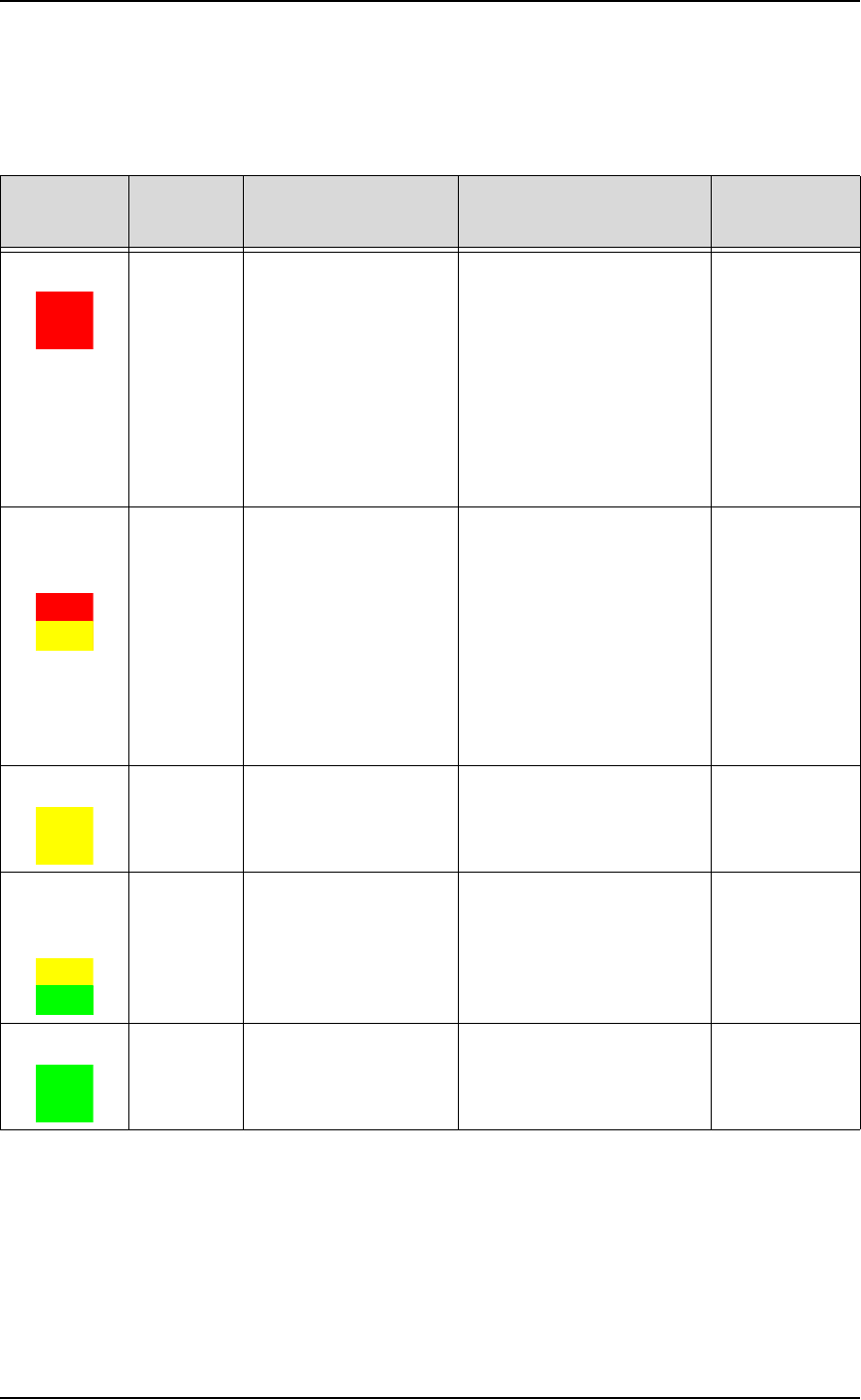
Light Tower Interpretation
During operation of the PS System, you can monitor the light tower
to reduce system down time. The light tower displays the following
conditions:
Changing Programmer Status
The PS Machine may automatically disable a programmer for various
reasons, for example, if there are repeated continuity errors or
vacuum issues. The operator may also choose to disable a pro-
grammer, or otherwise change the status of a programmer.
Light Condition Action Required Possible Causes
PS Machine
Status
Red Major
error
Operator intervention
is mandatory to con-
tinue.
It is likely that tools
and troubleshooting
skills will be required
to resolve issues.
-Actuator error
-Gantry collision
-Input shutter error
-Insufficient air pressure;
-Laser not ready
-Motion Control System
error
-Socket opener sensor error
-Software exception
-Vacuum sensor malfunc-
tion
Stopped
Yellow/
Red
(alternating)
Error Operator intervention
is mandatory to con-
tinue.
Correction may be
through Handler
Computer software
(AH500) or through
minor hardware
adjustment.
-File read/write error
-Labeler error
-Laser error
-No programmer can be
used
-PNP error
-Serialization errors
-Setup related errors
-Tape input error
-Unprogrammed devices
on Input/Pass tray
Stopped
Yellow Normal
stop
Operator intervention
is mandatory.
Output media is full or
input media is empty.
Stopped
Yellow/
Green
(alternating)
Normal Operator intervention
is suggested.
-End of job
-Some sockets are disabled
-Vacuum errors are present
on some programmers
Processing or
Stopped (end
of job)
Green Normal No operator action
needed.
Processing devices, or
clearing sockets to output.
Processing

Operation ■ Operator Functions
3—26 Data I/O • 981-0424-002
back
Disabling Programmers
If programmers are not performing and the error cannot be cleared,
disable those programmers and continue to use the other sites to pro-
cess devices.
To disable a programmer:
1. At the Run window, click Pause.
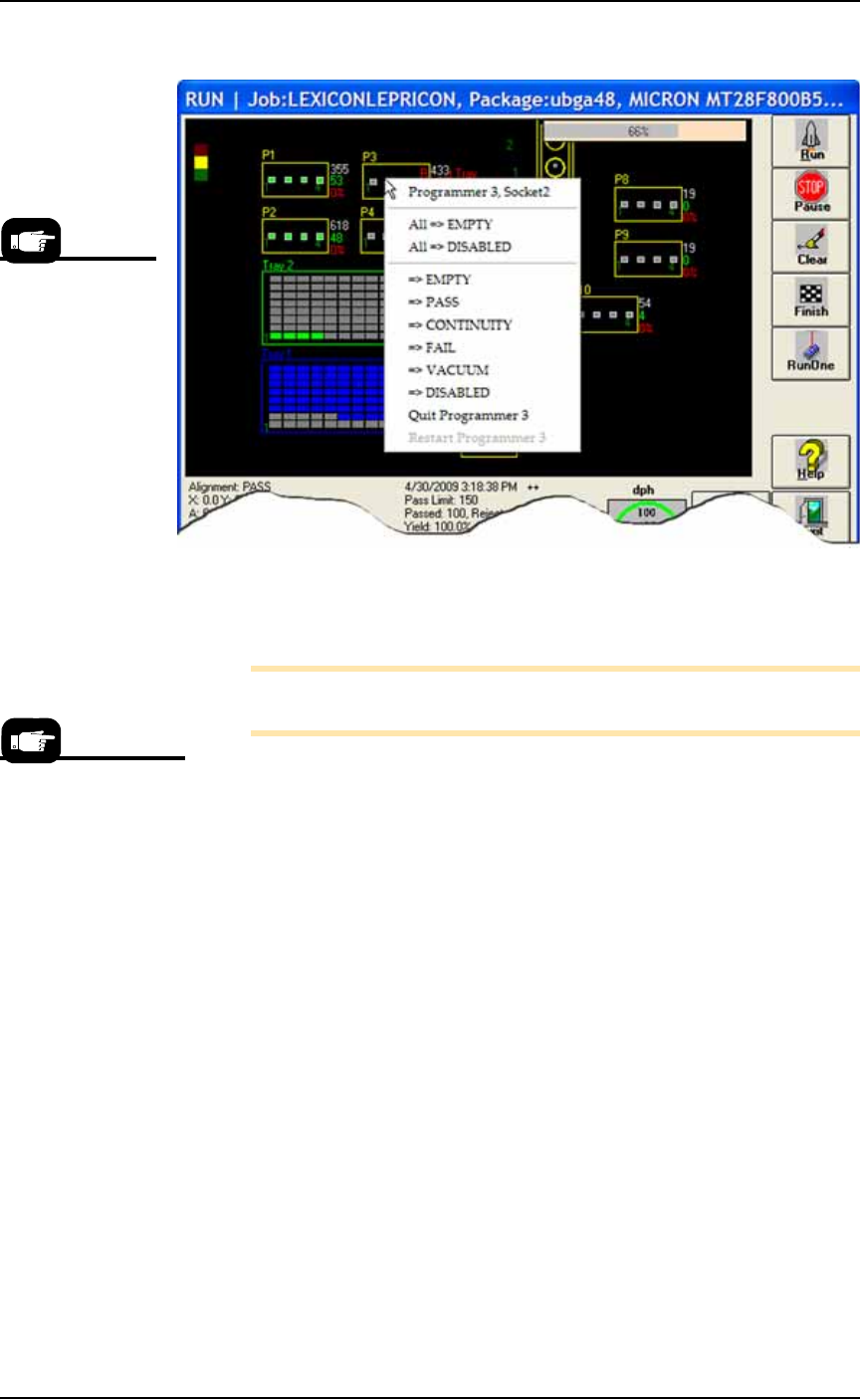
1a. Right-click on the target programmer and select All => DIS-
ABLED. All sockets on this programmer change to black and are
disabled. See Figure 3-26.
Note: To disable a single socket, right-click the socket and select =>
DISABLED. The socket changes to black and is disabled.
2. Resume job—
2a. To resume a job click Run.
2b. Manually remove any devices from the disabled sockets after
the job finishes.
Clearing a Programmer Disabled Status
If the status indicator on the Run Window disappears from any of the
programmer outlines, or the PNP head skips a programmer, the pro-
grammer may be disabled. It may be possible to correct the problem
by simply clearing the programmer disabled status using the fol-
lowing procedure.
1. At the Run window, click Pause.
1a. Right-click on the target programmer and select All => EMPTY.
This DOES NOT CLEAR THE SOCKETS, only changes the sta-
tus.
CAUTION: Unprogrammed devices can get placed into the PASS
output. Since this does not clear the sockets, there is a possible risk
of double-stacking devices in the sockets. Open the Safety Shield
and manually remove any devices in the sockets on the target
programmer with a suction tool.
All sockets on this programmer change to grey and are re-enabled.
See Figure 3-26.
An optional method of
changing programmer
and socket status is with
the Programmer Inter-
face Window. (Setup
Window > System >
Programmers) See the
on-screen Help for more
information.
■ Operator Functions ◘ After a Job Completes
PS Series Owner’s Manual 3—27
back
Figure 3-26: Right-click a programmer in the Run Window to change
the status of the programmer, empty the sockets, toggle the vacuum,
or perform various other functions. (PS588 shown.)
Note: To re-enable a single socket, right-click the socket and select
=> EMPTY. The socket changes to grey and is re-enabled.
2. Resume the paused job—
2a. Manually remove any devices from sockets whose status you
have enabled.
2b. To resume a job click Run.
After a Job Completes
After a job completes:
1. Wait for the PNP head to park.
2. (Optional) If Sort-On-Error-Code was employed, record the num-
ber of devices in Reject 1, (FailBox1).
3. Empty the Reject Bin(s).
4. Remove programmed devices.
Turning Off System Power
When the PS System will not be run overnight, or before performing
a service procedure, turn off the power.
1. Finish or end the job if one is running.
2. Remove all devices from the workspace.
This right-click pro-
cedure allows
changes to one
socket or one pro-
grammer, while the
Clear button on the
Run Window clears
all sockets on the all
programmers in use.
Always Pause a job
prior to opening a
workspace access door.