[Superset] Chapter5_SPC Plus_ENG_20100827TW - 第13页
Programmer's Manual | 13 Category Description Barcode Search Searches only the PCB with the entered bar code nu mbers Vie w Searches with the conditions ent ered on the search field window List Export Saves the curr…
Programmer's Manual | 12
3. SPC PLUS™ FUNCTIONS
Thischapterdescribesthevariousfunctionsperformedbyusingthe10viewmenusofSPCPlus™
Home.
3.1. ListView
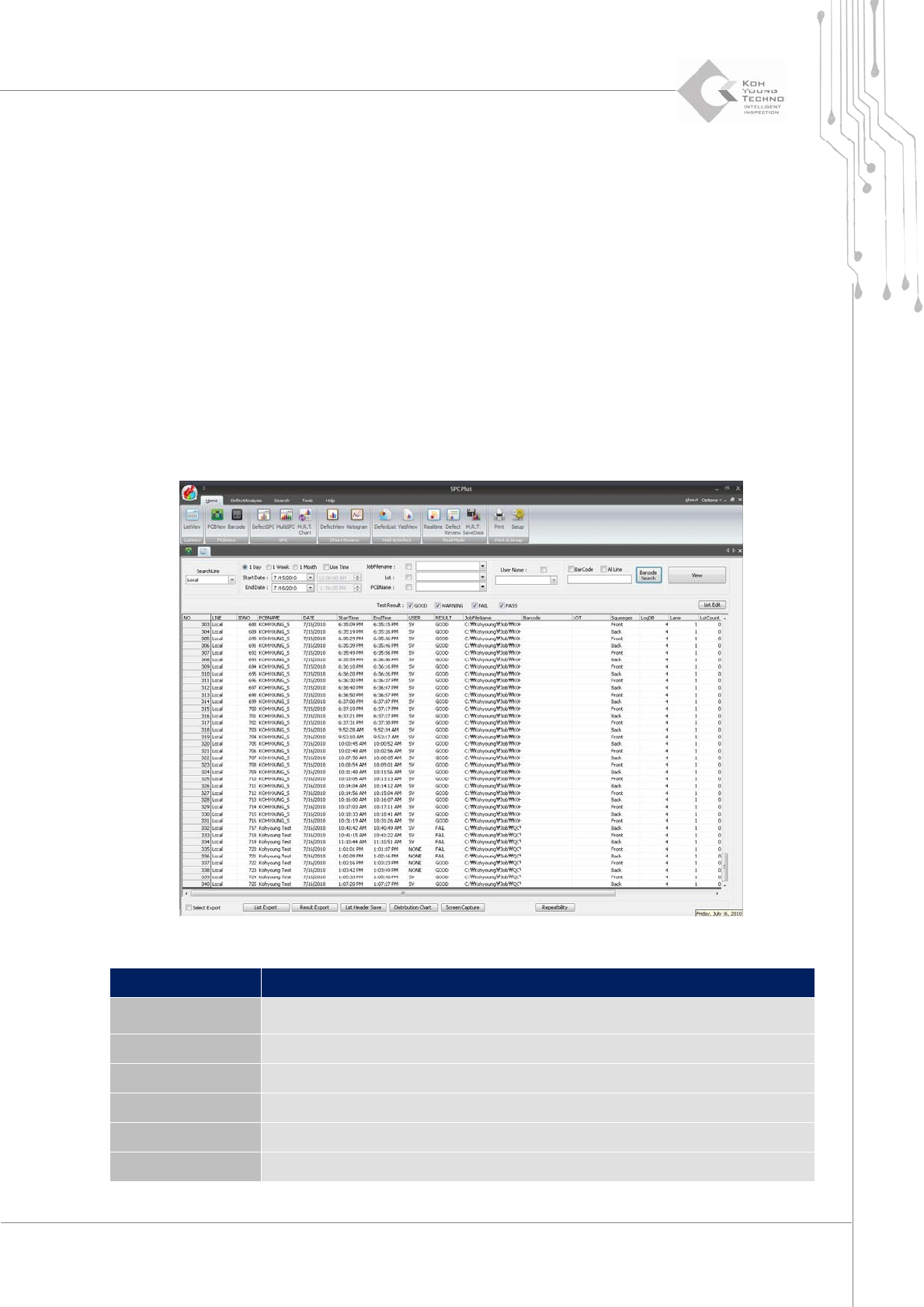
ListView is the menu that arranges and displays the inspection results when searching the PCB
inspection results with PCB unit at a scheduled time. When working with other view menus, it
alsoconfigurestherangefor statistics.
Figure 3-1. ListView
Category Description
SearchLine
Enters the IP address to obtain the inspection result data of the specific SPI
tester
Start/End Date Sets the search start/end date and time
Use Time Selects the desired time unit from one day, one week, or one month
JobFilename Searches only PCB using the JOB file with the entered conditions
User Name Searches only the PCB inspected by the user of the entered conditions
Lot Searches only the PCB taken out from the lot with the entered conditions
Programmer's Manual | 13
Category Description
Barcode Search Searches only the PCB with the entered bar code numbers
View Searches with the conditions entered on the search field window
List Export Saves the currently searched PCB information in file format
Result Export Saves the results of the selected PCB in the assigned file format
List Header Save Saves the currently configured header list
Volume VS Area Lists the volume and area relation with Scatter Chart format
Screen Capture Saves the main screen in picture file format
Repeatability Calculates or compares the repeatability of the specific PCB inspection result
Note:Clickingthelistheaderwillorganizetheresultswiththecategoryasthebase
Note: The setup for SearchLine from the category above should be done by the SPC Plus Config
™
program.
Note: The saving file type of List Export, Result Export, and Screen Capture from the categories above
shouldbeconfigur ed intheSetupmenuundertheviewmenu.
On the search condition input window, select the desired category and click the <View> button.
The entered condition corresponding to the PCB inspection results will be listed on the query
window.
3.2. PCBView
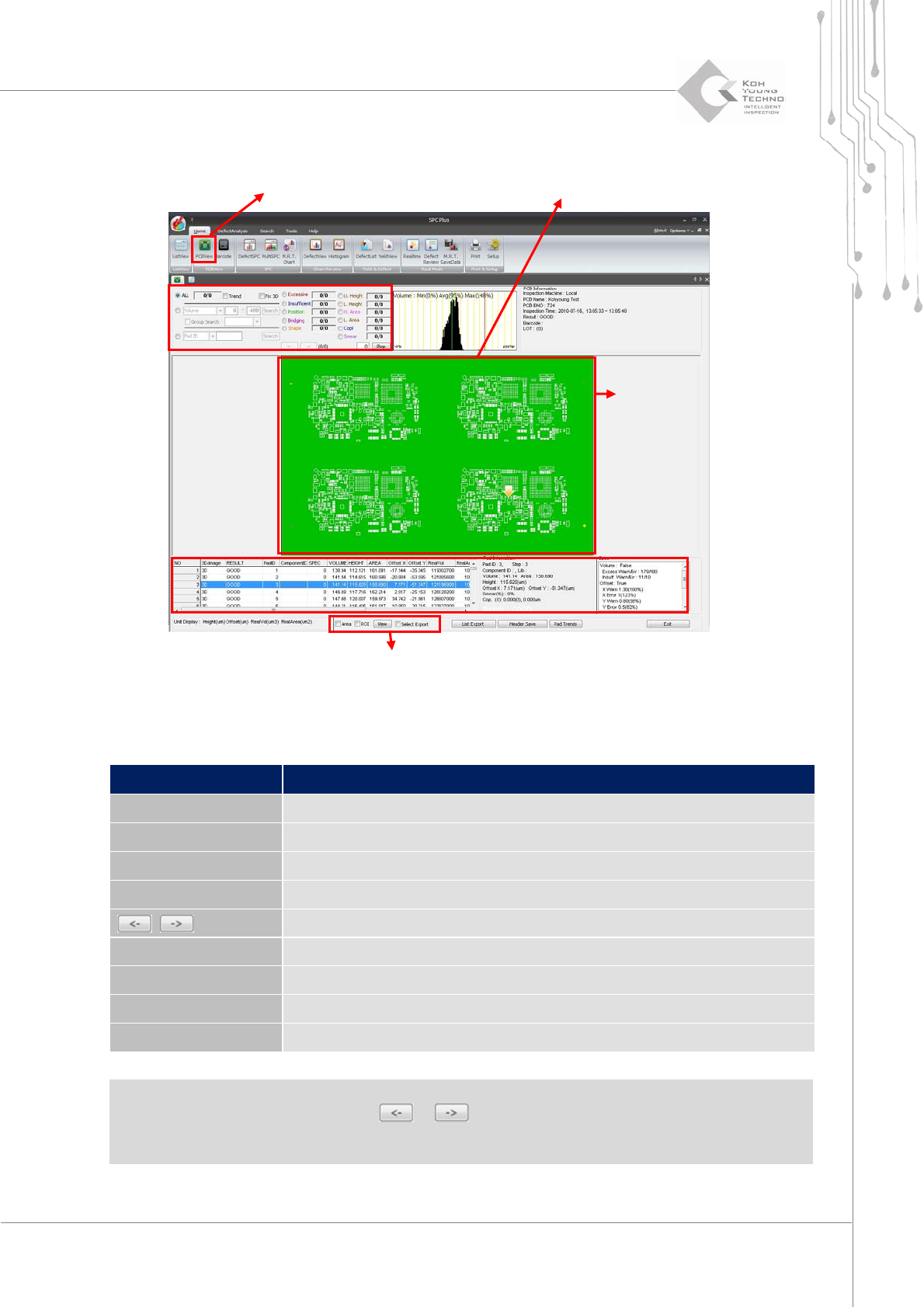
PCBViewisamenuthatcanqueryonePCBindetail.Whenworkingwithotherviewmenus,italso
configurestherangeforstatistics.PCBViewcanobtainthefollowinginformation:
DefectstatusofentirePC B
Informationofpadswheredefectoccurred
Resultsofallpads
Trendinformation
onthecorrespondingPCB
Double‐clickorenableaspecificPCBinListViewandclickthePCBViewicon.ThePCBViewscreen
forPCBwillappear.
Programmer's Manual | 14
Figure 3-2. PCBView
Category Description
ALL Queries data for all pads
Value Trend Uses the Value Trend function
Volume Searches a pad with the inspection results within a specific range
PadID Searches a pad with specific PadID or ComponentID
,
Searches the previous or next defective pads
Defect type Displays only the pads with the selected defect types
List Export Saves the searched PCB list as a file
Header Save Saves the currently configured header list
Pad Trend Displays a window showing the trend of the selected pad
Note: When there is a defective pad in the corresponding PCB, changing the conditions on the
conditioninputwindoworclickingthe or buttonshowsthedefectiv e padindetail.
Note: The ValueTrendfunctioninthecategoryabovewillbedescribedfurtherinthenextpage.
Condition Input Window
PCB Query Window
Conversion Print Function
PCB Query Window
Condition Input Window
SP
Pad Information Query Window