00196799-02_InstallGuide_DE.pdf - 第38页
3 In st al lati o n de s SIP LACE E xplor e r Inst al l atio ns - und Ko nfi gu ra tio ns an le itun g S IPL AC E Exp lo rer 3. 3 I nst all at i onsv o rga ng S I PLAC E Ex pl ore r 2 . 9 Au s gabe 06 /2 01 1 D E 38 G …
Installations- und Konfigurationsanleitung SIPLACE Explorer 3 Installation des SIPLACE Explorer
Ausgabe 06/2011 DE 3.3 Installationsvorgang SIPLACE Explorer 2.9
37
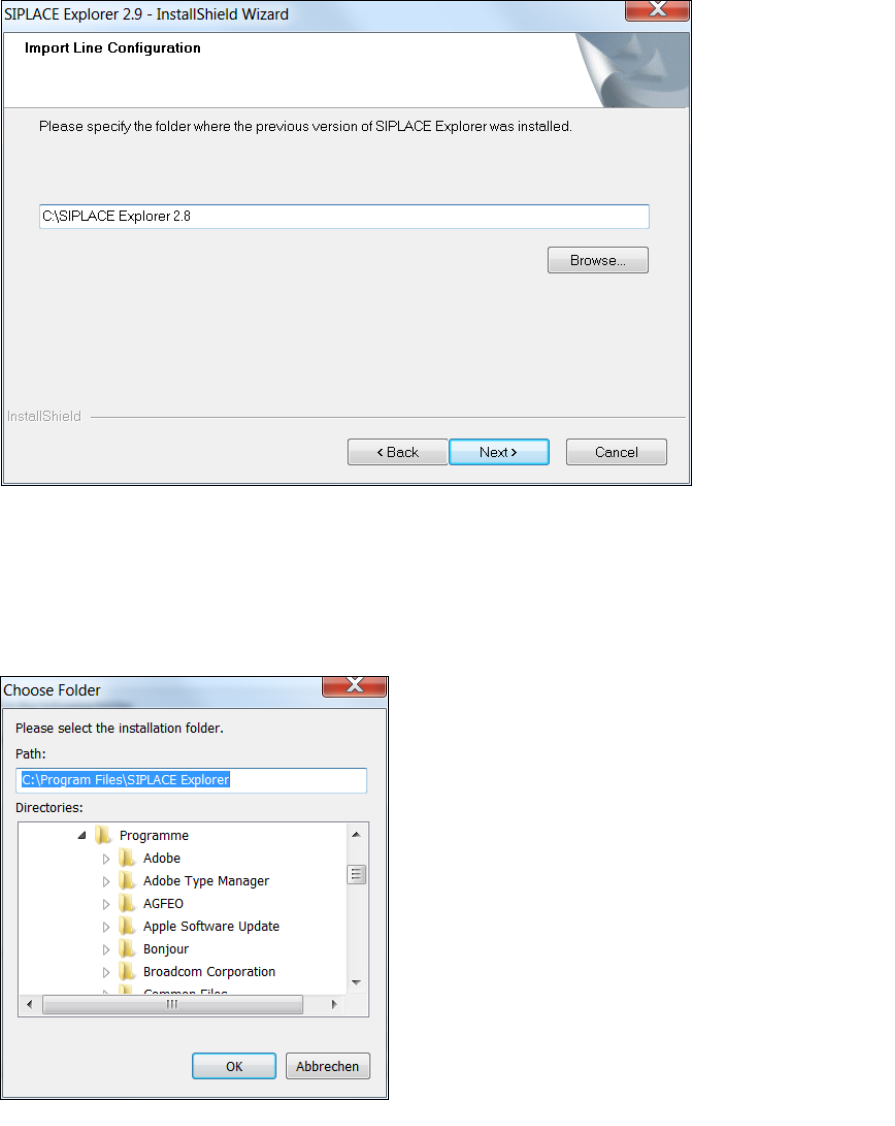
Geben Sie jetzt den Ordner an, in dem die Linienkonfiguration einer vorherigen SIPLACE
Explorer Version gespeichert ist. Der standardmäßig eingestellte Ordner ist C:\Program
Files\SIPLACE Explorer.
3
Abb. 3 - 9 SIPLACE Explorer setup - Zielordner wählen
Sie können die Standardeinstellung durch Betätigung der Schaltfläche Browse (Durchsuchen)
verändern.
Das Dialogfenster Choose Folder (Ordner auswählen) öffnet sich, um den gewünschten
Ordner zu wählen.
3
Abb. 3 - 10 SIPLACE Explorer Setup - Dialogfenster 'choose folder' (’Ordner auswählen’)
3 Installation des SIPLACE Explorer Installations- und Konfigurationsanleitung SIPLACE Explorer
3.3 Installationsvorgang SIPLACE Explorer 2.9 Ausgabe 06/2011 DE
38
Geben Sie den gewünschten Ordner an und klicken Sie OK, um Ihre Auswahl zu bestätigen.
Im Dialogfenster Import Line Configuration (Linienkonfiguration importieren) wird der
ausgewählte Ordner angezeigt.
Um die Auswahl des Zielordners zu bestätigen, klicken Sie im Dialogfenster Import Line
Configuration (Linienkonfiguration importieren) die Schaltfläche Next (Weiter) an.
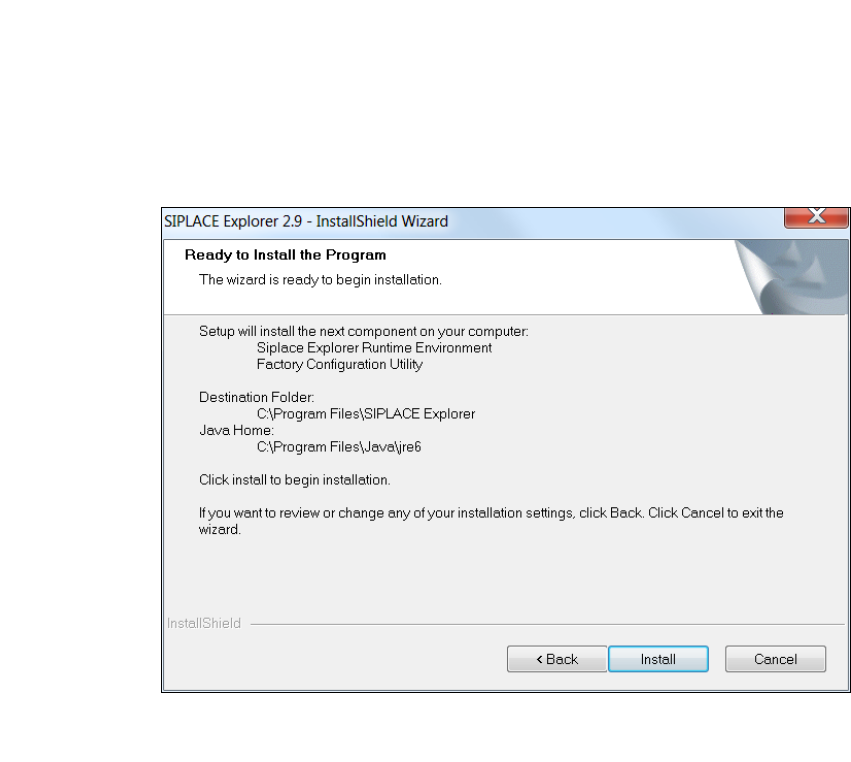
Das Dialogfenster Ready to Install the Program (Bereit für die Installation) wird geöffnet.
3
Abb. 3 - 11 SIPLACE Explorer Setup - Dialogfenster 'Ready to Install' (Bereit für die Installation)
Klicken Sie auf Install, die eigentliche Installation von SIPLACE Explorer V2.9 beginnt.
Installations- und Konfigurationsanleitung SIPLACE Explorer 3 Installation des SIPLACE Explorer
Ausgabe 06/2011 DE 3.3 Installationsvorgang SIPLACE Explorer 2.9
39
3
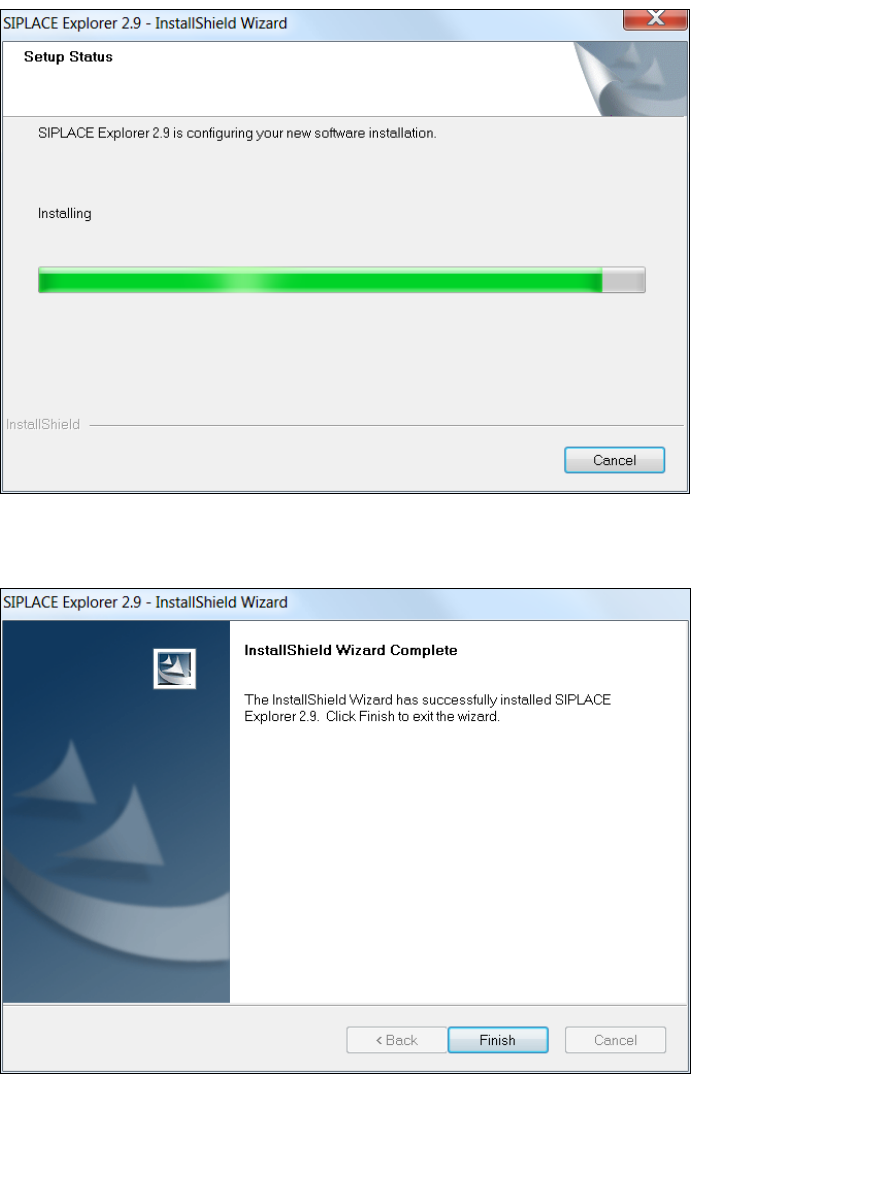
Abb. 3 - 12 SIPLACE Explorer Setup - Dialogfenster 'Setup Status' (Status der Installation)
Wenn die Installation beendet ist, erscheint nachfolgendes Dialogfenster.
3
Abb. 3 - 13 SIPLACE Explorer Setup - Installation beendet
Klicken Sie auf Finish. Nach dem nächsten Start Ihres Computers können Sie SIPLACE
Explorer starten. Gehen Sie dazu vor, wie unter “SIPLACE Explorer starten” auf Seite 40
beschrieben.