SIPLACE OIS V9.1安装手册 - 第7页
Installation Manual OIS 9.1 / Installati onsanleitung OIS 9.1 Ausgabe 02/2011 Edition 7 2.3 Monitoring functionality • One of the following preferred operating system s: • Windows Server 2008 SP2 (32 bit/64 bit) and R2 (…
Installation Manual OIS 9.1 / Installationsanleitung OIS 9.1 Ausgabe 02/2011 Edition
6
2 Prerequisites
2.1 OIS/SIS functionality
• One of the following preferred operating systems:
• Windows Server 2008 SP2 (32 bit/64 bit) and R2 (64 bit)
• Windows Server 2003 SP2 or R2
• The hard disk must have at least 200 MB of free memory.
• One of the following Microsoft SQL Server versions:
• Microsoft SQL Server 2008 R2/Express Edition R2 (32 bit/64 bit
*
)
• Microsoft SQL Server 2008 SP1/Express Edition SP1 (32 bit/64bit
*
)
• Microsoft SQL Server 2008 SP2/Express Edition SP2 (32 bit/64bit
*
)
• Microsoft SQL Server 2005 SP3/Express Edition SP3 (32 bit/64 bit
*
)
• DVD-ROM drive
• SIPLACE Pro V4.1 or higher
• TimeSync must be installed (available on the Support Media DVD).
* 64 bit editions are only supported on Windows 64 bit systems.
2.2 OIS Client
• The preferred operating system:
• Windows 7 (32 bit/64 bit)
• Windows Vista SP2 (32 bit/64 bit)
• Windows XP Professional SP3 (32 bit)
• Internet Explorer 4.01 SP2 or later must be installed.
• The hard disk must have at least 20 MB of free memory.
• When the system is used on a SIPLACE machine, the station computer must have at least 128 MB of
main memory.
• Monitoring Service must be installed.
• You must know the TCP/IP address or the UNC name (e.g. \\server-name) of the Monitoring Service.
• A compatible version of the station software must be installed (see the Software Version Description for
OIS).
• A network connection to the Monitoring Service is available.
• TimeSync must be installed (available on the Support Media DVD).
Installation Manual OIS 9.1 / Installationsanleitung OIS 9.1 Ausgabe 02/2011 Edition
7
2.3 Monitoring functionality
• One of the following preferred operating systems:
• Windows Server 2008 SP2 (32 bit/64 bit) and R2 (64 bit)
• Windows Server 2003 SP2 or R2
• The hard disk must have at least 200 MB of free memory.
• One of the following Microsoft SQL Server versions:
• Microsoft SQL Server 2008 R2/Express Edition R2 (32 bit/64 bit
*
)
• Microsoft SQL Server SP1/Express Edition SP1 (32 bit/64 bit
*
)
• Microsoft SQL Server SP2/Express Edition SP2 (32 bit/64 bit
*
)
• Microsoft SQL Server 2005 SP3/Express Edition SP3 (32 bit/64 bit
*
)
• DVD-ROM drive
• TimeSync must be installed (available on the Support Media DVD).
• SIPLACE Pro V7.0 or higher
• OIB 2.0 (OIB Monitoring Adapter 2.0)
* 64 bit editions are only supported on Windows 64 bit systems.
2.3.1 Compatibility with SIPLACE Pro versions 4.1 and higher
The Monitoring Service 9.1 is compatible with SIPLACE Pro 9.2. To run Monitoring Service with other
SIPLACE Pro versions <7.1, licenses have to be added manually.
The required licenses are delivered on the installation CD in the directory: SIPLACE_Pro_Licenses.
Each license file has a version number that corresponds to the SIPLACE Pro version number.
E.g.: Monitoring_License_for_SIPLACE_Pro_7.0 for the SIPLACE Pro 7.0 version.
2.3.1.1 Applying license keys to SIPLACE Pro
The license keys have to be applied to SIPLACE Pro.
For SIPLACE Pro 4.x and 5.0 versions:
→ Start the License Manager by clicking on Start – Programs – SIPLACE Pro – Administration –
Siplace Licensing.
For SIPLACE Pro >5.0 to 7.0 versions:
→ Start the License Manager by clicking on Start – All Programs – SIPLACE Licensing – License
Manager.
As of the SIPLACE Pro 7.1 version, no license key has to be applied manually.
See the SIPLACE License Manager – Installation Manual, item no. 00195648-xx for further information
about applying and importing license keys.
Installation Manual OIS 9.1 / Installationsanleitung OIS 9.1 Ausgabe 02/2011 Edition
3 Installation
¾ Prepare your computer with the Support Media DVD before starting the installation.
3.1 Starting the installation
¾ Start Windows.
¾ Log in with administrative permissions.
¾ Put the CD-ROM in the drive.
After a few seconds, the CD browser will be started automatically.
Note:
If the CD browser does not start automatically, manually start the Start.exe program from
the root directory of the CD-ROM.
The CD browser provides support as you install the individual software packages.
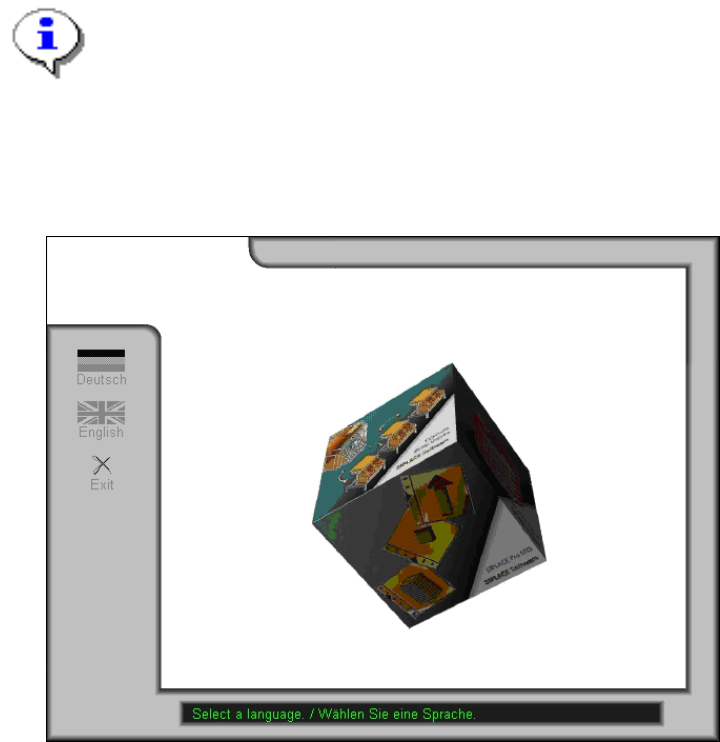
¾ Select a language to enter the main view of the CD browser.
8