YSM20&40_how_to_change_directionPDFA.pdf - 第15页
Service Engineer Service Information SI1407002E - 000 =YSM40_How to change the board flow direction (Tentative measure) 15 / 24 1. Select “OUT PUT 1” and “Dark ON”. ( Switch OUT PUT) 1) Press the [Mode] k ey. If you hold…
Service Engineer
Service Information
SI1407002E-000=YSM40_How to change the board flow direction (Tentative measure)
14/24
2.4 Adjustment of the sensor amplifier (KLF-M654N-10)
Perform only Power tuning. You do not need to adjust the amplifier.
When you accidentally initialize the setting or replace the amplifier, perform the adjustment for the
amplifier.
The currently shipped amplifier is initialized. If the initial setting is done for the amplifier, a label is
attached to it.
Item
Part Name
Part No.
Qty
Sensor amplifier
AMP, SENSOR 1
KLF-M654N-10
-
Table 3
* When replacing the amplifier due to defects, place an order for the required number of amplifiers.
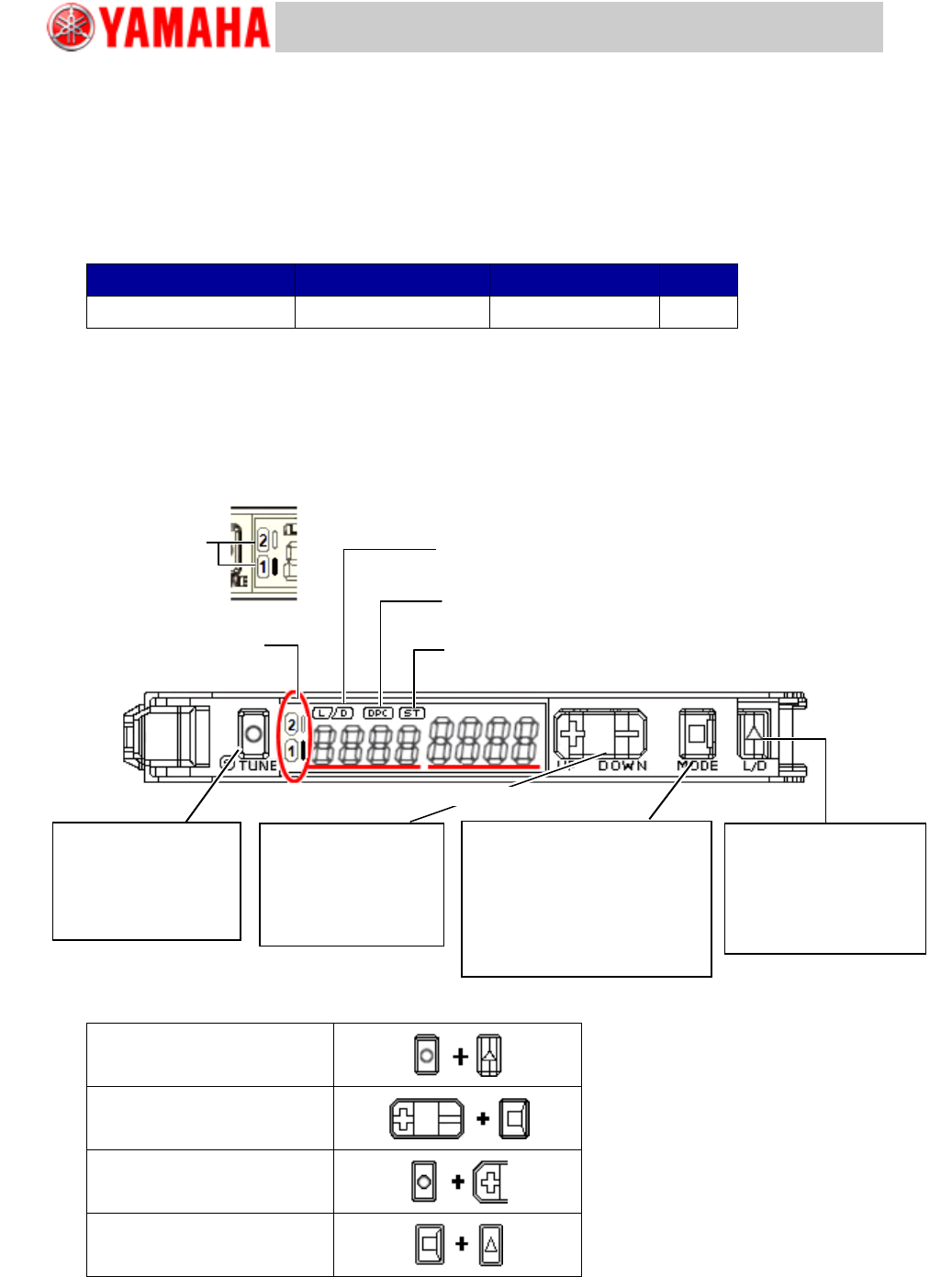
[OUT selection indication: Orange]
* E3NDK-FA21, E3NX-FA7TW
* E3NDK-FA51, E3NX-FA9TW
Figure 16
Setting Reset
Key Lock
Zero Reset
Solution Viewer
Table 4
[OUT Indication
light: Orange]
[L/D Indicator: Orange]
It indicates “Light ON/Dark ON” setting
[DCP Indicator: Green]
It turns ON when the “Dynamic Power Control” function is activated.
[ST Indicator: Blue]
It turns ON when the “Smart Tuning” is performed.
[OUT Indication light: Orange]
It turns ON when OUTPUT is ON
Switch OUTPUT
[L/D] button
By pressing the button once,
“Light ON” and “Dark ON”
are switched.
[L/D] indicator changes.
Threshold level
Switch “MODE/OUT”
[MODE] button
By holding down the button for 3
seconds or more, the “SET” mode
and the “RUN” mode are switched.
When holding down the button for 1
second, it is switched to “OUTPUT”.
Incident light
Fine tuning of the
Threshold level
[UP/DOWN] button
The green digital value
(Threshold) changes.
Sensitivity setting
[S.TUNE] button
Tuning is performed and
the [ST. Indicator] lights
up.
Service Engineer
Service Information
SI1407002E-000=YSM40_How to change the board flow direction (Tentative measure)
15/24
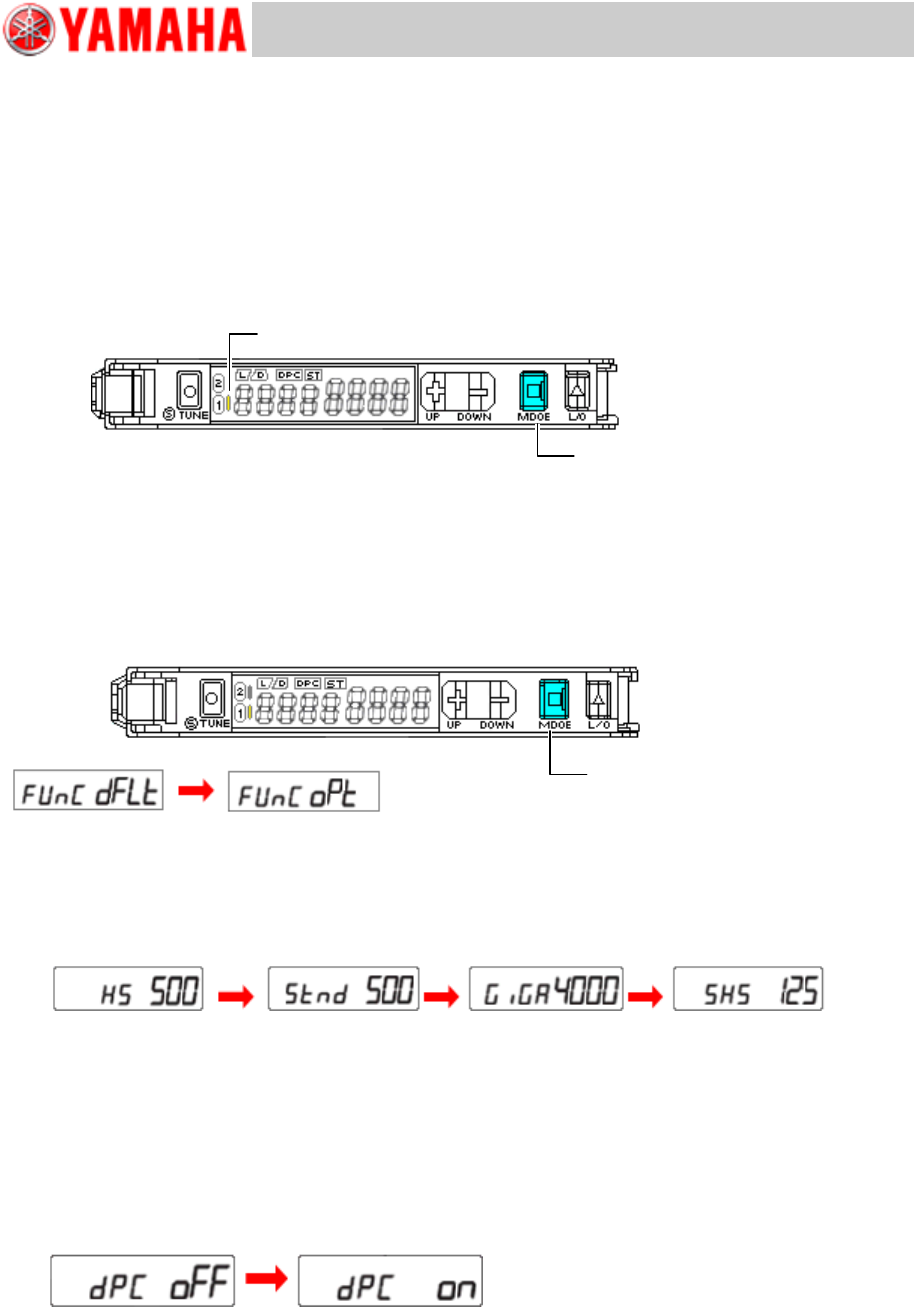
1. Select “OUTPUT 1” and “Dark ON”. (Switch OUTPUT)
1) Press the [Mode] key.
If you hold down the [MODE] key for one (1) second, the output mode is switched between
“OUTPUT 1“ and “OUTPUT 2”.
2) Press the [L/D] key.
Through-beam type: Set to “Dark ON” so that the OUTPUT is turned ON with a work piece in
the detection range.
The “D” light of [L/D Indicator] turns ON.
Figure 17
2. Select “Detailed Setting”. (Switch Function)
Hold down the [MODE] key for three (3) seconds or more to switch the OUTPUT mode between
“RUN” and “SET”.
Select the detailed setting (“FUnCoPt”) by pressing the [UP/DOWN] key, and then press the
[MODE] key.
Figure 18
3. Set the “Detection function” to “SHS” mode.
Select “SHS” mode by pressing the [UP/DOWN] key and then press the [MODE] key.
Figure 19
4. Set the “DPC” function to “ON”.
In order to stabilize the detection performance regardless of the amount of the incident light, set
the “DPC” to “ON”.
Select “DPC ON” by pressing the [UP/DOWN] key and then press the [MODE] key.
As the setting for “Timer” function is not required, press the [MODE] key and skip it.
Figure 20
OUT indicator (OUTPUT 1)
Hold down the [MODE]
key for 1 second.
Hold down the [MODE] key for
3 seconds or more.
Basic setting
Detailed setting
HS: High-Speed mode
GIGA: Giga mode
STND: Standard mode
SHS: Super High-Speed mode
HS: High-Speed mode
STND: Standard mode
Service Engineer
Service Information
SI1407002E-000=YSM40_How to change the board flow direction (Tentative measure)
16/24
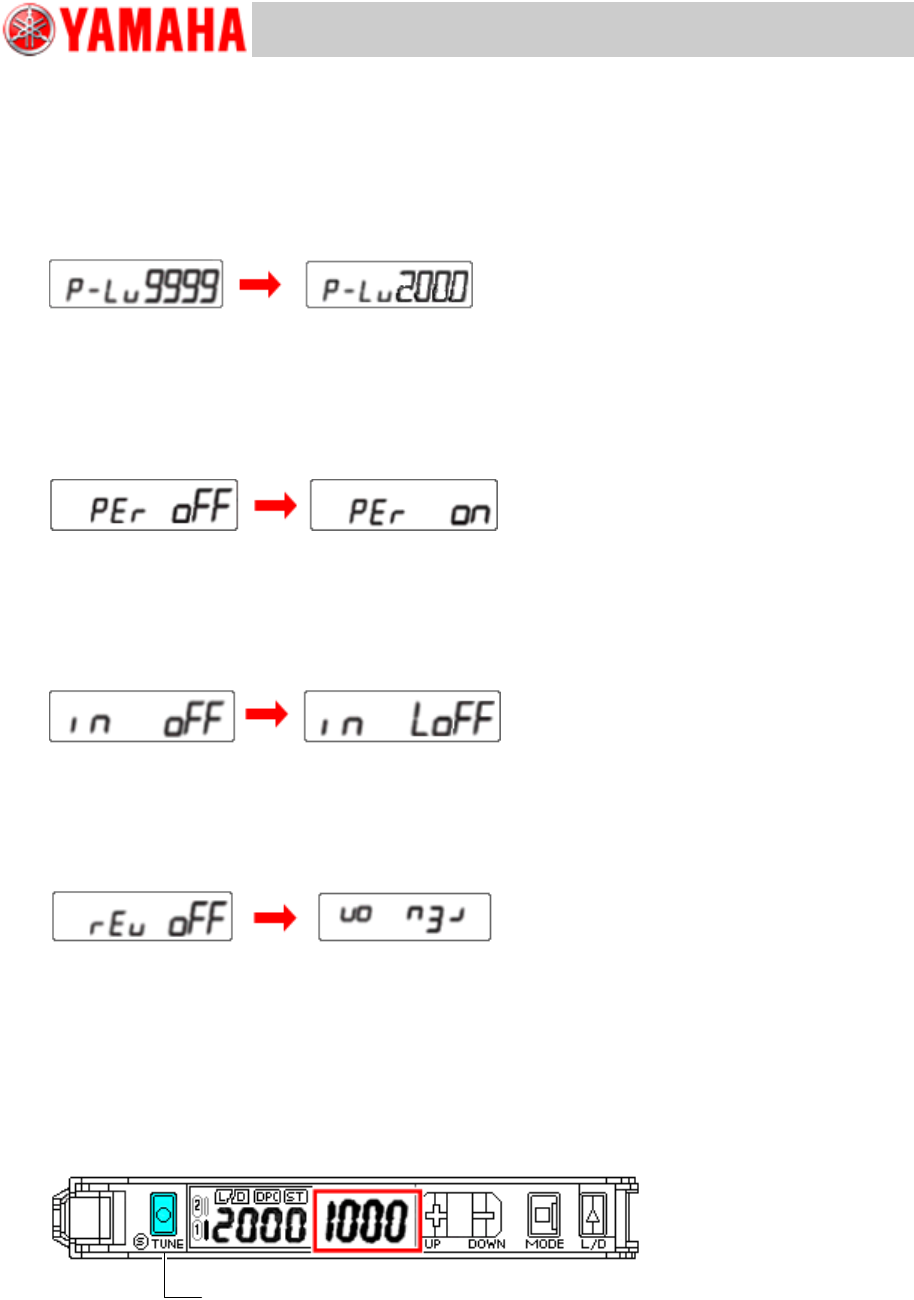
5. Set the Power tuning level to “2000”.
Set the target incident light level (Power tuning level) to “2000”.
You can set the power tuning level by pressing the [UP/DOWN] key. (Default: 9999. It is possible
to set from 1 through 9999.)
There are other items such as “BANK switching” and “Power Tuning ON/OFF Setting”. As the
settings for these items are not required, press the [MODE] key and skip it.
Figure 21
6. Set the Percentage Tuning to “ON” and the Tuning level to “-50%”.
Perform the setting to detect transparent objects and microscopic objects.
You can set the Percentage Tuning level by pressing the [UP/DOWN] key. (Default: -6%. It is
possible to set from -99% through 99%.)
Figure 22
7. Set the “External Input” to “LoFF”.
Change the type of the external light.
Select “LoFF” by pressing the [UP/DOWN] key and then press the [MODE] key to set.
Figure 23
8. Set “Inverted Display” to “ON”.
The digital display may be inverted depending on the mounting position of the amplifier. In this
case, set the “Inverted Display” to ON.
Figure 24
9. Switch the mode from “SET” to “RUN”.
After completing the procedures from step 3 through step 8, hold down the [MODE] key for three
(3) seconds or more to change the mode from “SET” to “RUN”.
10. Perform the Percentage Tuning.
Make sure that there is no board to be detected by the target sensor, and hold down the [S.TUNE]
key for one (1) second or more.
Figure 25
Tuning OFF
Tuning ON
Tuning OFF
Tuning ON
Hold down the [S.TUNE] key for 1 second or more. Make sure that the
incident light level is “2000” and the Threshold level is “1000”.
(The values may slightly vary depending on the adjustment state.)