YSM20&40_how_to_change_directionPDFA.pdf - 第18页
Service Engineer Service Information SI1407002E - 000 =YSM40_How to change the board flow direction (Tentative measure) 18 / 24 3.2.1 “Adj. Conv eyor Guide Che ck Pos.” The conve y or plate of YSM40 is movable so tha t t…
Service Engineer
Service Information
SI1407002E-000=YSM40_How to change the board flow direction (Tentative measure)
17/24
3. Things to do after changing the board flow direction
3.1 Change the machine setting
Change the setting of the board flow direction.
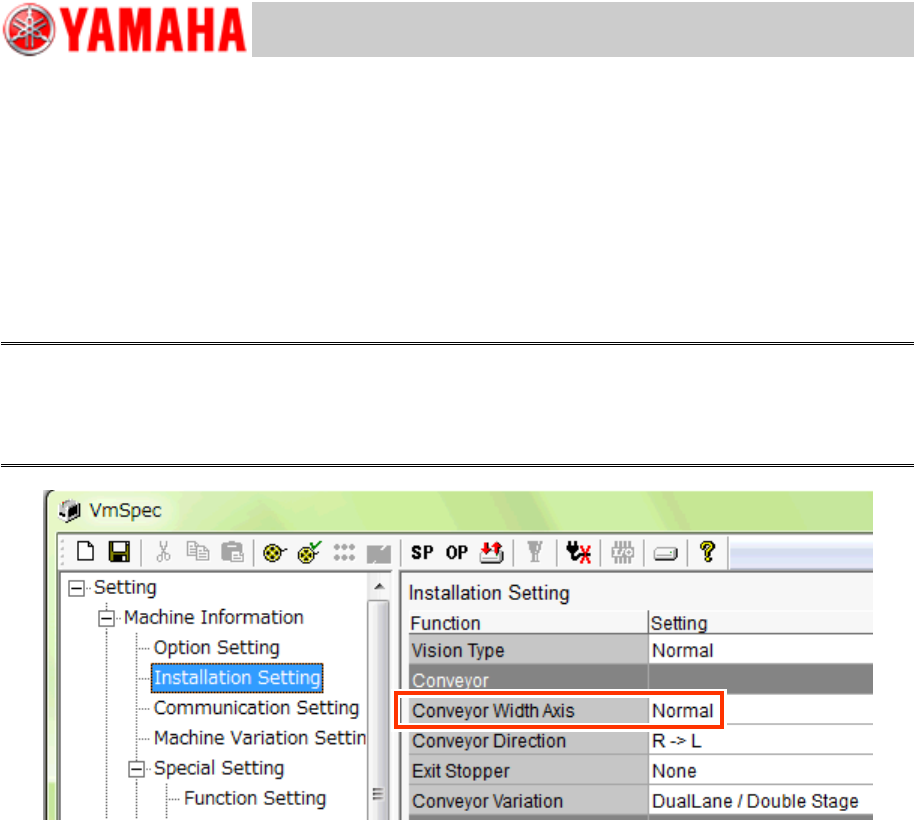
Click the [Machine] button and select “Setting” “Machine Information” “Installation Setting”
from the tree view on the left side of the VmSpec window and change the setting of “Conveyor
Direction”.
No password is required for changing the setting.
Caution:
Make sure to restart the machine after changing the setting of the board flow direction for the changes
to take effect.
The setting cannot be changed by just reading the board data, as the parameter is related to the drive
section.
Figure 26
3.2 Adjustments to be performed by the CalibSm
After changing the board flow direction and adjust the positions of the sensors, the following
adjustments need to be performed by the CalibSm.
[112 Check Conveyor]
[113 Transfer Distance]
[024 ANC Auto]
Service Engineer
Service Information
SI1407002E-000=YSM40_How to change the board flow direction (Tentative measure)
18/24
3.2.1 “Adj. Conveyor Guide Check Pos.”
The conveyor plate of YSM40 is movable so that the board clamped on the lane can be removed
by hand.
There are marks on the conveyor in order to judge whether the plate is back to the mounting lane
position or not. The mark position is the conveyor guide check position, and “Teaching” needs to be
performed for it.
* There are four (4) mark positions on each lane, so there are eight (8) positions all together.
Note:
If you tick the “Auto Adjustment” checkbox, you can perform the “Adj. Conveyor Guide Check Pos.” and
the “Adj. Data Check Origin” adjustments at the same time.
Normally, tick the checkbox and perform the adjustments.
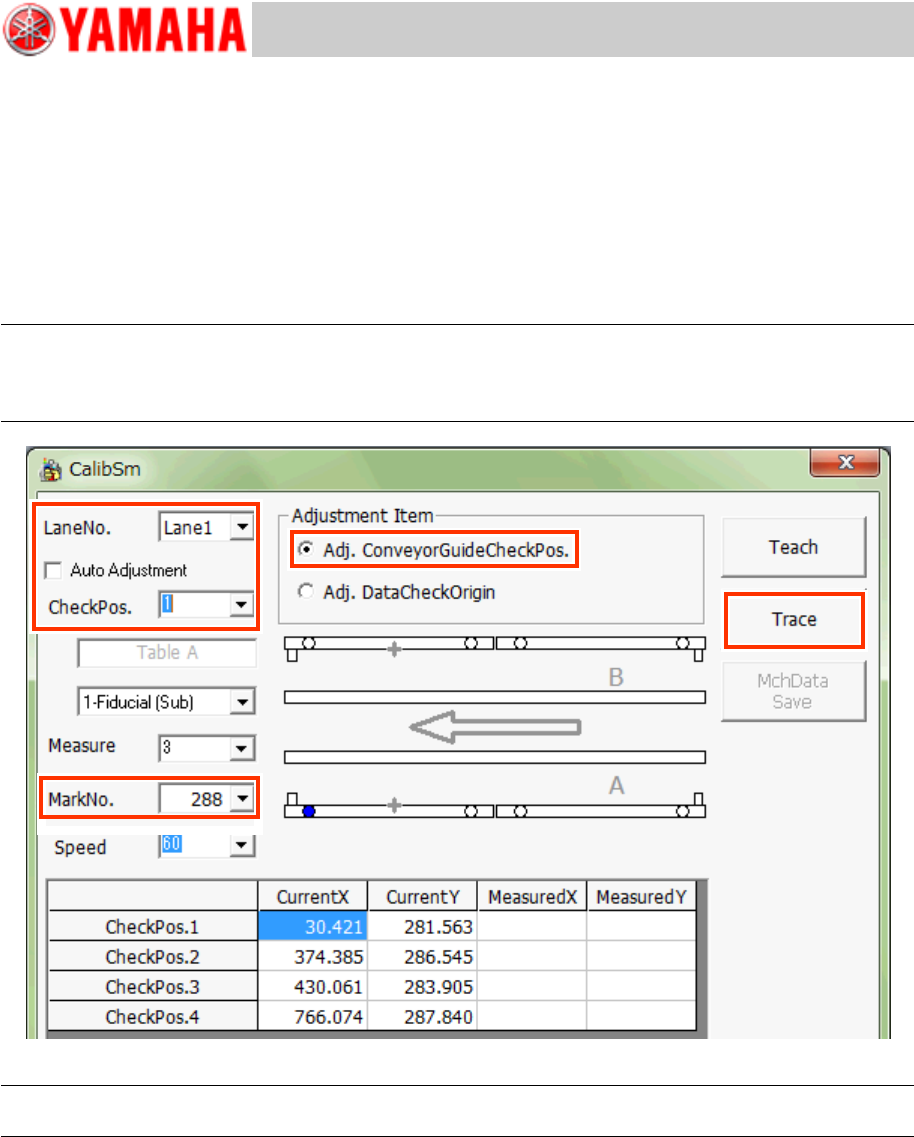
Figure 27
Note:
Use the Database No.288 to recognize the mark on the jig and check the position shift.
1. Tap the [112 Check Conveyor] button on the CalibSm main menu.
2. Make sure that the conveyor guide is at the mounting lane position.
3. Select “Adj. Conveyor Guide Check Pos.” from “Adjustment Item”.
4. Select the lane number (“Lane No.”) and the check position (“Check Pos.”) to be used for
the adjustment.
* The Table and the camera are automatically determined, so you do not need to set them.
Service Engineer
Service Information
SI1407002E-000=YSM40_How to change the board flow direction (Tentative measure)
19/24
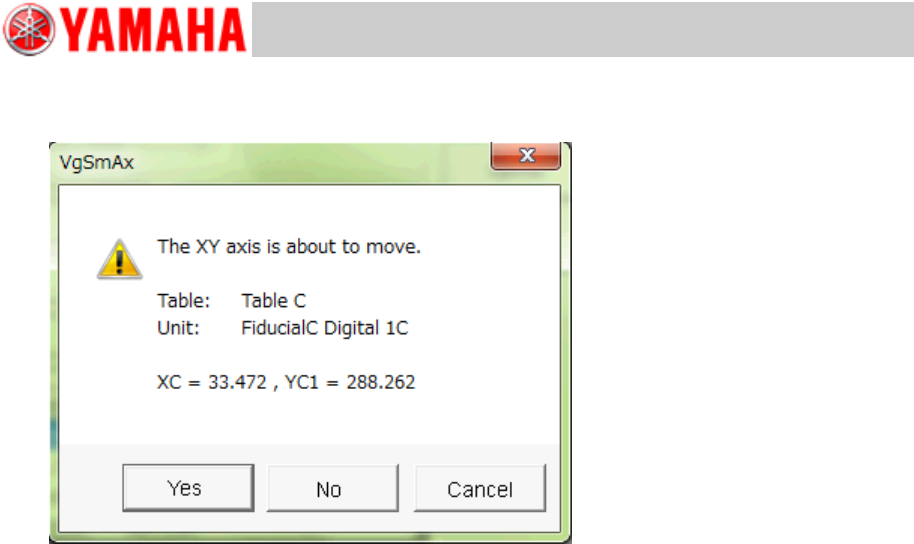
5. Tap the [Trace] button to move the camera to the measurement position.
Figure 28
If the mark is within the measurement range, tap the [Yes] button and move the camera to the
mark position and correct the position.
If the mark is out of the detection range, tap the [Teach] button and manually move the camera to
the mark position and perform teaching.
6. Change “Check Pos.” and “Lane Pos.” and adjust the check mark position of each
conveyor guide.