N7201A616E00_0317.pdf - 第459页
NPM-W 2 EJM7DE-MB-06O-0 0 6-2-4 -6 6 7 8 + + + (A component is picked up) Only if you transcript a component (The r ecognition sc reen appears in large form and teach is started) (A component transcr iption is carrie d o…
NPM-W2 EJM7DE-MB-06O-00
D
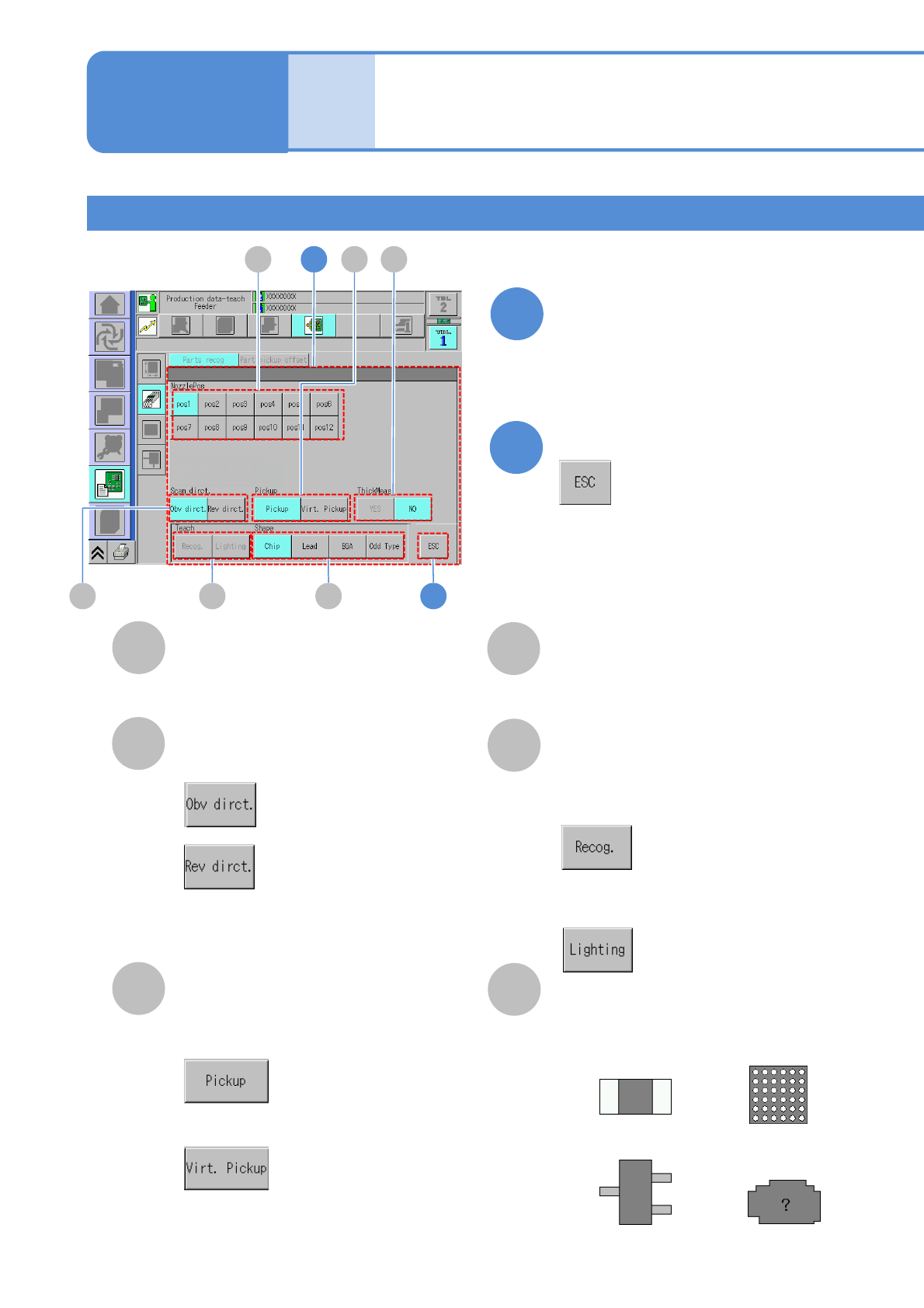
ThickMeas
Displayed only when the multi-recognition
camera is enabled
E
Teach
Teaching target
F
Shape
Four shape patterns of teaching component.
4
5
Choose a pickup condition
Complete the setting
B
A
NozzlePos
Nozzle position to pick up.
Scan direct.
Recognition direction
: From left to right
: From right to left
C
Pickup
■To automatically pickup a
component
■To manually pickup a component
Produc-
tion data
teaching
Component recognition
teach 3
6-2-4-5
Component recognition teach 2
■To recognize a component by
the multi-recognition camera
■To change the brightness of a
recognition image
●Shape: Chip
●Shape: Lead
●Shape: BGA
●Shape: Odd type
Operating procedure
6-2-4
4
5
A
B E F
DC
NPM-W2 EJM7DE-MB-06O-00
6-2-4-6
6
7
8
+
+
+
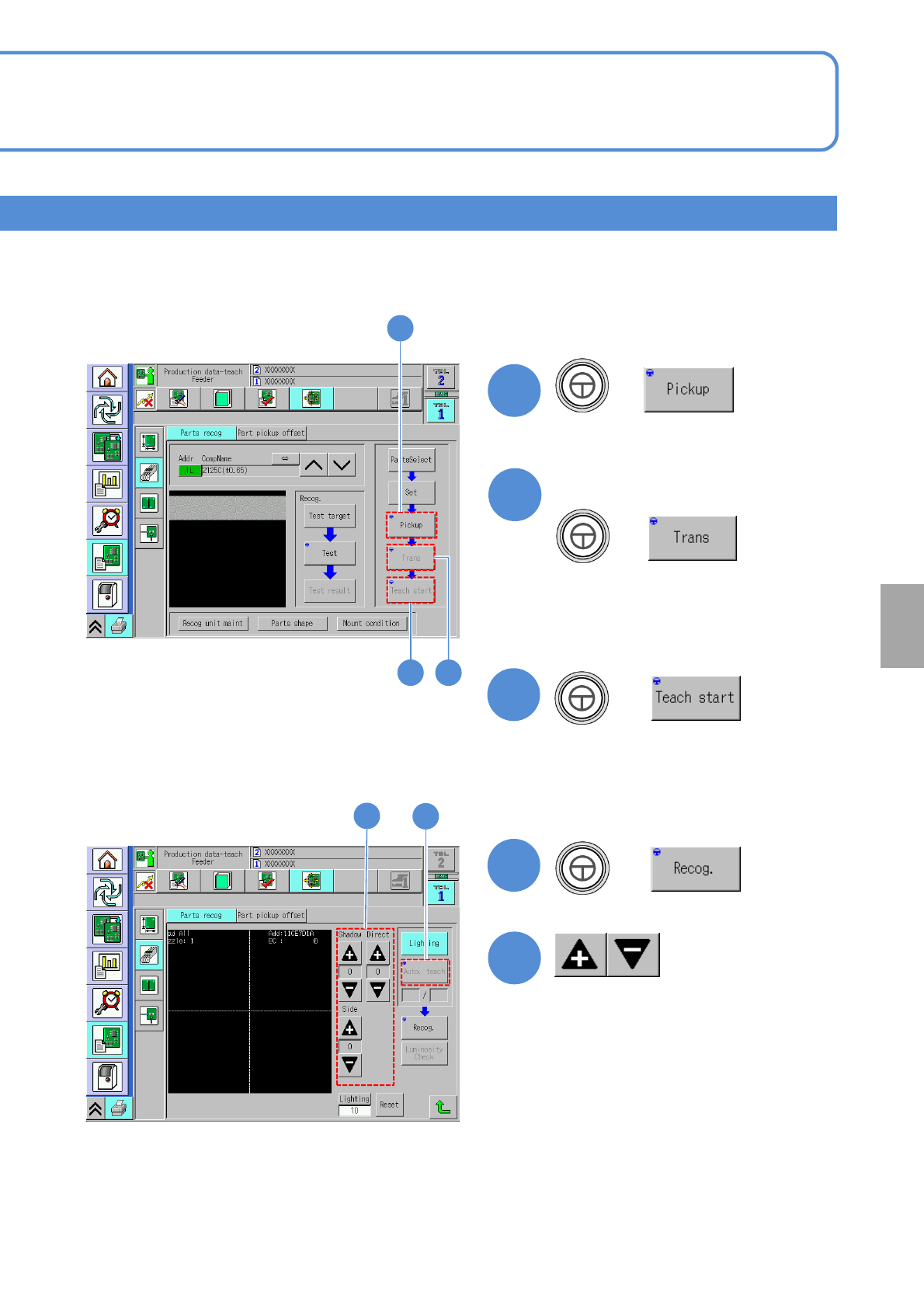
(A component is picked up)
Only if you transcript a component
(The recognition screen appears in large
form and teach is started)
(A component transcription is carried out)
●It is available only if the transcription
function is enabled.
9
+
(Suitable lamp value is decided)
6
7
8
10
●Adjust the brightness to see the
bad mark.(→P.6-2-1 ‘How to adjust
the lamp value’)
Setting
change
9
10
NPM-W2 EJM7DE-MB-06O-00
11
+
6-2-4-7
Produc-
tion data
teaching
Component recognition
teach 4
Operating procedure
6-2-4
Component recognition teach 3
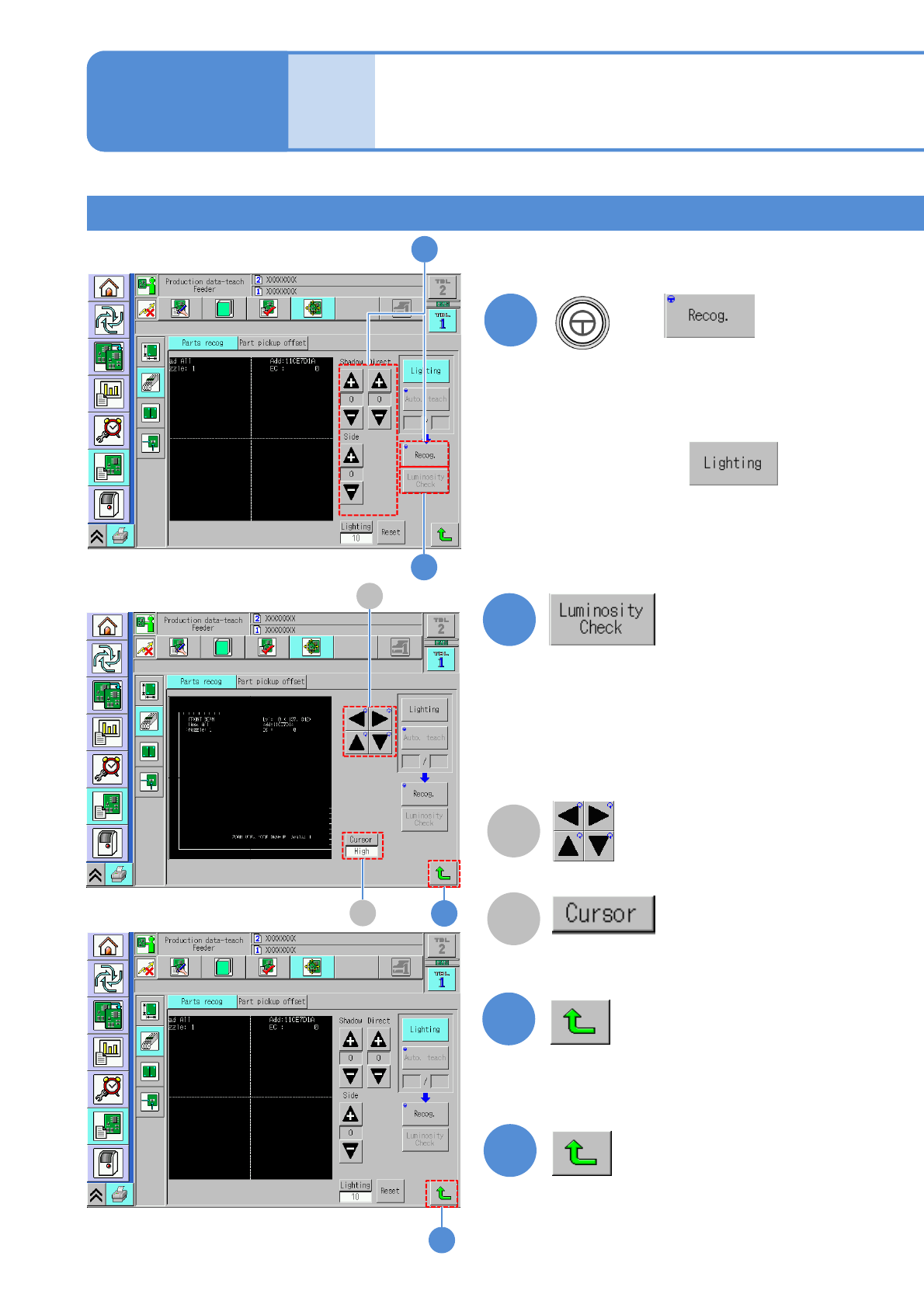
(An image recognized by the multi-
recognition camera is displayed)
■If a component outline is invisible
After pressing ,
adjusts the brightness values using
‘Shadow’, ‘Direct’ and ‘Side’ buttons
as the component outline becomes
visible.
14
B
A
13
13
14
12
A
B
11
12
(Luminance distribution in vertical direction
at the specified position on the screen is
displayed.)
Check by luminance distribution whether
there is enough luminance contrast between
a component and the background.
Cursor movement
Change cursor moving pitch
“High” / “Low”