00197455-01_IM_TX150SS8_en.pdf - 第10页
Installing Prim ergy TX 150 S8 with W indows S erver 20 12 07/2012 Edit ion 10 Figure 2-5 : Disabling the boot option for the first network adapter ► Press the ↓ (down arrow ) key unt il Disabled is h ighlig hted. ► Pres…
Installing Primergy TX150 S8 with Windows Server 2012 07/2012 Edition
9
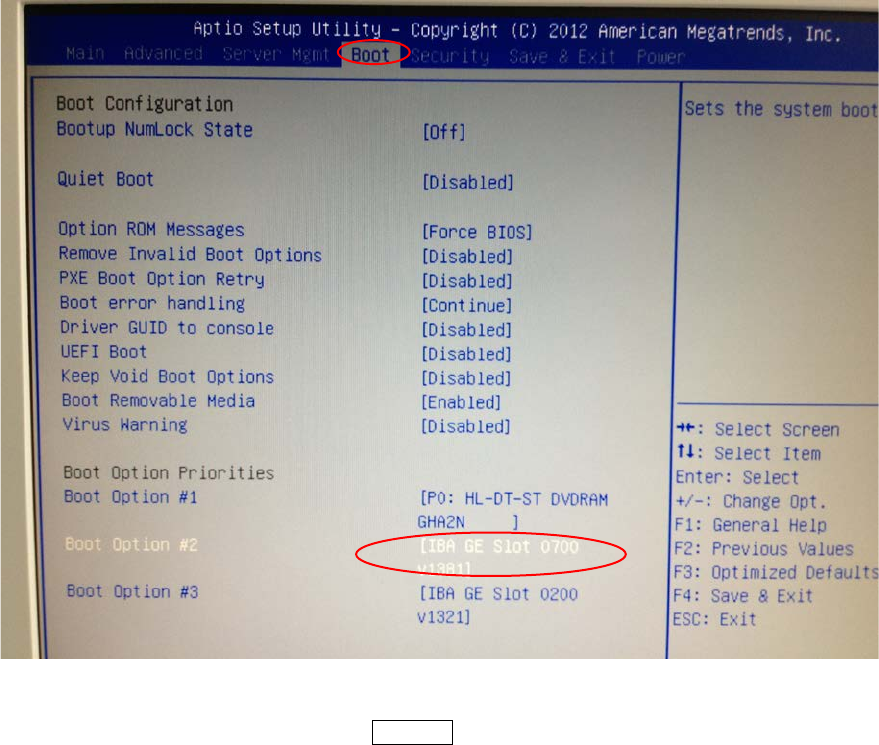
The screen should look like this:
Figure 2-4: Boot option “IBA GE Slot 0700 v1381” selected
► With the device highlighted, press the ENTER key.
Installing Primergy TX150 S8 with Windows Server 2012 07/2012 Edition
10
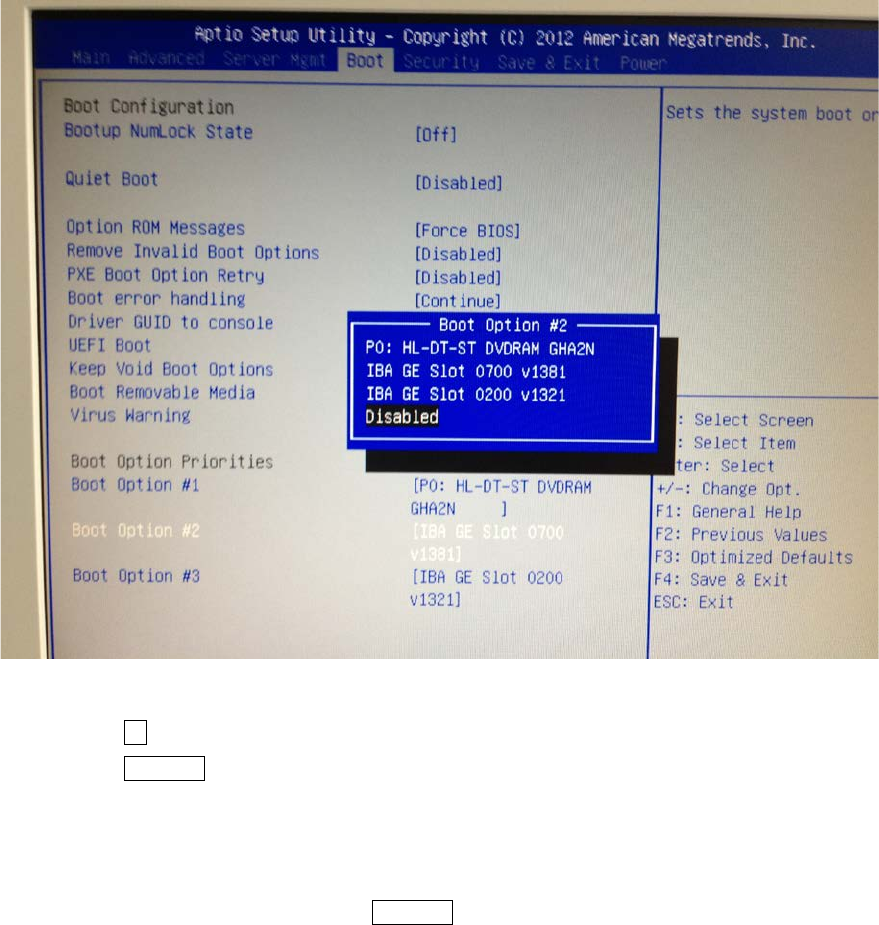
Figure 2-5: Disabling the boot option for the first network adapter
► Press the ↓ (down arrow) key until Disabled is highlighted.
► Press the ENTER key to remove the drive from the boot order.
► Back in the previous screen, ensure the boot option IBA GE Slot 0200 v1321 is highlighted.
This is the second network boot option that we also want to disable to save boot time.
► With the device highlighted, press the ENTER key.
Installing Primergy TX150 S8 with Windows Server 2012 07/2012 Edition
11
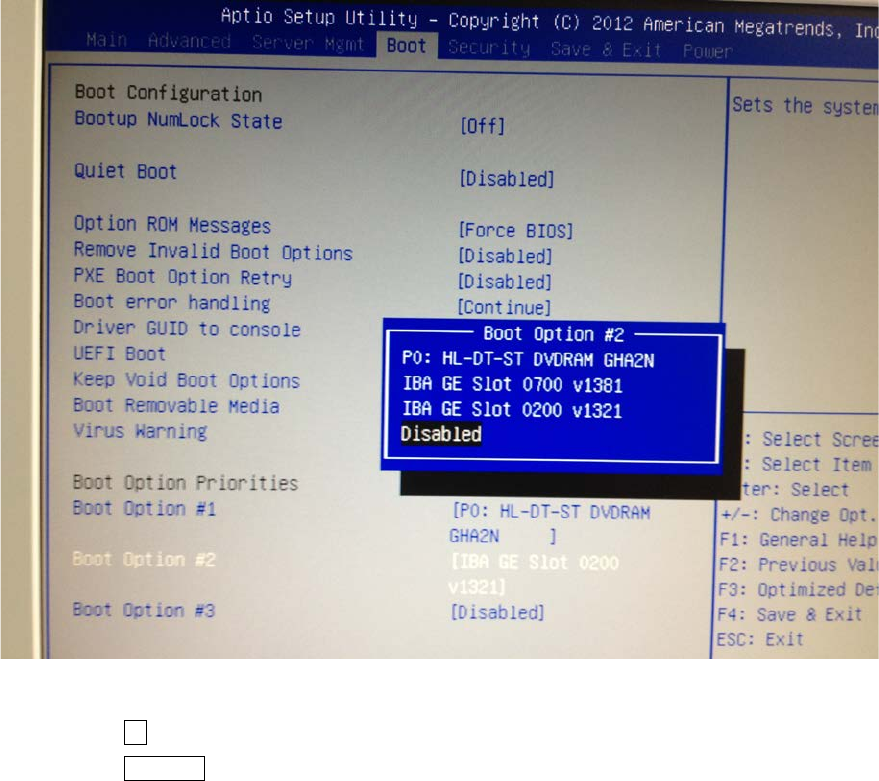
Figure 2-6: Disabling the boot option for the second network adapter
► Press the ↓ (down arrow) key until Disabled is highlighted.
► Press the ENTER key to remove the drive from the boot order.