00197455-01_IM_TX150SS8_en.pdf - 第12页
Installing Prim ergy TX 150 S8 with W indows S erver 20 12 07/2012 Edit ion 12 The BIOS s ettings modif ications ar e now d one and you will nee d to s ave the cha nges. ► Press the → (r ight arro w) k ey, until the &quo…
Installing Primergy TX150 S8 with Windows Server 2012 07/2012 Edition
11
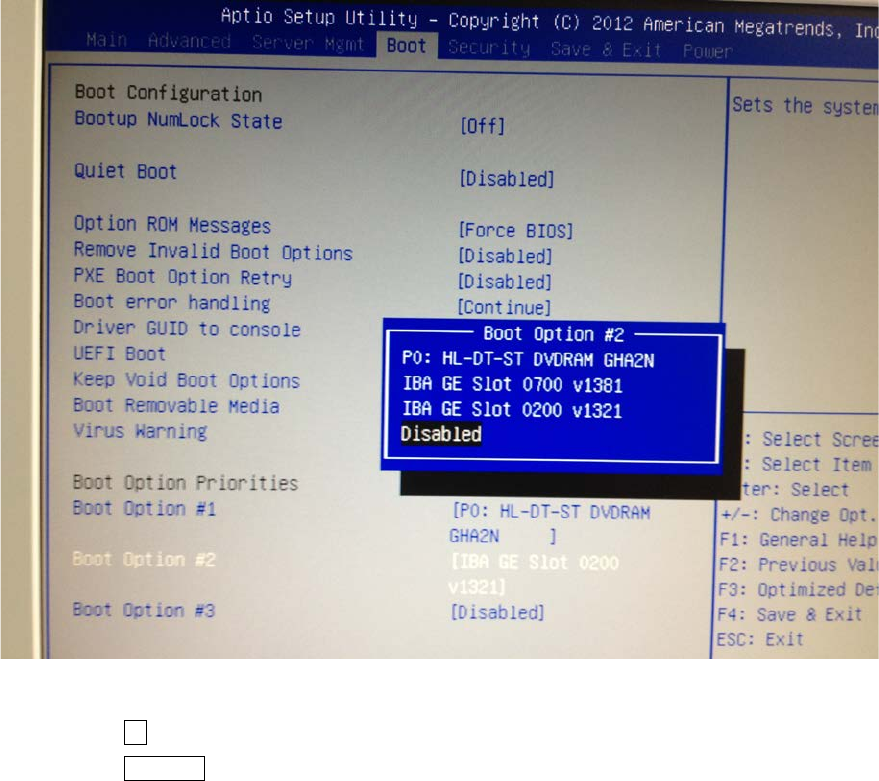
Figure 2-6: Disabling the boot option for the second network adapter
► Press the ↓ (down arrow) key until Disabled is highlighted.
► Press the ENTER key to remove the drive from the boot order.
Installing Primergy TX150 S8 with Windows Server 2012 07/2012 Edition
12
The BIOS settings modifications are now done and you will need to save the changes.
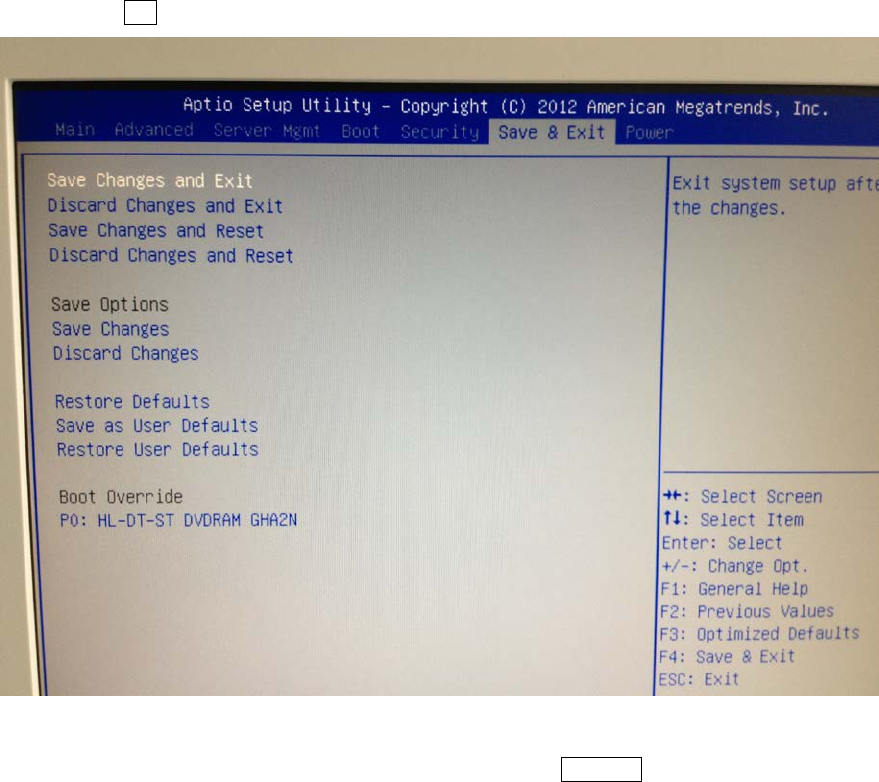
► Press the → (right arrow) key, until the "Save & Exit" menu is displayed.
Figure 2-7: Save & Exit menu with “Save Changes and Exit” selected
► With the option Save Changes and Exit selected, press the ENTER key.
Installing Primergy TX150 S8 with Windows Server 2012 07/2012 Edition
13
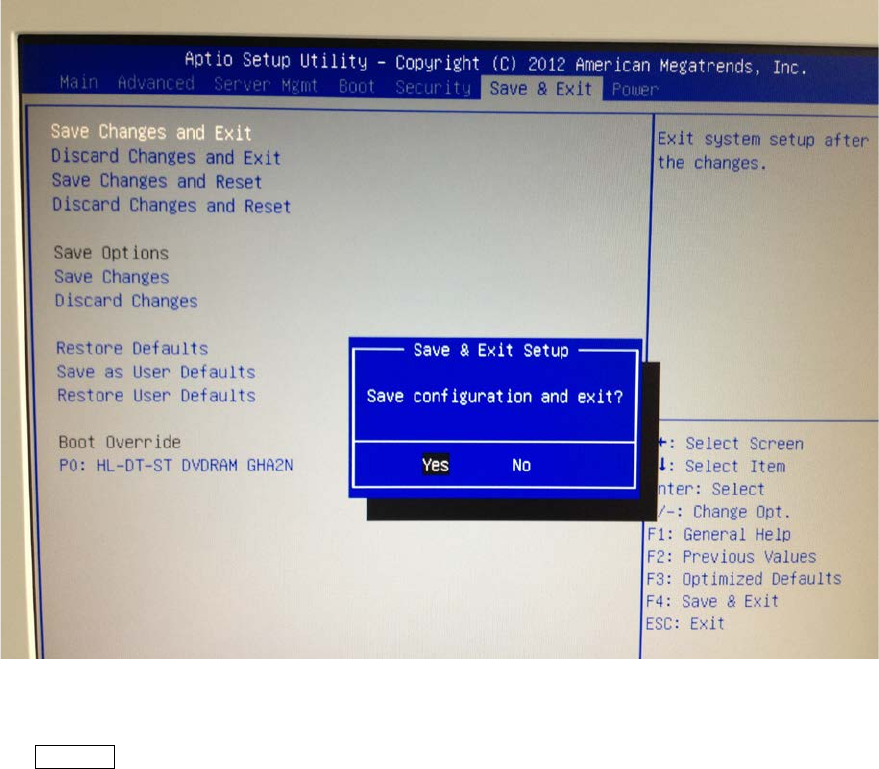
Figure 2-8: “Save configuration and exit?” question
► When asked for Save configuration and exit?, leave the option Yes selected and press the
ENTER key.