00197455-01_IM_TX150SS8_en.pdf - 第14页
Installing Prim ergy TX 150 S8 with W indows S erver 20 12 07/2012 Edit ion 14 3 Installa tion of Windo w s Se rver 2012 The f ollowing chapt er desc ribes the whole ins tallatio n proces s of W indows Server 2012 on the…
Installing Primergy TX150 S8 with Windows Server 2012 07/2012 Edition
13
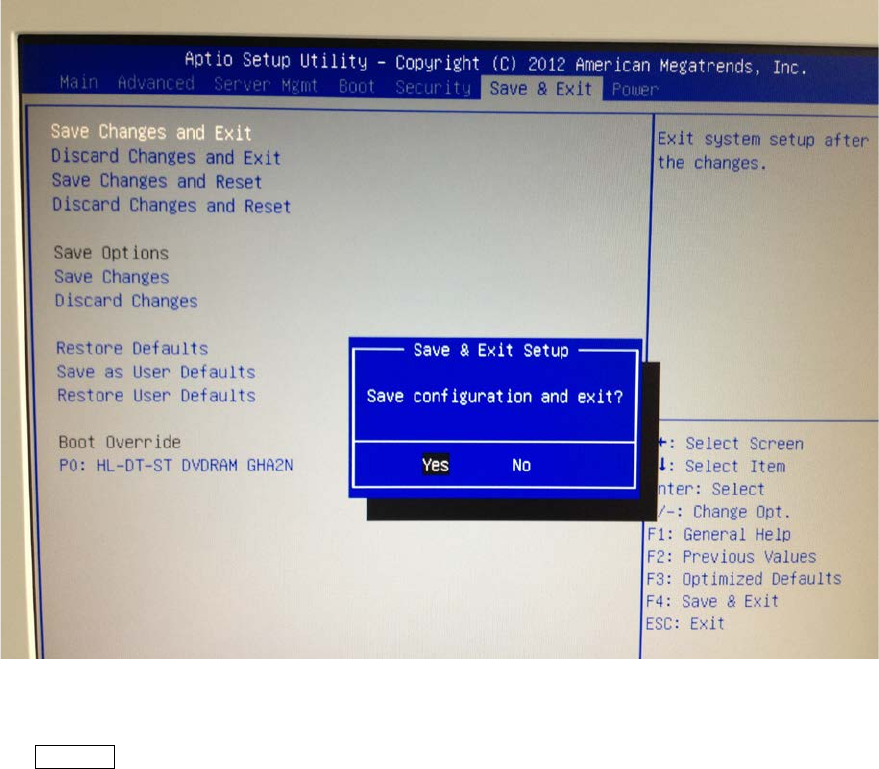
Figure 2-8: “Save configuration and exit?” question
► When asked for Save configuration and exit?, leave the option Yes selected and press the
ENTER key.
Installing Primergy TX150 S8 with Windows Server 2012 07/2012 Edition
14
3 Installation of Windows Server 2012
The following chapter describes the whole installation process of Windows Server 2012 on the
TX150S8 Server using the delivered media from Fujitsu.
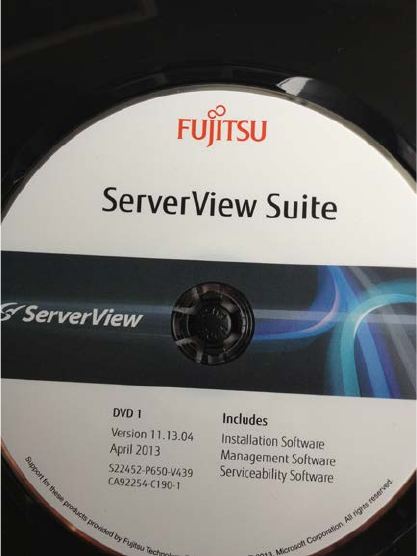
First, you will need the ServerView DVD that is displayed in the following figure.
Figure 3-1: Serverview DVD containing the guided installation
► Start the server and immediately insert the ServerView DVD.
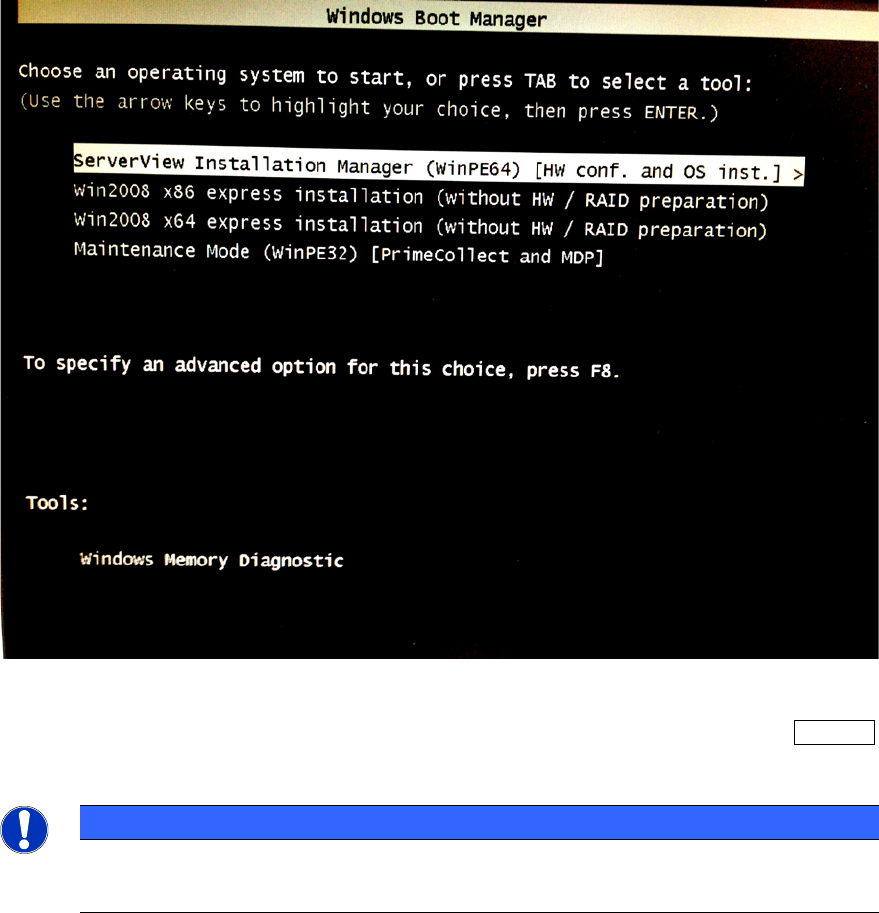
After the system has started from the DVD, the following options appear for a short time.
Installing Primergy TX150 S8 with Windows Server 2012 07/2012 Edition
15
Figure 3-2: Options when booting from ServerView DVD
► Ensure that the first option ServerView Installation Manager is selected and press the ENTER
key.
NOTICE
The boot options will only be displayed a couple of seconds
If you don’t press a key within about 15 seconds, the boot options menu will be skipped.
The boot process might take some time. After that, the language selection should be displayed.