00197455-01_IM_TX150SS8_en.pdf - 第16页
Installing Prim ergy TX 150 S8 with W indows S erver 20 12 07/2012 Edit ion 16 Figure 3-3 : ServerView language s election ► Select th e languag e you un derstand by click ing on the appropr iate lang uage butto n. This …
Installing Primergy TX150 S8 with Windows Server 2012 07/2012 Edition
15
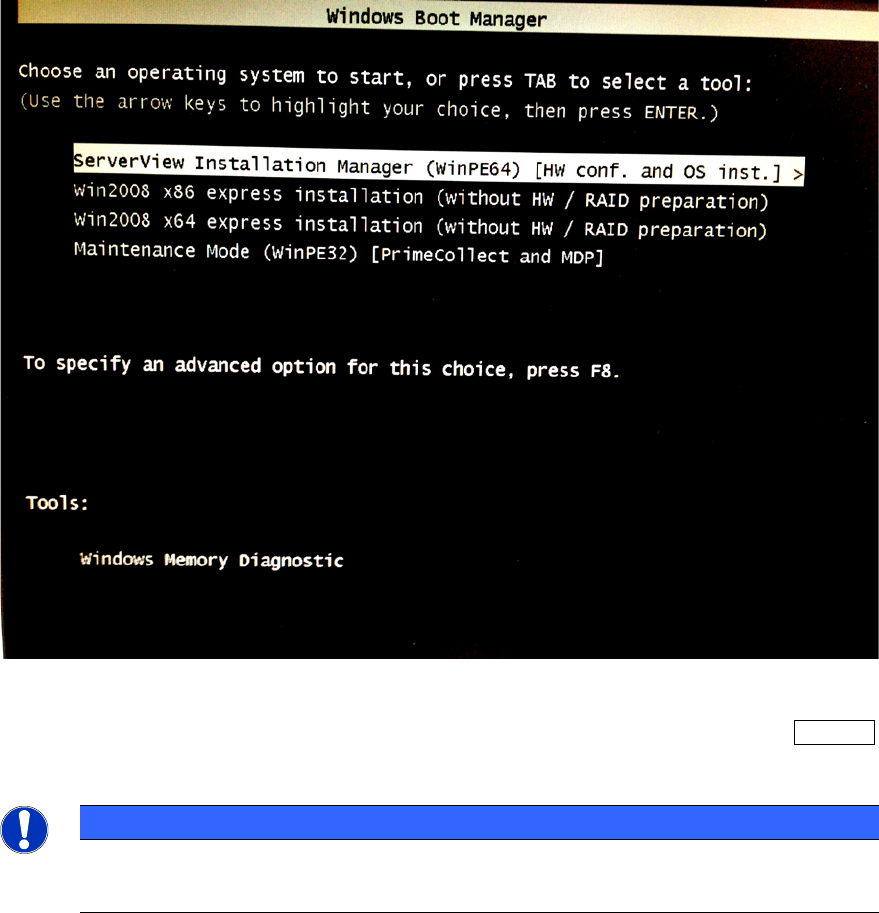
Figure 3-2: Options when booting from ServerView DVD
► Ensure that the first option ServerView Installation Manager is selected and press the ENTER
key.
NOTICE
The boot options will only be displayed a couple of seconds
If you don’t press a key within about 15 seconds, the boot options menu will be skipped.
The boot process might take some time. After that, the language selection should be displayed.
Installing Primergy TX150 S8 with Windows Server 2012 07/2012 Edition
16
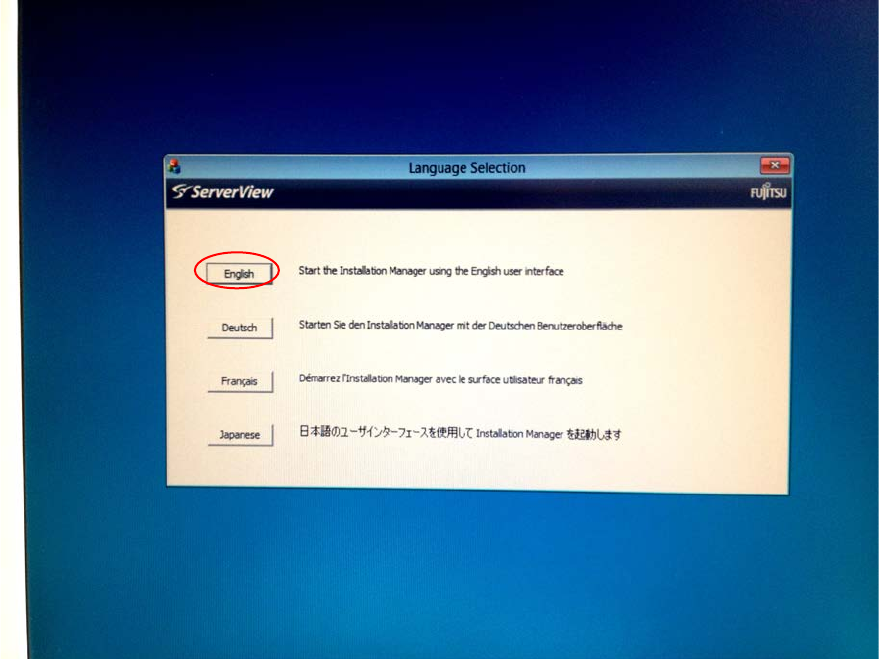
Figure 3-3: ServerView language selection
► Select the language you understand by clicking on the appropriate language button.
This selection will only affect the language of the guided installation (not the language of the
Operating System to install). In this manual, English is used.
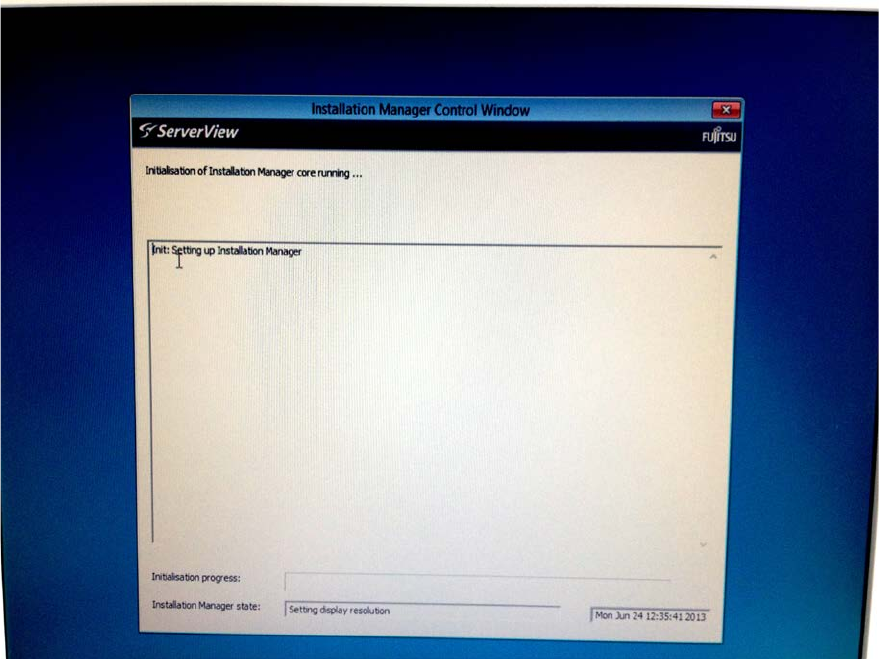
After you have selected the language, the Installation Manager will initialize. This may take about 2
minutes.
Installing Primergy TX150 S8 with Windows Server 2012 07/2012 Edition
17
Figure 3-4: Initializing Installation Manager – part 1
After initialization, the Regional and Language Settings screen appears.