00197455-01_IM_TX150SS8_en.pdf - 第17页
Installing Prim ergy TX 150 S8 with W indows S erver 20 12 07/2012 Edit ion 17 Figure 3-4 : Initiali z ing I nstallation Manager – part 1 After in itializati on, t he R egiona l and Lang uage Sett ings s creen app ears.
Installing Primergy TX150 S8 with Windows Server 2012 07/2012 Edition
16
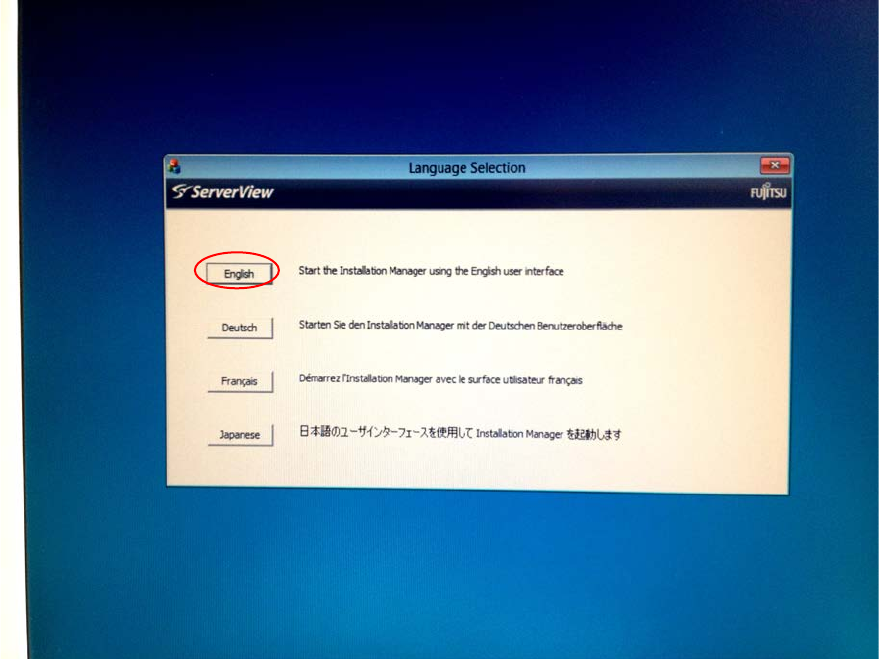
Figure 3-3: ServerView language selection
► Select the language you understand by clicking on the appropriate language button.
This selection will only affect the language of the guided installation (not the language of the
Operating System to install). In this manual, English is used.
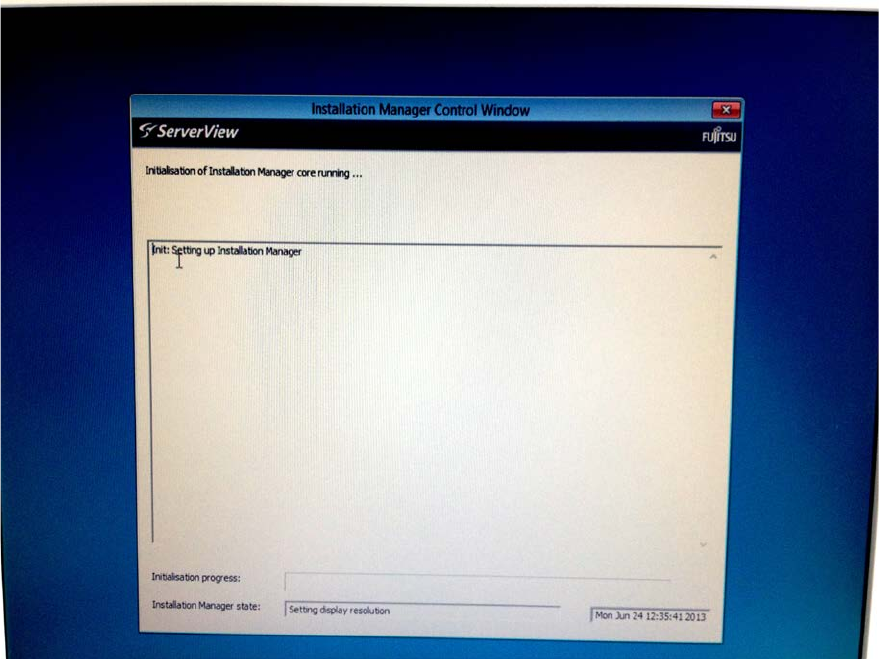
After you have selected the language, the Installation Manager will initialize. This may take about 2
minutes.
Installing Primergy TX150 S8 with Windows Server 2012 07/2012 Edition
17
Figure 3-4: Initializing Installation Manager – part 1
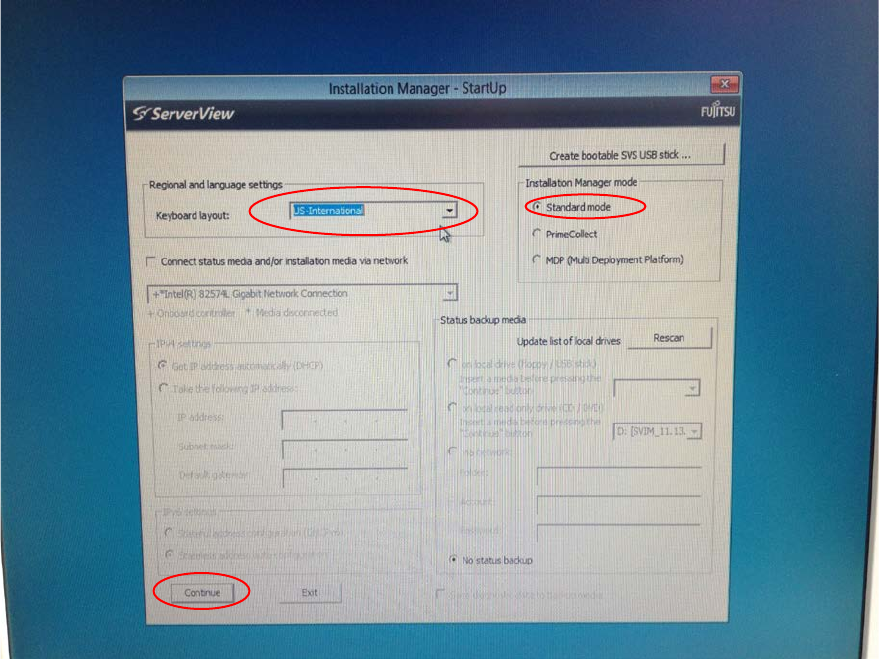
After initialization, the Regional and Language Settings screen appears.
Installing Primergy TX150 S8 with Windows Server 2012 07/2012 Edition
18
► In the keyboard layout field, select the language of your keyboard. In most cases, this will be
US-International, as displayed in the following figure.
Figure 3-5: Regional and Language settings screen with US-International keyboard selected
► Leave the Standard mode option selected and click the Continue button.
► Wait while the Installation Manager continues initializing.