00197455-01_IM_TX150SS8_en.pdf - 第19页
Installing Prim ergy TX 150 S8 with W indows S erver 20 12 07/2012 Edit ion 19 Figure 3-6 : Initiali z ing I nstallation Manager – part 2
Installing Primergy TX150 S8 with Windows Server 2012 07/2012 Edition
18
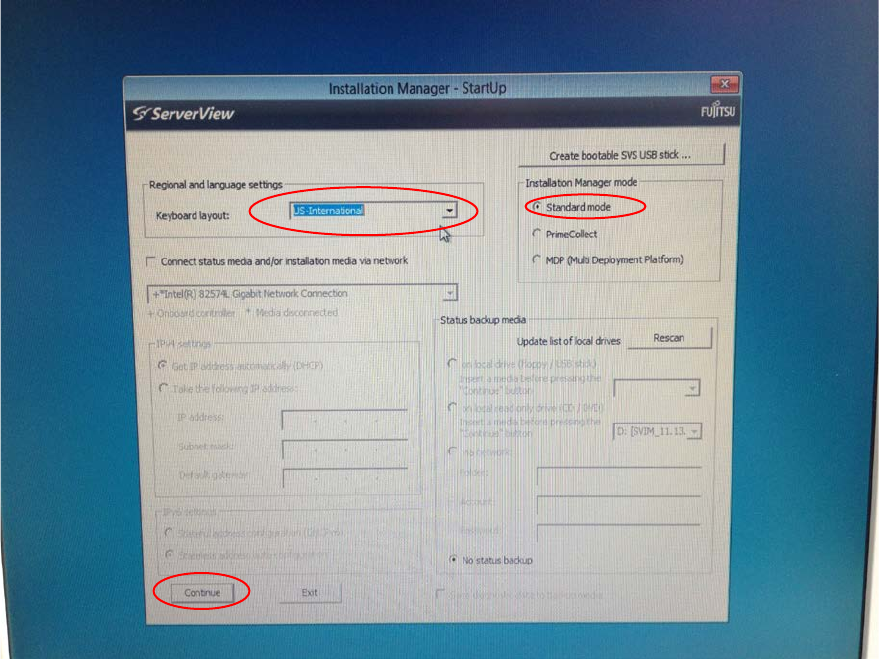
► In the keyboard layout field, select the language of your keyboard. In most cases, this will be
US-International, as displayed in the following figure.
Figure 3-5: Regional and Language settings screen with US-International keyboard selected
► Leave the Standard mode option selected and click the Continue button.
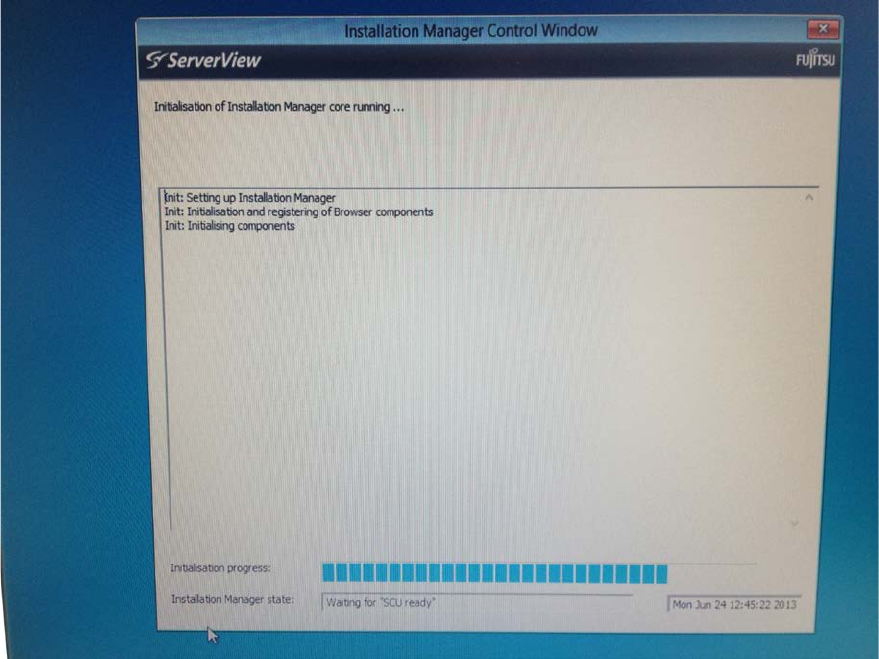
► Wait while the Installation Manager continues initializing.
Installing Primergy TX150 S8 with Windows Server 2012 07/2012 Edition
19
Figure 3-6: Initializing Installation Manager – part 2
Installing Primergy TX150 S8 with Windows Server 2012 07/2012 Edition
20
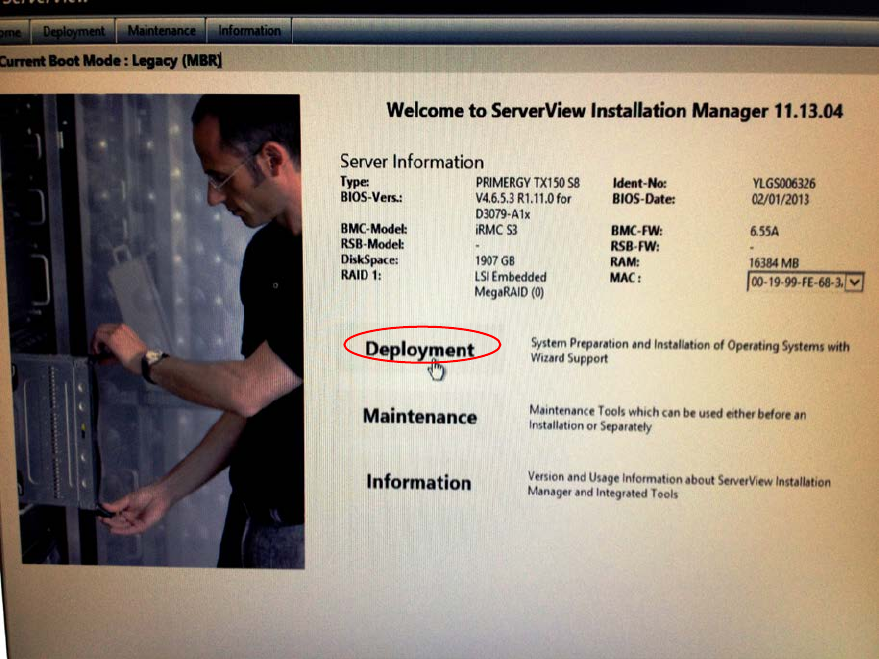
After initialization, the Installation Manager main screen will be displayed.
Figure 3-7: Installation Manager main screen
► Select the Deployment option by clicking on it.