00197455-01_IM_TX150SS8_en.pdf - 第28页
Installing Prim ergy TX 150 S8 with W indows S erver 20 12 07/2012 Edit ion 28 The next screen d isplays th e s u m m ar y. Figure 3- 15 : Installat ion configuration summary ► Click on Start Installati on to begin the i…
Installing Primergy TX150 S8 with Windows Server 2012 07/2012 Edition
27
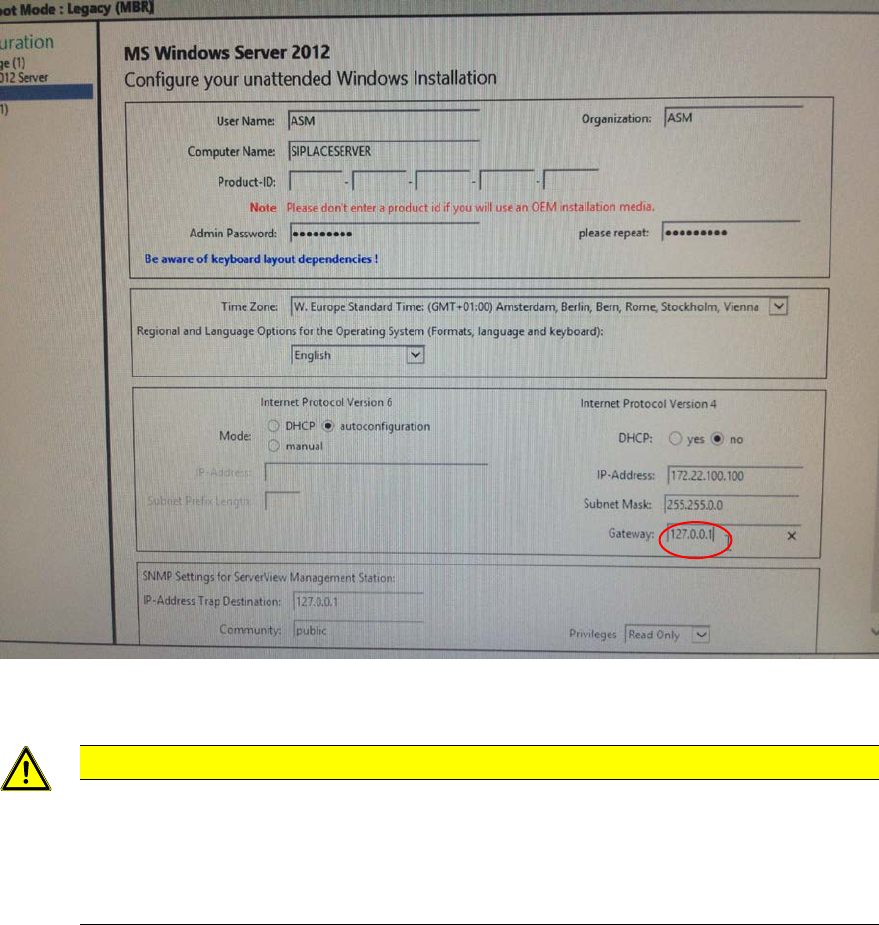
► Enter 127.0.0.1 for the gateway (only temporary!) and click the Next button.
Figure 3-14: Dummy Gateway 127.0.0.1 entered
CAUTION
Wrong default gateway
To proceed with the installation, the value 127.0.0.1 was entered
for the default gateway.
Please keep in mind to remove this IP configuration setting after installation, since wrong
default gateway settings cause network routing problems! Additionally, only existing
gateways should be entered.
Installing Primergy TX150 S8 with Windows Server 2012 07/2012 Edition
28
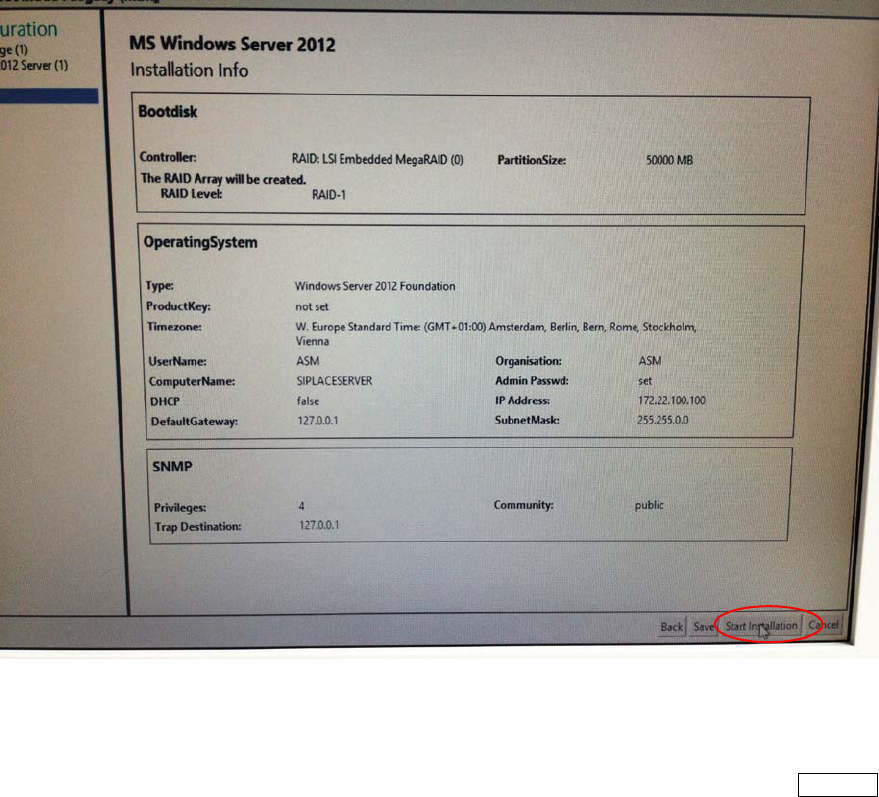
The next screen displays the summary.
Figure 3-15: Installation configuration summary
► Click on Start Installation to begin the installation.
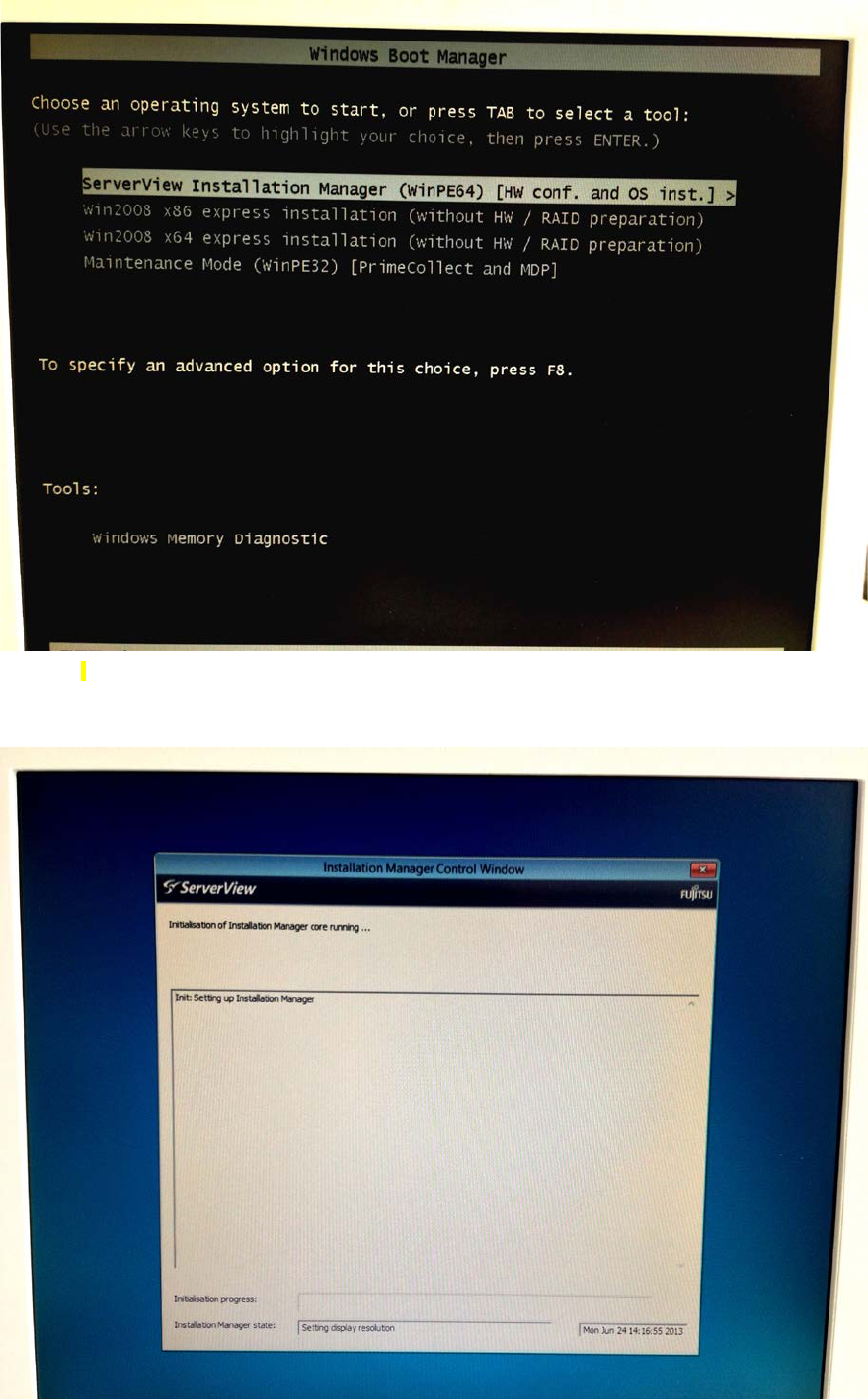
During installation, the system reboots several times. Also, the Boot Manager may appear again. In
this case, you don’t have to do anything, but you may select the first entry by pressing the ENTER
button.
Installing Primergy TX150 S8 with Windows Server 2012 07/2012 Edition
29
Figure 3-16: Boot process picture #1 - Boot Manager appearing again after boot
Figure 3-17: Boot process picture #2