00197455-01_IM_TX150SS8_en.pdf - 第36页
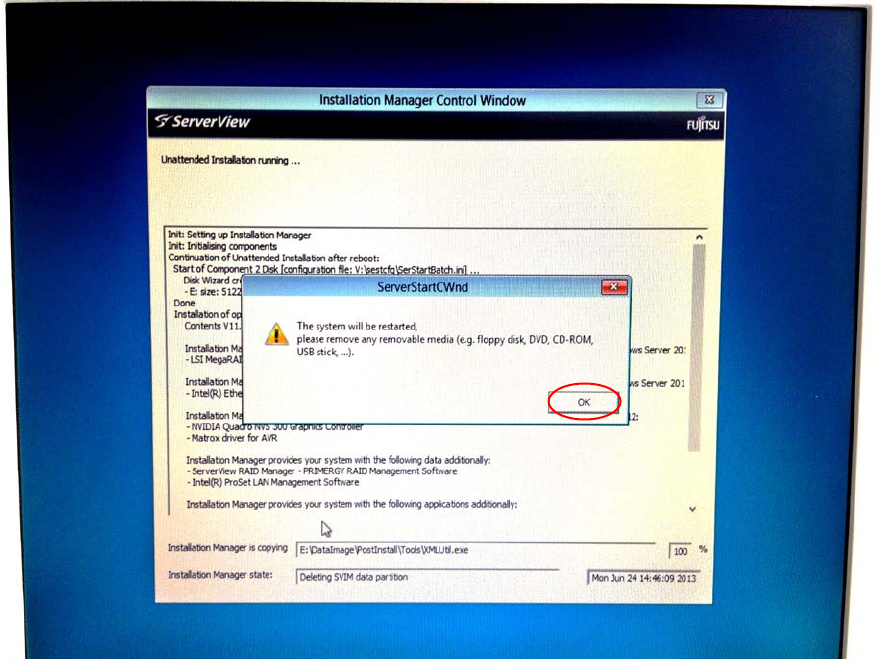
Installing Prim ergy TX 150 S8 with W indows S erver 20 12 07/2012 Edit ion 36 Figure 3- 24 : Installat ion Man ager is prompti ng to remove the ServerView DVD ► Rem ove the DVD f rom the dr ive and cl ick the OK bu tton…
Installing Primergy TX150 S8 with Windows Server 2012 07/2012 Edition
35
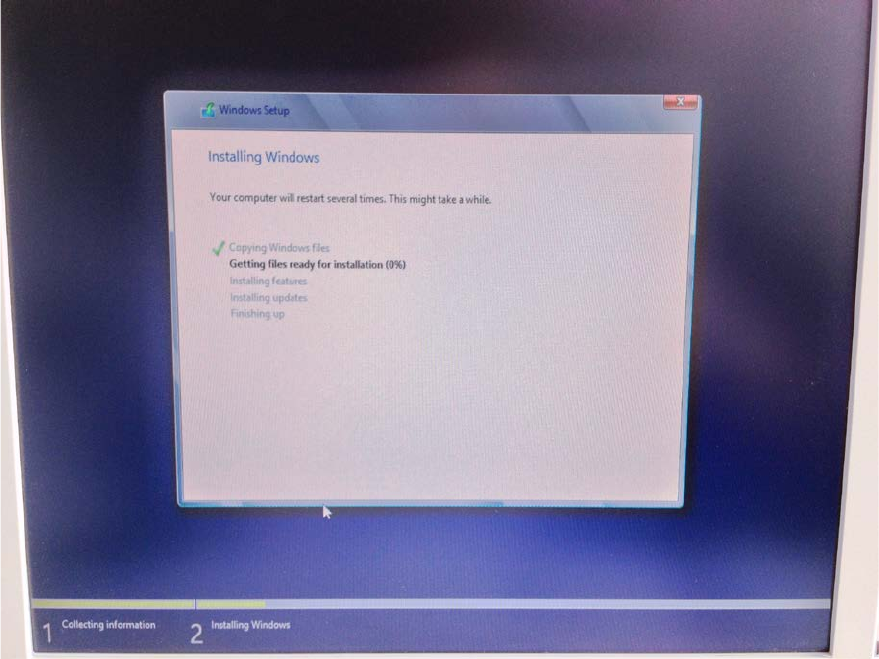
Figure 3-23: Running Windows Setup
After preparation, the Installation Manager prompts you to remove the DVD.
Installing Primergy TX150 S8 with Windows Server 2012 07/2012 Edition
36
Figure 3-24: Installation Manager is prompting to remove the ServerView DVD
► Remove the DVD from the drive and click the OK button.
The setup will reboot the computer and continue.
► Wait until the setup is completed. This may take 45 minutes or more.
Installing Primergy TX150 S8 with Windows Server 2012 07/2012 Edition
37
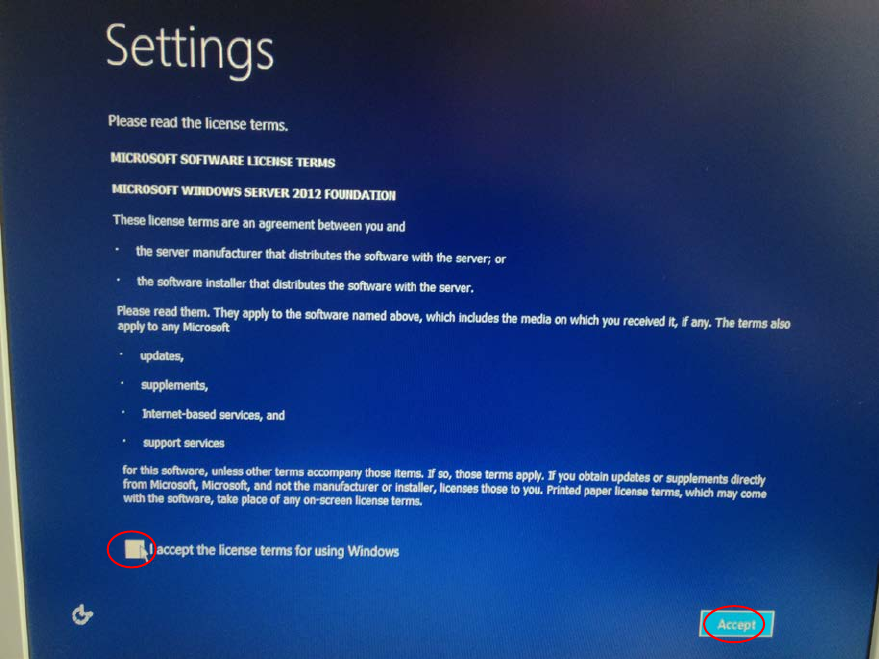
After the main part of the Windows Setup is completed, the following screen will appear.
Figure 3-25: Windows Setup waiting to agree the license terms
► Read the license terms and click the checkbox besides I accept the license terms for using
Windows.
► Click the Accept button.
► Wait while Windows finalizes.