DFD6361-Maintenance.pdf - 第263页
C-51 6-1. Deleting Device Data Procedur es for del etin g devi ce data Step No. Do This 1 Press the <F6> button on t he ENGINEERING MAINTENANCE screen [scr een 7.0]. - The DEVICE DATA MA INTENANCE screen is called …
C-50
6. Device Data Maintenance
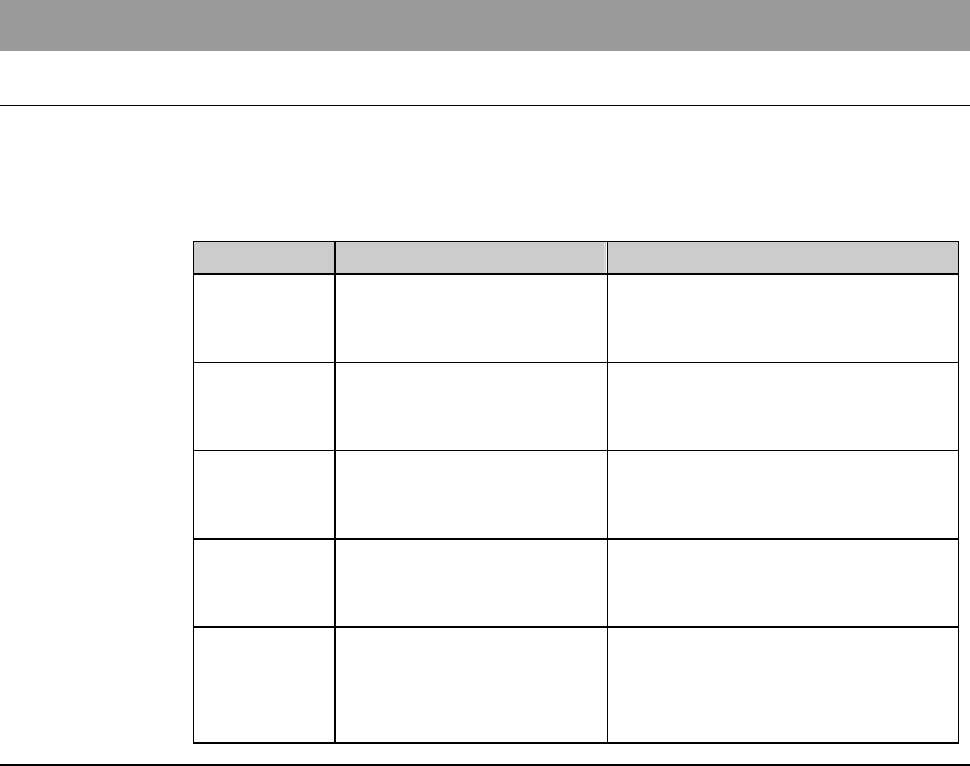
About device data maintenance
On the DEVICE DATA MAINTENANCE screen, you can delete or move a
particular device data, or delete or rename designated directories. On this
screen, it is also possible to change the values of all the device data stored in a
designate directory by setting item, through a simple operation.
Section No. Title Contents
6-1 Deleting Device Data - Procedures for deleting device
data on DEVICE DATA
MAITENENANCE screen
6-2 Moving Device Data - Procedures for moving device
data on DEVICE DATA
MAITENENANCE screen
6-3 Deleting Directories - Procedures for deleting
directories on DEVICE DATA
MAITENENANCE screen
6-4 Renaming Directories - Procedures for renaming
directories on DEVICE DATA
MAITENENANCE screen
6-5 Changing Values of
Device Data
- Procedures for changing setting
values in device data on
DEVICE DATA
MAITENENANCE screen
C-51
6-1. Deleting Device Data
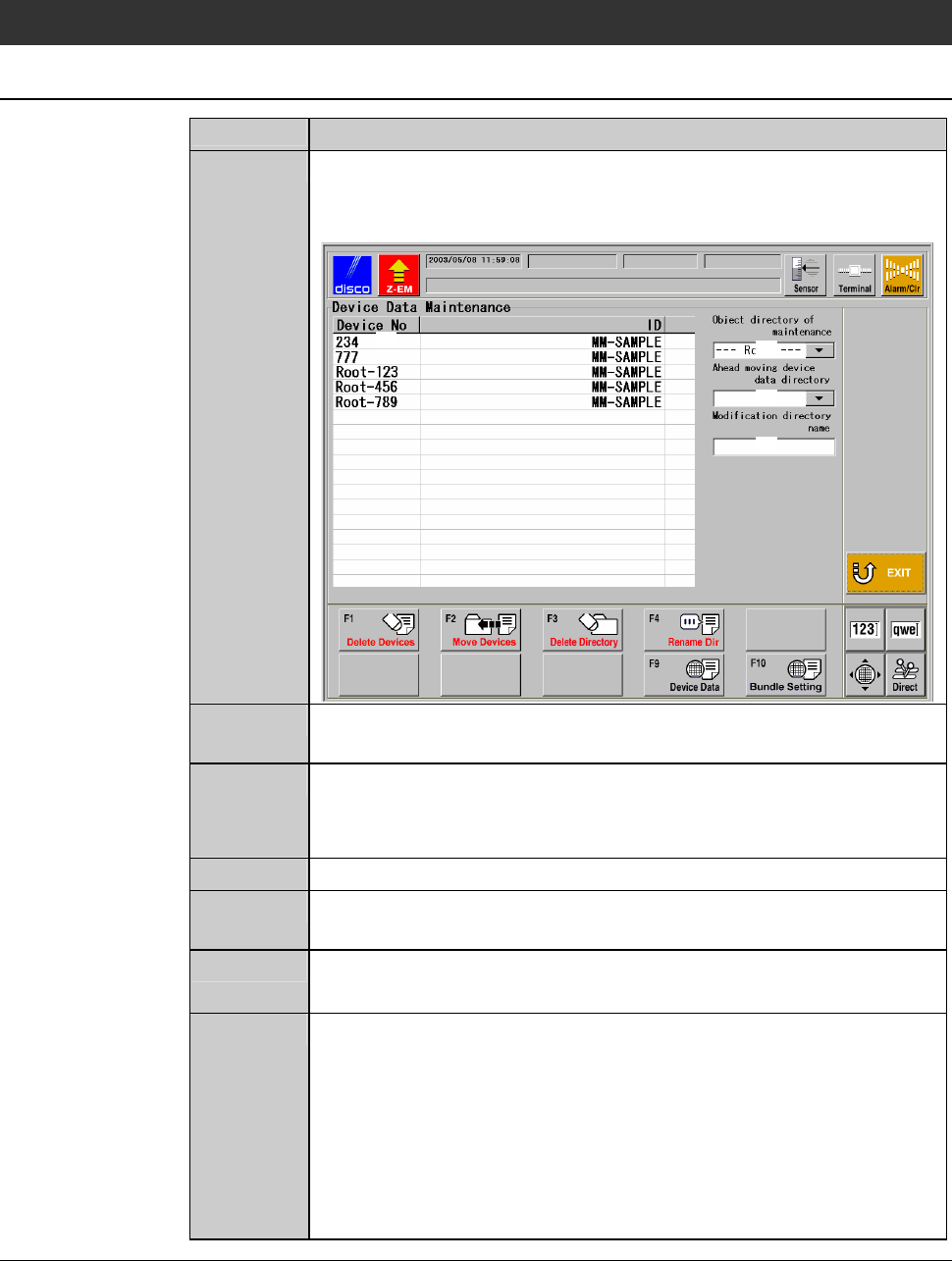
Procedures for deleting device data
Step No.
Do This
1
Press the <F6> button on the ENGINEERING MAINTENANCE
screen [screen 7.0].
- The DEVICE DATA MAINTENANCE screen is called up.
[1]
[3]
[2]
[4]
2
At [2], specify the directory in which the device data to delete is
stored.
3
In the area [1], specify the device data to delete.
- The background of the selected device data becomes blue.
- You can select more than one device data.
4
Press the <F1> button.
5
The message, "All the data chosen is deleted. Is it all right?" is
displayed.
6
If you agree to delete them, press the <OK> button.
- If you want to abandon, press the <Cancel> button.
7
When the <OK> button is pressed, device data selected at [1]
will be deleted from the directory specified at [2]. The deleted
device data is no more displayed in the area [1].
- When the <Cancel> button is pressed, the screen display returns
to the DEVICE DATA MAINTENANCE screen. In this case,
however, the machine retains what you selected in the step 3. If
you want to cancel these selections, select those again, then
your selection will be cleared.
C-52
6-2. Moving Device Data
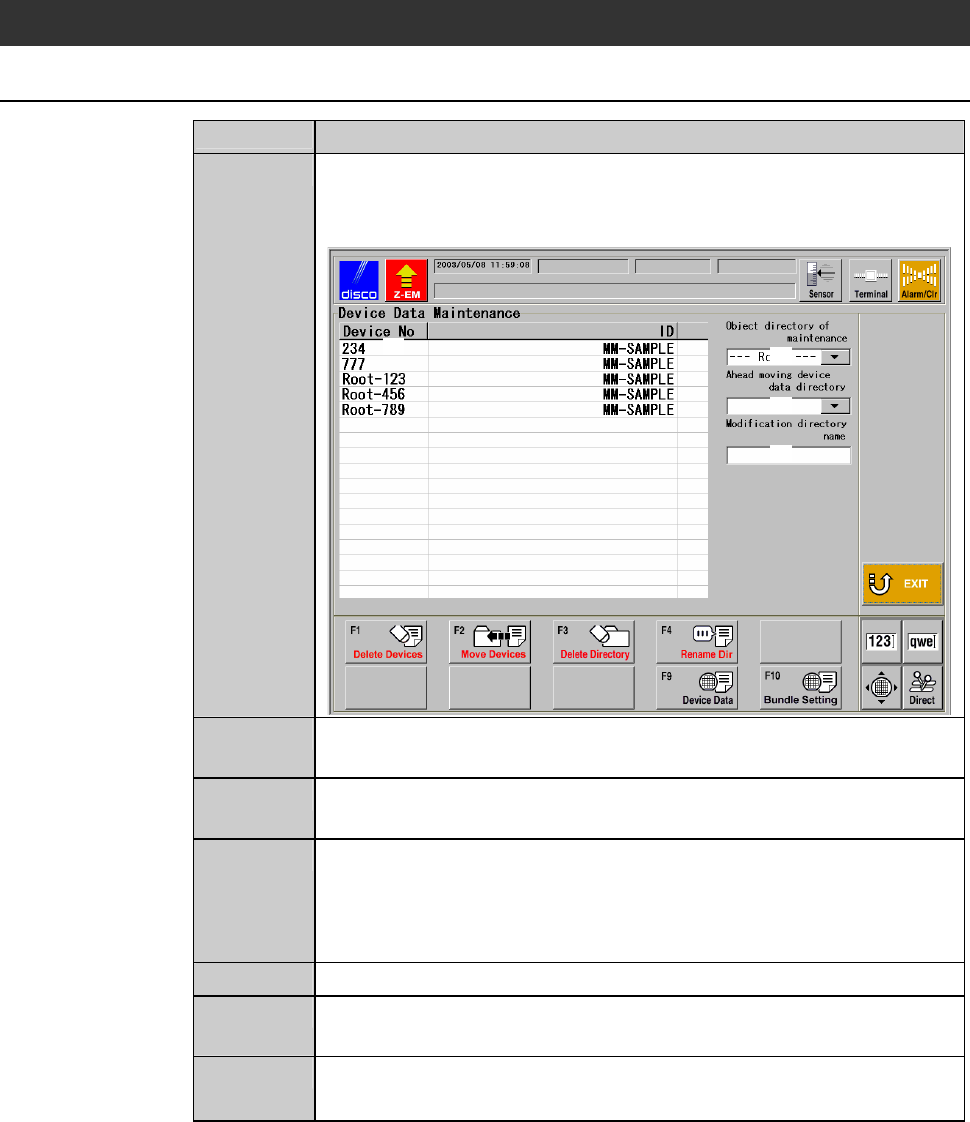
Procedures for moving device data
Step No.
Do This
1
Press the <F6> button on the ENGINEERING MAINTENANCE
screen [screen 7.0].
- The DEVICE DATA MAINTENANCE screen is called up.
[1]
[3]
[2]
[4]
2
At [2], specify the directory in which the device data to move is
stored.
3
At [3], specify the directory to which you want to move the
device data.
4
In the area [1], specify the device data to move among those
listed.
- The background of the selected device data becomes blue.
- You can select more than one device data.
5
Press the <F2> button.
6
The message, "All the data with which it is chosen in Directory
[2] is moved to Directory [3]. Is it all right? " is displayed.
7
If you agree to move them, press the <OK> button.
- If you want to abandon, press the <Cancel> button.