DFD6361-Maintenance.pdf - 第265页
C-53 Procedur es for mov ing dev ice dat a (Conti nued) Step No. Do This 8 When t he <OK> button i s pressed, t he device d ata s elected in t he step 4 wil l move to the d irectory speci fied at [ 3]. - The screen…
C-52
6-2. Moving Device Data
Procedures for moving device data
Step No.
Do This
1
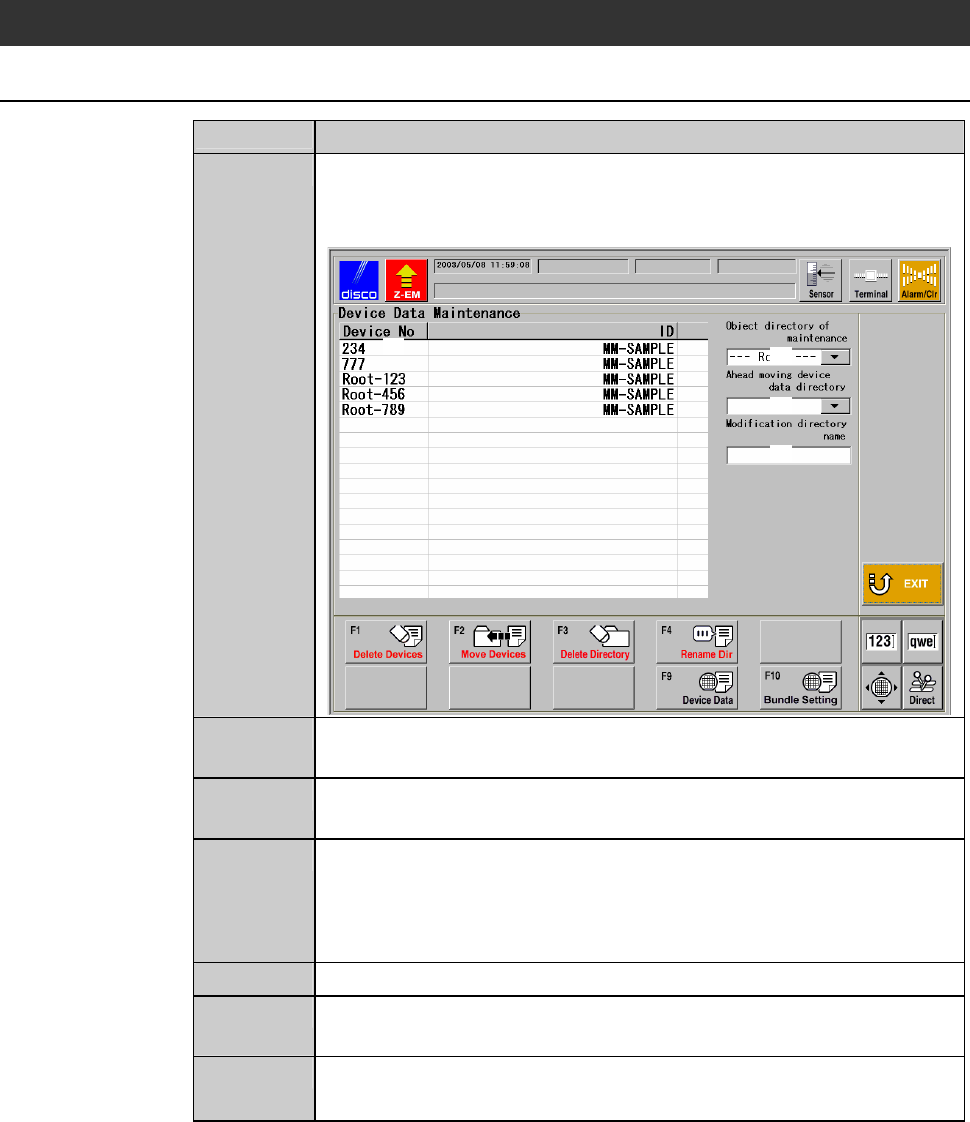
Press the <F6> button on the ENGINEERING MAINTENANCE
screen [screen 7.0].
- The DEVICE DATA MAINTENANCE screen is called up.
[1]
[3]
[2]
[4]
2
At [2], specify the directory in which the device data to move is
stored.
3
At [3], specify the directory to which you want to move the
device data.
4
In the area [1], specify the device data to move among those
listed.
- The background of the selected device data becomes blue.
- You can select more than one device data.
5
Press the <F2> button.
6
The message, "All the data with which it is chosen in Directory
[2] is moved to Directory [3]. Is it all right? " is displayed.
7
If you agree to move them, press the <OK> button.
- If you want to abandon, press the <Cancel> button.
C-53
Procedures for moving device data (Continued)
Step No.
Do This
8
When the <OK> button is pressed, the device data selected in the
step 4 will move to the directory specified at [3].
- The screen display returns to the root directory.
- If there is the device data having the same device data No. as
the one you select, the device data will not move.
- When the <Cancel> button is pressed, the screen returns to the
DEVICE DATA MAINTENANCE screen. In this case,
however, the machine retains what you selected in the step 4. If
you want to cancel the selection, select those again, then your
selection will be cleared.
C-54
6-3. Deleting Directories
Procedures for deleting directories
CAUTION
Once you delete a directory, all the device data stored in the
directory will be erased. And it is impossible to restore these deleted
device data.
Therefore, before making deletion of a directory, make sure that the
device data stored there are no longer necessary.
Step No.
Do This
1
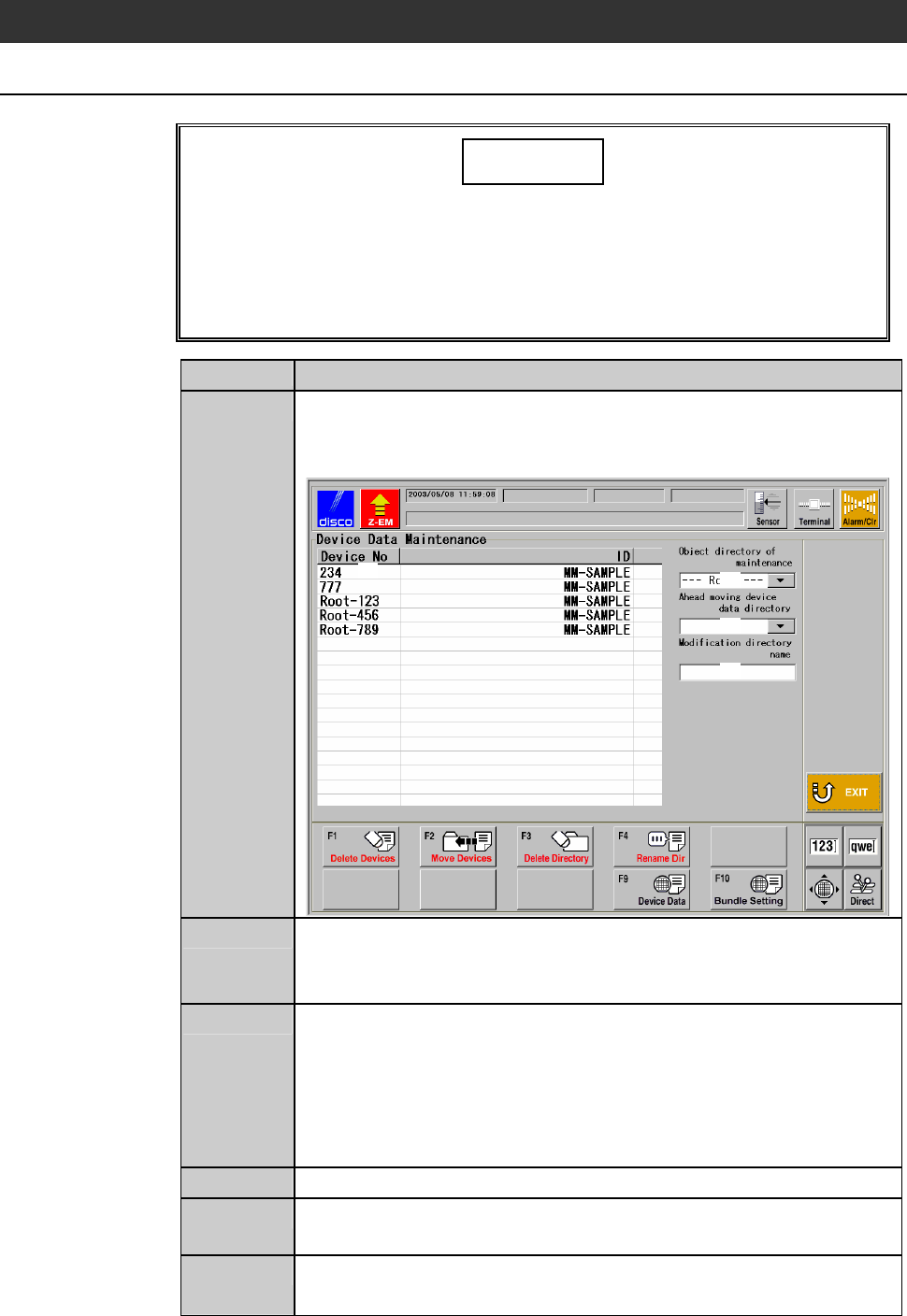
Press the <F6> button on the ENGINEERING MAINTENANCE
screen [screen 7.0].
- The DEVICE DATA MAINTENANCE screen is called up.
[1]
[3]
[2]
[4]
2
At [2], specify the directory to delete.
- The device data stored in the directory are displayed in the area
[1].
3
Make sure that the device data displayed in [1] are no longer
necessary.
- If you press the <F9> button after selecting the device data No.,
you can see the contents of the device data. If you press the
<EXIT> button after checking them, the screen returns to the
DEVICE DATA MAINTENANCE screen.
4
Press the <F3> button.
5
The message, "Directory [2] is deleted. All the data in a directory
is deleted. Is it all right?" is displayed.
6
If you agree to delete them, press the <OK> button.
- If you want to abandon, press the <Cancel> button.