DFD6361-Maintenance.pdf - 第269页
C-57 6-5. Changi ng Values of Device Data Procedur es for cha nging v alues of dev ice data Using the DEVICE DATA CHANGE scr een, you can ch ange the setting values of a ll the device data stored in a desig nated directo…
C-56
6-4. Renaming Directories
Procedures for renaming directories
Step No.
Do This
1
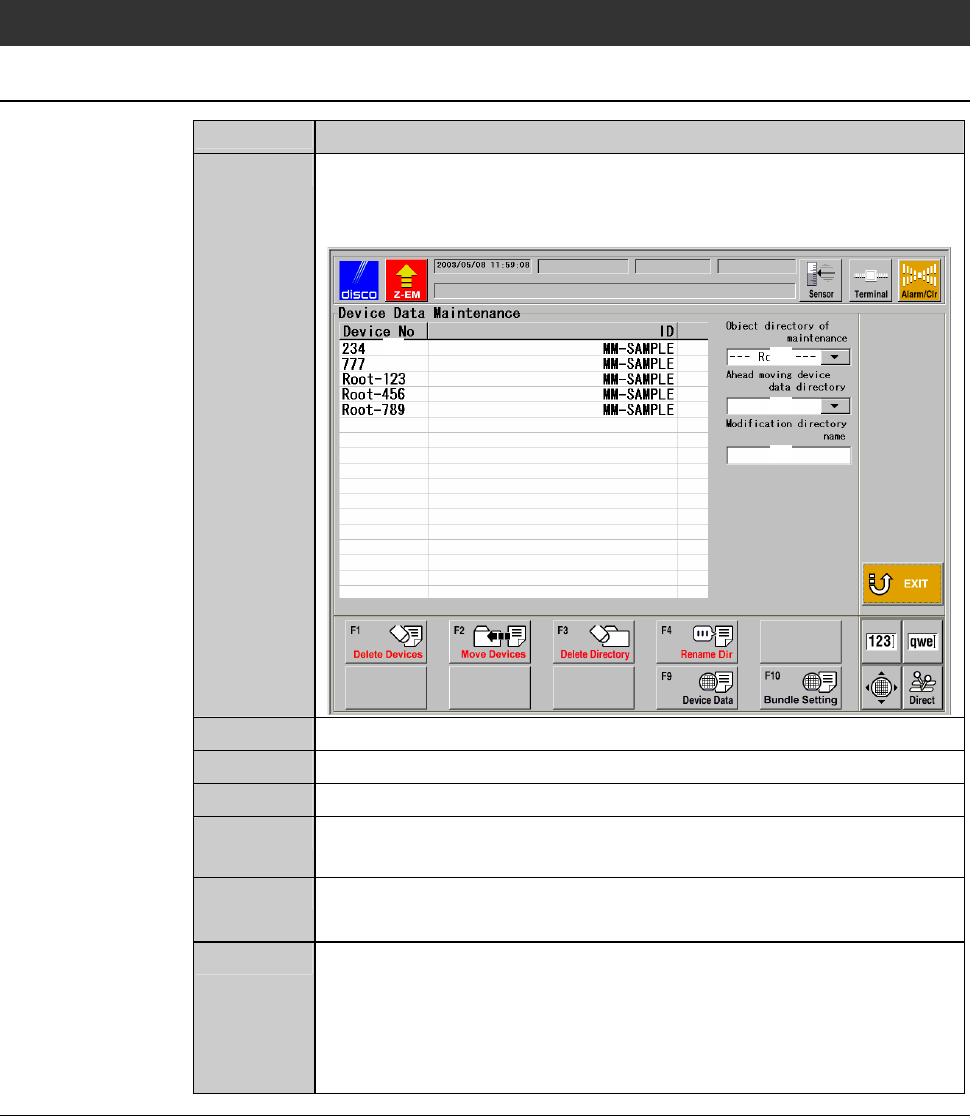
Press the <F6> button on the ENGINEERING MAINTENANCE
screen [screen 7.0].
- The DEVICE DATA MAINTENANCE screen is called up.
[1]
[3]
[2]
[4]
2
At [2], specify the directory to rename.
3
At [4], enter the new directory name.
4
Press the <F4> button.
5
The message, "The directory name [2] is changed into [4]. Is it
all right?" is displayed.
6
If you agree to change them, press the <OK> button.
- If you want to abandon, press the <Cancel> button.
7
When the <OK> button is pressed, the name of the directory
specified at [2] will be changed to the new one typed at [4].
- The screen display returns to the root directory.
- When the <Cancel> button is pressed, the screen returns to the
DEVICE DATA MAINTENANCE screen.
C-57
6-5. Changing Values of Device Data
Procedures for changing values of device data
Using the DEVICE DATA CHANGE screen, you can change the setting
values of all the device data stored in a designated directory by setting item,
through a simple operation. Moreover, you can even change the values of all
the device data saved in the machine's memory, if you select the root directory
and make a check ( ) at the column of [All device data are modified].
CAUTION
If you change setting values using the DEVICE DATA CHANGE
screen, this change will be applied to all the device data stored in a
designated directory. If you select the root directory and make a
check ( ) at the column of [All device data are modified], the change
will be prevailed to all the device data recorded in the machine's
memory.
Therefore, before changing any setting value, carefully check that
both the change and the new value is correct.
Step No.
Do This
1
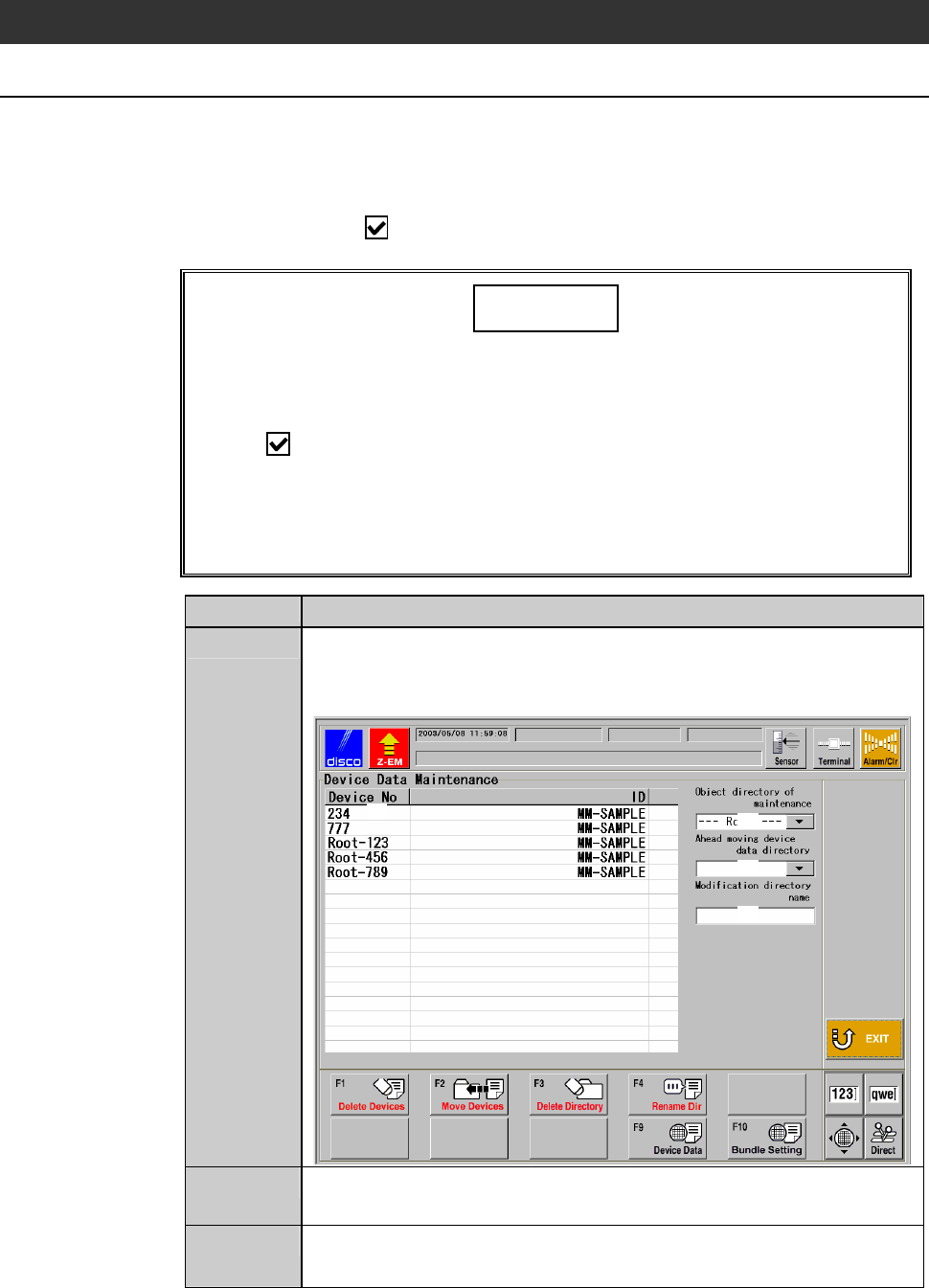
Press the <F6> button on the ENGINEERING MAINTENANCE
screen [screen 7.0].
- The DEVICE DATA MAINTENANCE screen is called up.
[1]
[3]
[2]
[4]
2
At [2], specify the directory where you want to change values of
the device data.
3
Press the <F10> button.
- The password input screen is displayed.
C-58
Procedures for changing values of device data (Continued)
Step No.
Do This
4
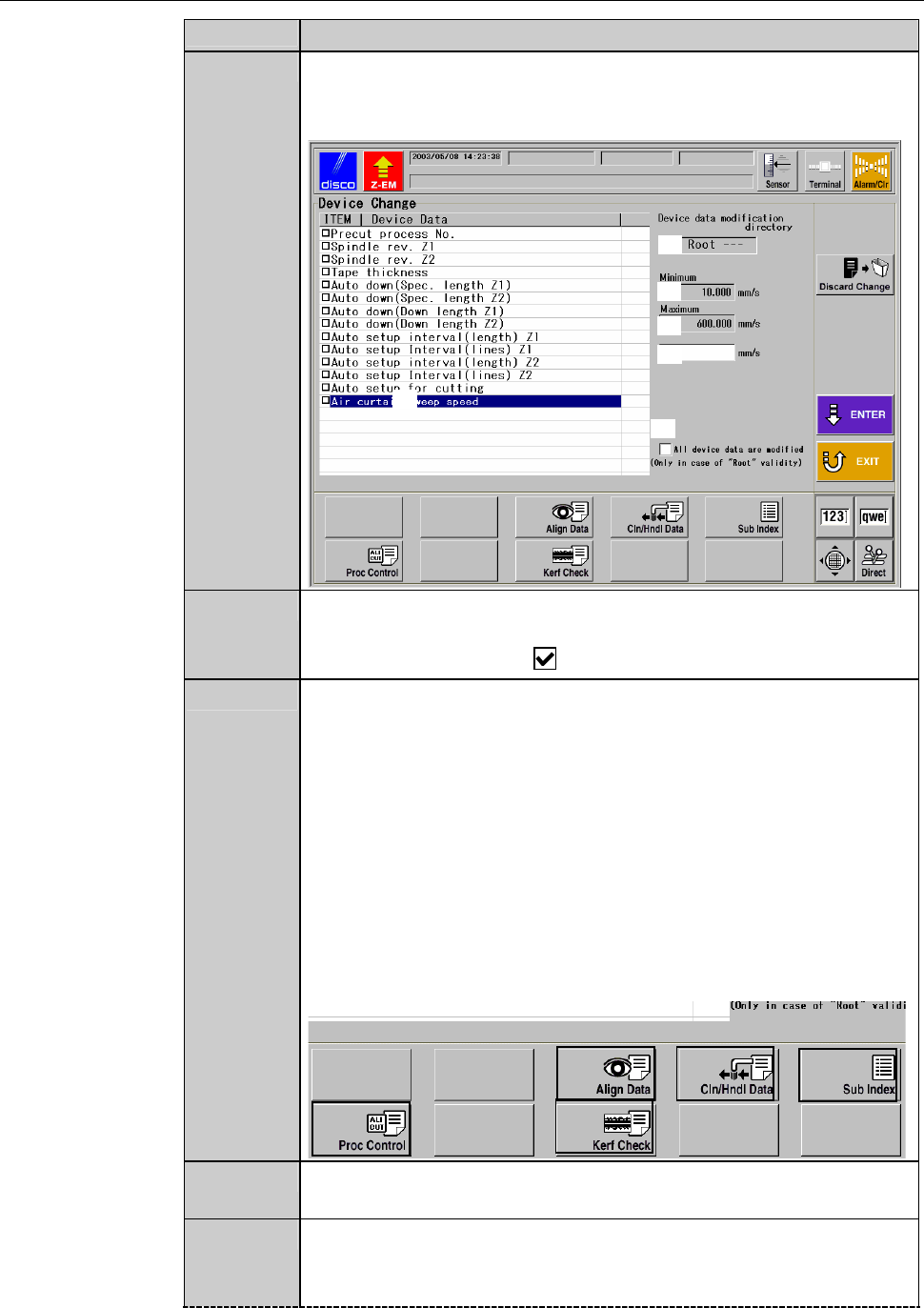
Enter a data password.
- When a correct password is input, the DEVICE DATA
CHANGE screen (for setting) is called up.
[1]
[2]
[3]
[4]
[5]
[3]
5
When the root directory is designated at [2] and when you want
to apply the change to all the device data stored in the machine's
memory, make a check ( ) at [5].
6
Select the type of device data you want to modify from those
buttons (see below) at the bottom of the DEVICE CHANGE
screen.
[Device data types that can be modified (buttons at the
bottom of the screen)]
- Alignment data
- Cleaning/Handling data
- Sub index data
- Process control table
- kerf check data
7
Items that can be modified according to the selected device data
type are displayed in [1].
8
Select the item to change from among the list of [1].
- If the item has a lower and/or upper limit of the value, they are
displayed at [3].