DECAN_S1_Troubleshooting_Guide(Eng_Ver1.3)_Print_Web.pdf - 第139页
1-115 System Messages of the MMI and Solutions Check if the corresponding ‘Camera No.’ is setup properly in the ‘Part’ of the PCB Edit menu. $a210 Recognition by the flying ca mera is not completed. [EMER LEVEL] [Probl…

1-114
Next Generation, Multi-Functional Placer DECAN S1 Troubleshooting Guide
The fourth fiducial mark recognition error occurred.($a134)
[Solution]
Perform [Solution] in $a100.
$a135 Failed to recognize the vision fiducial mark of the first component. [FREEZE
LEVEL]
$a136 Failed to recognize the vision fiducial mark of the second component. [FREEZE
LEVEL]
[Problem]
The first component fiducial mark recognition error occurred.($a135)
The second component fiducial mark recognition error oc.($a136)
[Solution]
Turn off the Buzzer by pressing the “STOP” button.
Press the “RESET” button to change the operation mode to “IDLE”.
Press the “READY” button to supply power to the machine.
Check and edit the data related to the corresponding fiducial mark setup after clicking
the ‘Fiducial Mark …’ button on the ‘Step’ dialog box of the PCB edit menu. Please
refer to section “<Fiducial…> button on the “chapter 9. Step Programming” of the
Administrator’s Guide for more information.
$A160 [%t] Failed to recognize the barcode with vision system. [WARNING LEVEL]
[Problem]
The vision system failed to recognize the barcode on the PCB.
Incorrect teaching of the barcode position
Incorrect input of the barcode related vision data.
[Solution]
Check if the center of the barcode falls on the vicinity of the cross hair of the SMvision
window when moving the fiducial camera to the barcode position.
Check if the vision data related to recognition range, illumination, barcode etc. is
inputted correctly.
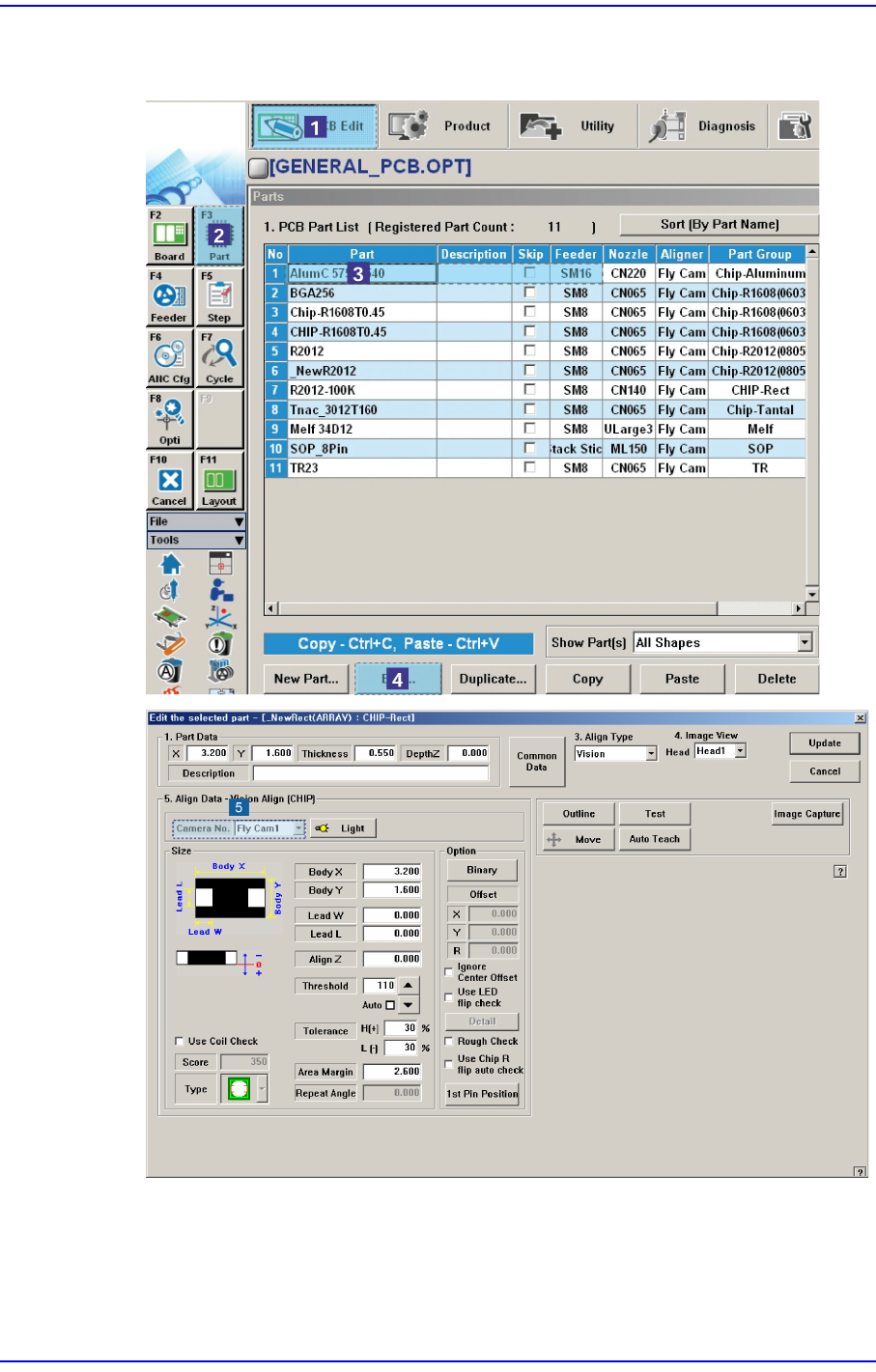
$a201 Unsupported camera is used. [EMER LEVEL]
[Problem]
The undefined camera was setup.
After making the step program using the camera defined in the system setup, reset was
performed so that the camera would not be used.
[Solution]
1-115
System Messages of the MMI and Solutions
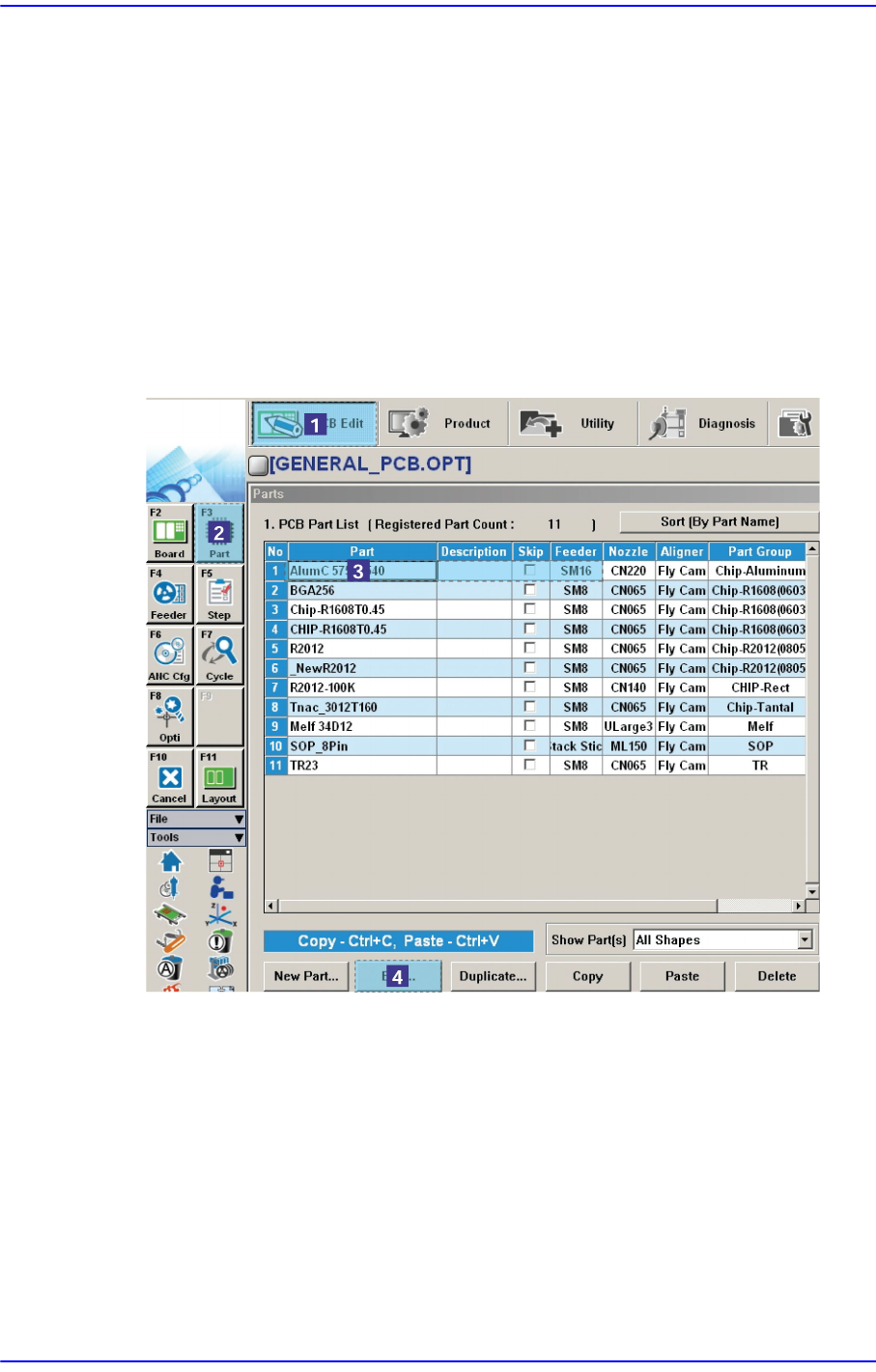
Check if the corresponding ‘Camera No.’ is setup properly in the ‘Part’ of the PCB
Edit menu.
$a210 Recognition by the flying camera is not completed. [EMER LEVEL]
[Problem]
1-116
Next Generation, Multi-Functional Placer DECAN S1 Troubleshooting Guide
An error occurred while recognizing components with the flying camera due to H/W
problem or S/W problem.
[Solution]
Check the state of the flying camera, cable and vision board. If any problem occurs,
contact the C/S company designated by Hanwha Precision Machinery Co., Ltd. or the
local agent.
Calibrate camera calibration. Please refer to section “Camera Calibration” on the
“12.3.10 Head & Camera Calibration” of the ” Administrator’s Guide”.
In order to confirm if the component data is normal, select the error occurred
component in “Part” of the “PCB Edit” menu and check if the information contained
in the <Align Data> group is set up in the Profile Editor correctly.