00193688-04.pdf - 第107页
Ins t a llat ion and Con figu rat i on Guid e S IPLA CE Ex plo rer 4 Co nfig ura t i on Edi tio n 12 /200 5 EN 4.2 Conf igu r in g t h e Fac tor y Con fig urat ion Uti lit y 107 4.2. 2 Configuring Product ion Lines SIPL …
4 Configuration Installation and Configuration Guide SIPLACE Explorer
4.2 Configuring the Factory Configuration Utility Edition 12/2005 EN
106
NOTE
The access to the Runtime Environment tools is restricted or permitted as required, by using
the SE Security Manager. For details of the relevant settings in the SE Security Manager,
please refer to the Getting Started for SIPLACE Explorer 2.0. 4
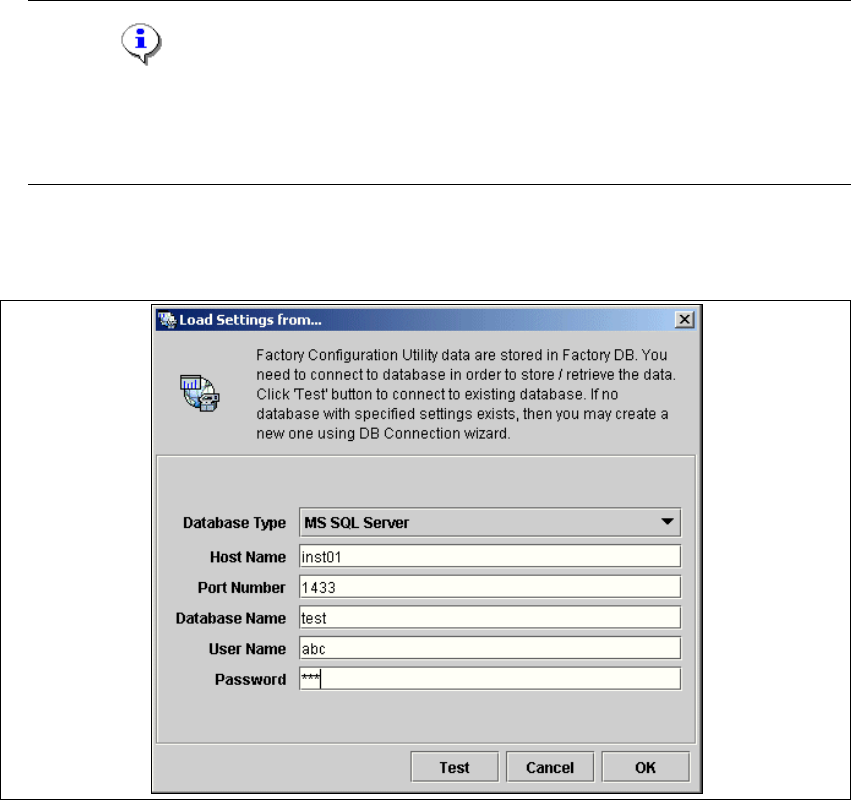
→ The Load settings from... dialog box will open. You need to establish the connection to the
factory database, before data can be called up.
4
Fig. 4 - 40 Factory - load settings from
→ Please specify the following information:
–Host name
– Port number
– Database name
– User name
– Database password
→ Confirm your entries with OK.
→ The Factory Configuration Utility dialog box will open.

Installation and Configuration Guide SIPLACE Explorer 4 Configuration
Edition 12/2005 EN 4.2 Configuring the Factory Configuration Utility
107
4.2.2 Configuring Production Lines
SIPLACE Explorer Factory Configuration Utility can be used to add production lines to an existing
list of lines to be monitored. This is performed by calling up the relevant production line data from
the SIPLACE Explorer host. A list of the lines already configured in SIPLACE Explorer will be pro-
vided via the connection to the SIPLACE Explorer host.
4
NOTE
We do not recommend that you change the production line data in SIPLACE Explorer Factory
Configuration Utility. If you do so, you must also adjust/synchronize this data in the SIPLACE
Explorer host. 4
After editing the data in Factory Configuration Utility, save the modified data in the factory data-
base in which all Factory Configuration Utility data are stored. During data backup, data is sent
between the SIPLACE Explorer line host and the factory host. To be more exact, the sequence of
transfer is from the SIPLACE Explorer factory host to the line host and from the SIPLACE Explorer
line host to the SIPLACE Explorer factory host.
4
Transfer of data from SIPLACE Explorer factory host to SIPLACE Explorer line host: 4
– Factory calendar
– Factory database settings
– Central user management, with e-mail accounts
Transfer of data from SIPLACE Explorer line host to SIPLACE Explorer factory host:
4
– Line names
– Line URLs
4 Configuration Installation and Configuration Guide SIPLACE Explorer
4.2 Configuring the Factory Configuration Utility Edition 12/2005 EN
108
4.2.2.1 How to Configure Production Lines and Their Properties
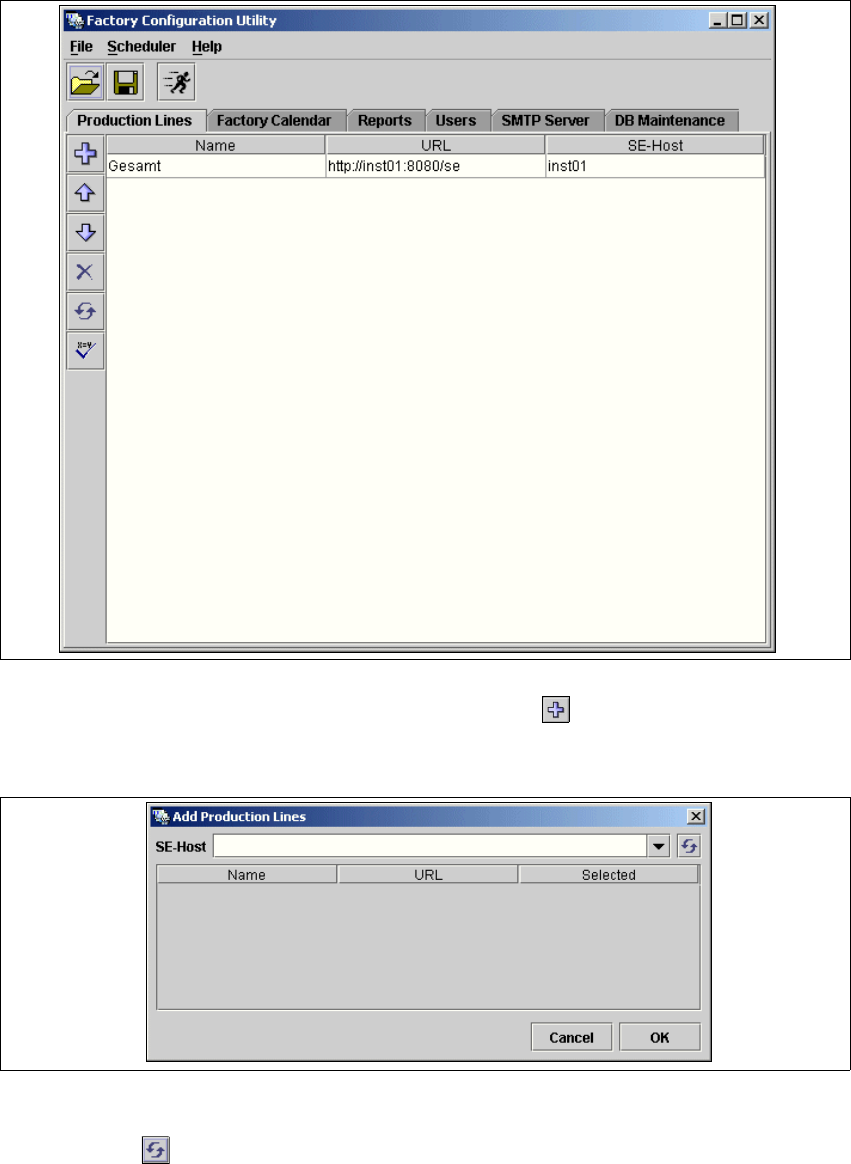
→ Select the Production Lines tab.
4
Fig. 4 - 41 Factory Configuration Utility - production lines
→ Now add the production lines by clicking on the Add Line icon.
The
Add Production Lines dialog box will open: 4
4
Fig. 4 - 42 Factory Configuration Utility - add production lines
→ Enter the name of IP address of the SIPLACE Explorer host in the SE-Host field and click on
the
Refresh icon.