00193688-04.pdf - 第123页
Ins t a llat ion and Con figu rat i on Guid e S IPLA CE Ex plo rer 4 Co nfig ura t i on Edi tio n 12/200 5 EN 4.3 D ata base Sett ing s 123 → Click on t he Lo gin - and enter the sam e user name and password you config u…
4 Configuration Installation and Configuration Guide SIPLACE Explorer
4.3 Database Settings Edition 12/2005 EN
122
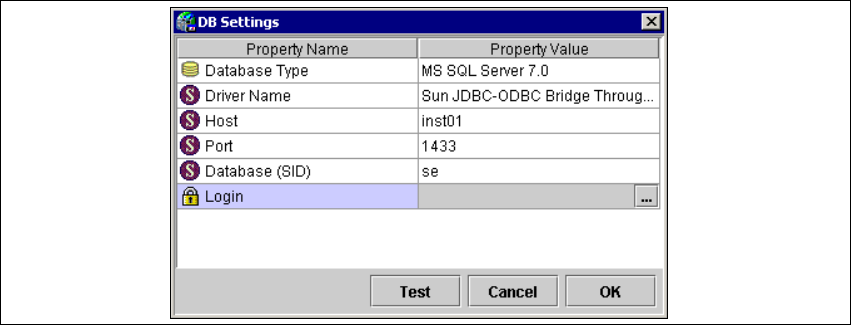
→ The System Database Editor will appear. Select File → DB Settings… from the menu and the
DB Settings configuration dialog box will pop up.
4
Fig. 4 - 57 DB settings dialog box
It contains the following settings: 4
– Database Type:
Currently, MS SQL Server 2000 is supported.
– Driver Name
– Host:
Name of the computer where the database is installed.
–
Port:
Port number on the computer where database is installed (default port for MS SQL Server
is 1433).
–
Login:
Double-click on the column Property Value and specify the user name and password for the
database, in the dialog box shown.
–
Database (SID):
Name of the database that will be used as the SIPLACE Explorer System DB. Make sure
you press the
Enter key after typing in the DSN.
→ Select the version of the MS SQL Server from the drop down list of database types.
Installation and Configuration Guide SIPLACE Explorer 4 Configuration
Edition 12/2005 EN 4.3 Database Settings
123
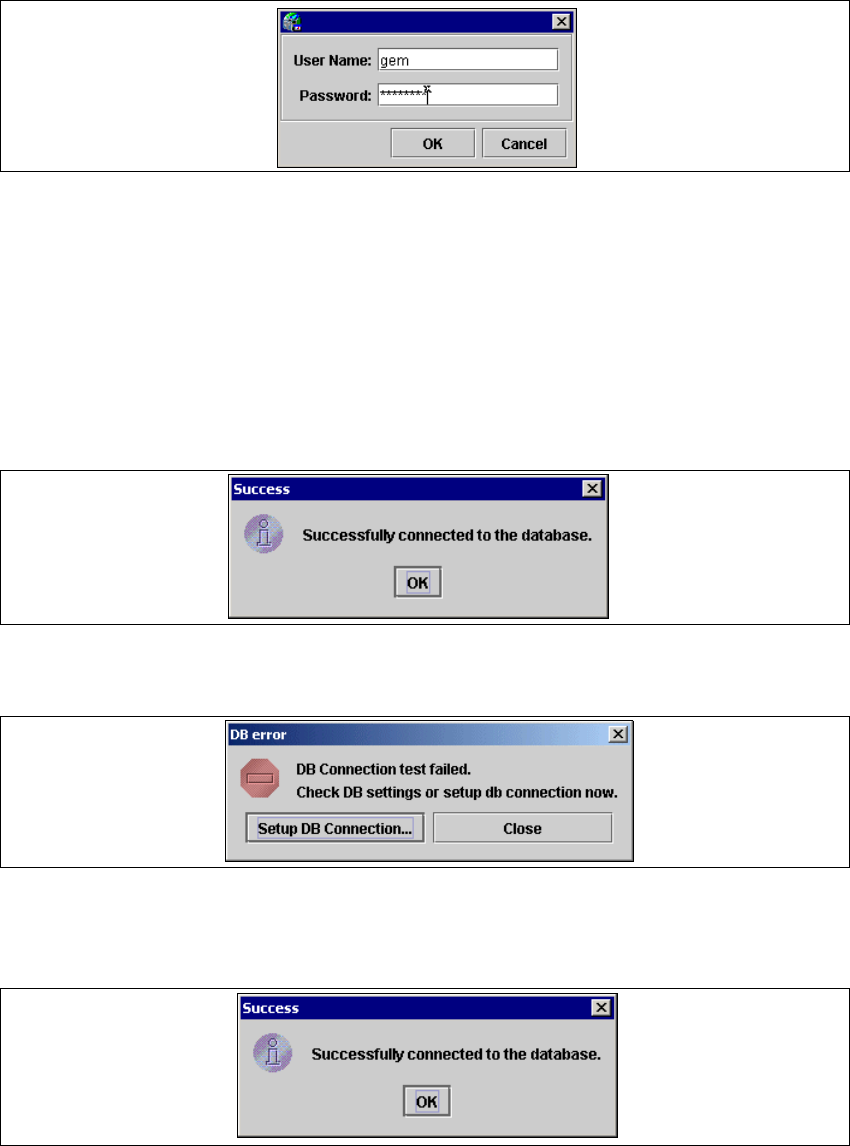
→ Click on the Login - and enter the same user name and password you configured in the MS
SQL Server Enterprise Manager.
4
Fig. 4 - 58 User name and password
→ Ensure that you press Enter after each entry.
4.3.2 Testing and Configuring the DB Connection
→ Now, click Test in the DB Settings dialog box to make sure that the System Database has
been properly configured. If you see the
Success dialog box as shown below, save this setting
to the project (gms File). This means that the connection to the database will be saved for the
next time you open the project.
4
Fig. 4 - 59 Success dialog box
→ If the test fails, you will see the DB error dialog box.
4
Fig. 4 - 60 DB error dialog box
→ If you click Close in the DB error dialog box, the login dialog box will appear and you can try
to login again.
4
Fig. 4 - 61 User name and password
4 Configuration Installation and Configuration Guide SIPLACE Explorer
4.3 Database Settings Edition 12/2005 EN
124
→ If you click Setup DB Connection... in the DB error dialog box, you will start the setup
sequence for the DB Connection Wizard to configure the system database from SIPLACE
Explorer. For a detailed description, please see “Intermediate Step - Database Connection
Wizard” on page 80.
4