00193688-04.pdf - 第126页
5 D ei nsta lla ti on In st al la tio n an d Co nf ig ura tio n Gui de SIP LAC E Ex pl ore r 5. 1 S t ar t Mod if y D ial og Ed iti on 12 /2 00 5 EN 126 5. 1 St ar t Modi fy D ial og → Open the SIPLACE Explorer 2. 0 - In…

Installation and Configuration Guide SIPLACE Explorer 5 Deinstallation
Edition 12/2005 EN
125
5 Deinstallation
SIPLACE Explorer V2.0 SP1 has a so-called modify dialog for deinstallation purposes. This can
be started from the Windows menu. There will then be three deinstallation procedures at your
disposal:
5
– Modify
Use this function if you want to add individual features to the current SIPLACE Explorer
V2.0 SP1 or if you want remove installed features from the current SIPLACE Explorer V2.0.
SP1
(see page 127)
–Repair
Use this function if the current installation of SIPLACE Explorer V2.0 SP1 no longer
functions properly or if individual features have been unintentionally removed. This option
recovers the previous setup.
(see page 129)
–Remove
Use this function if you want to completely remove SIPLACE Explorer V2.0 SP1 from your
computer.
(see page 131)
5 Deinstallation Installation and Configuration Guide SIPLACE Explorer
5.1 Start Modify Dialog Edition 12/2005 EN
126
5.1 Start Modify Dialog
→ Open the SIPLACE Explorer 2.0 - InstallShield Wizard via the Windows menu
Start → Programs → SIPLACE Explorer 2.0 → Modify-Uninstall.
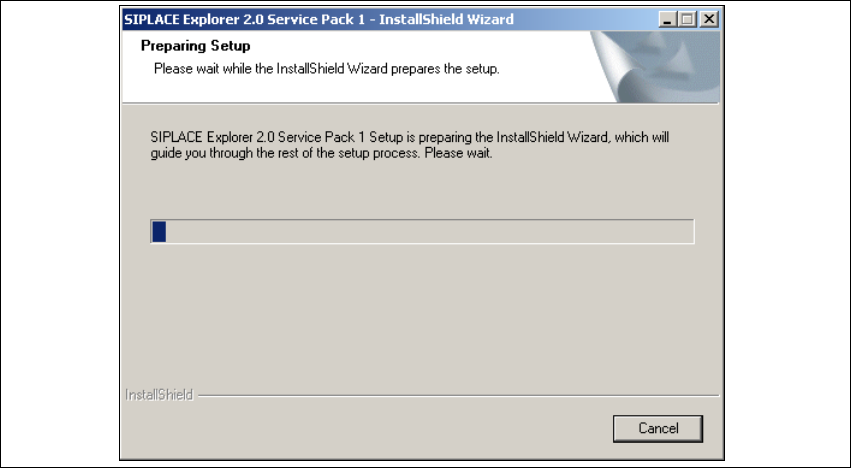
→ The SIPLACE Explorer 2.0 SP1 InstallShield Wizard will be prepared.
5
Fig. 5 - 1 SIPLACE Explorer 2.0 SP1 - install shield wizard
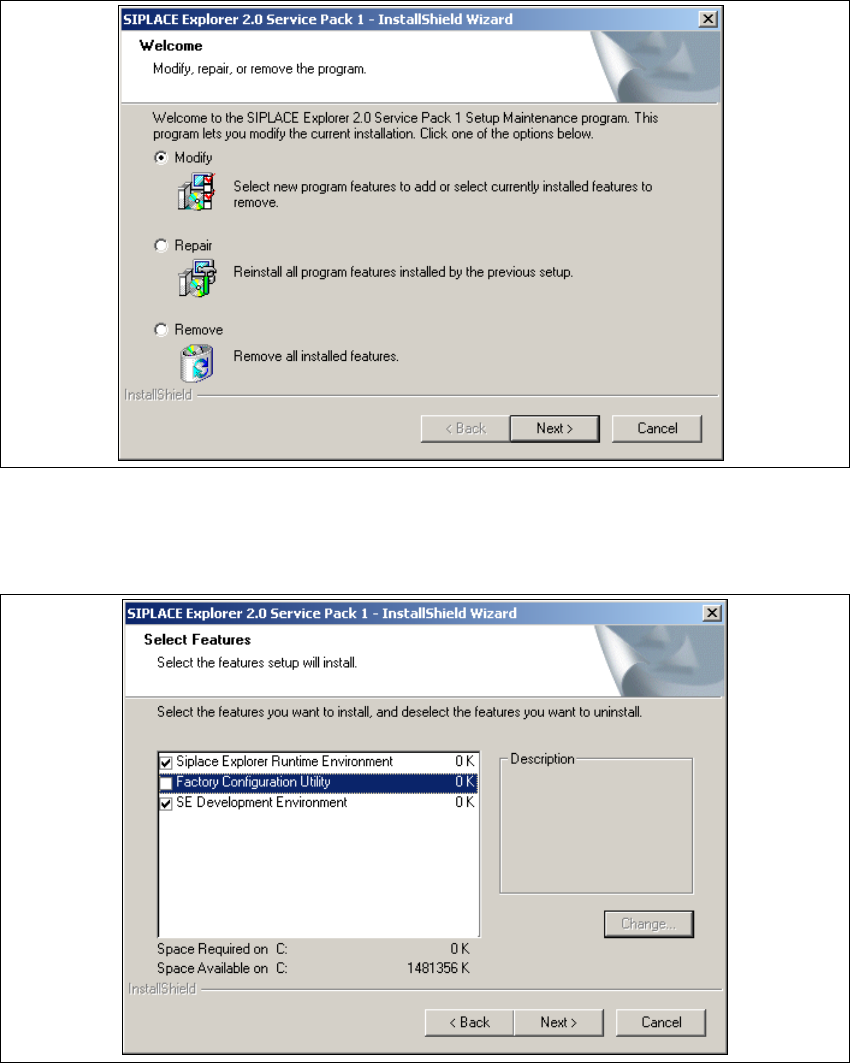
→ The welcome screen will appear. Select the process you wish to perform.
Installation and Configuration Guide SIPLACE Explorer 5 Deinstallation
Edition 12/2005 EN 5.2 Modify
127
5.2 Modify
5
Fig. 5 - 2 SIPLACE Explorer 2.0 SP1 - install shield wizard
→ Click on Modify and then on Next to continue.
→ You will see the Select Features (installation options) dialog box.
5
Fig. 5 - 3 SIPLACE Explorer 2.0 SP1 - install shield wizard
→ Now select the features you wish to remove, by disabling the relevant checkbox next to the
feature(s). The checkbox must be enabled if you wish to install the feature.
→ Once you have selected the required installation option, click on the Next button to continue.