00193688-04.pdf - 第127页
In st alla tio n an d Co nf ig ura tio n G ui de S IP LAC E Ex plor er 5 De in sta ll at ion Edi tio n 12/200 5 EN 5.2 Mo di fy 127 5. 2 Mod if y 5 Fig. 5 - 2 S IP LAC E Expl ore r 2.0 SP1 - i nst all shi el d wiz ard → …
5 Deinstallation Installation and Configuration Guide SIPLACE Explorer
5.1 Start Modify Dialog Edition 12/2005 EN
126
5.1 Start Modify Dialog
→ Open the SIPLACE Explorer 2.0 - InstallShield Wizard via the Windows menu
Start → Programs → SIPLACE Explorer 2.0 → Modify-Uninstall.
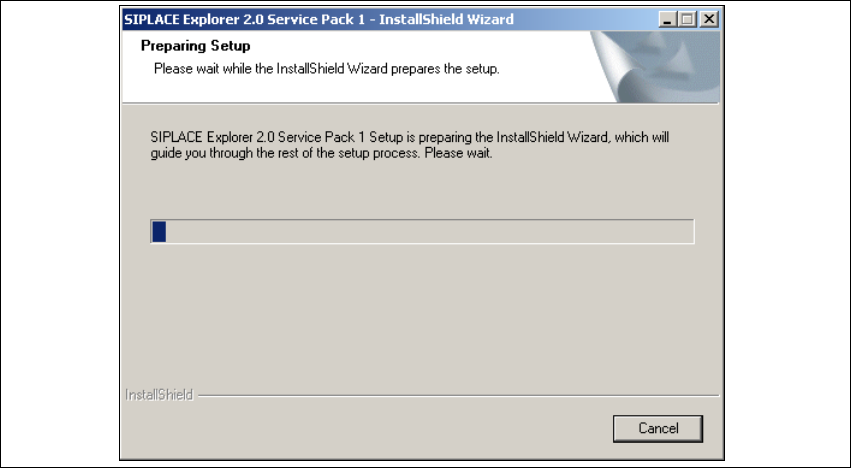
→ The SIPLACE Explorer 2.0 SP1 InstallShield Wizard will be prepared.
5
Fig. 5 - 1 SIPLACE Explorer 2.0 SP1 - install shield wizard
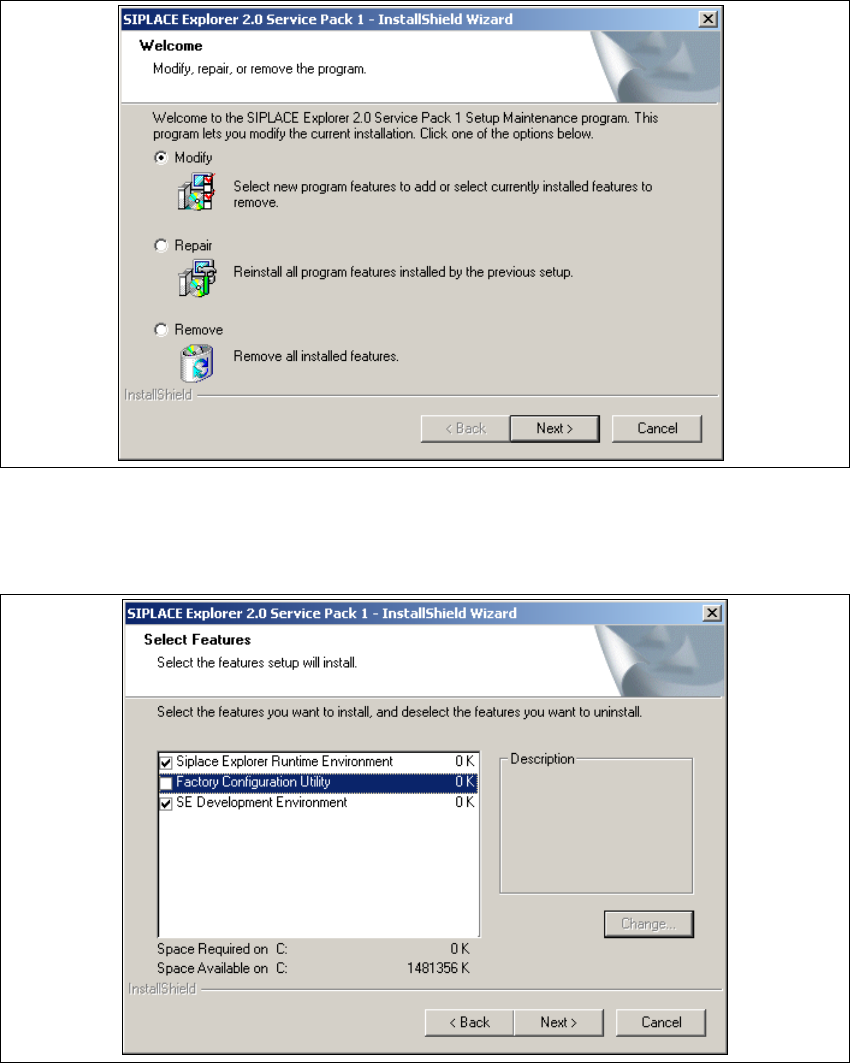
→ The welcome screen will appear. Select the process you wish to perform.
Installation and Configuration Guide SIPLACE Explorer 5 Deinstallation
Edition 12/2005 EN 5.2 Modify
127
5.2 Modify
5
Fig. 5 - 2 SIPLACE Explorer 2.0 SP1 - install shield wizard
→ Click on Modify and then on Next to continue.
→ You will see the Select Features (installation options) dialog box.
5
Fig. 5 - 3 SIPLACE Explorer 2.0 SP1 - install shield wizard
→ Now select the features you wish to remove, by disabling the relevant checkbox next to the
feature(s). The checkbox must be enabled if you wish to install the feature.
→ Once you have selected the required installation option, click on the Next button to continue.
5 Deinstallation Installation and Configuration Guide SIPLACE Explorer
5.2 Modify Edition 12/2005 EN
128
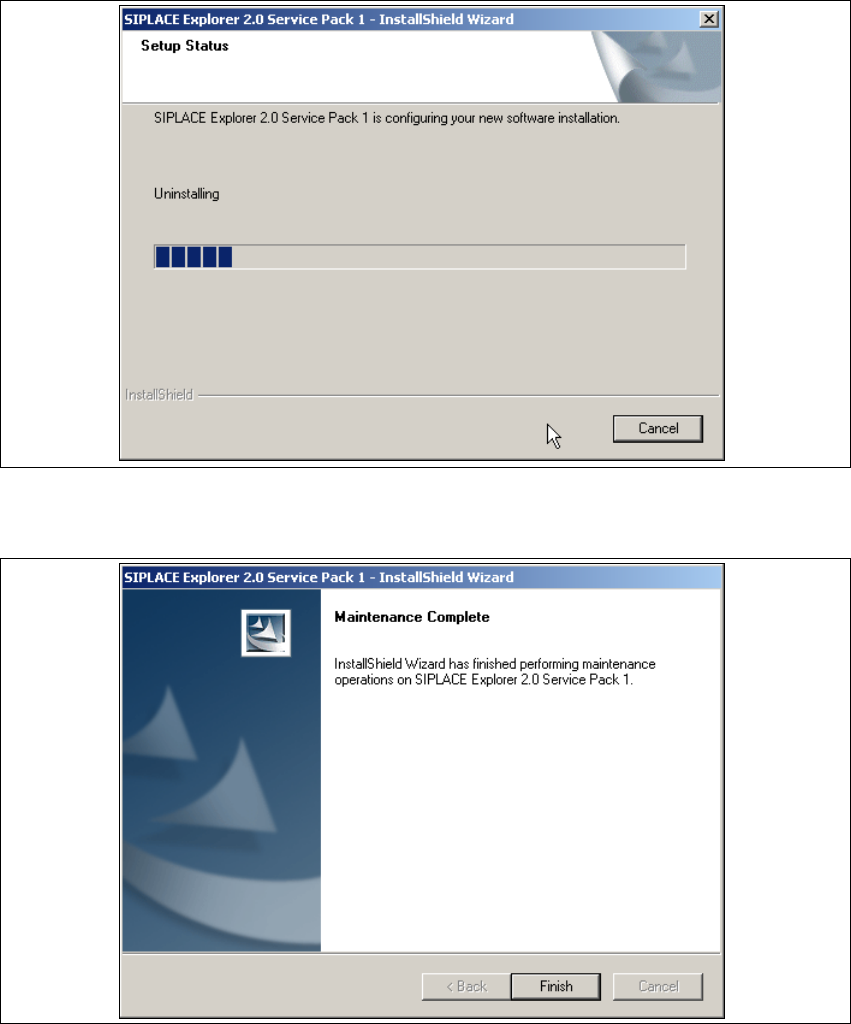
→ Deinstallation will be performed. The Setup Status dialog box shows you which features will
be deinstalled or installed.
5
Fig. 5 - 4 SIPLACE Explorer 2.0 SP1 - install shield wizard
→ SIPLACE Explorer 2.0 SP1 deinstallation/installation has been completed.
5
Fig. 5 - 5 Modify complete
→ Click on Finish to close the SIPLACE Explorer 2.0 SP1 - InstallShield Wizard.