00193688-04.pdf - 第43页
In st alla tio n an d Co nf igur at ion G uide SI P LACE E xpl ore r 3 I ns tal li ng SIP LAC E Ex plor er Edi tio n 12 /200 5 EN 3.1 In iti al In stal la tio n of S IPL ACE E xpl ore r 2. 0 SP1 43 3.1 .4 T om cat 5 .5 I…
3 Installing SIPLACE Explorer Installation and Configuration Guide SIPLACE Explorer
3.1 Initial Installation of SIPLACE Explorer 2.0 SP1 Edition 12/2005 EN
42
3
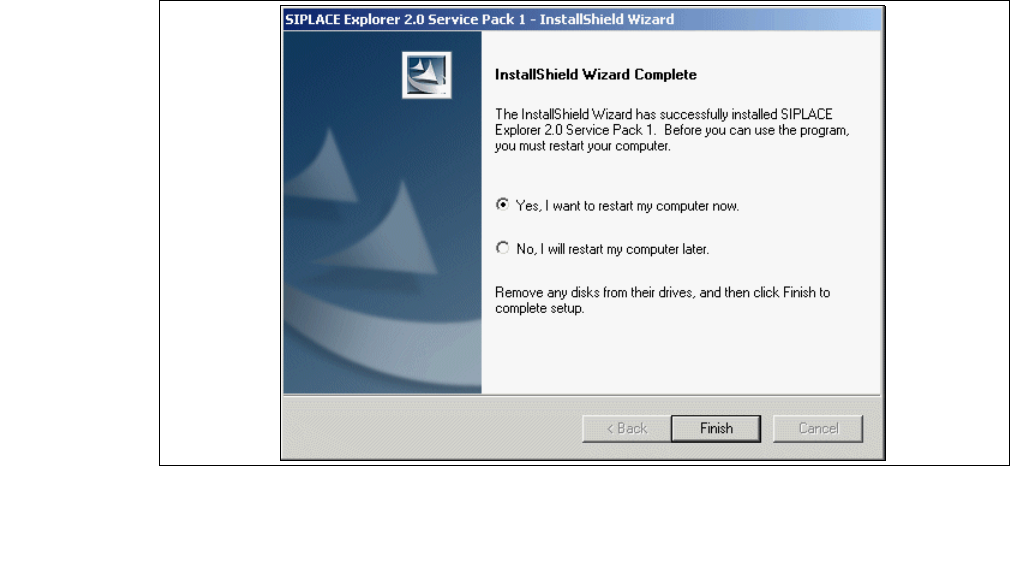
Fig. 3 - 25 SIPLACE Explorer setup - installation complete
→ Click on Finish. After you have rebooted your computer, SIPLACE Explorer will be available
for use. Follow the instructions at “Starting SIPLACE Explorer” on page 57.
Installation and Configuration Guide SIPLACE Explorer 3 Installing SIPLACE Explorer
Edition 12/2005 EN 3.1 Initial Installation of SIPLACE Explorer 2.0 SP1
43
3.1.4 Tomcat 5.5 Installation Procedure
NOTE
You must have Windows 2000 administrator privileges to perform installation. 3
NOTE
Before installing Tomcat 5.5, make sure that all versions of Tomcat < 5.5 have been deinstalled.3
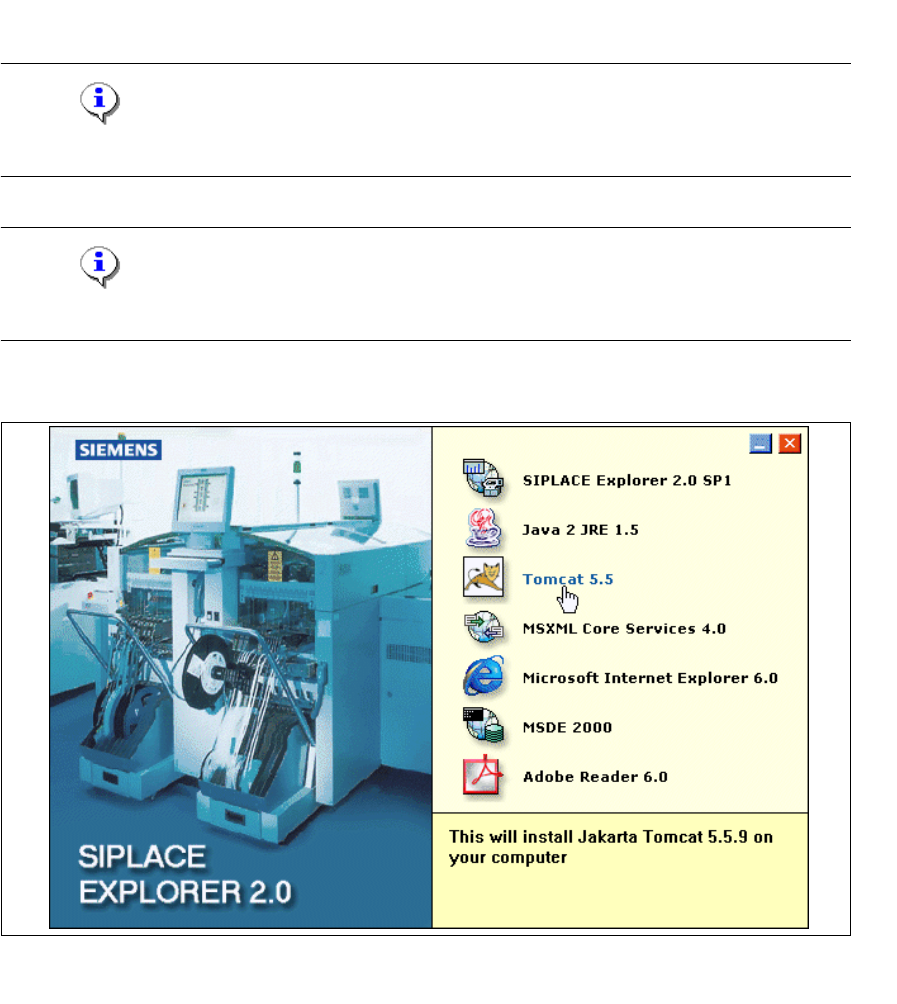
→ Place the SIPLACE Explorer CD in your CD-ROM drive. The Start screen will appear.
3
Fig. 3 - 26 SIPLACE Explorer setup - Start screen
→ Select Tomcat 5.5.
3 Installing SIPLACE Explorer Installation and Configuration Guide SIPLACE Explorer
3.1 Initial Installation of SIPLACE Explorer 2.0 SP1 Edition 12/2005 EN
44
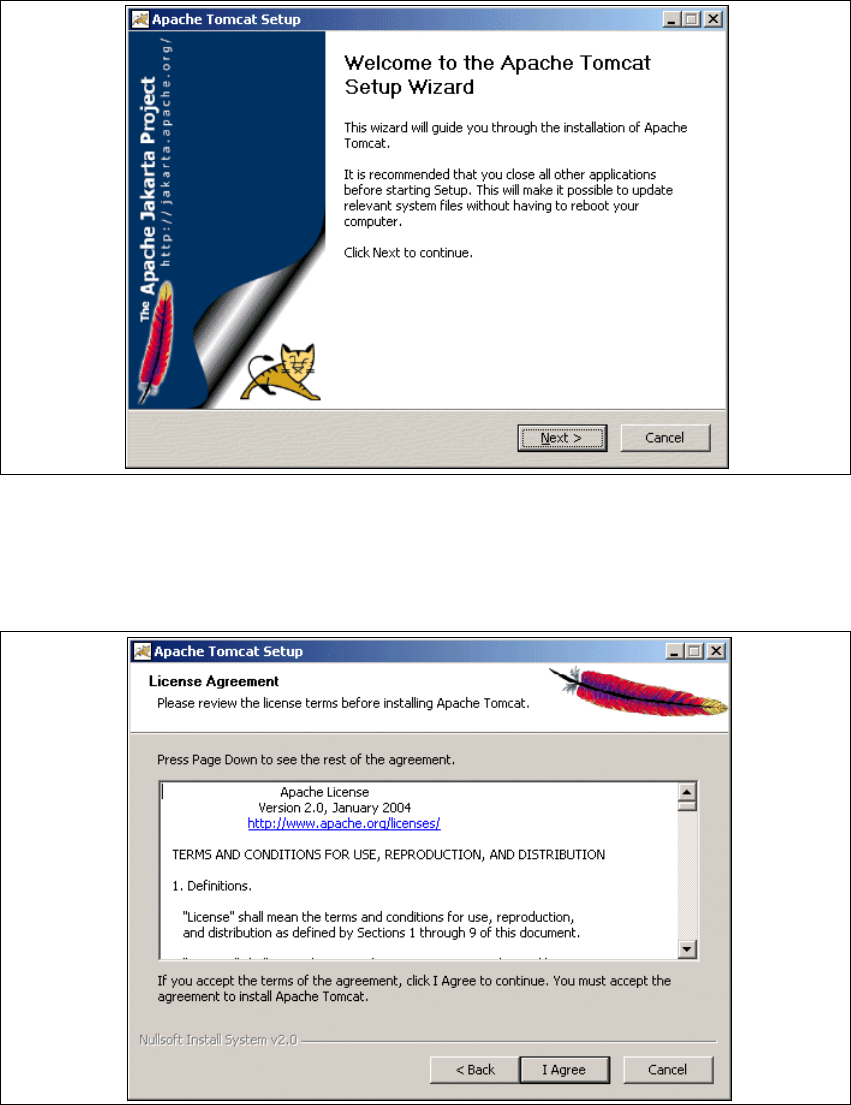
→ You will be guided through the Tomcat installation procedure.
3
Fig. 3 - 27 Apache Tomcat setup - welcome screen
→ Exit all other programs and then click on Next.
→ Read the license agreement. If you agree click I Agree, otherwise click Cancel. Clicking on
Cancel terminates the installation.
3
Fig. 3 - 28 Apache Tomcat setup - license agreement