00193688-04.pdf - 第44页
3 In st alli ng SI PLA CE Ex pl ore r Ins t a llat ion and Con figu rat i on Guid e SI PLA CE Exp lorer 3. 1 I ni tia l Inst all ati on o f SI PLA C E Ex plor er 2 .0 S P1 Ed iti on 12 /2 00 5 EN 44 → Y ou wil l b e guid…
Installation and Configuration Guide SIPLACE Explorer 3 Installing SIPLACE Explorer
Edition 12/2005 EN 3.1 Initial Installation of SIPLACE Explorer 2.0 SP1
43
3.1.4 Tomcat 5.5 Installation Procedure
NOTE
You must have Windows 2000 administrator privileges to perform installation. 3
NOTE
Before installing Tomcat 5.5, make sure that all versions of Tomcat < 5.5 have been deinstalled.3
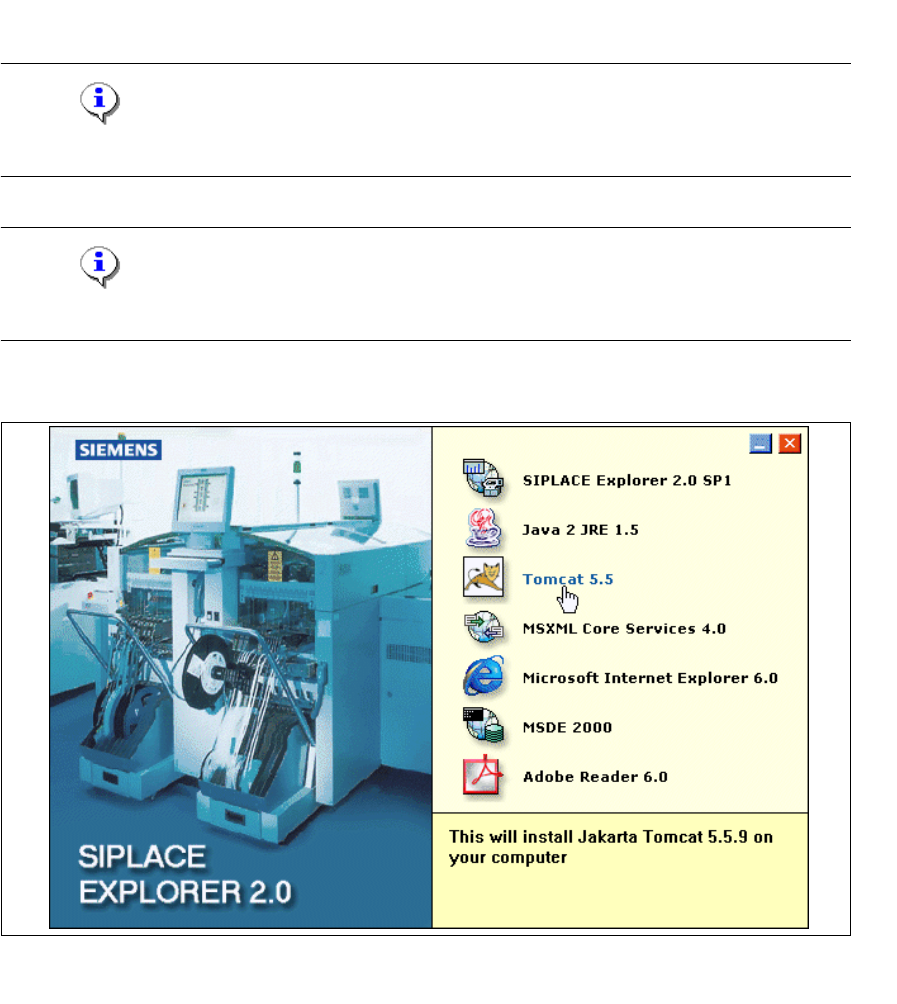
→ Place the SIPLACE Explorer CD in your CD-ROM drive. The Start screen will appear.
3
Fig. 3 - 26 SIPLACE Explorer setup - Start screen
→ Select Tomcat 5.5.
3 Installing SIPLACE Explorer Installation and Configuration Guide SIPLACE Explorer
3.1 Initial Installation of SIPLACE Explorer 2.0 SP1 Edition 12/2005 EN
44
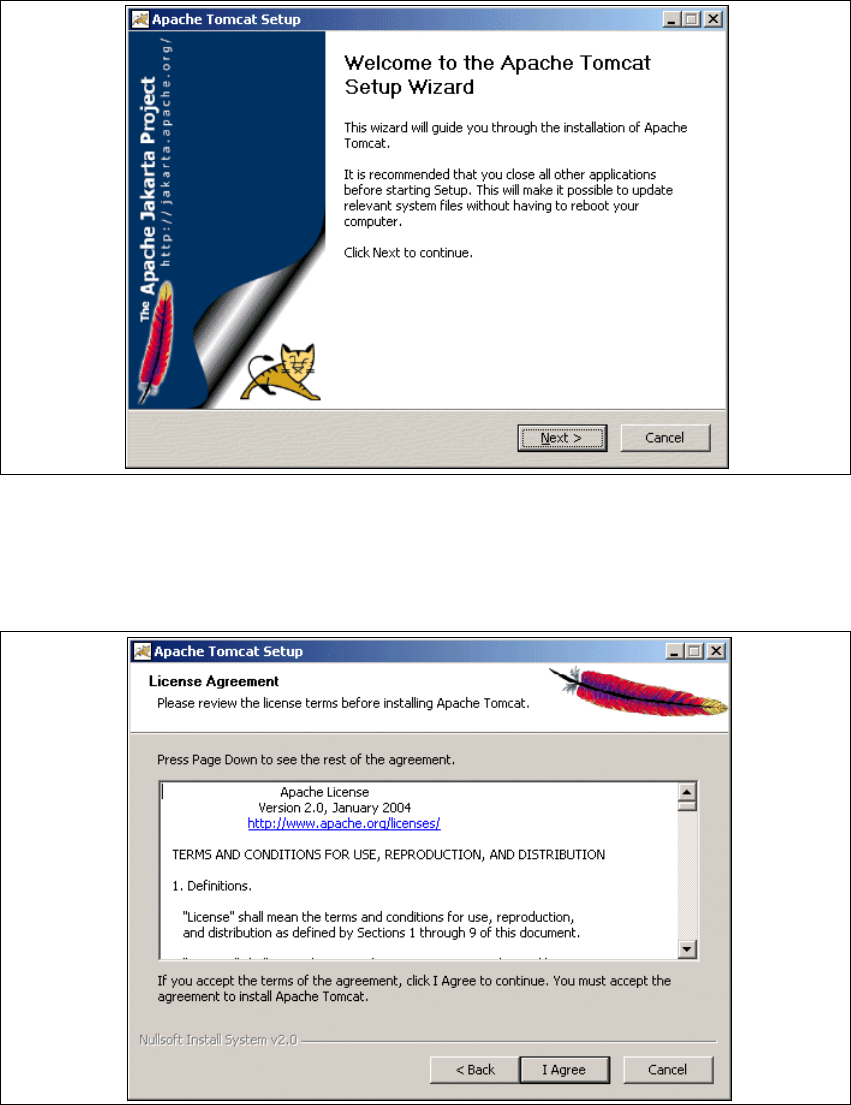
→ You will be guided through the Tomcat installation procedure.
3
Fig. 3 - 27 Apache Tomcat setup - welcome screen
→ Exit all other programs and then click on Next.
→ Read the license agreement. If you agree click I Agree, otherwise click Cancel. Clicking on
Cancel terminates the installation.
3
Fig. 3 - 28 Apache Tomcat setup - license agreement
Installation and Configuration Guide SIPLACE Explorer 3 Installing SIPLACE Explorer
Edition 12/2005 EN 3.1 Initial Installation of SIPLACE Explorer 2.0 SP1
45
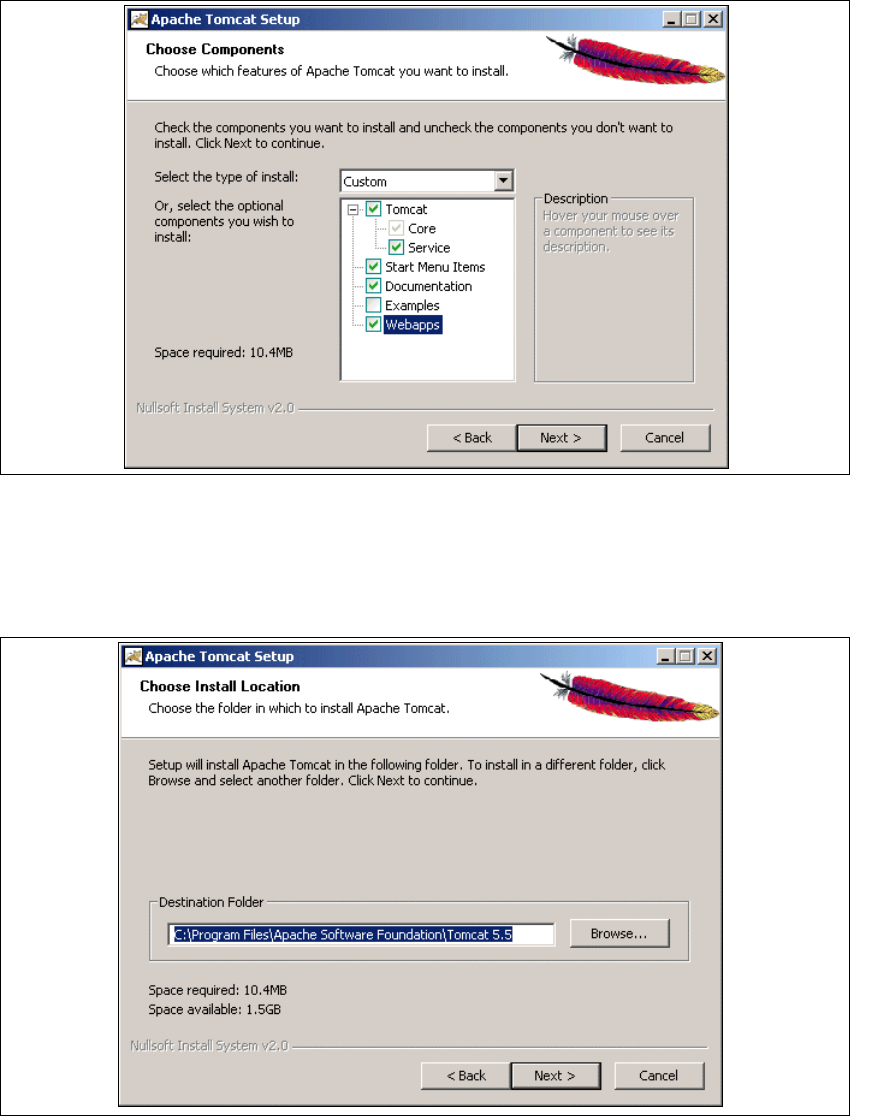
→ Now select the features you wish to install.
3
Fig. 3 - 29 Apache Tomcat setup - selecting features
→ Select the installation variant Custom.
→ Click the Tomcat option Service. Click on Next to continue.
→ Now specify the folder in which you wish to install the application.
3
Fig. 3 - 30 Apache Tomcat setup - select installation destination folder
→ You can alter the default installation folder by using the Browse button.
→ Click on Next to continue.