00193688-04.pdf - 第56页
3 In st alli ng SI PLA CE Ex pl ore r Ins t a llat ion and Con figu rat i on Guid e SI PLA CE Exp lorer 3. 2 U pd ate- In stal la tio n of SIP LA CE E xplo rer 2.0 S P1 Ed iti on 12/ 200 5 EN 56 → The actual in st a llat…
Installation and Configuration Guide SIPLACE Explorer 3 Installing SIPLACE Explorer
Edition 12/2005 EN 3.2 Update-Installation of SIPLACE Explorer 2.0 SP1
55
→ In this case, you can either enter the path to the J2SDK 2 JRE v.1.5. folder directly into the text
field or click on the
Browse button and use the Open File dialog box to find the JAVA 2 JRE
folder.
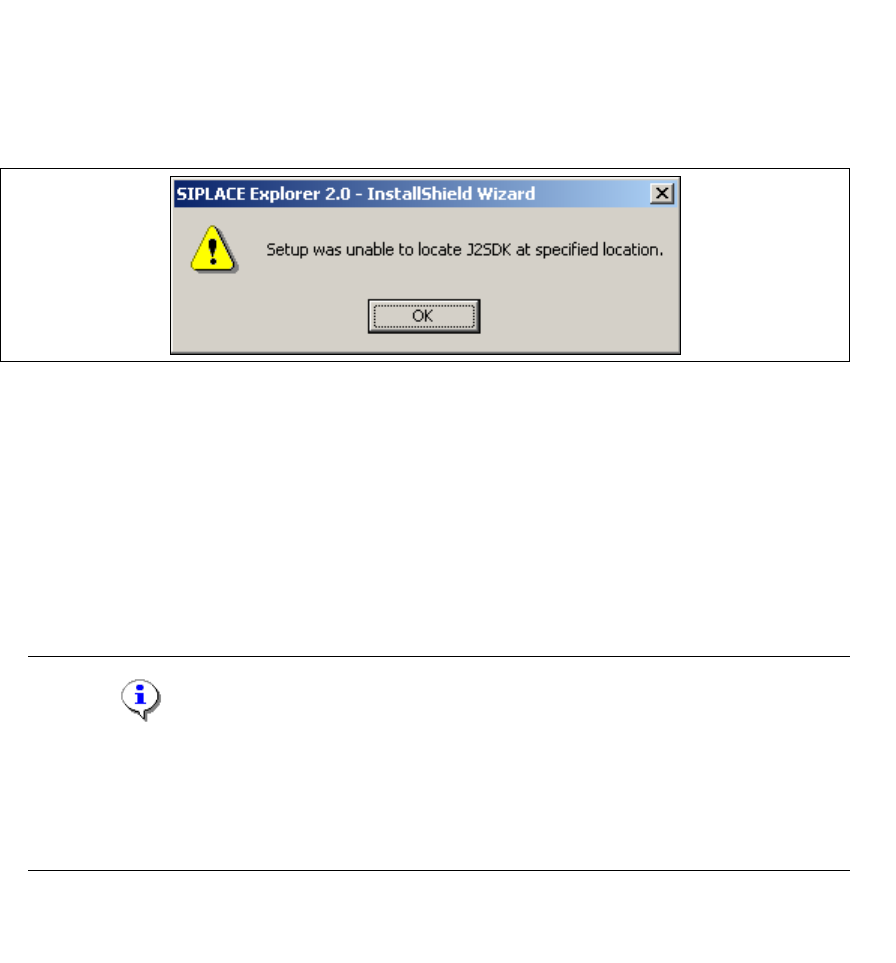
→ If you failed to correctly specify the path to the folder in which JAVA 2 SDK is installed, you will
see the following dialog box.
3
Fig. 3 - 41 SIPLACE Explorer setup - unable to locate J2SE
→ Click OK to return to the previous screen. SIPLACE Explorer requires JAVA 2 JRE to be
installed prior to installation.
→ At this point, you can either try to specify the JAVA 2 JRE folder again, or click Cancel to exit
the installation of SIPLACE Explorer.
→ If you chose Cancel, please install the version of JAVA 2 JRE included on the installation CD
or available free from (see page 29) Sun Microsystems at http://java.sun.com/j2se and then re-
start installation of SIPLACE Explorer.
NOTE
If you have the J2 Runtime environment (not JAVA 2 JRE) - available from Sun Microsystems
at http://java.sun.com/j2se - installed on your system, the website generated by SIPLACE
Explorer Website Builder will not function properly as it is based on JSP, which requires JAVA
2 JRE. 3
→ The installation of SIPLACE Explorer 2.0 SP1 will be continued once JAVA 2 JRE v.1.5 has
been localized. The following dialog box will appear.
3 Installing SIPLACE Explorer Installation and Configuration Guide SIPLACE Explorer
3.2 Update-Installation of SIPLACE Explorer 2.0 SP1 Edition 12/2005 EN
56
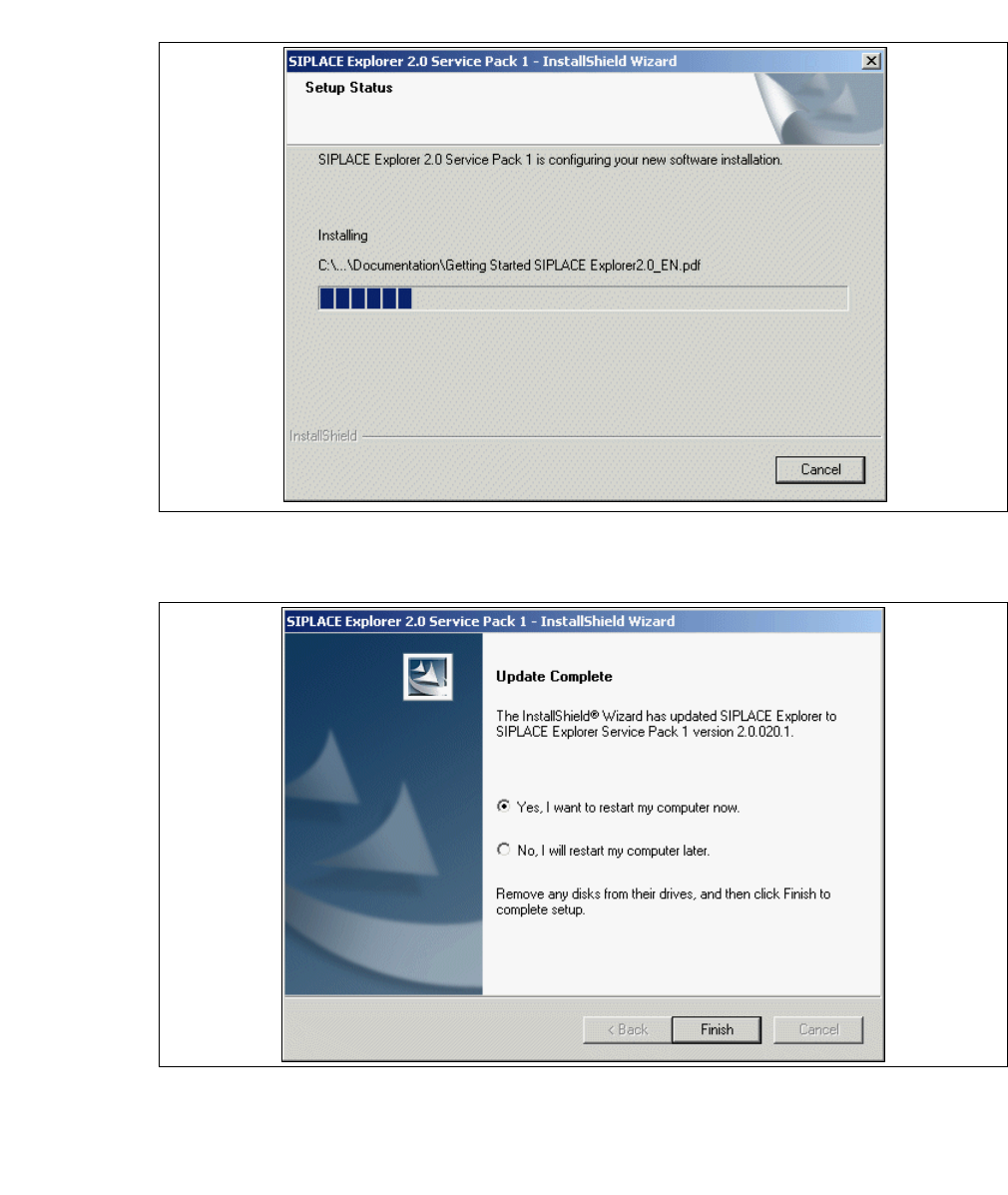
→ The actual installation of SIPLACE Explorer V2.0 SP1 will begin.
3
Fig. 3 - 42 SIPLACE Explorer setup - setup status
→ Once the installation procedure has finished, the following dialog box will appear.
3
Fig. 3 - 43 SIPLACE Explorer setup - installation complete
→ Click on Finish. After you have rebooted your computer, the update of SIPLACE Explorer 2.0
SP1 will be available for use. Follow the instructions at “Starting SIPLACE Explorer” on
page 57.
Installation and Configuration Guide SIPLACE Explorer 3 Installing SIPLACE Explorer
Edition 12/2005 EN 3.3 Starting SIPLACE Explorer
57
3.3 Starting SIPLACE Explorer
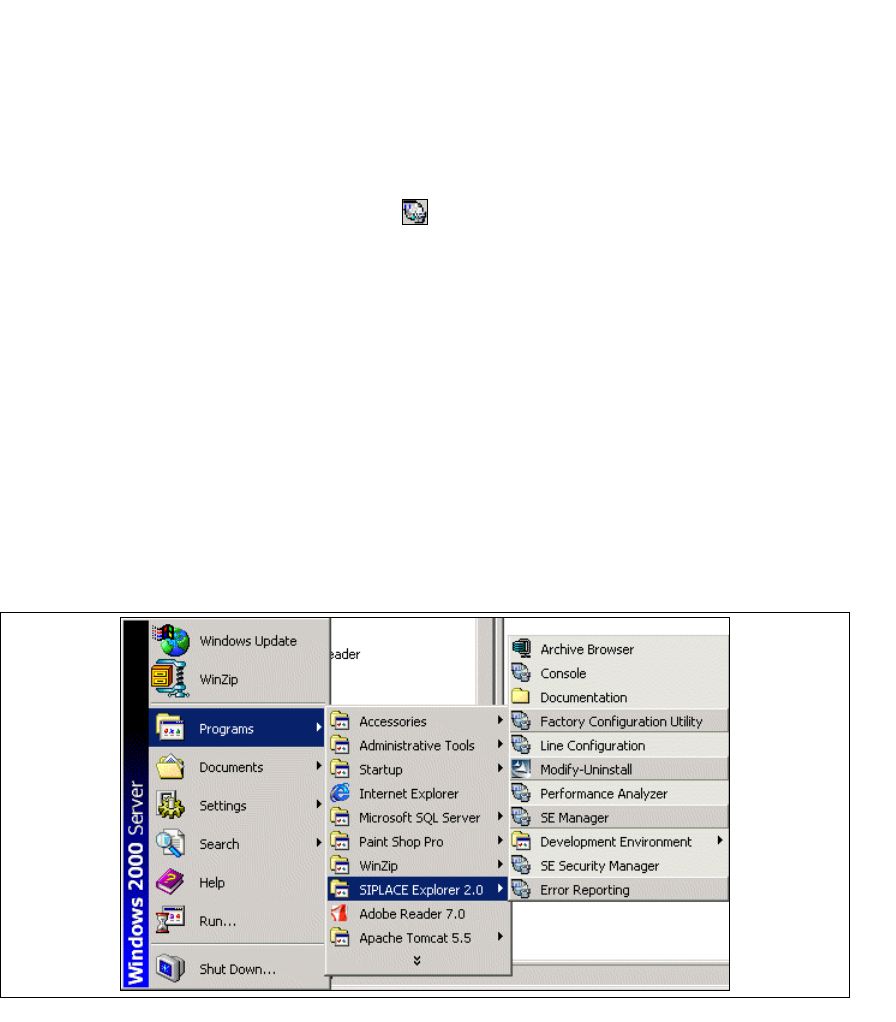
→ SIPLACE Explorer can be started by selecting Programs → SIPLACE Explorer 2.0 from the
Windows menu and will be loaded to correspond with your selected installation options.
→ SIPLACE Explorer V.2.0 Runtime Environment:
"Runtime Environment" runs as a Windows NT service and is automatically started whenever
you reboot your computer. You will see the icon in your console. Right-click with the mouse
to open other applications and tools. The following options are available:
3
– SE Manager
– SE Security Manager
– Line Configuration
– Performance Analyzer
–Console
– Language
These additional applications and tools can also be started via the
Programs → SIPLACE
Explorer 2.0
menu in Windows. 3
3
Fig. 3 - 44 RTE Windows Start menu