00193688-04.pdf - 第58页
3 In st alli ng SI PLA CE Ex pl ore r Ins t a llat ion and Con figu rat i on Guid e SI PLA CE Exp lorer 3.3 S tartin g SIPLACE Explor er E dit ion 12 /2 005 E N 58 The fol lowing option s are availab le: 3 – Arc hive Bro…
Installation and Configuration Guide SIPLACE Explorer 3 Installing SIPLACE Explorer
Edition 12/2005 EN 3.3 Starting SIPLACE Explorer
57
3.3 Starting SIPLACE Explorer
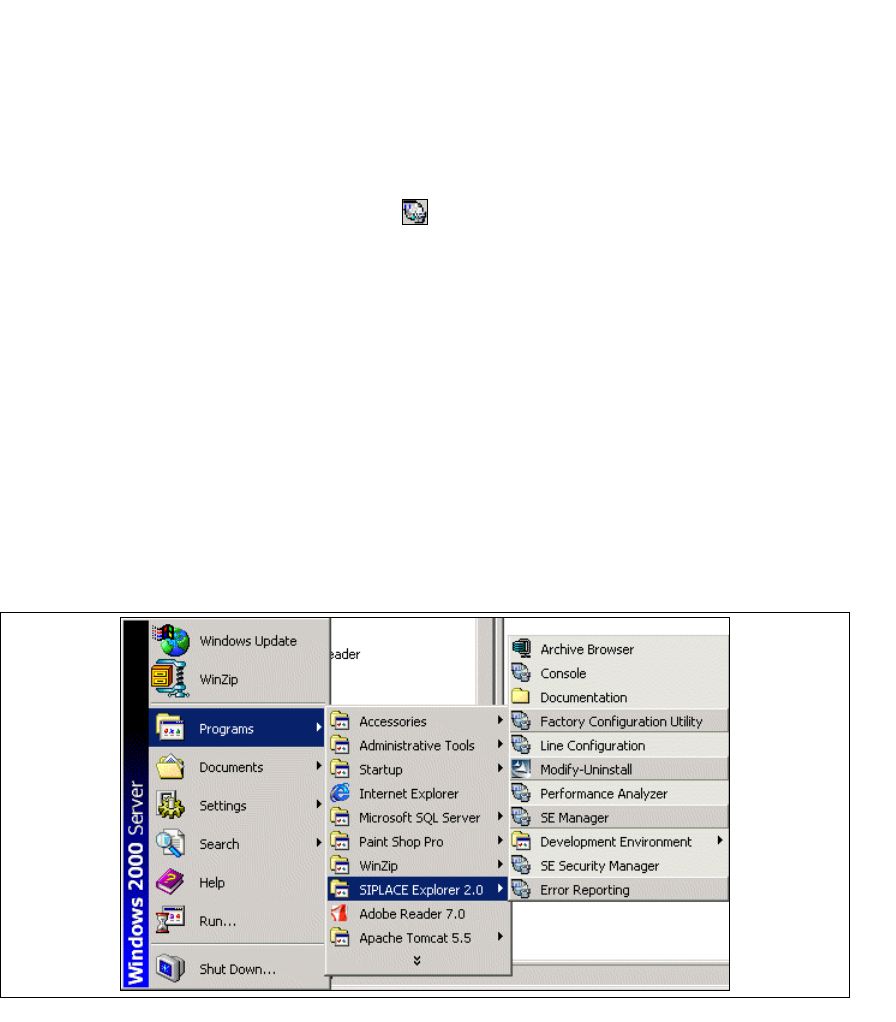
→ SIPLACE Explorer can be started by selecting Programs → SIPLACE Explorer 2.0 from the
Windows menu and will be loaded to correspond with your selected installation options.
→ SIPLACE Explorer V.2.0 Runtime Environment:
"Runtime Environment" runs as a Windows NT service and is automatically started whenever
you reboot your computer. You will see the icon in your console. Right-click with the mouse
to open other applications and tools. The following options are available:
3
– SE Manager
– SE Security Manager
– Line Configuration
– Performance Analyzer
–Console
– Language
These additional applications and tools can also be started via the
Programs → SIPLACE
Explorer 2.0
menu in Windows. 3
3
Fig. 3 - 44 RTE Windows Start menu
3 Installing SIPLACE Explorer Installation and Configuration Guide SIPLACE Explorer
3.3 Starting SIPLACE Explorer Edition 12/2005 EN
58
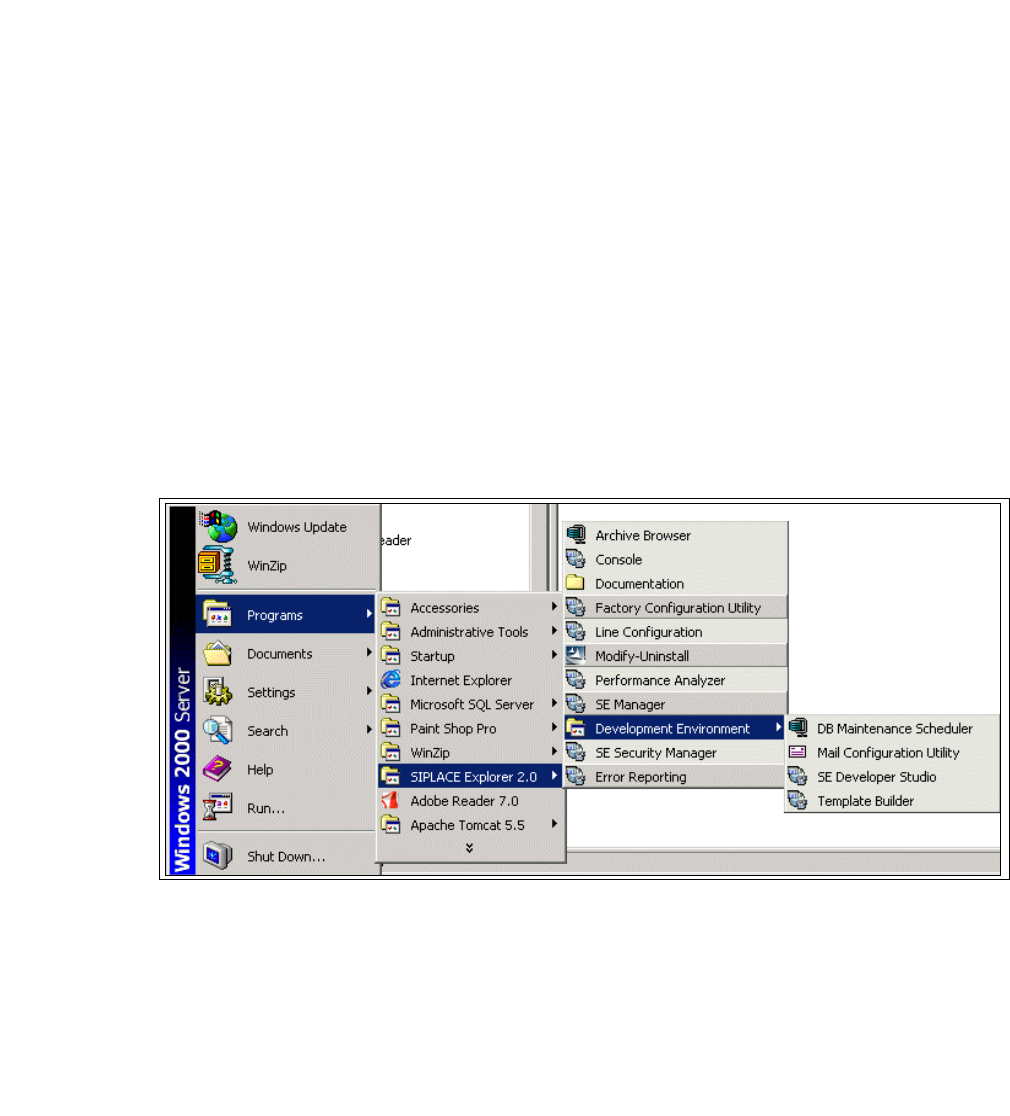
The following options are available:
3
– Archive Browser
–Console
– Line Configuration
– Performance Analyzer
– SE Manager
– SE Security Manager
– Modify-Uninstall
– Documentation
→ SIPLACE Explorer V.2.0 Development Environment
Start the Development Environment via the
Programs → SIPLACE Explorer 2.0 →
Developer Tools
menu in Windows. 3
3
Fig. 3 - 45 DE Windows Start menu
The following applications and tools are available: 3
– DB Maintenance Scheduler
– Mail Configuration Utility
– SE Developer Studio
– Template Builder
Installation and Configuration Guide SIPLACE Explorer 3 Installing SIPLACE Explorer
Edition 12/2005 EN 3.3 Starting SIPLACE Explorer
59
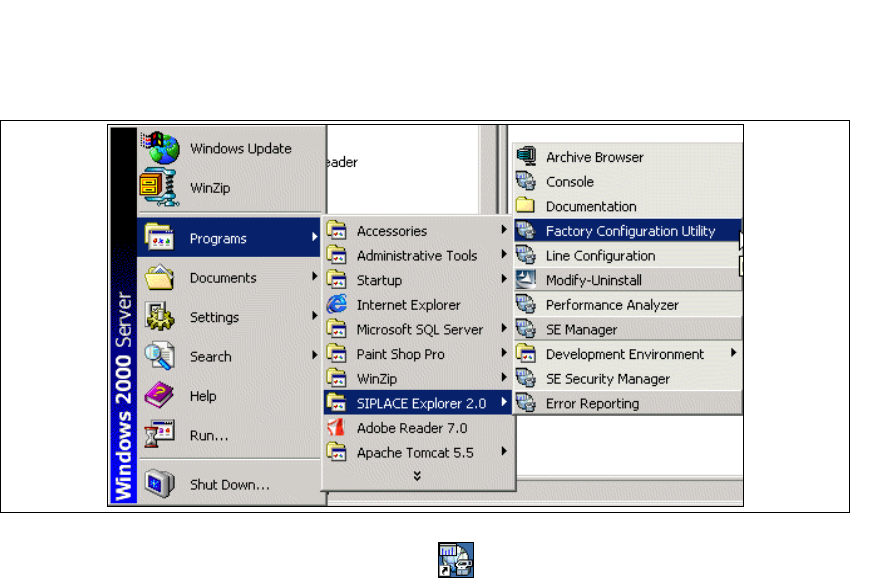
→ SIPLACE Explorer V.2.0 Factory Configuration Utility
Start the Factory Configuration Utility via the
Programs → SIPLACE Explorer 2.0 → Factory
Configuration Utility
menu in Windows. 3
3
Fig. 3 - 46 Factory Configuration Utility Windows Start menu
→ Or click on the Factory Configuration Utility icon on your desktop.