00193688-04.pdf - 第61页
In st alla tio n an d Co nf igur at ion G uide SI P LACE E xpl ore r 3 I ns tal li ng SIP LAC E Ex plor er Edi tio n 12/200 5 EN 3. 4 Tomc at Confi gu rat ion 61 → The Wi ndow s F ir ew al l di alog box will ope n: 3 Fig…
3 Installing SIPLACE Explorer Installation and Configuration Guide SIPLACE Explorer
3.4 Tomcat Configuration Edition 12/2005 EN
60
3.4 Tomcat Configuration
3.4.1 Using Windows XP Professional with SP2
If you have installed Windows XP Professional with SP2 as your operating system, you will need
to reconfigure the XP firewalls before using SIPLACE Explorer. This involves releasing the ports
Tomcat 5.5 and SIPLACE Explorer V2.0.
3
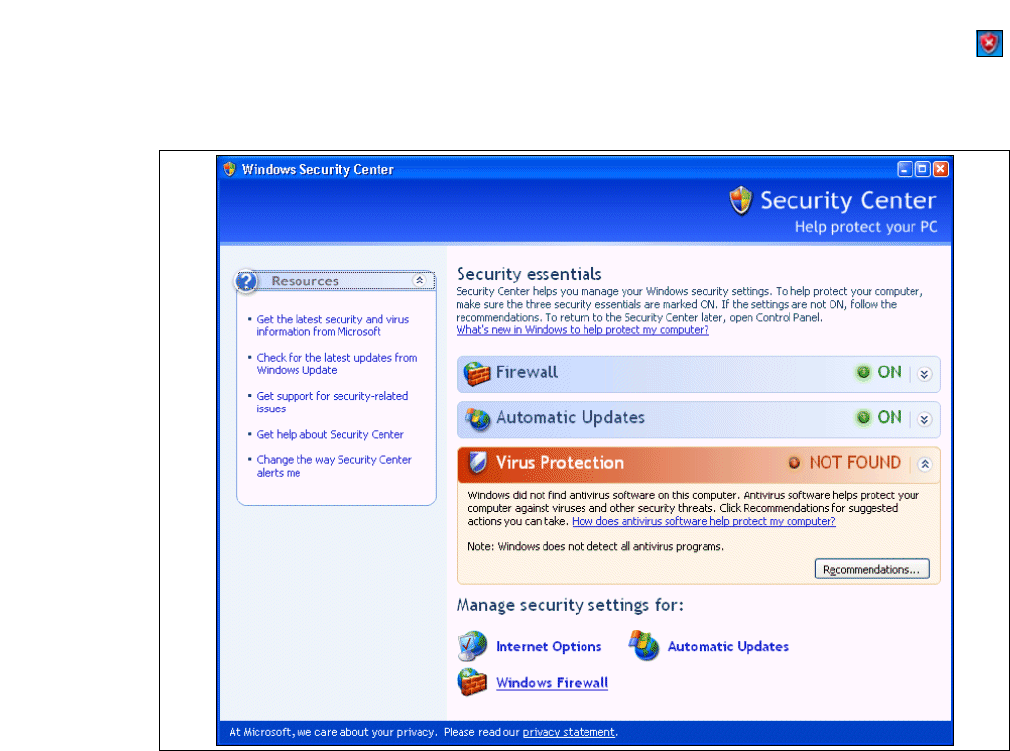
→ Start the Windows Security Center by double-clicking on the Windows Security Alerts
icon in the console.
→ The Windows Security Center dialog box will open:
3
Fig. 3 - 47 Windows Security Center
→ Proceed to Manage security settings for and select the option Windows Firewall.
Installation and Configuration Guide SIPLACE Explorer 3 Installing SIPLACE Explorer
Edition 12/2005 EN 3.4 Tomcat Configuration
61
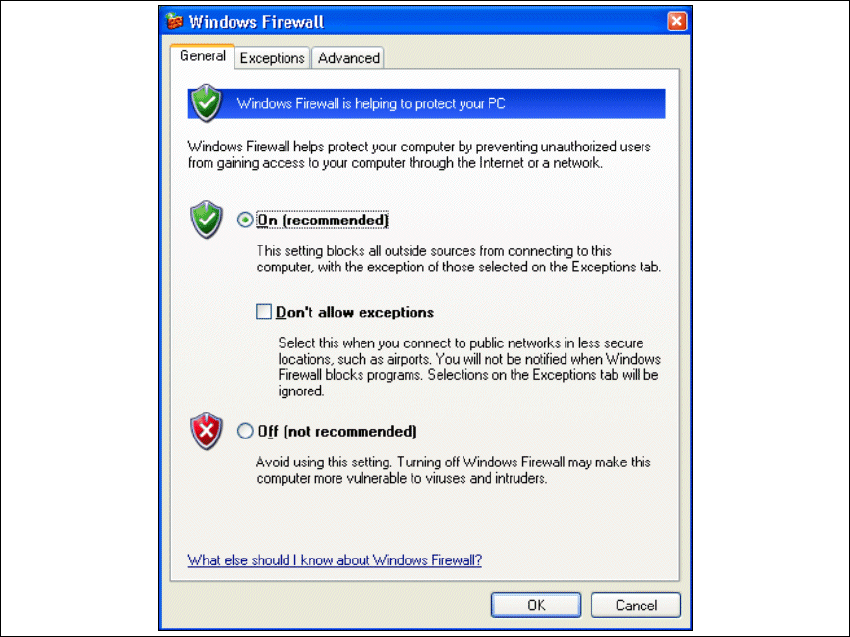
→ The Windows Firewall dialog box will open:
3
Fig. 3 - 48 Windows firewall
→ Select the Exceptions tab.
3 Installing SIPLACE Explorer Installation and Configuration Guide SIPLACE Explorer
3.4 Tomcat Configuration Edition 12/2005 EN
62
3
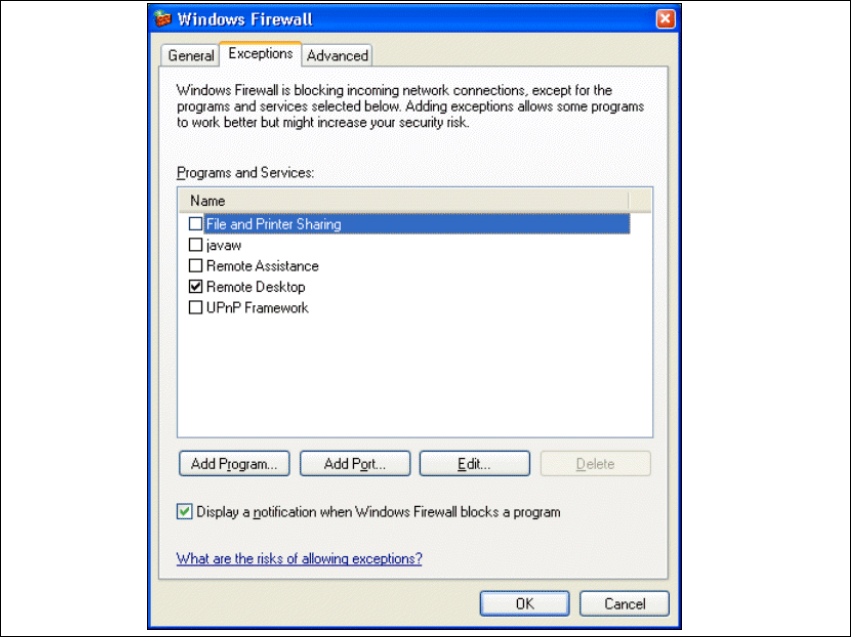
Fig. 3 - 49 Windows firewall - exceptions
→ Click on the Add Program button.