00193688-04.pdf - 第65页
In st alla tio n an d Co nf igur at ion G uide SI P LACE E xpl ore r 3 I ns tal li ng SIP LAC E Ex plor er Edi tio n 12/200 5 EN 3. 4 Tomc at Confi gu rat ion 65 → Select the file to mcat 5. ex e and c lick on the Ope n …
3 Installing SIPLACE Explorer Installation and Configuration Guide SIPLACE Explorer
3.4 Tomcat Configuration Edition 12/2005 EN
64
3
Fig. 3 - 51 Windows firewall - exceptions
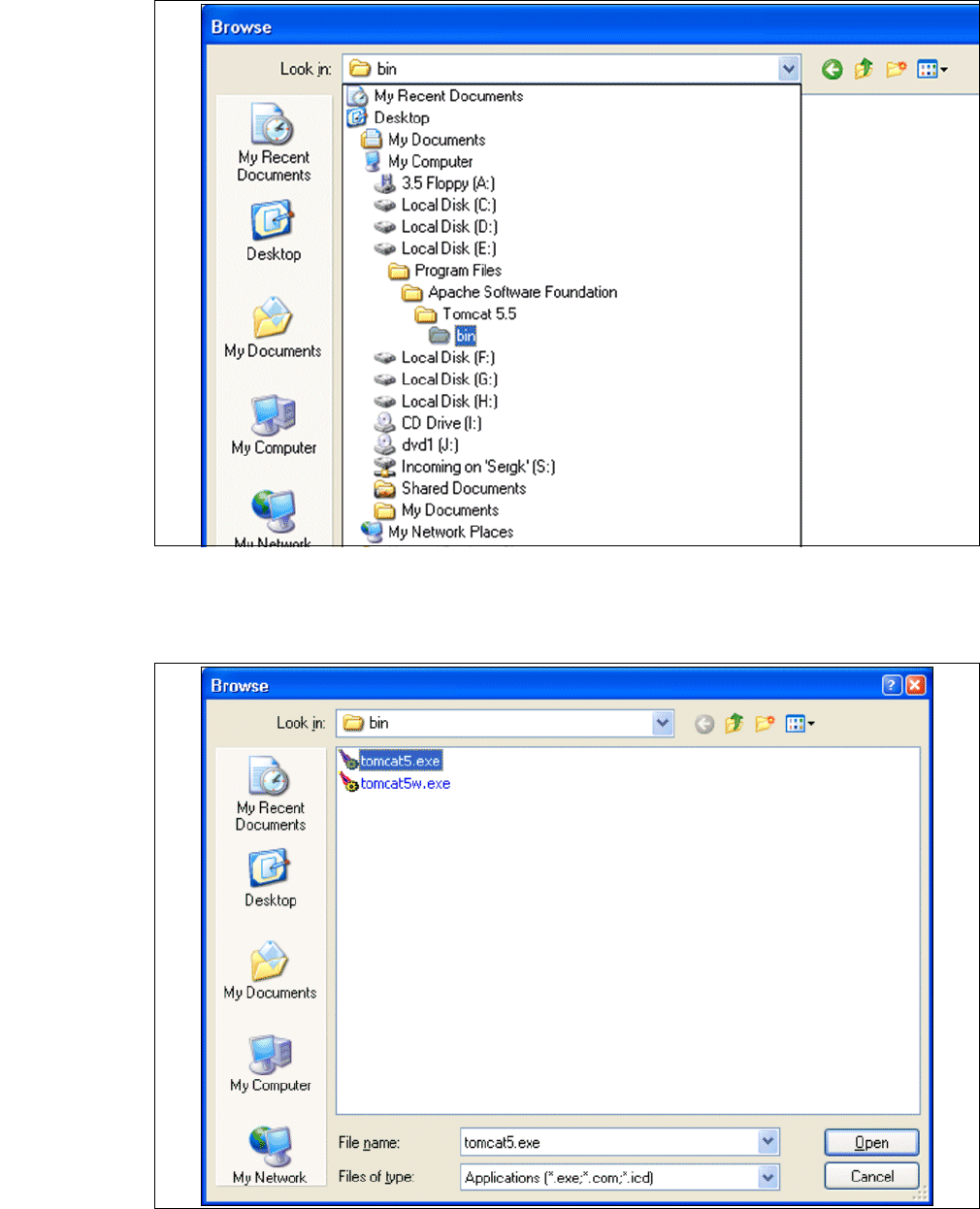
→ In the Tomcat installation path, click on the ..\Tomcat 5.5\bin path and then on the Open
button.
3
Fig. 3 - 52 Windows firewall - exceptions
Installation and Configuration Guide SIPLACE Explorer 3 Installing SIPLACE Explorer
Edition 12/2005 EN 3.4 Tomcat Configuration
65
→ Select the file tomcat5.exe and click on the Open button.
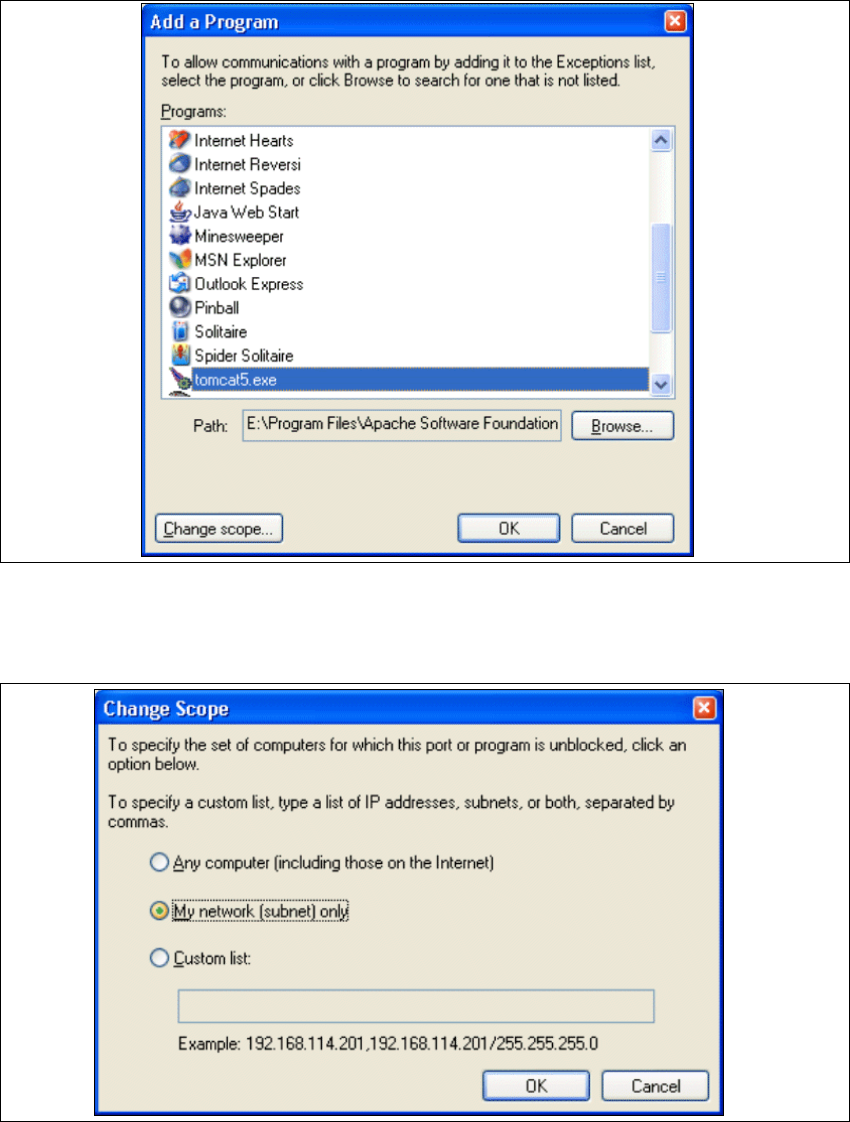
→ The Add a Program dialog box will open again:
3
Fig. 3 - 53 Add a program
→ Select the entry tomcat5.exe from the Programs menu and click on the Change Scope
button.
3
Fig. 3 - 54 Change scope
3 Installing SIPLACE Explorer Installation and Configuration Guide SIPLACE Explorer
3.4 Tomcat Configuration Edition 12/2005 EN
66
→ Enable the My network option and confirm with OK. You have now released the port for
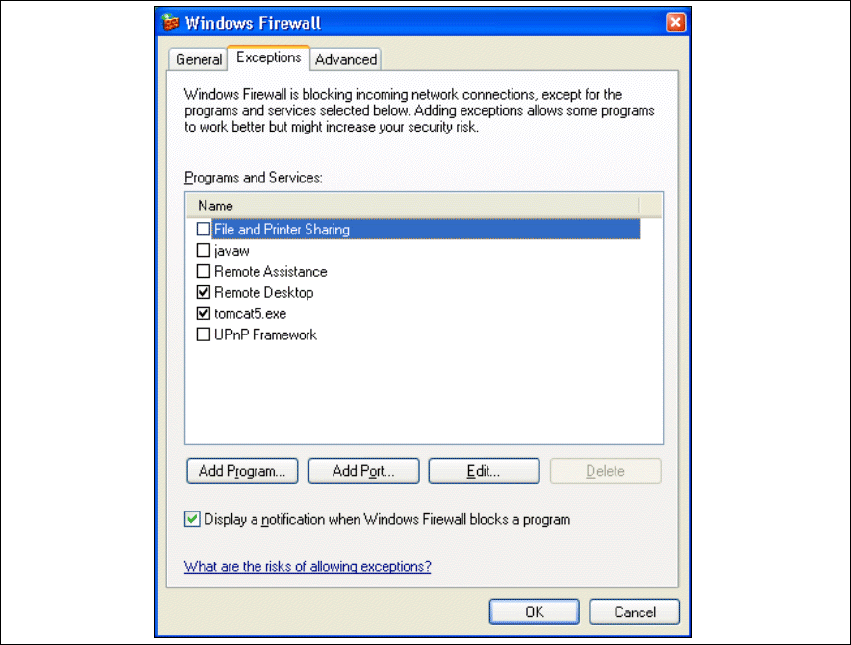
Tomcat. This can be checked in the
Windows Firewall - Exceptions dialog box.
3
Fig. 3 - 55 Windows firewall - exceptions
→ Now release the port for SIPLACE Explorer V2.0. Proceed as described for Tomcat 5.5.