ACT - Accuracy Check Tool.pdf - 第184页
ACT with SSW 7xx / User Manual 07/2017 Edition 76 4.2.7.3 Saving the Report under Station Sof tware 709.xx and Higher ► Click the Save results button ( see Figure 4 - 50 ). The report will be saved in PDF format. The rep…
ACT with SSW 7xx / User Manual 07/2017 Edition
75
4.2.7.2 Correcting the Measured Offsets
► Click the Automatic offset correction button (
see Figure 4-50).
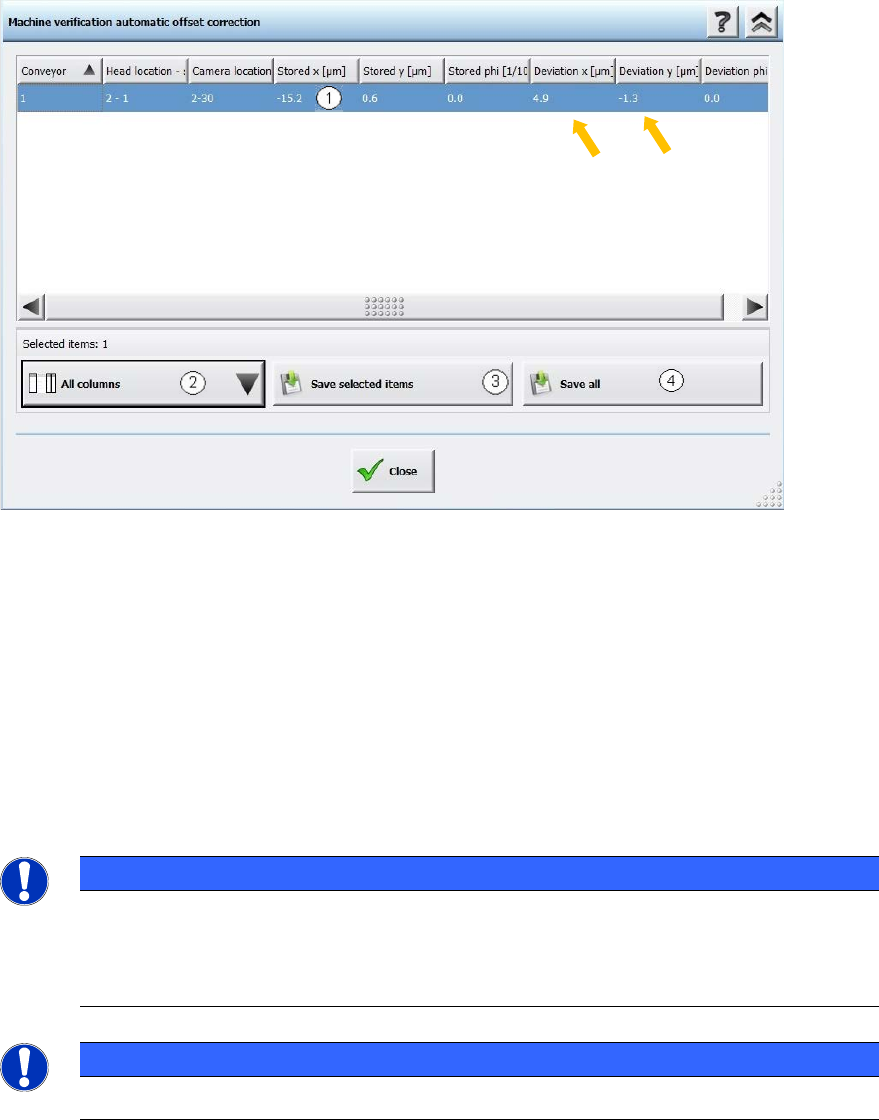
The following dialog box is opened:
Figure 4-51: Correction of the measured offset values (median)
Key:
(1) Clicking on a line highlights it in blue. Clicking on the same line again cancels the
highlighting. To select multiple lines, click them while holding down the (Ctrl) key.
(2) Here you can customize the view, e.g. hide individual columns.
(3) Transfers all selected offset values to the machine data.
(4) This transfers all offset values to the machine data whether they are selected or not.
The corrected values are active immediately after having been stored.
► Terminate the current measurement and assemble and measure the plate again.
NOTICE
If you are using a dual conveyor and want to run the ACT with the next conveyor lane, all
you need to do is insert the glass plate into the input conveyor of the current lane once
the components have been removed. This triggers the ACT. You do not need to select a
new mode for the measurement.
NOTICE
The transparent foil, with adhesive on both sides, can be used multiple times.
ACT with SSW 7xx / User Manual 07/2017 Edition
76
4.2.7.3 Saving the Report under Station Software 709.xx and Higher
► Click the Save results button (
see Figure 4-50).
The report will be saved in PDF format.
The reports will be saved under: C:\Sirio\Work\MaintenanceReports.
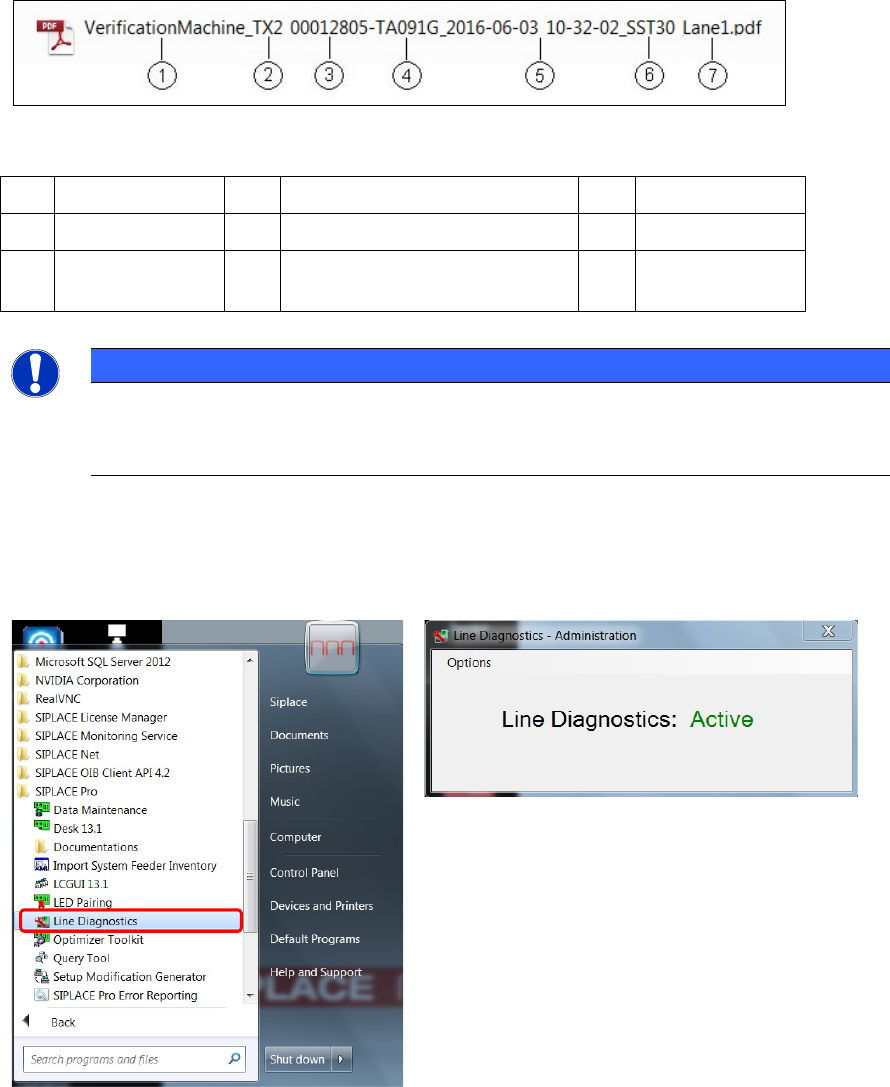
As of SW 709.x, the file name for the report is made up as follows:
Figure 4-52: File name of the report
Key:
(1)
Report type
(4)
Machine serial no.
(7)
Lane
(2)
Machine type
(5)
Date and time
(3) MID (6) Camera type / Sensor system
type
NOTICE
As of station software version 7xx, all maintenance and verification reports will be saved
in the C:\Sirio\Work\MaintenanceReports folder. The storage location cannot be
selected.
All reports can then be retrieved at the SIPLACE Pro Line computer via the Line Diagnostics
function.
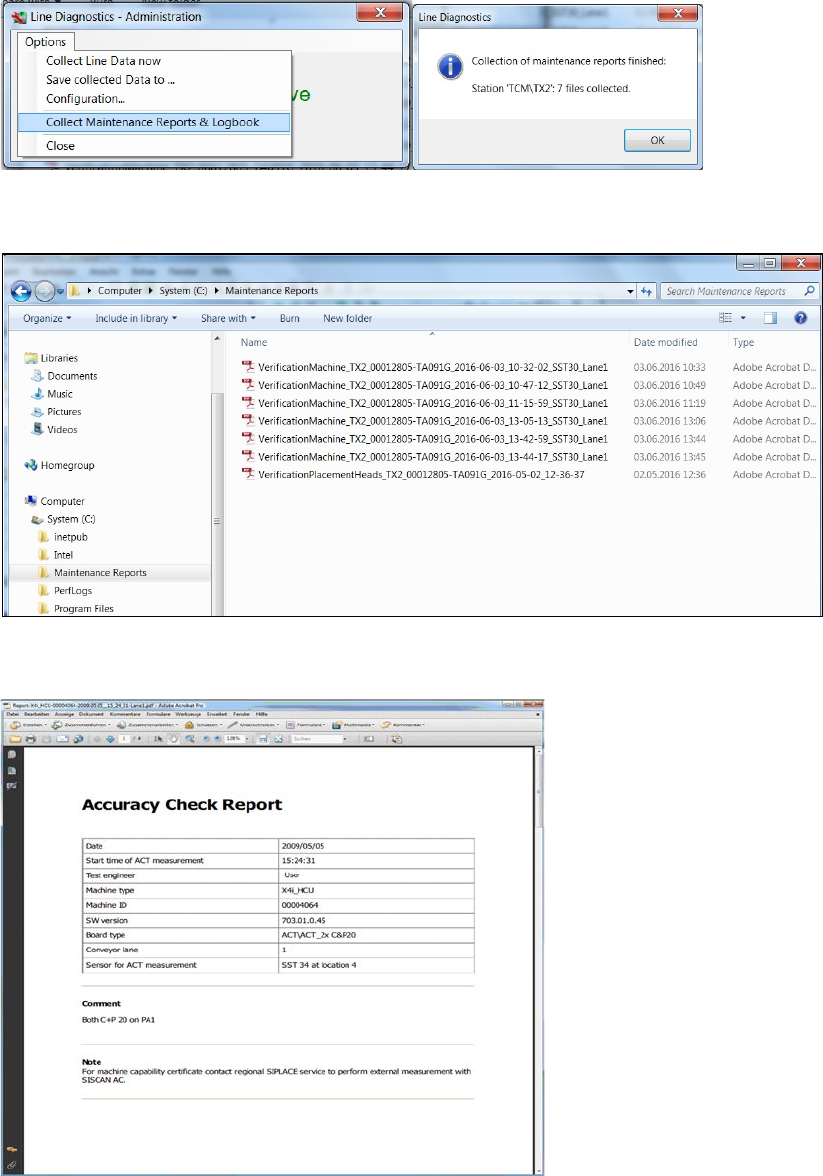
► In Windows Start menu, select Programs – SIPLACE Pro – Line Diagnostics.
Figure 4-53: Line Diagnostic program
ACT with SSW 7xx / User Manual 07/2017 Edition
77
► In the Line Diagnostics – Administration windows, select the Collect Maintenance Reports
& Logbook function under Options.
Figure 4-54: Collect Maintenance Reports & Logbook
The reports collected by the stations are displayed in the C:\Maintenance Reports folder.
Figure 4-55: Maintenance Reports
Example:
Figure 4-56: Accuracy Check Report