ACT - Accuracy Check Tool.pdf - 第185页
ACT with SSW 7xx / User Manual 07/2017 Edition 77 ► In the Line Diagnostics – Admi nistration window s, select the Coll ect Maintenance R eports & Logbook function und er Options . Figure 4-54: Collect Maintenanc e R…
ACT with SSW 7xx / User Manual 07/2017 Edition
76
4.2.7.3 Saving the Report under Station Software 709.xx and Higher
► Click the Save results button (
see Figure 4-50).
The report will be saved in PDF format.
The reports will be saved under: C:\Sirio\Work\MaintenanceReports.
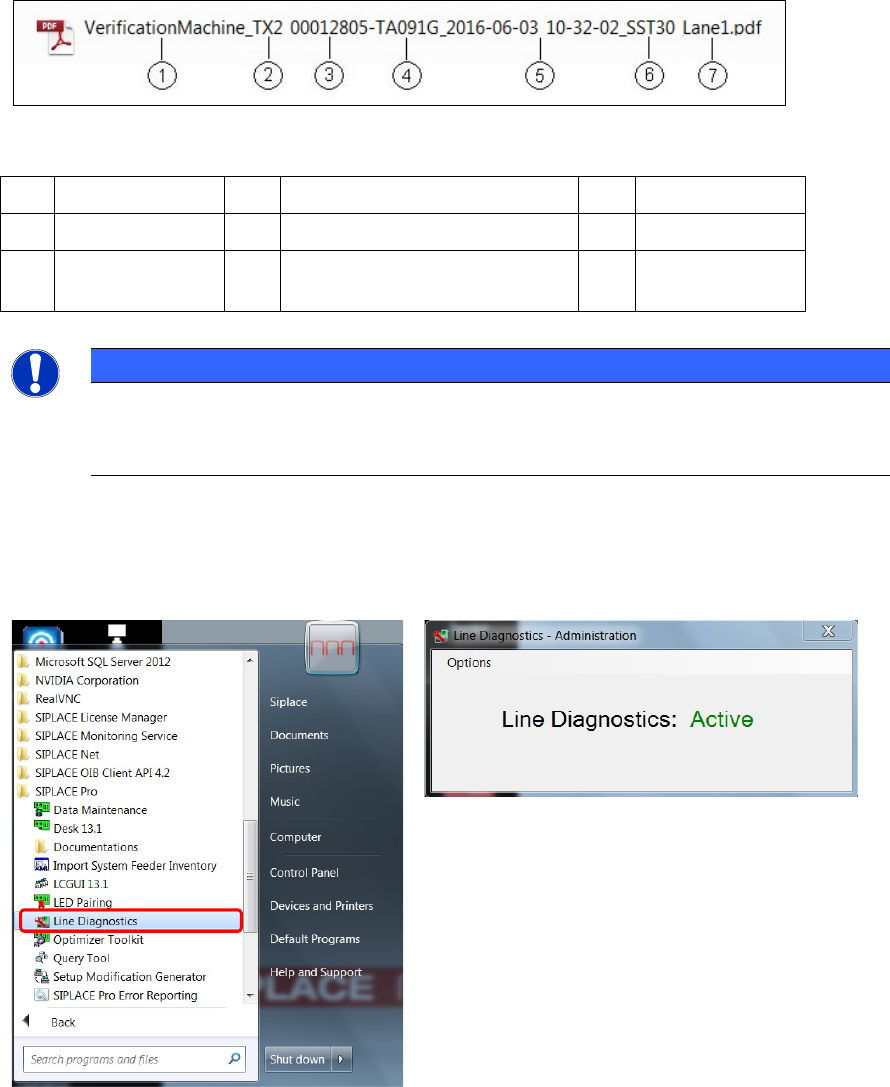
As of SW 709.x, the file name for the report is made up as follows:
Figure 4-52: File name of the report
Key:
(1)
Report type
(4)
Machine serial no.
(7)
Lane
(2)
Machine type
(5)
Date and time
(3) MID (6) Camera type / Sensor system
type
NOTICE
As of station software version 7xx, all maintenance and verification reports will be saved
in the C:\Sirio\Work\MaintenanceReports folder. The storage location cannot be
selected.
All reports can then be retrieved at the SIPLACE Pro Line computer via the Line Diagnostics
function.
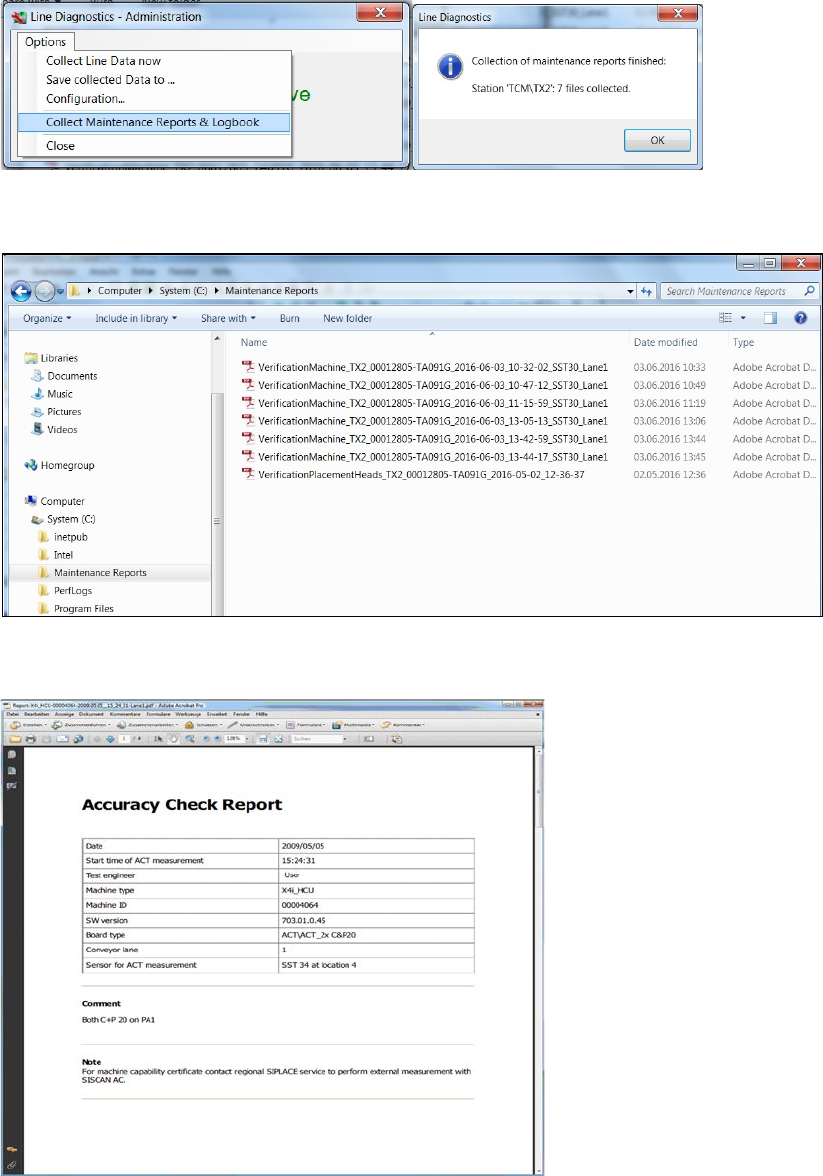
► In Windows Start menu, select Programs – SIPLACE Pro – Line Diagnostics.
Figure 4-53: Line Diagnostic program
ACT with SSW 7xx / User Manual 07/2017 Edition
77
► In the Line Diagnostics – Administration windows, select the Collect Maintenance Reports
& Logbook function under Options.
Figure 4-54: Collect Maintenance Reports & Logbook
The reports collected by the stations are displayed in the C:\Maintenance Reports folder.
Figure 4-55: Maintenance Reports
Example:
Figure 4-56: Accuracy Check Report
ACT with SSW 7xx / User Manual 07/2017 Edition
78
4.2.8 Finishing the ACT – Returning to Production
4.2.8.1 Finishing (e.g. under Station Software 7xx)
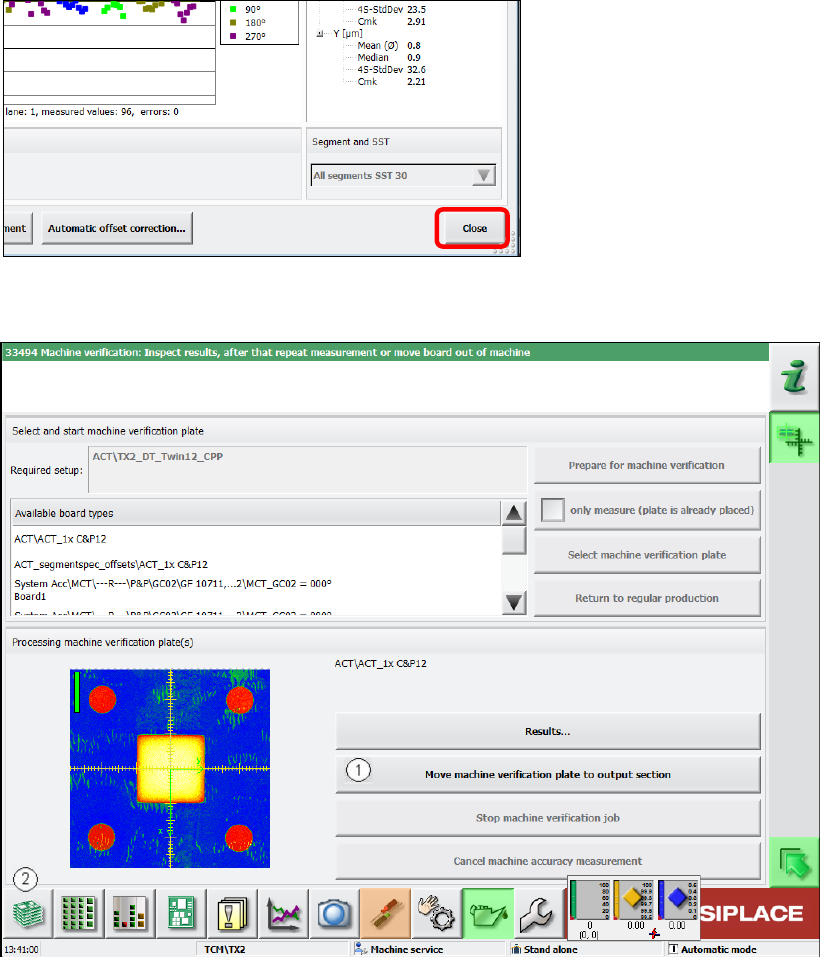
► Click the Schließen (Close) button in the measurement results view to close it.
Figure 4-57: Closing measurement results view
► Load the board into the output section (1).
Figure 4-58: Loading board into the output section
► Click on the button to the left at the bottom (2) to return to the main view of the GUI.