Autosite_Users_Manual.pdf - 第81页
Operation AutoSite User Manual 3-23 8. Make sure the device so cket is empty. 9. If you are usin g TaskLink, select Progra mme r Interf ace fro m the Utilities menu. 10. From the Main Menu, press F1 , M , S to display th…

Operation
3-22 AutoSite User Manual
Self-test
The Self-test command allows you to test circuits and subsystems in
AutoSite, verifying proper operation or isolating possible problem areas.
An automatic self-test is performed each time AutoSite is powered up.
Stopping Self-test
You can stop a self-test anytime during its operation. Press
C
TRL
+
Z
to
stop a self-test.
Running Self-test
To perform a self-test, perform the following steps.
Note: Unless otherwise noted, all references to TaskLink in this manual refer to
the DOS TaskLink product. TaskLink for Windows performs similar
operations using different user interface commands. Refer to the
TaskLink for Windows Getting Started Guide
and online Help for
additional information.
1. Start your terminal emulation software. If you are using TaskLink,
start TaskLink in administrator mode by entering
tl a
at the DOS
prompt. If you are already running TaskLink in operator mode, exit
TaskLink and restart it in administrator mode.
2. If you are using TaskLink, skip to step 8. Otherwise, reboot AutoSite
by cycling power.
3. Wait for AutoSite to complete the powerup self-test. The Self-test
LED goes out when the powerup self-test is complete.
Note: The powerup self-test takes approximately four minutes.
4. When the self-test is complete, you will see either the powerup screen
or a single angle bracket prompt “
>
”. If you see the powerup screen,
go to step 6.
5. Type
Z
↵
to display the powerup screen.
6. AutoSite displays the powerup screen and the following prompt:
Current terminal type = DEC VT100 (ANSI 3.64)
Do you want to select a new terminal type? (Y/N)
If the current terminal type matches the terminal type you are using,
press
N
↵
and go to step 8.
If the current terminal type does not match the terminal type you are
using, press
Y
↵
. AutoSite displays the default and current terminal
types and a list of the available terminal types. Select a terminal type
that matches the terminal you are using and press
↵
.
7. AutoSite responds with the following prompt:
Save terminal type as power on default? (Y/N)
Press
Y
↵
. AutoSite saves your current terminal type as the powerup
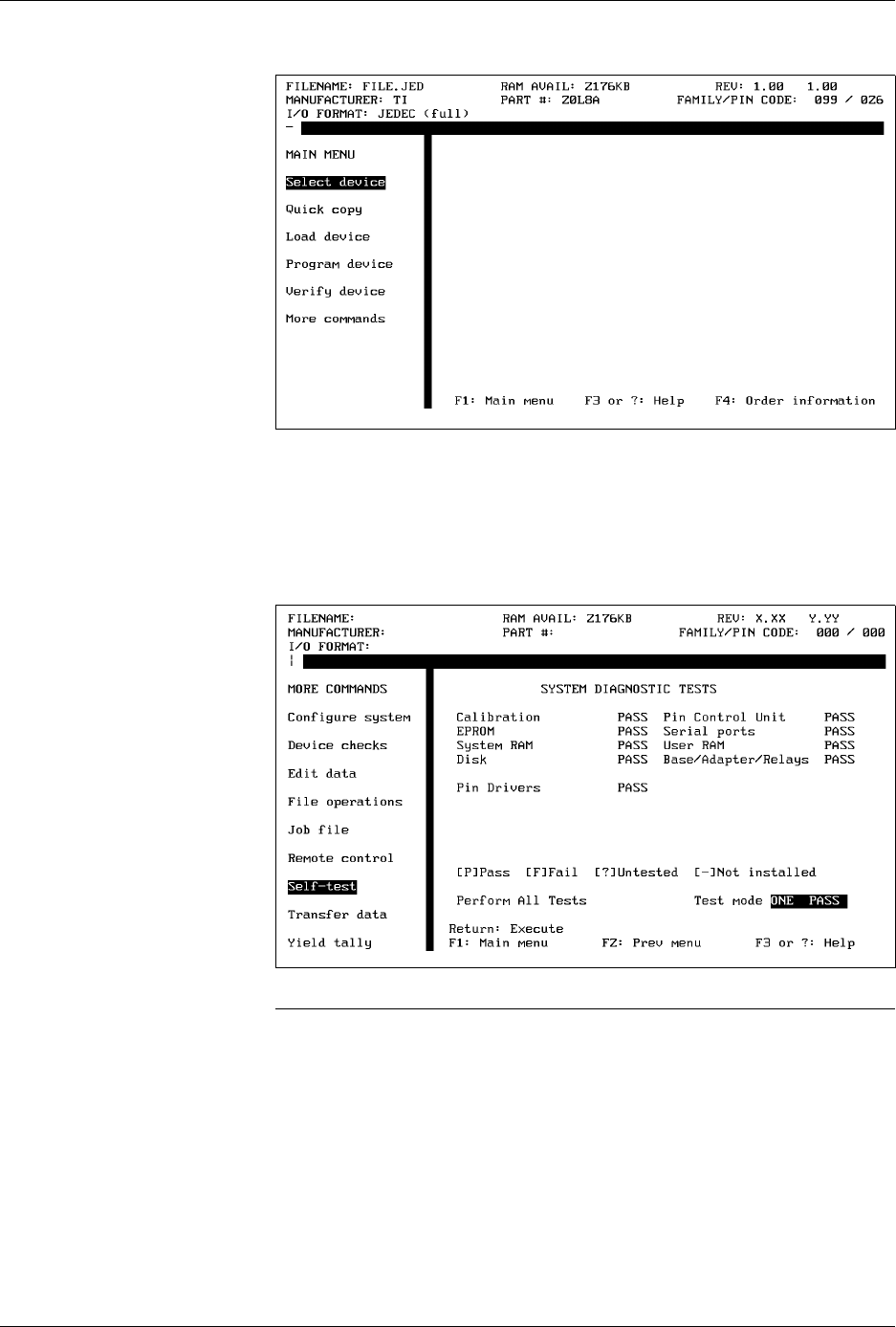
default and then displays the Main Menu, which is shown in
Figure 3-15.
Operation
AutoSite User Manual 3-23
8. Make sure the device socket is empty.
9. If you are using TaskLink, select
Programmer Interface
from the
Utilities
menu.
10. From the Main Menu, press
F1
,
M
,
S
to display the Self-test screen,
which is shown in Figure 3-16.
Note: The
Base/Adapter/Relays
field will display
????
if this test has not
explicitly been run from the Self-test screen for the current base. The
Base/Adapter/Relay test is not run during powerup self-test.
In addition, the screen shown above may differ slightly from the screen
shown on your terminal.
Figure 3-15
The AutoSite Main Menu
Figure 3-16
The Self-test Screen

Operation
3-24 AutoSite User Manual
11. Select the test mode. You can select either one-pass or continuous
testing. To toggle modes, move the cursor to the Test Mode field and
press
S
PACE
.
One Pass testing runs the specified test once. Continuous testing runs
the specified test until there is a failure or until you stop the test by
pressing
C
TRL
+
Z
.
Note: There may be a delay before AutoSite responds to the Ctrl-Z if you are
testing system RAM or user RAM.
CAUTION: Executing the System RAM test or the User RAM test erases
all data in RAM.
12. To test all hardware, move the cursor to the
Perform All Tests
prompt and press
↵
. To test a particular item, move the cursor to the
desired test and press
↵
.
Manipulating Keep Current Algorithm Files
The Keep Current service allows you to download new and updated
device algorithms from the Keep Current Bulletin Board System. Keep
Current algorithms are made available to Keep Current subscribers
before they are incorporated in an update kit.
See the
Keep Current User Manual
for more information and for
instructions on downloading Keep Current algorithms.
Accessing the Keep
Current Menu
Before you can manipulate a Keep Current algorithm file, you must
access the Keep Current menu, which can only be done with a full screen
terminal that emulates one of the following:
• ANSI 3.64 compatible terminals
• DEC VT-100 compatible terminals (supported by TaskLink)
• Qume QVT-101 compatible terminals
• TELEVIDEO TVI--910 compatible terminals
• Wyse WY-30 compatible terminals
If you are using handler control software, consult the documentation to
see if it supports one of the terminal types listed above.