00193697-01.pdf - 第26页
3 Graphical user int erface SIPLACE Softw are Guide SR.504.xx 3.3 User interf ace - views and menus Issue 01/03 EN 26 Start OIS (option) 3 This m enu funct ion s tarts the software fo r the "Operator Inform ation Sy…

SIPLACE Software Guide SR.504.xx 3 Graphical user interface
Issue 01/03 EN 3.3 User interface - views and menus
25
3
3
Processing PCB 3
Assembly of the PCBs is started or continued if previously interrupted. 3
Å Click the Processing PCB menu item (or the corresponding icon).
3
Stop processing PCB 3
The current PCB assembly process is stopped. 3
Å Click the Stop processing PCB menu item (or the corresponding icon)
Abort processing 3
This function allows you to abort certain operating steps such as feeder position recognition or
nozzle changes in the event of a machine stoppage (due to fatal error, or if the Stop button being
pressed). 3
Å Click the Abort processing menu item.
The current operation is aborted when you confirm the action in the displayed dialog box.
Continue processing 3
The assembly process, which is interrupted, for example, as a result of an error, is continued once
the cause of the error has been eliminated. 3
Å Click the Continue processing menu item (or the corresponding icon).
3 Graphical user interface SIPLACE Software Guide SR.504.xx
3.3 User interface - views and menus Issue 01/03 EN
26
Start OIS (option) 3
This menu function starts the software for the "Operator Information System". The production data
acquisition system can be used to obtain information about the operating behavior of a complete
line or an individual station. 3
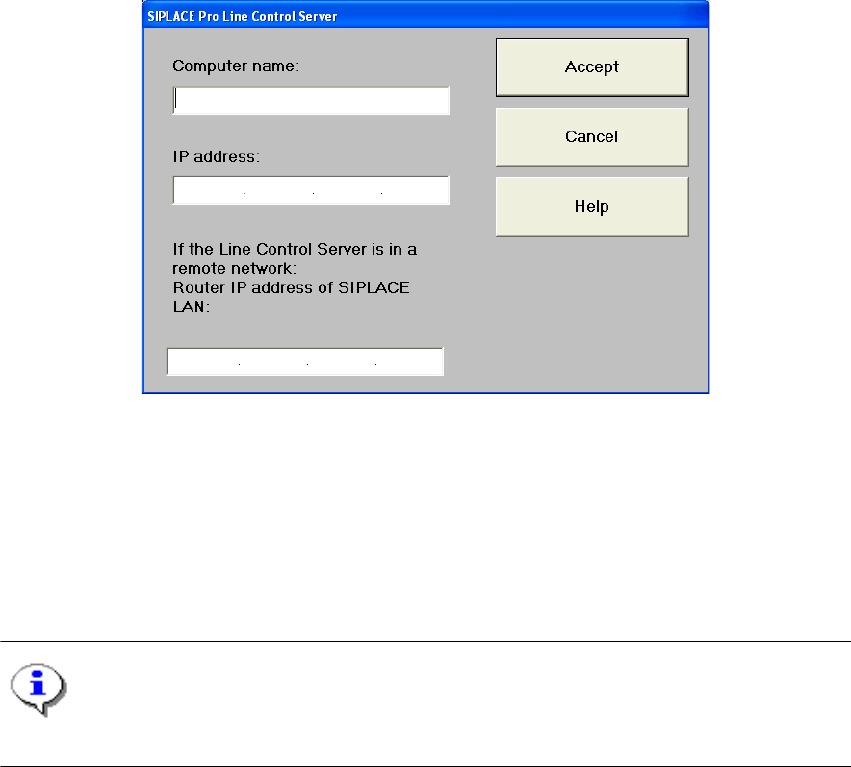
Configure SIPLACE Pro connection... 3
In this dialog box, you can specify which computer is permitted to provide the current station com-
puter with data: 3
3
Fig. 3.3 - 1 SIPLACE Pro Line Control Server
3
Switch to operating system... 3
You use this menu item to switch to the Windows operating system after entering your password.
From here, you can then subsequently return to the SIPLACE user interface. 3
NOTE
This menu option is not available at the "Operator" access level. 3
Å Click the Switch to operating system... menu item.
This shows the Windows user interface. The station computer software continues to run in the
background.
3
SIPLACE Software Guide SR.504.xx 3 Graphical user interface
Issue 01/03 EN 3.3 User interface - views and menus
27
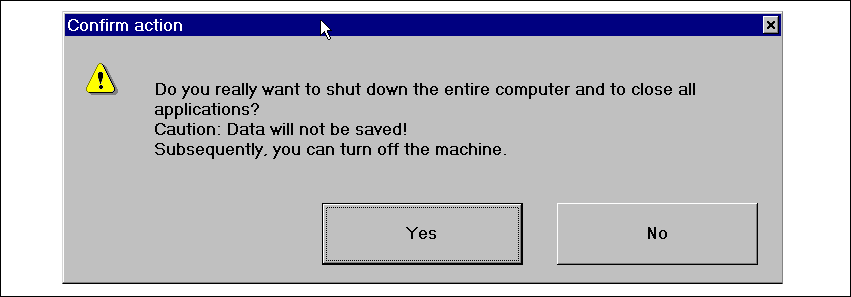
Shut down computer... 3
All applications are closed without any files which may have been processed being saved and the
station computer is shut down. 3
Å Click the Shut down computer... menu item.
The following dialog box will be opened.
3
Fig. 3.3 - 2 " Shut down computer" dialog box
Å Click Yes if you want to terminate your work.
The station computer is shut down.
Å Switch off the machine at the main switch.
3
3