00193697-01.pdf - 第79页
SIPLACE S oftware Guide SR.504.xx Issue 01/03 E N 7.6 "Traceability" option 79 7.6 "T race ability" optio n Please refer to the T raceab ility use r manual for com plete d ocumentation of the traceab …
SIPLACE Software Guide SR.504.xx
7.5 Option "GEM Interface" Issue 01/03 EN
78
SIPLACE Software Guide SR.504.xx
Issue 01/03 EN 7.6 "Traceability" option
79
7.6 "Traceability" option
Please refer to the Traceability user manual for complete documentation of the
traceability option. 7
7.6.1 Introduction
In printed circuit board production, traceability means the tracing back of production over a long
period of time. For example, traceability allows you to determine which components out of what
batches have been used for the in-line assembly of a specific printed circuit board.
This kind of knowledge can be important to a manufacturer to conduct targeted callbacks or to es-
tablish damage claim against suppliers. 7
Traceability is an optional extension for SIPLACE machines as of version 503. 7
This option allows you to generate traceability data during production on all mentioned machines.7
7.6.2 Functionality
Each printed circuit board engaged into the machine is identified with the help of the printed circuit
board barcode reader. 7
The machine knows the setup and the currently used component batches. Via the internal in-line
assembly information the machine recognizes which batches were used to assemble the
particular printed circuit board. In case a batch is exchanged (Refill), the operator records the
information about the new batch with a barcode reader. The machine is able to recognize batch
changes either through splice recognition or the counting of level indicators.
All collected data for a printed circuit board are finally combined into a data package and
exported through the Traceability interface. 7
SIPLACE Software Guide SR.504.xx
7.6 "Traceability" option Issue 01/03 EN
80
7.6.3 User interface settings
7.6.3.1 Machine options settings
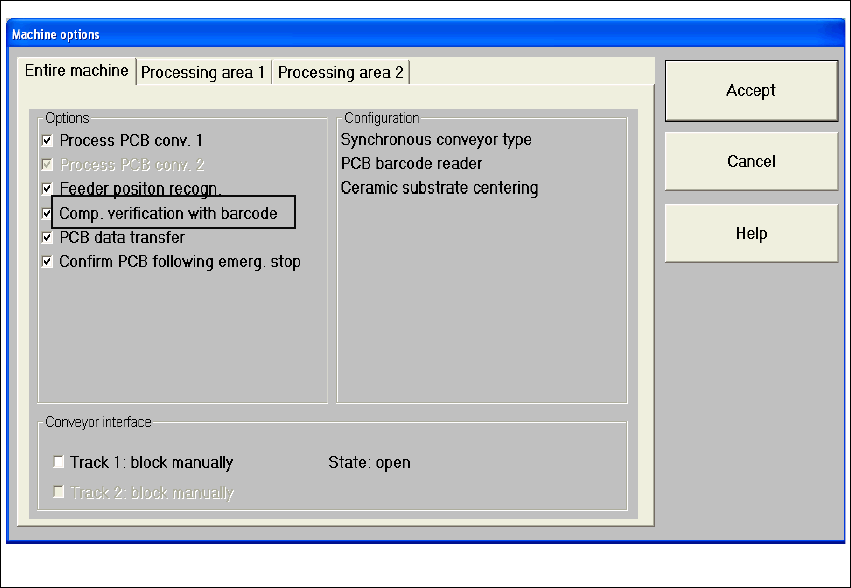
In order to operate traceability or component verification, the "Comp. verification with barcode"
setting in the machine’s options must be activated. 7
Fig. 7.6 - 1 Dialog: Machine options – Comp. verfication with Barcode