Maintenance Reference(CP45FV) Eng.pdf - 第72页
Samsung Component Placer CP45FV Series Maintenance Guide 7.2. Inspection of the Controller 7.2.1. Inspection of the Controller Rack The input power (AC 1 10V) of the power supply controller is supplied from the output te…
Inspection of the Controller
Chapter 7. Inspection of the Controller
7-1
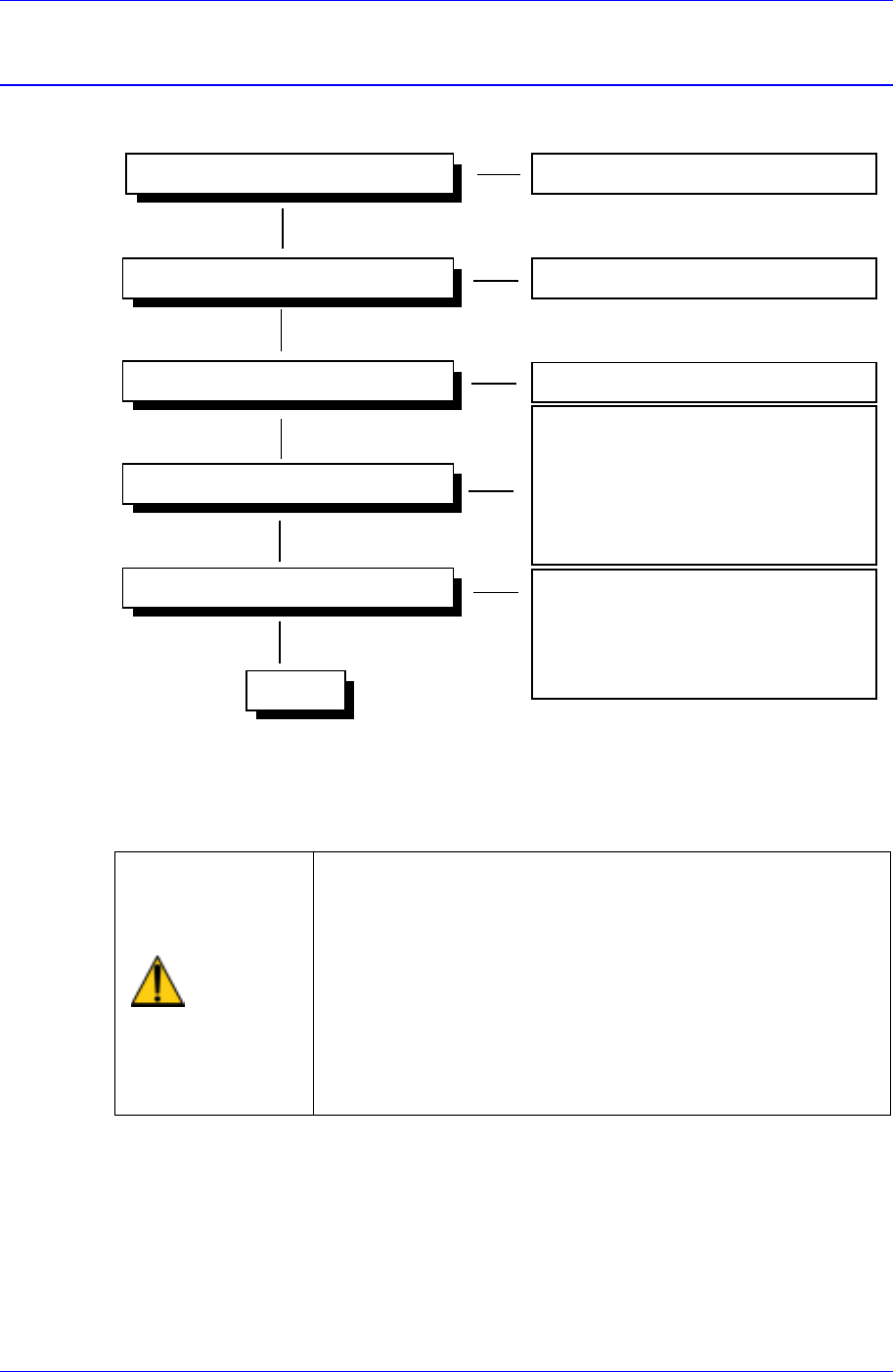
7.1. Power Inspection
Ready Switch
Check the functioning of switch
Isolation Switch
Main Circuit Breaker
Main Start Switch
- Check the EMG Front switch
- Check the EMG Rear switch
- Check the CP1 switch (TURN ON)
- Check the CP2 switch(TURN ON)
- Check the CR1-1,CR1-2,CR3 switches
Operating
- Check the CR3 relay
- Check the CONV I/F CN10
connections.
- Check the CR2-1, CR2-2 switches
Powering On (AC 220V) Check the status of power supply
Check the functioning of switch
CR4
230V
Figure 7-1. Power Inspection
For more details regarding the circuit diagram, refer to the A/S Part List & Drawings
Manual.
Warning
As high voltage current flows in the power supply area of
the Component Placer, if a part of human body or other
conductors touch the equipment, it could result in severe
injuries.
As charged electrons could cause electric shock for a few
minutes after the Component Placer is turned off, the
machine must be handled only by qualified personnel.
And the inspection of the machine must be done while
power supply is turned off and the power plug is
completely disconnected.
Samsung Component Placer CP45FV Series Maintenance Guide
7.2. Inspection of the Controller
7.2.1. Inspection of the Controller Rack
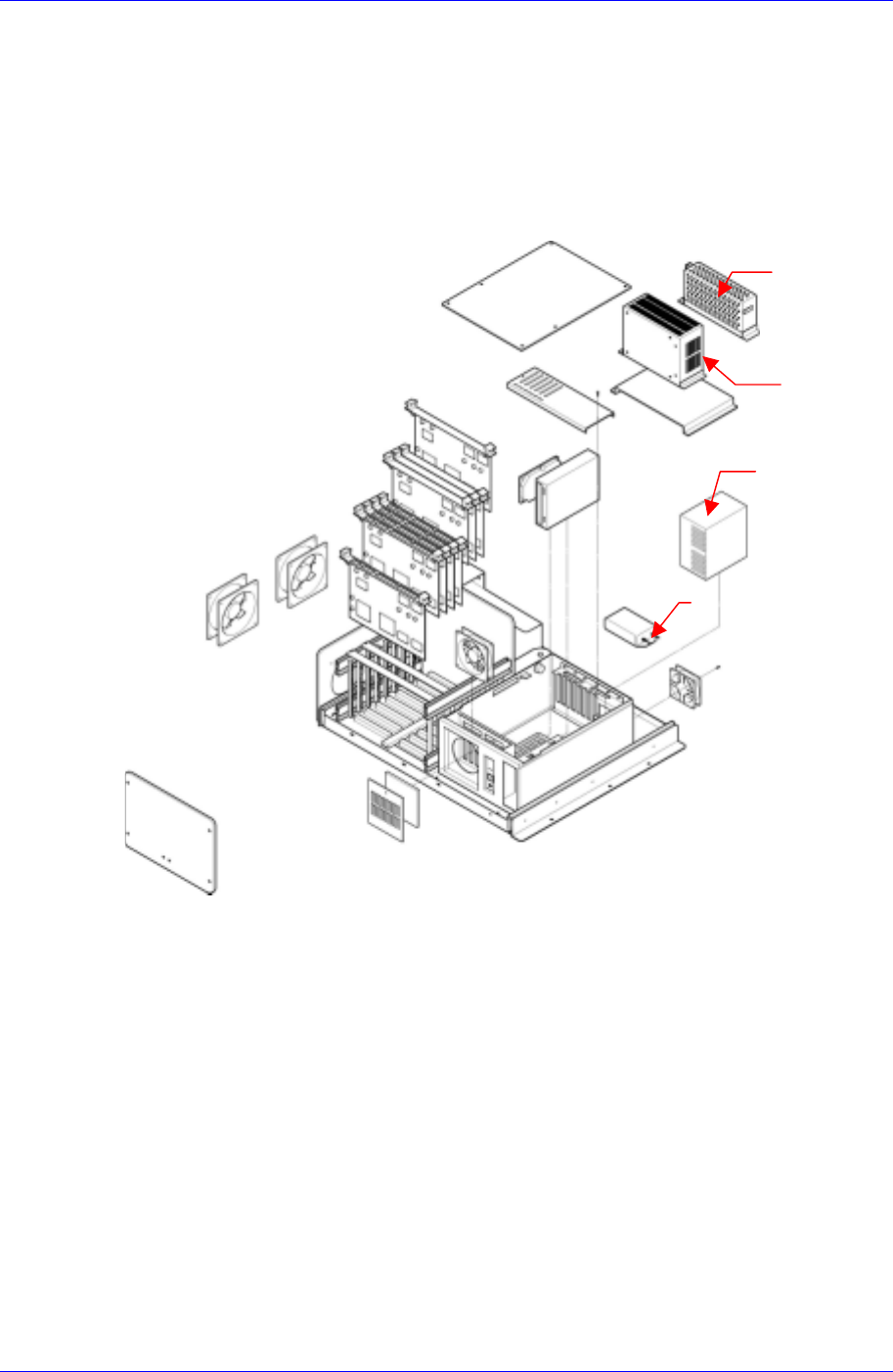
The input power (AC 110V) of the power supply controller is supplied from the output
terminal of the Noise Filter 2 (NF#2) to the PS#1, PS#2. The PS#1, PS#2 are attached to
the Rear Side of the Control Rack. The PS#1 supplies DC 5V and PS#2-1 supplies DC
+12V and DC -12V with VME Backplane and the PC Power Supply supplies DC 5V and
DC +12V with the PC.
N
F#2
PS#2
PS#1
PC P/S
Figure 7-2. Control rack
7.2.2. Inspection of the Rack Part
7.2.2.1. Inspection for PC
① Check to see if the Video card is installed properly.
② Check to see if the HDD cables are connected properly.
③ Check to see if the FDD cables are connected properly.
④ Check to see if the PC ISA I/F boards are assembled properly.
7.2.2.2. Detail Inspection for PC
7.2.2.2.1. Video Card
Check the LED in the lower right side of monitor.
7-2

Inspection of the Controller
7-3
LED lit green: The monitor is operating in normal.
LED is blinking
The monitor is in power saving mode.
Check to see if the monitor cable is connected properly.
Check to see if the Video card is installed properly.
LED is off
Check to see if the power switch of the monitor is on.
Check to see if the power supply cable is connected properly.
Check to see if the power is being supplied.
Check to see if the CP2 is cut off and the power is not supplied, if so turn the
power off and unplug the power cable, and then re-supply the power by using
the CP1.
Check to see if the Video card is installed properly.
7.2.2.2.2. Hard Disk Drive (HDD)
Inspection for the power supply
Check to see if the PC Power module connector is connected properly.
Check to see if the HDD cable is connected properly.
In case of the PC cannot detect the HDD
Check to see if the HDD is set as 'MASTER'.
JP4 □ □
JP3 □ □
JP2 □ □
JP1 □━□
Figure 7-3. HDD Jumper Setting
HDD detection
First turn the power on, and then change to CMOS Setup mode by pressing
the <F2> or <Delete> key.
Select the Standard CMOS Setup Menu from the main menu, and then
change the HDD type to 'AUTO' by using <>, <>, <>, <> keys at
the Primary Master.