00198374-01_UG_OSC_Package_DE_EN.pdf - 第61页
4 Working with the OSC Features 4.3 Customer-specific Pattern Features Bedienungsanleitung OSC Package User Guide OSC-Paket - 06/2017 61 4.3.1 Procedure The following overview lists the single work steps that have to be …
4 Working with the OSC Features
4.3 Customer-specific Pattern Features
60 Bedienungsanleitung OSC Package User Guide OSC-Paket - 06/2017
4.3 Customer-specific Pattern Features
Odd shape components do not always have a shape or other structures such as leads which can
be used for identifying the component center and its orientation.
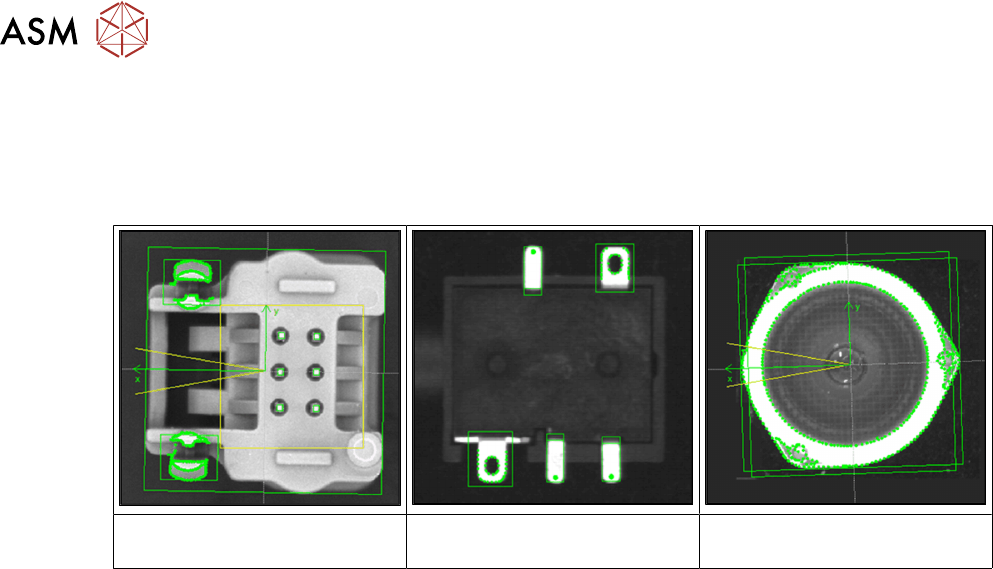
Examples
Component with board locks Specially shaped leads Component with curved shape,
e.g. lenses
The new Pattern Feature lead group type allows the user to describe arbitrary abstract patterns on
a component. These patterns can only be created and changed in the SIPLACE Vision Editor
during teaching at the station. This type of lead group can be renamed or deleted but not created,
edited or copied in SIPLACE Pro.
The camera captures an image of the component and the user can now simply draw a frame
around single features or attributes and mark them for the Vision system. A special algorithm will
then extract a model out of the marked areas which can be used to later measure and align all
components of the same type. Structures that are not needed can be deleted easily.

4 Working with the OSC Features
4.3 Customer-specific Pattern Features
Bedienungsanleitung OSC Package User Guide OSC-Paket - 06/2017 61
4.3.1 Procedure
The following overview lists the single work steps that have to be performed in the specified order
to describe pattern features.
Describing a Pattern Feature
Step Action SIPLACE program
1) Enabling OSC package SIPLACE Pro
2) Selecting the pattern type and marking the area to be taught in
the image
SIPLACE Vision
3) Marking and deleting not needed points SIPLACE Vision
4) Aligning the component for the correct position SIPLACE Vision
5) Option: Renaming or deleting the pattern feature SIPLACE Pro
4 Working with the OSC Features
4.3 Customer-specific Pattern Features
62 Bedienungsanleitung OSC Package User Guide OSC-Paket - 06/2017
4.3.2 Application Example
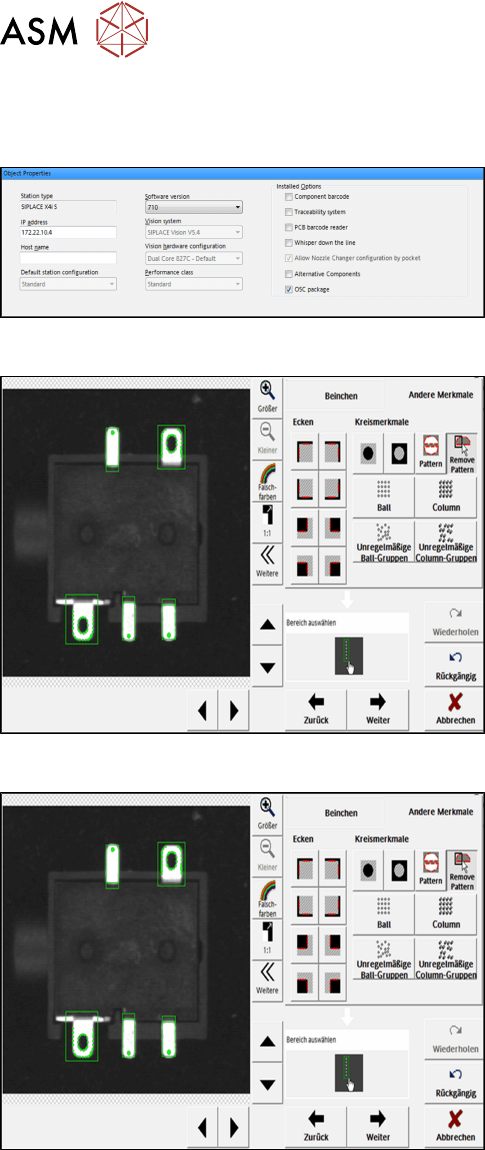
Step 1: SIPLACE Pro
► In the Station Editor under Placement Station,
enable the OSC Package option under Installed
options.
Step 2: SIPLACE Vision
► In the Component Shape Wizard, select the Non-
standard or Connectors component shape type.
► Click on Other features – Pattern.
► Select the area to be taught in the image.
Step 3: SIPLACE Vision
► Click on Remove pattern.
► Zoom in the image extract and select not needed
points in the image to be deleted.