00198374-01_UG_OSC_Package_DE_EN.pdf - 第62页
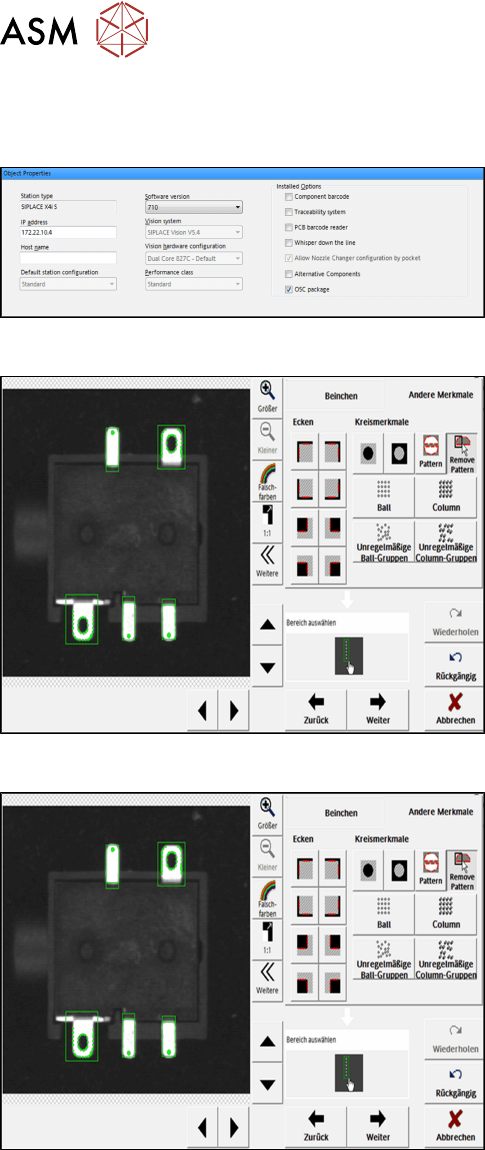
4 Working with the OSC Features 4.3 Customer-specific Pattern Features 62 Bedienungsanleitung OSC Package User Guide OSC-Paket - 06/2017 4.3.2 Application Example Step 1: SIPLACE Pro ► In the Station Editor under Placeme…

4 Working with the OSC Features
4.3 Customer-specific Pattern Features
Bedienungsanleitung OSC Package User Guide OSC-Paket - 06/2017 61
4.3.1 Procedure
The following overview lists the single work steps that have to be performed in the specified order
to describe pattern features.
Describing a Pattern Feature
Step Action SIPLACE program
1) Enabling OSC package SIPLACE Pro
2) Selecting the pattern type and marking the area to be taught in
the image
SIPLACE Vision
3) Marking and deleting not needed points SIPLACE Vision
4) Aligning the component for the correct position SIPLACE Vision
5) Option: Renaming or deleting the pattern feature SIPLACE Pro
4 Working with the OSC Features
4.3 Customer-specific Pattern Features
62 Bedienungsanleitung OSC Package User Guide OSC-Paket - 06/2017
4.3.2 Application Example
Step 1: SIPLACE Pro
► In the Station Editor under Placement Station,
enable the OSC Package option under Installed
options.
Step 2: SIPLACE Vision
► In the Component Shape Wizard, select the Non-
standard or Connectors component shape type.
► Click on Other features – Pattern.
► Select the area to be taught in the image.
Step 3: SIPLACE Vision
► Click on Remove pattern.
► Zoom in the image extract and select not needed
points in the image to be deleted.
4 Working with the OSC Features
4.3 Customer-specific Pattern Features
Bedienungsanleitung OSC Package User Guide OSC-Paket - 06/2017 63
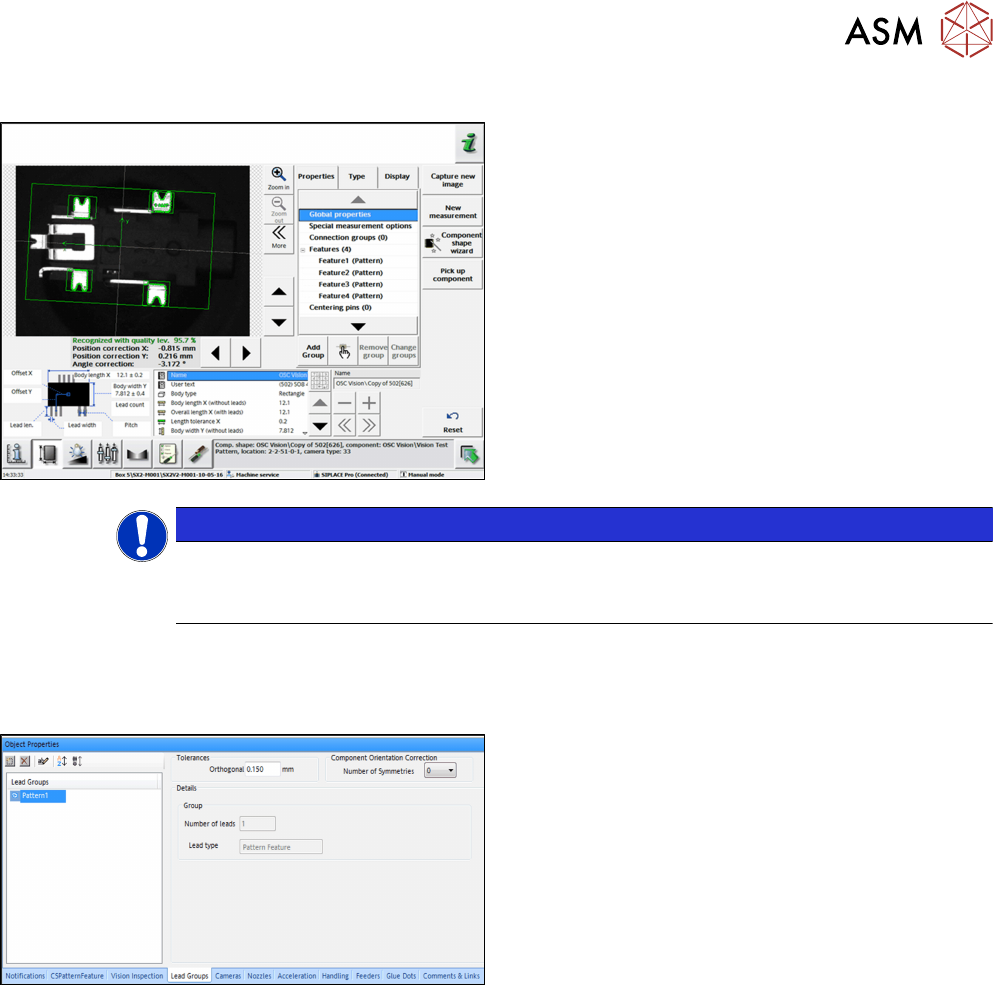
Step 4: SIPLACE Vision
► Align the pattern feature for the correct position in
the Geometry data.
► If necessary, correct the reference point of the
component.
NOTICE
Correct settings
Please note that the component center changes depending on the settings und thus, also
the placement position will change.
A pattern feature can be renamed or deleted but not created, edited or copied in SIPLACE Pro.
The number of leads in such a group is always one.
Step 5: SIPLACE Pro
► In the Component Shape Editor, select the
pattern feature in the Lead group tab.
► Right-click with the mouse on the pattern feature.
► In the context menu, select Delete Lead Group or
Rename.