semi合集-English.pdf - 第2658页
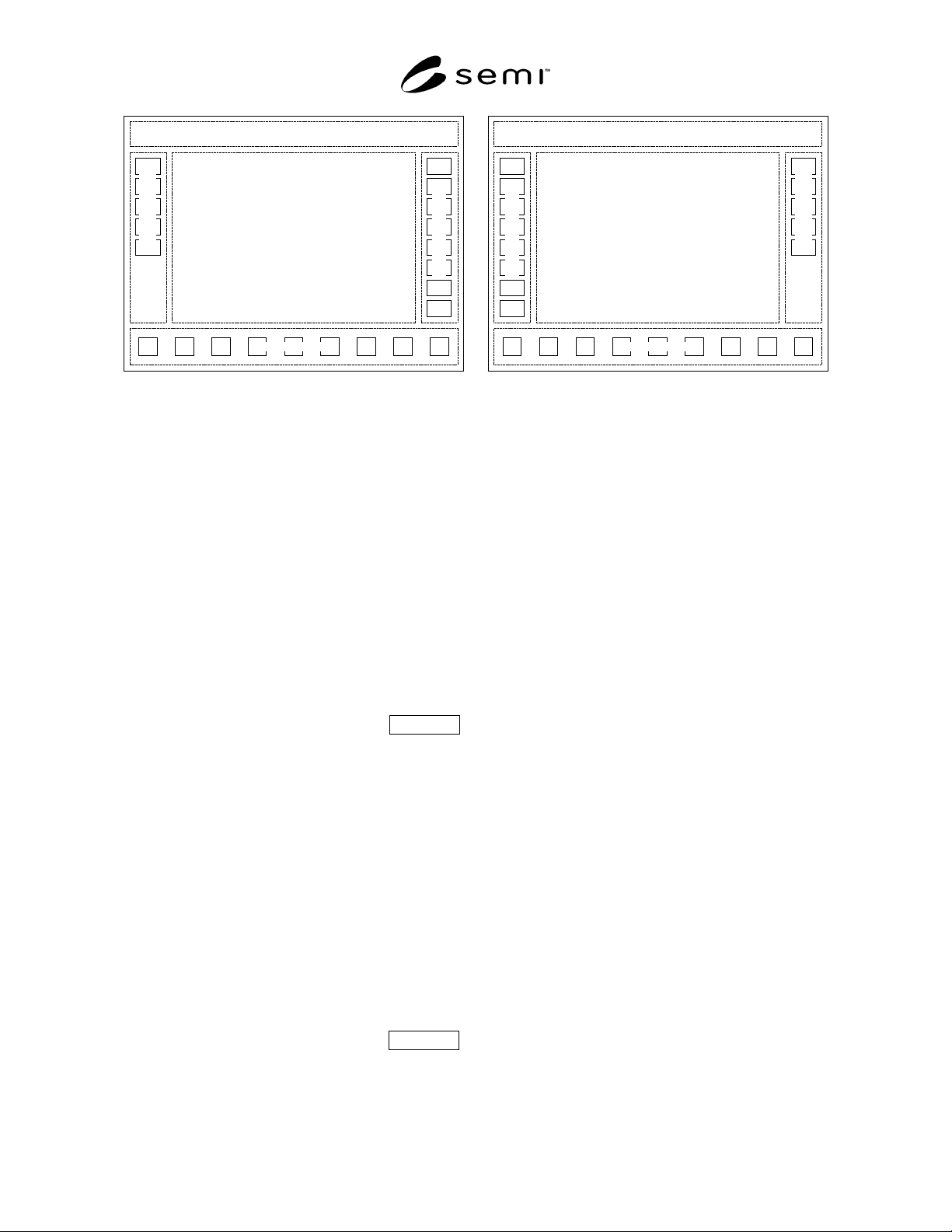
SEMI E95-1101 © SEMI 2000 , 2001 13 Title Panel Information Panel Command Panel Navigation Panel Subnav. Panel Title Panel Information Panel Command Panel Navigation Panel Subnav. Panel (a) (b) Figure 18 View Sub-nav iga…
SEMI E95-1101 © SEMI 2000, 2001 12
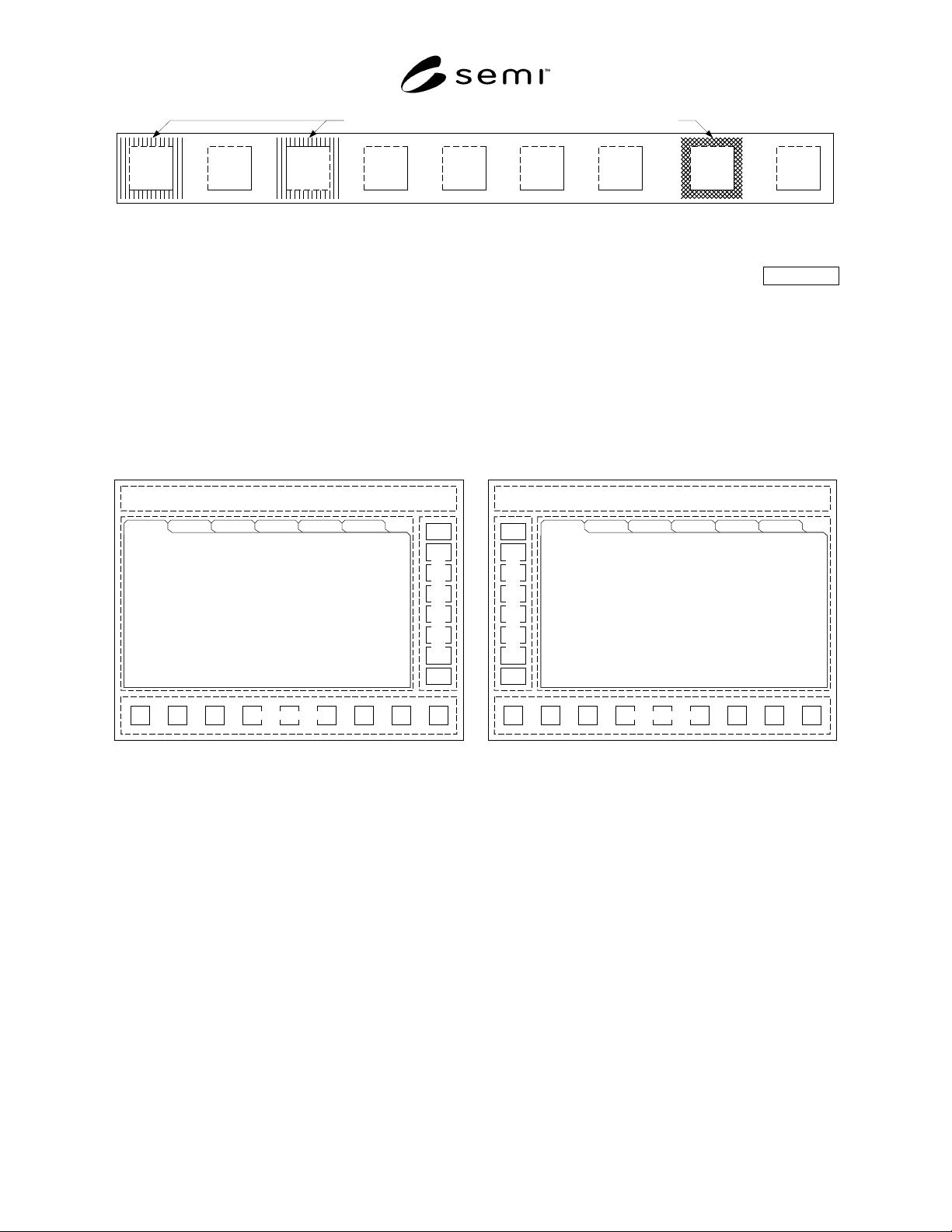
Jobs System Recipes Setup (Future) (Future) (Future) Alarms Help
Medium Blue Salience Bright Red Salience
Figure 16
Alarm Salience
5.4.8 Sub-navigation Conditional
5.4.8.1 When sub-navigation is supported it shall be by a single row of tabs or buttons in a sub-navigation panel as
shown below.
5.4.8.2 Sub-navigation Layout A — Tabs
5.4.8.2.1 Shown below are two orientations of the layout (right-hand and left-hand command panels), with sub-
navigation using tabs. This is the preferred method for new designs where more than one view per functional area is
needed. User selection of a tab brings the tab to the front, displays its information and command panel, and allows
the user access to its display objects. Use of tabs in each functional area must be consistent throughout the interface,
even if there is only one view in a functional area, and thus, one tab.
Title Panel
Information Panel
Command Panel
N
avigation Panel
View 1 View 2 View 3 View 4 View 5 View 6
Title Panel
N
avigation Panel
Command Panel
Information Panel
View 1 View 2 View 3 View 4 View 5 View 6
(a) (b)
Figure 17
View Sub-navigation Using Tabs
5.4.8.3 Sub-navigation Layout B — Sub-navigation Panel With Buttons
5.4.8.3.1 Shown below are two orientations of the layout, with sub-navigation using view selection buttons in a sub-
navigation panel. The figure shows one possible relative location for a sub-navigation panel, but is not intended to
restrict implementation. Other arrangements are allowed. However, if a sub-navigation panel is used, its size and
location in each functional area must be consistent throughout the interface, even if there is only one view in a
functional area, and thus, no buttons in the panel.
SEMI E95-1101 © SEMI 2000, 200113
Title Panel
Information Panel
Command Panel
Navigation Panel
Subnav. Panel
Title Panel
Information Panel
Command Panel
Navigation Panel
Subnav. Panel
(a) (b)
Figure 18
View Sub-navigation Using Buttons in Separate Panel
5.4.8.3.2 It is important in the layout to separate sub-
navigation methods from the global commands in the
command panel. This limits the number of buttons
needed in the command panel; and reduces or elim-
inates the need for multiple columns of buttons, which
would alter the information panel display aspect ratio.
If an information panel has a different aspect ratio than
the others, its contents may appear to “jump” sideways
when navigating, distracting the user. The separation of
sub-navigation from commands accomplishes two
important objectives; a) users do not become confused
trying to differentiate sub-navigation from commands,
and b) the aspect ratio of the information panel display
is consistent for all views across all functional areas.
5.5 Information Panel Mandatory
5.5.1 The information panel displays a view or views
of the information and graphics for each functional
area. Graphics and other display objects are placed in
this panel to achieve the control and monitoring
capabilities required. If necessary, multiple views of
information may be displayed within a functional area,
one at a time, in the information panel.
5.5.2 When any functional areas have more than one
view, the user must be able to switch between those
views while remaining within the context of the current
functional area. The ways the user may select among
multiple views presented in this standard are called sub-
navigation methods to distinguish them from user
navigation between functional areas using the
navigation panel.
5.6 Command Panel Mandatory
5.6.1 The command panel is a vertical column of
command buttons located to the right of the infor-
mation panel (to the left if switched to accommodate
left-handed users). Only buttons for common or global
commands related to the current view displayed in the
information panel shall be located in the command
panel. If there are no common commands for an infor-
mation panel, the command panel shall have no but-
tons. Each view in a functional area shall have its own
command panel. To limit the number of command but-
tons needed in each command panel, user selection of a
different view shall display that view and its associated
command panel, with commands that apply only to the
selected view. A command panel may be used for more
than one view if it is suitable for that purpose.
Command buttons or other display objects that have a
more limited scope shall be located in the information
panel. Restricting locally-acting commands and
functions to the information panel makes clear to the
user that only general, global commands are located in
the command panel. Buttons for navigation (i.e., that
invoke the display of another view in the information
panel) shall not be located in the command panel. It is
recommended that multiple columns of buttons in the
command panel be avoided.
6 Compliance Statement
6.1 In order to be compliant with this specification, the
documentation accompanying an equipment shall in-
clude a Human Computer Interface (HCI) Compliance
Statement that accurately indicates compliance with the
individual requirements defined in this document.
Requirements and recommended capabilities are
defined in Table 2.
6.2 In order to be compliant with HCI, equipment must
meet all requirements in each of three categories, as
follows:
SEMI E95-1101 © SEMI 2000, 2001 14
6.2.1 Mandatory: In order to be compliant with this
standard, all of the mandatory requirements shall be
both implemented and compliant as defined in this
specification.
6.2.2 Conditional: In order to be compliant with this
standard, each conditional requirement shall either be
implemented as defined in this specification or shall
both not be implemented in the user interface and not
be supported in some other way by the equipment. (i.e.,
no conditional capability which is present on the
equipment shall be implemented in a manner other than
as defined in this specification).
6.2.3 Recommended: Implementation of these feat-
ures is at the discretion of the implementers. The only
requirement for compliance with this specification for
these capabilities is that they be accurately documented
in the compliance statement for the equipment.
6.3 Each requirement/capability shall be marked “Yes”
under “Implemented” if the equipment includes a
feature which provides equivalent functionality as that
defined in this specification even if that feature appears
in a different form. Otherwise it shall be marked “No”.
6.4 Each requirement/capability shall be marked “Yes”
under “HCI Compliant” if the equipment includes a
feature which conforms to all aspects of the
requirement or recommended capability as defined in
this specification. Otherwise it shall be marked “No”.
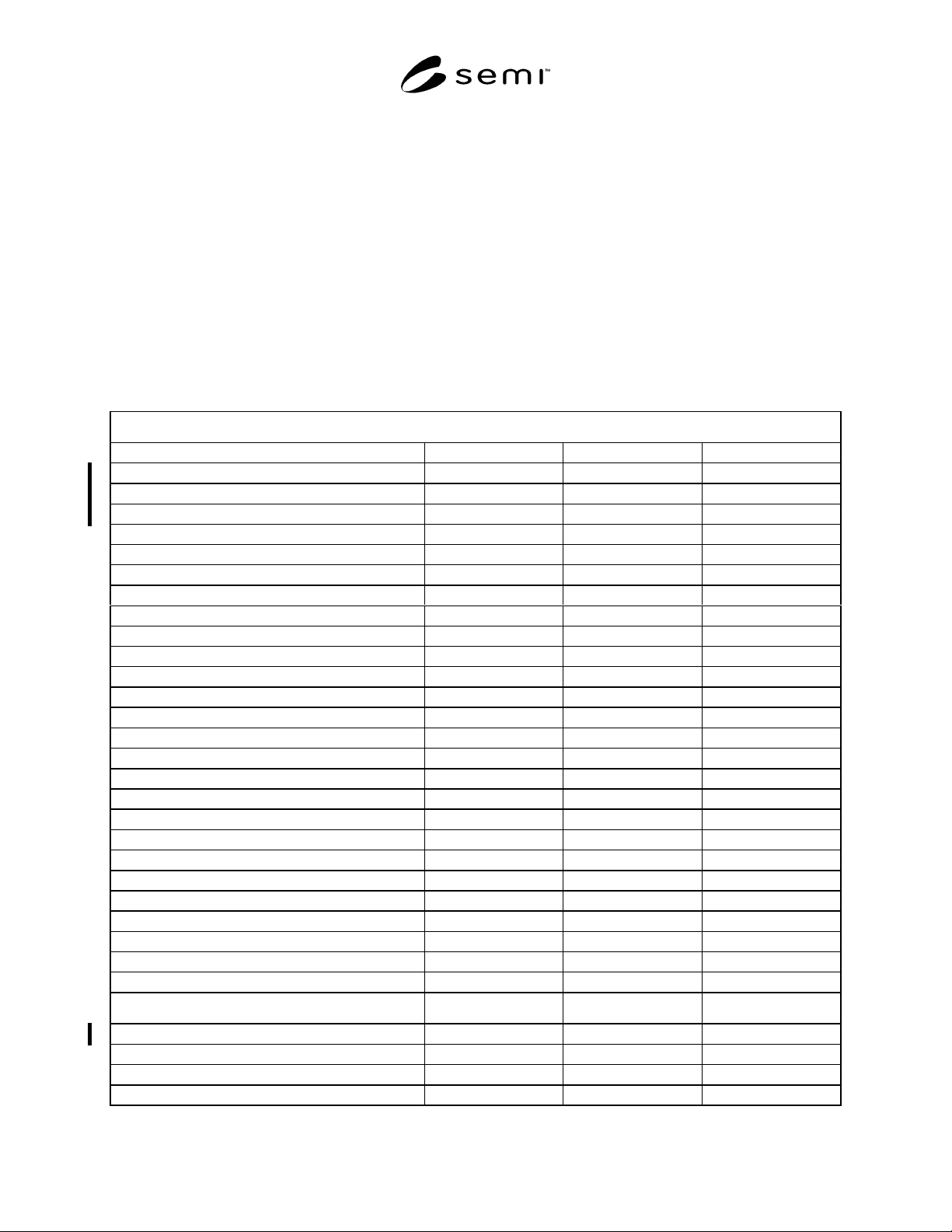
Table 2 HCI Compliance Statement
HCI Compliance Statement
Mandatory Requirements Reference Implemented HCI Compliant
Button Size 5.2.2.1 Yes No Yes No
Button Behavior 5.2.2.3 Yes No Yes No
Button Text 5.2.2.4 Yes No Yes No
Dialog Boxes 5.2.5 Yes No Yes No
Basic Network Navigation Model 5.3 Yes No Yes No
Basic Layout 5.3.6 Yes No Yes No
Title Panel Basic Information 5.3.9 Yes No Yes No
Navigation Panel 5.4 Yes No Yes No
Required Navigation Panel Functions 5.4.2 Yes No Yes No
Navigation Panel Layout 5.4.4 Yes No Yes No
Information Panel 5.5 Yes No Yes No
Command Panel 5.6 Yes No Yes No
Conditional Requirements Reference Implemented HCI Compliant
Saliences 5.2.3 Yes No Yes No
Information Dialog Boxes 5.2.6 Yes No Yes No
Input/Selection Dialog Box 5.2.7 Yes No Yes No
Message Dialog Box 5.2.8 Yes No Yes No
Network Navigation Model with Sub-navigation 5.3.4 Yes No Yes No
Title Panel with Conditional Information 5.3.10 Yes No Yes No
Title Panel Host Communications Status 5.3.10.2 Yes No Yes No
Title Panel Login/Logout Button 5.3.10.3 Yes No Yes No
Conditional Navigation Panel Functions 5.4.3 Yes No Yes No
Navigation Panel Alarm & Help Buttons 5.4.5 Yes No Yes No
Navigation Button Labels 5.4.6 Yes No Yes No
Navigation Panel Saliences 5.4.7 Yes No Yes No
Sub-navigation 5.4.8 Yes No Yes No
Recommended Capabilities Reference Implemented HCI Compliant
Button Dimensions 5.2.2.2 Yes No Yes No
Enhanced Layout 5.3.7 Yes No Yes No
Title Panel with Additional Information 5.3.11 Yes No Yes No
Title Panel Alarms Button 5.3.11.2 Yes No Yes No