YSM40 Mainte_E.pdf - 第62页
2-4 2 Daily maintenance items 1. Checking the nozzle Solder sticking to the nozzle tip or a clogged nozzle hole can cause component pickup errors and recognition errors. Poor nozzle spring action can also cause pickup an…
2-3
2
Daily maintenance items
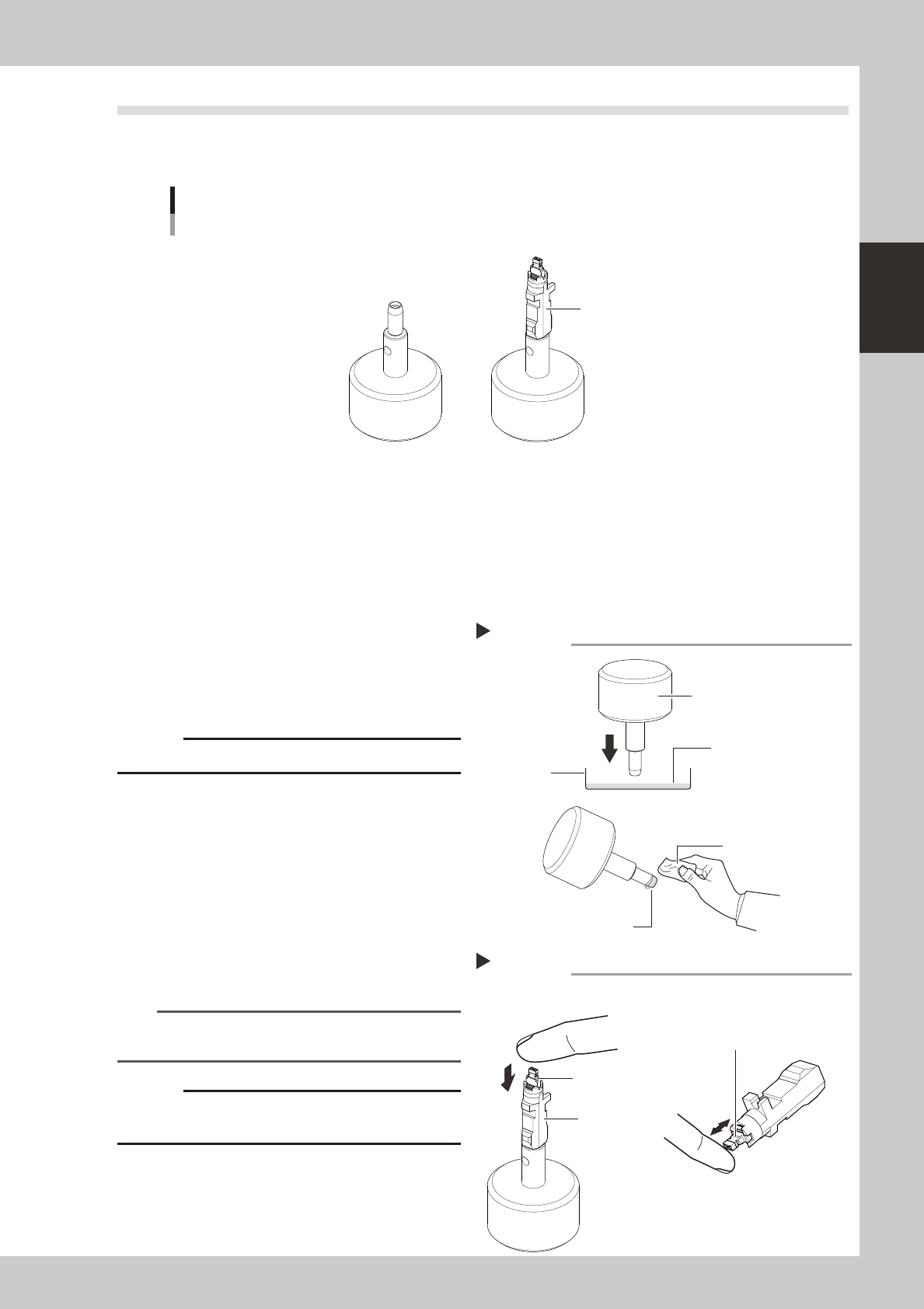
How to use the nozzle lubrication tool
Usingthenozzlelubricationtool(hereaftercalledthe“tool”)allowsyoutoeasilyapplytheturbineoiltothe
nozzlebuffingarea.Thistoolisusefultolubricatethebuffingareaaftercleaningthenozzle.
Nozzle detached status
Nozzle
Nozzle attached status
Nozzle lubrication tool
53208-N5-00
n
relevant nozzles
Usablenozzles: 501A,502A,510A/500A,511A,512A,513A
Unusablenozzles: 503A/514A,506A/517A,30X-and31X-systemnozzlesforYSseries,etc.
1
Put the turbine oil in a tray.
Put the turbine oil (VG32) in an appropriate
tray so that its depth becomes approx. 1mm.
2
Soak the tool tip in the turbine oil.
Soak the tool tip in the turbine oil and wipe
off the excess oil around the tip with a cloth.
c
53209-N5-00
3
Apply the oil to the nozzle.
1. Set the nozzle into the tool and perform
the buffing operation (spring action) of
the nozzle tip only once.
2. Remove the nozzle from the tool and
perform the buffing operation (spring
action) 4 to 5 times to spread the oil.
53210-N5-00
n
NOTE
The oil can be applied to the nozzle buffing area up to
8 times continuously.
c
Perform this work by clean hand so that any oil or dust
does not stick to the nozzle tip.
Tray
Applying the oil to the tool
Step 2
Turbine oil (depth, 1mm)
Wipe off the excess oil.
Nozzle lubrication tool
Lint-free cloth
Applying the oil to the nozzle
Step 3
Nozzle
Nozzle buffing area
(Tip)
Perform the buffing operation
(spring action) 4 to 5 times.
2-4
2
Daily maintenance items
1. Checking the nozzle
Solder sticking to the nozzle tip or a clogged nozzle hole can cause component pickup errors and
recognition errors. Poor nozzle spring action can also cause pickup and mounting errors. To prevent such
problems periodically inspect and clean each nozzle.
1.1 Check with software
n
How to check for a dirty nozzle (with the [Check Nozzle] button)
Theterm"dirtynozzle"asusedhereindicatesshinymaterialsuchassolderadheringtothenozzletip.This
shinyportionmightbemistakenforacomponentandcauserecognitionerrors.Tocheckforthisproblem,
pressthe[CheckNozzles]buttononthe[Setup]screenwhilethenozzletippicksupnocomponents.The
camerafindstheextentofgrimeordirtonthenozzletip.
e
1
Move the head.
Press the emergency stop button and move
the head so the nozzle is at a position where
it can be easily replaced.
2
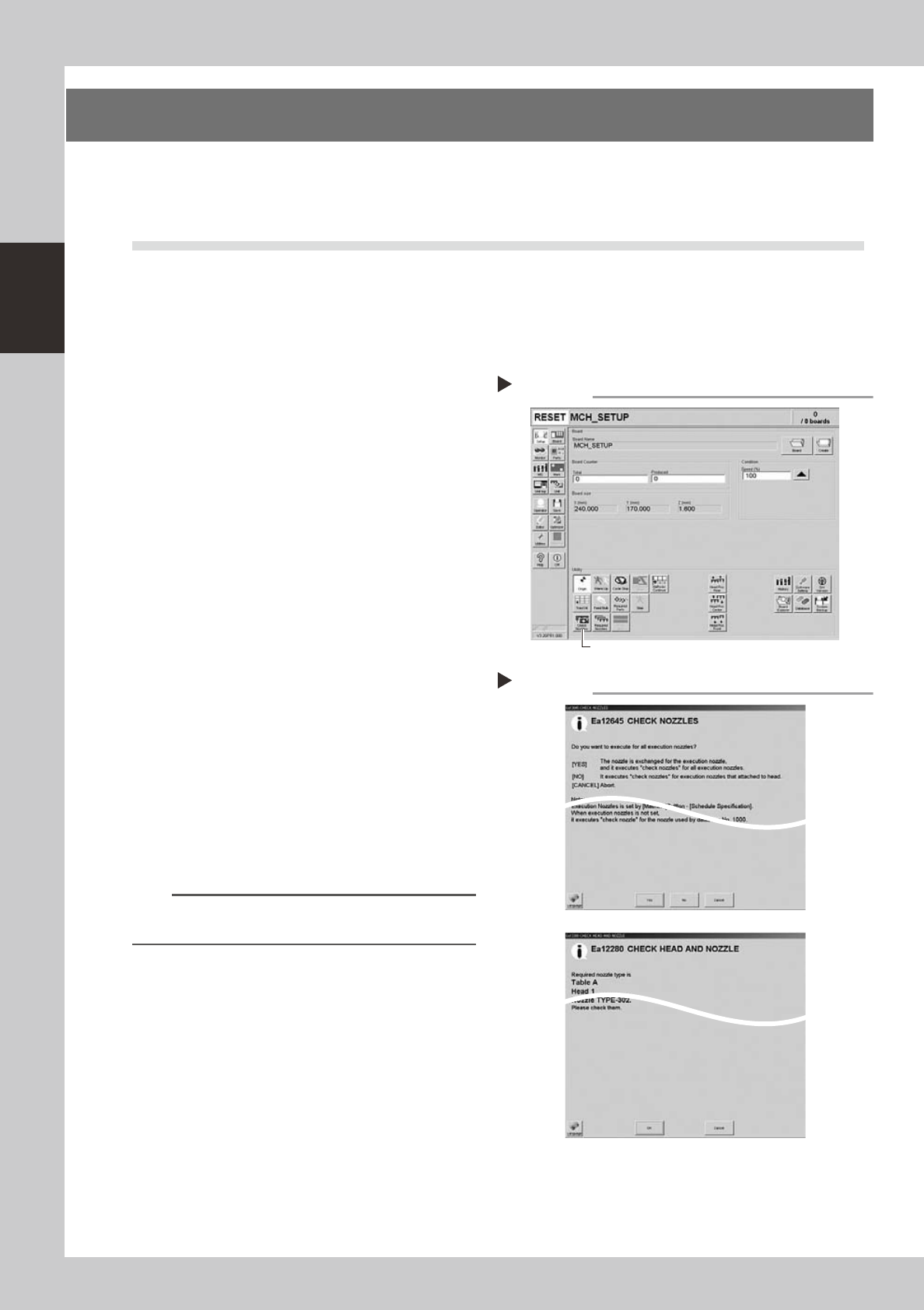
Press the [Check Nozzles] button as
follows.
1. Cancel emergency stop.
2. Open the [Setup] screen and press the
[Check Nozzles] button in "Utilities".
54200-N5-00
3
Select the item to be executed.
After checking the displayed message,
select the desired button.
n
When [Yes] was selected
Performsautonozzlechangeandchecksallrelevant
nozzles.
n
When [No] was selected
Checksrelevantnozzlesofallnozzlescurrently
attachedtothehead.
54201-N5-00
4
Check the message.
Clean the nozzle if the check shows it is dirty.
n
NOTE
The "Check Nozzles" function is usually set for "Type 502A
nozzles" before shipment.
Pressing the [Check Nozzles] button
Step 2
[Check Nozzles] button
Selecting the item to be executed
Step 3
When [No] was selected
2-5
2
Daily maintenance items
n
How to check for clogged nozzles (on the [Unit]-[Head] tab screen)
Theterm"cloggednozzle"usedhereindicatesthatmaterialsuchassolderisadheringtothenozzlehole,causingarise
innegativepressureevenifnocomponentisbeingpickedupbythenozzle.Thisstatemightcauseproblemssuchas
componentmountingerrors.Checkforcloggednozzleswiththefollowingprocedure,whichisdescribedusingtheType
502AMUHeadasanexample.
n
NOTE
When checking other nozzles and their vacuum levels, see the next section 1.1.1 “Vacuum level when nozzle is open”
in this chapter.
e
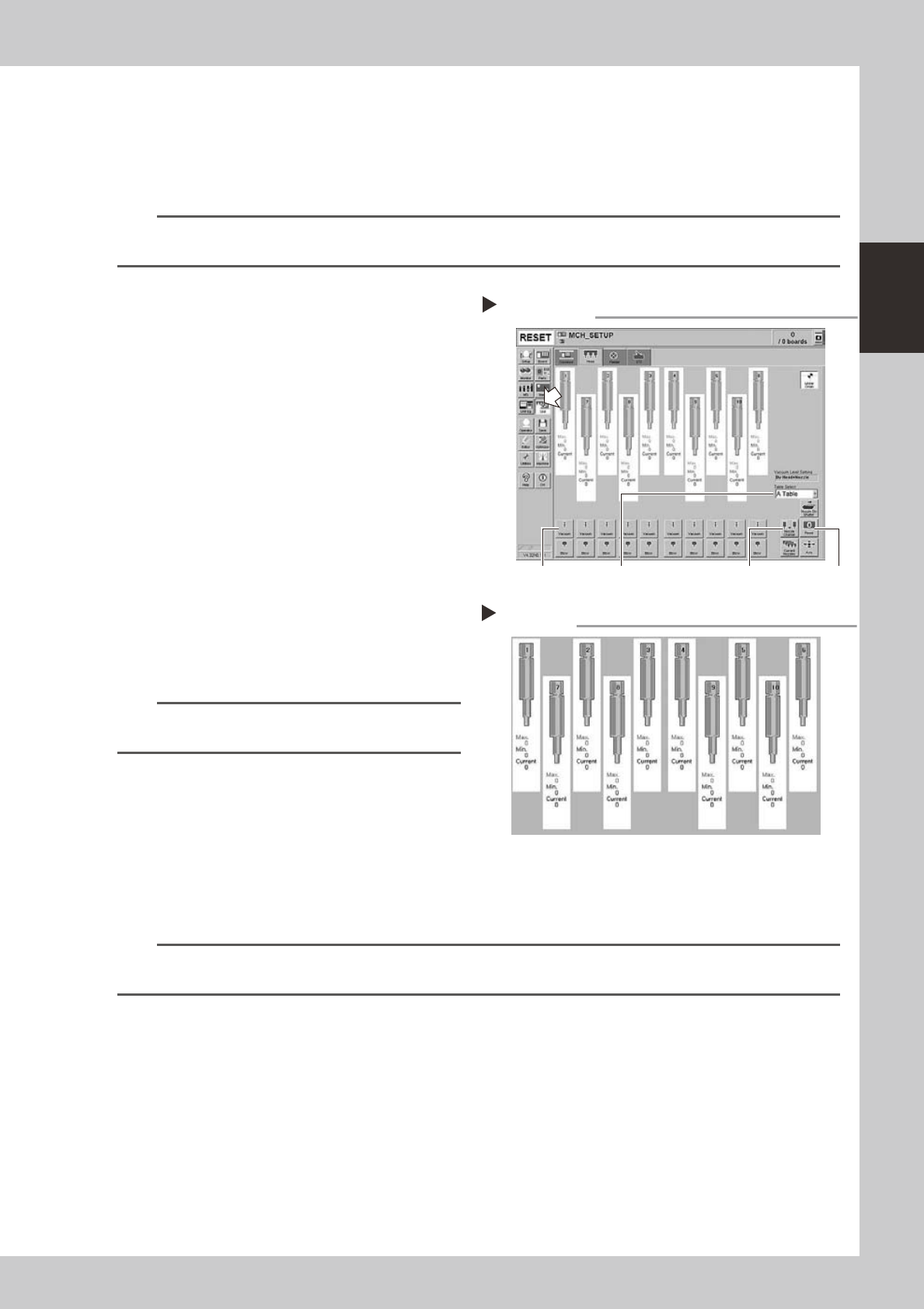
1
Attach the nozzle.
Press the emergency stop button and attach
Type 502A nozzles to all tables and heads.
When the machine has a nozzle station,
press the [Nozzle Change] button to change
the nozzles.
54202-N5-00
2
Reset the numerical figure.
Open the [Unit] - [Head] tab screen. Then
press the [Reset] button on the lower right of
the screen to reset the pickup level values.
Perform the table selection and reset the
pickup level values of all tables.
3
Generate negative pressure.
On the [Unit] - [Head] tab screen, set the
[Vacuum] buttons for all heads to ON. When
this value starts rising, wait 5 to 10 seconds
and set to OFF. Perform the table selection
and reset the pickup level values of all
tables.
n
NOTE
Only when checking the HS heads, generate negative
pressure for one head at a time.
4
Check the vacuum levels.
Change the table sequentially to read all
"Max" values shown in red on the [Head] tab
screen. If this value is 75 or less then it is in
normal range. If higher than 75, then the
nozzle hole might be dirty and probably
needs cleaning.
54203-N5-00
n
NOTE
If a correct value cannot be obtained after cleaning even after performing steps 1 to 4, then the interior of the spline
shaft might be dirty. To check it, refer to the table on the right.
Negative pressure generation
Step 1 to 3
[Nozzle Change] button[Vacuum] button [Reset] button[Table selection] button
Negative pressure check
Step 4