00197197-02-IM SetupCenter 5.1.pdf - 第32页
Installation Hardware Installation Motorola MC70/MC75 1D/2D barcode scanner 32 Installation Manual SIPLACE Setup Center 5.1 Step 2: AppCenter Steps on Setup Center computer Place the sca n ner in its cradle if this has n…
Installation
Motorola MC70/MC75 1D/2D barcode scanner Hardware Installation
Installation Manual SIPLACE Setup Center 5.1 31
► Please start MC70 Prerequisite installation from CD after the restart.
See also
4.2.4.3.2 Step 2: AppCenter [ ➙ 32]
Windows Vista: Mobile Device Center
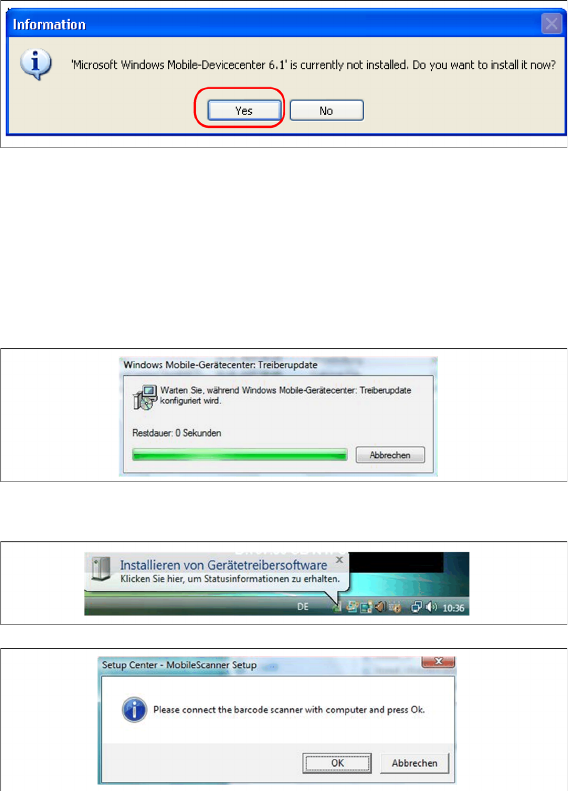
If Windows Mobile Device Center is not installed on the system, the following message box appears.
► Select “Yes” to start the installation of Mobile Device Center. Make sure that the scanner is not yet
connected to the basic station.
If Windows Mobile Device Center is not installed on the system, the installation of Mobile Device Center
will be executed. Make sure that the scanner is not yet connected to the basic station.
Install Mobile Device Center
► The installation of Mobile Device Center is beginning.
► Confirm with "OK".
See also
4.2.4.3.2 Step 2: AppCenter [ ➙ 32]
Installation
Hardware Installation Motorola MC70/MC75 1D/2D barcode scanner
32 Installation Manual SIPLACE Setup Center 5.1
Step 2: AppCenter
Steps on Setup Center computer
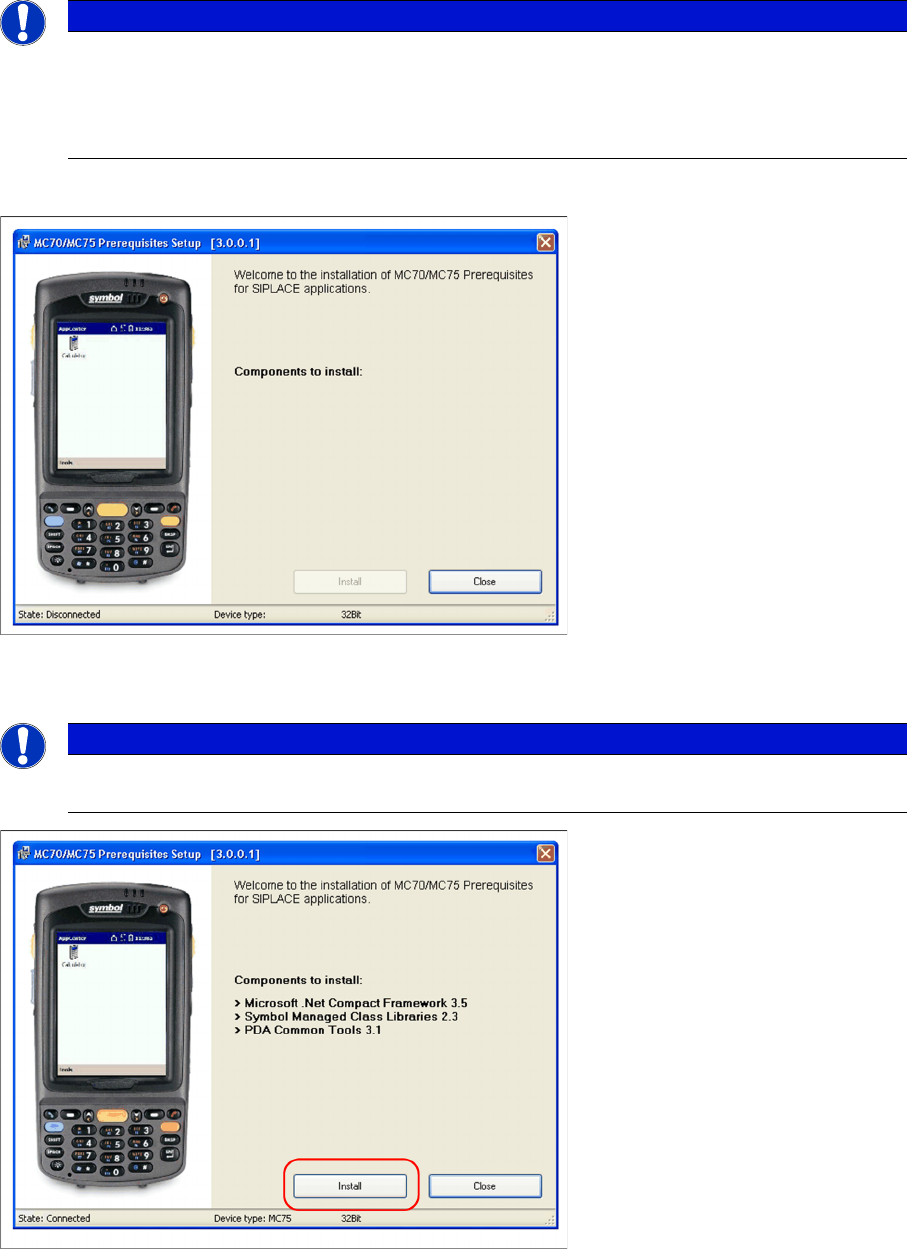
Place the scanner in its cradle if this has not already been done. The installation program automatically
detects the scanner type (Device type) and lists the necessary software packages for the installation.
► Click on Install to start the installation of the software packages.
NOTICE
In case of an upgrade installation exit the Symbol AppCenter before you start with the installa
-
tion procedure.
► Exit AppCenter with "Tools → Exit…".
► Enter the defined AppCenter password, to confirm exit (default value is "odyssey").
NOTICE
The installation program checks if the firmware version of the scanner complies with the mini
-
mum requirement. If this is not the case, update your scanner firmware first.
Installation
Motorola MC70/MC75 1D/2D barcode scanner Hardware Installation
Installation Manual SIPLACE Setup Center 5.1 33
► Please put the scanner into cradle, and press Continue to start the installation of Symbol AppCenter.
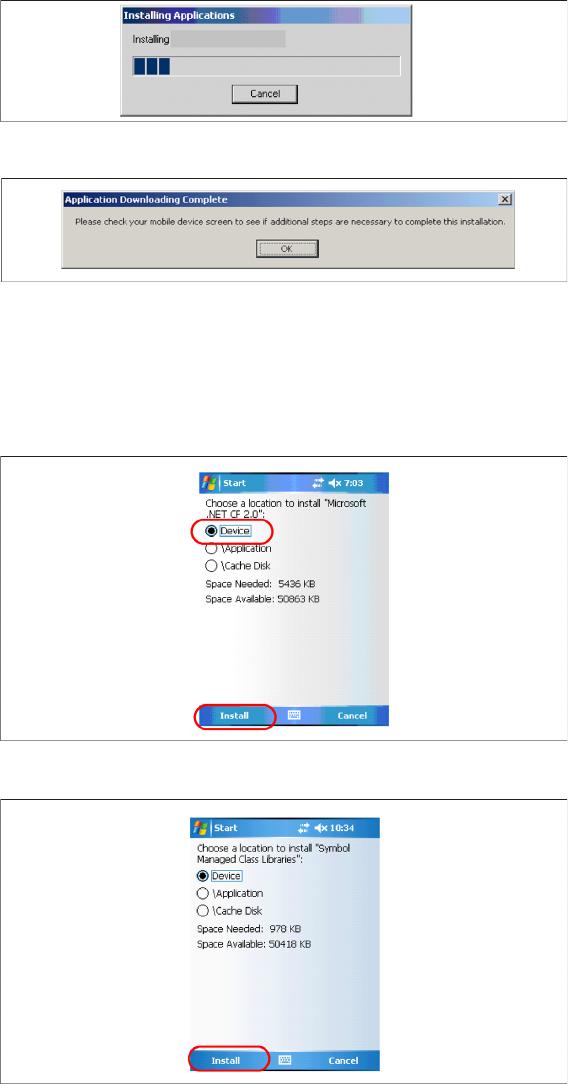
The transfer of the components to the scanner is beginning.
► After completion of the data transfer to the device click on OK to close the window.
Steps on MC7x screen
The following steps must be carried out on the scanner to complete the installation. If all components
were successfully transferred to the scanner the installation of the components will start automatically.
► Press Install to continue with Microsoft Compact Framework 2.0 installation.
► Press Install to continue with Symbol Managed Class Libraries installation.