00197197-02-IM SetupCenter 5.1.pdf - 第35页
Installation Motorola MC70/MC75 1D/2D barcode scanner Hardware Installation Installation Manual SIPLACE Setup Center 5.1 35 4.2.4.4 Setup Center Client Installation The installation for Setup Center – MobileScanner is lo…
Installation
Hardware Installation Motorola MC70/MC75 1D/2D barcode scanner
34 Installation Manual SIPLACE Setup Center 5.1
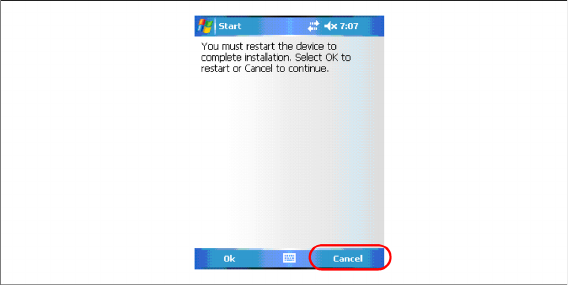
► The installation of Symbol AppCenter has finished. Press Cancel to continue with Setup Center Mo
-
bileScanner installation.
See also
4.2.4.4 Setup Center Client Installation [ ➙ 35]
Installation
Motorola MC70/MC75 1D/2D barcode scanner Hardware Installation
Installation Manual SIPLACE Setup Center 5.1 35
4.2.4.4 Setup Center Client Installation
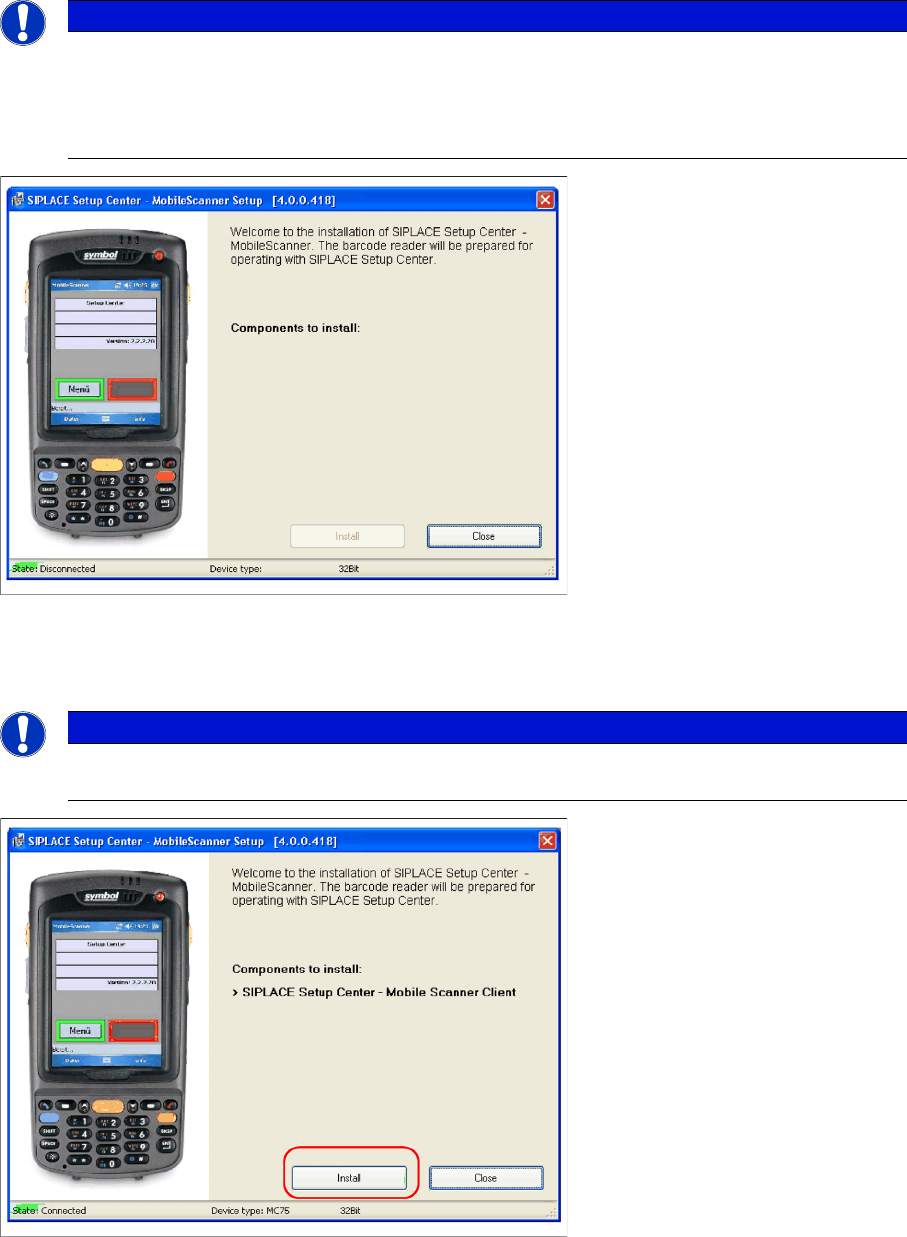
The installation for Setup Center – MobileScanner is located in the directory "\MobileScanner\MC70\" of
the CD. Execute the file "TransferToPDA.exe" to start the installation.
► Place the scanner in its cradle if this has not already been done. The installation program automat
-
ically detects the scanner type (Device type) and lists the necessary software packages for the in
-
stallation.
► Click on Install to start the installation of the software packages.
► Select "Continue" to proceed with the installation.
NOTICE
In case of an upgrade installation exit the Setup Center Client before you start with the instal
-
lation procedure.
► Exit Setup Center Client with "File → Exit".
► Confirm any upcoming message which refers to an upgrade installation with "Yes" or "OK".
NOTICE
The installation program checks if the firmware version of the scanner complies with the mini
-
mum requirement. If this is not the case, update your scanner firmware first.
Installation
Hardware Installation Motorola MC70/MC75 1D/2D barcode scanner
36 Installation Manual SIPLACE Setup Center 5.1
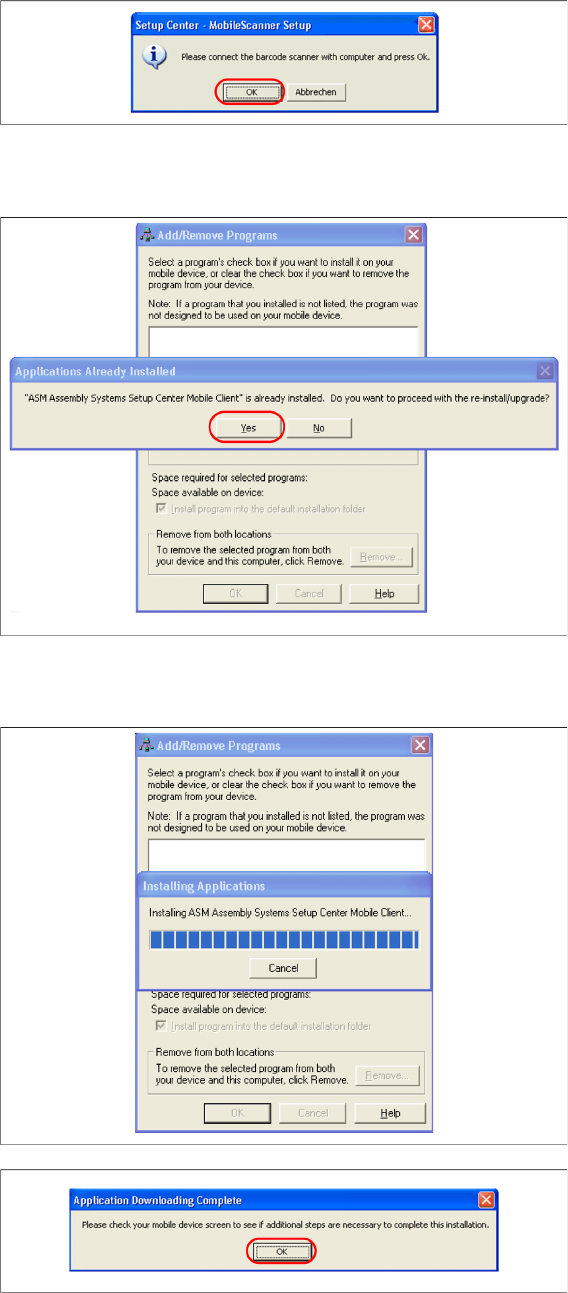
► Make sure that the scanner is placed in the basic station and connected to Setup Center.
► Select "OK" start the transfer of the software components to the scanner.
► In case of a upgrade installation confirm the upgrade of SSC Mobile Scanner with "Yes".
The transfer of the components to the scanner is beginning.
► After completion of the data transfer to the device click on "OK" to close the window.
The installation of MC70 Setup Center Client is beginning.