00197197-02-IM SetupCenter 5.1.pdf - 第4页
Inhaltsverzeichnis 4 Installation Manual SIPLACE Setup Center 5.1 4.4.3.1 Verify the Firmware Statu s for the Datalogic Scanner 76 4.4.3.2 Firmware Upgrade of Datalogic Scan ner 77 4.4.4 Datalogic Scanner Connection 81 4…
Inhaltsverzeichnis
Installation Manual SIPLACE Setup Center 5.1 3
Table of Contents
1 Introduction 5
1.1 Explanation of symbols 5
2 Navigation Guide for Installation 7
2.1 SIPLACE Setup Center 7
3 System Components and Configurations 9
3.1 System Components 9
3.1.1 Setup Center 9
3.1.2 Scanner System 9
3.1.2.1 Datalogic Scanner 9
3.1.2.2 Motorola / Symbol MC70/MC75 9
3.1.3 Forced Setup Verification 9
3.1.4 Docking Station X-Series and SX 10
3.2 System Configuration 10
3.2.1 SIPLACE Pro 10
3.2.2 Setup Center Database 10
3.2.3 Setup Center GUI 11
3.2.4 Forced Setup Verification 11
3.2.5 Docking Stations 11
3.2.6 Recommended Installation Scenarios 12
3.2.6.1 Local Database 12
3.2.6.2 Central Database 13
4Installation 15
4.1 Important Preparations 15
4.1.1 Operation System Installation 15
4.1.2 Database Installation 15
4.2 Hardware Installation 15
4.2.1 Safety Instructions 16
4.2.2 Datalogic Scanner’s Cradle BC-8030 (Narrowband) 17
4.2.2.1 Connect cradle via RS-232 17
4.2.2.2 Connect cradle via USB 19
4.2.3 Datalogic Scanner’s Cradle BC-8030-BT (Bluetooth) 23
4.2.3.1 Connect cradle via RS-232 24
4.2.3.2 Connect cradle via USB 24
4.2.4 Motorola MC70/MC75 1D/2D barcode scanner 27
4.2.4.1 System Requirements 27
4.2.4.2 Configurate WLAN on Scanner 27
4.2.4.3 MC70/MC75 Prerequisites installation 28
4.2.4.4 Setup Center Client Installation 35
4.2.5 Optional: Docking Station 38
4.2.5.1 Installing the CAN Card in the PC 38
4.2.5.2 Installing the CAN Bus driver and API 39
4.2.5.3 Installing Docking Station 42
4.2.5.4 Firmware download for docking station 47
4.3 Software Installation 47
4.3.1 Setup Center 47
4.3.1.1 General Settings 47
4.3.1.2 Individual Setup Types and Next Steps 52
4.3.1.3 Forced Setup Verification 70
4.4 Steps to Perform After Installation 76
4.4.1 SIPLACE Setup Center Database and Windows XP SP2 or higher 76
4.4.2 Settings in the Station Software 76
4.4.3 Datalogic Scanner Configuration 76
Inhaltsverzeichnis
4 Installation Manual SIPLACE Setup Center 5.1
4.4.3.1 Verify the Firmware Status for the Datalogic Scanner 76
4.4.3.2 Firmware Upgrade of Datalogic Scanner 77
4.4.4 Datalogic Scanner Connection 81
4.4.4.1 Narrowband Scanner 82
4.4.4.2 Bluetooth Scanner 85
4.4.5 Motorola / Symbol MC70/MC75 Scanner Configuration 86
4.4.5.1 Configurate Setup Center 86
4.4.5.2 Configure Setup Center Client 87
4.4.5.3 Establishing Connection 88
4.4.5.4 SIPLACE Scanner Config Tool 89
4.4.6 SIPLACE Setup Center Configuration 91
4.4.7 Settings on the SIPLACE Pro 91
4.4.8 Barcode Label Wizard 91
4.5 Troubleshooting 92
4.5.1 Relevant Files to Analyze Installation Problems 92
4.5.2 Conflicting old SIPLACE Setup Center Installations 92
4.5.3 Conflicts with old SIPLACE Setup Center Configurations 93
4.5.4 Remote Installation with Windows XP Clients 93
4.5.5 Conflicting Applications 93
5Modify 95
5.1 Modify Setup Center 95
5.2 Modify Forced Setup Center 95
6 Uninstalling 97
6.1 Backup Configuration Files 97
6.2 Uninstalling Setup Center GUI 97
6.3 Uninstalling Setup Center Database 98
6.3.1 Uninstalling SQL Server Express Installations 98
6.4 Uninstalling Forced Setup Verification 99
6.5 Optional: Uninstalling the SIE MultiThread API SIECA 132 Software Package 100
Introduction
Explanation of symbols
Installation Manual SIPLACE Setup Center 5.1 5
1Introduction
Please read chapters 2 through 4 before you install SIPLACE Setup Center. Chapter 5 describes the
installation sequence for SIPLACE Setup Center as well as the related setup types and important infor
-
mation regarding the installation.
1.1 Explanation of symbols
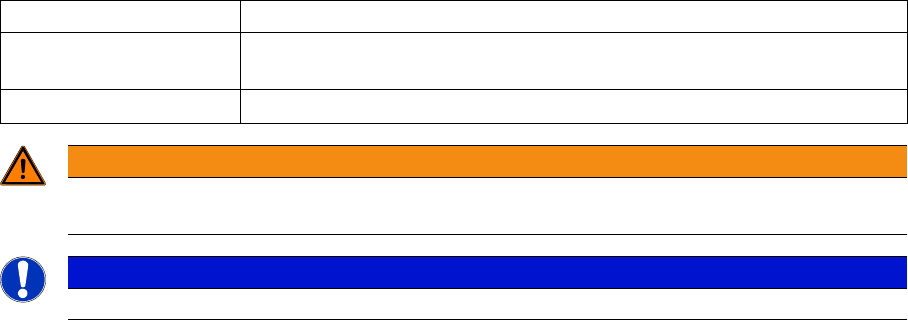
Various symbols and notes are used for making this document easier to read.
Words in bold These are dialog boxes and menu commands.
Step … An installation step includes all the actions relating to a specific dialog box.
An installation step may be composed of several actions.
► Requires an action (e.g. mouse click, open file)
WARNING
Corresponds to a warning. The information is critical to the success of the installation process.
The installation will be cancelled if you do not comply with the warning.
NOTICE
Explanatory information about the installation sequence.